Time Tracking
Last updated: August 7, 2025
Watch Video Demo Here
Overview
Accurate time tracking is fundamental to understanding labor costs, ensuring precise payroll, and maintaining profitability in project-based businesses. OneCrew's Time Tracking feature offers a robust solution for capturing employee hours efficiently, whether in the field or in the office. It allows for detailed tracking against specific projects and services, supports various pay rates including prevailing wages, and seamlessly integrates with project actuals for comprehensive cost analysis.
The key benefits of utilizing OneCrew's Time Tracking include:
Improved Job Costing: Attribute labor hours directly to projects and services for accurate cost analysis.
Streamlined Payroll Processing: Simplify payroll with organized and approved time card data.
Enhanced Crew Management: Supervisors can easily manage and submit time for their entire crew.
Data-Driven Insights: Gain visibility into labor allocation and efficiency.
Compliance: Facilitate adherence to labor laws and prevailing wage requirements.
This guide will walk you through the configuration, functionality, and practical applications of the Time Tracking feature, enabling your team to leverage its full potential.
Configuration
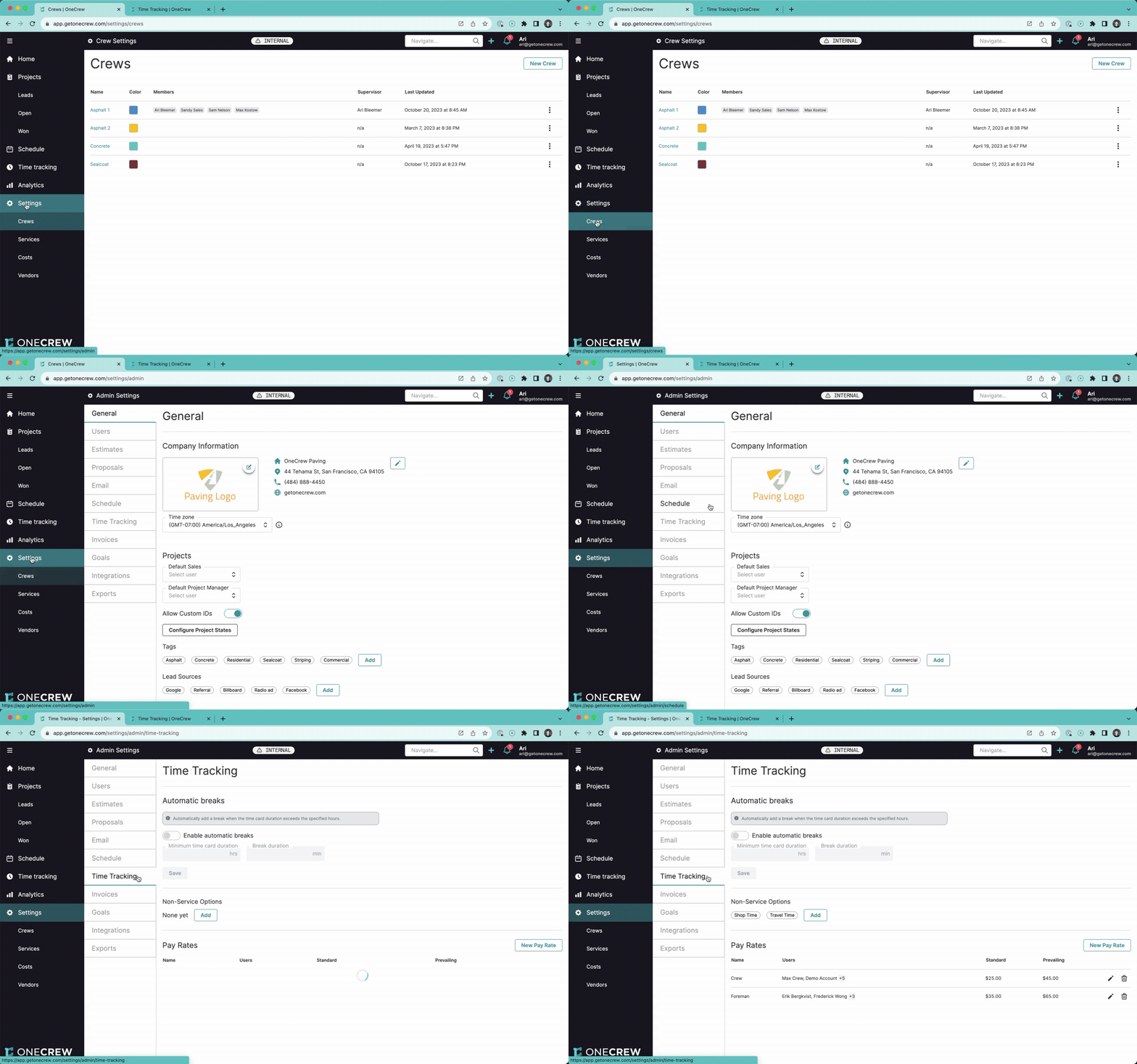
Proper configuration is key to maximizing the benefits of Time Tracking. Setup involves defining crews, their members, and system-wide time tracking rules within the admin settings.
Crew Setup
Accurate crew definitions are foundational for efficient time tracking, especially when supervisors manage time for multiple team members.
Navigate to Settings from the main menu.
Select Crews.
For each crew:
Define a Name (e.g., "Asphalt 1", "Concrete Crew").
Assign a Supervisor.
Add Members to the crew. These are the individuals whose time will typically be tracked together.
Pro tip: It's often beneficial to include the Supervisor as a Member of their own crew. This allows them to easily include their own hours when clocking in the team or allows them to clock themselves in individually if needed.
While crews provide a default grouping for clock-ins, supervisors retain the flexibility to add or remove individuals from a specific time card if the day's team composition differs from the standard crew setup.
Admin Time Tracking Settings
Global time tracking behaviors are managed under Settings > Time Tracking (within the main admin settings area).
Automatic Breaks
To ensure compliance and accurate time logging, OneCrew can automatically add breaks to time cards.
Toggle Enable automatic breaks on.
Define rules by specifying a Minimum time card duration (in hours) and the corresponding Break duration (in minutes).
You can add multiple rules (e.g., a 15-minute break after 4 hours, and a 30-minute break after 8 hours).
Note: These breaks are based on the total duration of a single continuous clock-in. If multiple break rules are met, the longest applicable break is applied (e.g., an 8-hour clock-in receives the 30-minute break, not a 15-minute plus a 30-minute break).
Click Save to apply changes.
Non-Service Options
These options allow for tracking time spent on activities not directly tied to a specific billable service on a project.
Default options include Shop Time and Travel Time.
You can add custom non-service options by typing a name in the field and clicking Add.
These options, along with a standard Break option, will be available when a user clocks in or switches services.
Insight: Standardizing non-service time categories like "Shop Time" or "Mobilization" across your organization leads to more consistent data and simplifies reporting on indirect labor costs.
Pay Rates
OneCrew allows you to define multiple pay rates, essential for accurate job costing and payroll, especially when dealing with standard versus prevailing wage jobs.
Click New Pay Rate.
Enter a Name for the pay rate (e.g., "Crew Labor", "Foreman", "Apprentice - Prevailing").
Set the Standard hourly rate.
Set the Prevailing hourly rate, if applicable.
In the Users field, select the employees who should default to this pay rate.
Click Save.
Users can have a default pay rate assigned, but this can be overridden on a per-time-card basis if needed (e.g., if a crew member works on a prevailing wage job for part of the day).
Tracking Time in Action
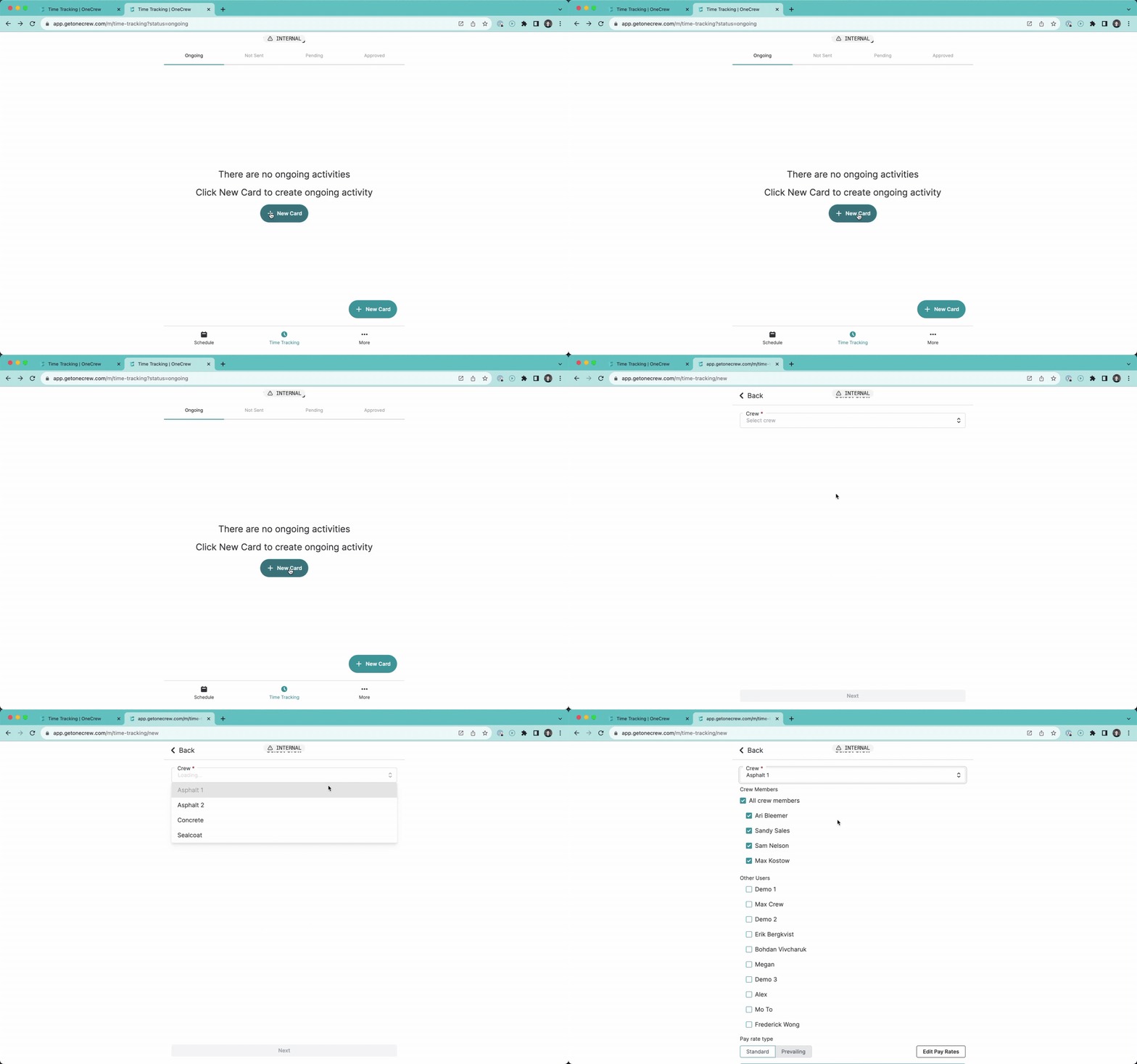
OneCrew's Time Tracking is accessible via desktop and mobile, offering flexibility for how and where time is recorded.
Clocking In/Out (Mobile & Desktop)
Supervisor Clocking in a Crew (Mobile): This is a common scenario for field teams.
From the mobile app, navigate to the Time Tracking tab.
Tap the + New Card button.
Select the appropriate Crew from the dropdown (e.g., "Asphalt 1"). The assigned Crew Members will be automatically selected. You can deselect or add other users if the team for the day is different.
Choose the Pay rate type for this clock-in: Standard or Prevailing.
If necessary, tap Edit Pay Rates to adjust the pay rate classification (e.g., "Crew", "Foreman") for individual members for this specific time card only.
Tap Next.
Select the Service the crew is starting:
Choose a job from the list of scheduled events for that crew.
Select a non-service option like Shop Time or Travel Time.
Tap Other to manually search for and select a project and its associated services if it's not on the day's schedule.
Confirm the clock-in. All selected users are now clocked in to the chosen service.
Individual Clock-In: Crew members logging in on their own mobile devices will typically only see themselves as an option for clock-in and will follow a similar process to select their service.
Desktop Clock-In: Time can also be initiated from the desktop application.
Navigate to Time tracking from the main menu.
Under the Ongoing tab, click New Time Card.
Follow a similar process to the mobile clock-in: select crew, users, pay rate type, services, and save.
Pro tip: Keeping your project Schedule up-to-date in OneCrew is crucial. Scheduled jobs for a crew will automatically appear as quick-select options during the mobile clock-in process, saving time and reducing errors.
Managing Active Time Cards
Once a time card is active (users are clocked in):
Switch Service: Supervisors can select the active card (on mobile) and tap Switch Service. This allows them to clock the crew out of the current service and immediately into a new one (e.g., from "Job A" to "Travel Time," or to "Job B").
Start/End Break: Tap Start Break. The system logs break time. Tap End Break to resume the previous service.
Add User: If a user joins the job late, they can be added to the active time card.
Clock Out: When work is complete, select the active card and tap Clock Out.
Submitting and Approving Time Cards
The workflow ensures time is reviewed before finalization:
Submission (by Supervisor/Foreman):
On mobile, clocked-out time cards appear in the Not Sent tab.
The supervisor selects the relevant time cards and taps Submit.
On desktop, these appear in the Not Submitted tab and can be submitted from there.
Approval (by Office Staff/Admin):
Submitted time cards move to the Pending Approval tab on the desktop.
Office staff can review each time card's details (users, services, durations, pay rates).
They can then select time cards and use Bulk Actions > Approve.
Insight: The multi-stage approval workflow (Submit by field supervisor, Approve by office) provides critical checks and balances, ensuring time card accuracy before it impacts project financials and payroll.
Editing Time Cards
Adjustments are often necessary. Time cards can be edited either in the Not Submitted / Not Sent state (by supervisors) or in the Pending Approval state (typically by office staff).
Individual Edit: Click the edit icon next to a specific time card to modify its details.
Bulk Edit: From the Pending Approval (or Not Submitted) tab on desktop, select multiple time cards for the same crew and day, then choose Bulk Actions > Edit. This opens the "Allocate time" interface:
A visual timeline shows service blocks (e.g., Job 1, Travel, Job 2) for all selected users.
Drag the edges of these blocks to adjust durations.
Click on a block to edit its start/end times, change the service, or modify the pay rate type (Standard/Prevailing) for that specific block.
Click the + button to add new service blocks if, for example, an additional short job was performed.
If an individual user's times differ significantly (e.g., one member arrived late), it's best to edit their time card individually first. The bulk edit view will then respect their unique clock-in/out times while allowing service block adjustments.
After making changes, click Save.
Impact on Project Actuals & Analysis
One of the most powerful aspects of OneCrew's Time Tracking is its direct link to project financials.
Automatic Actuals Creation: When time cards are approved, OneCrew automatically generates corresponding "Labor Actuals" records against the associated projects. A note like "Approved Time Cards" is often added to the actual.
Viewing Labor Actuals: Navigate to a specific project and open its Actuals tab. You'll see entries for labor, detailing the date, who submitted it, and the associated costs. Expanding an actual shows a breakdown by employee, with their hours (Units), pay rate, and total cost for their contribution to that service.
Project Analysis: Go to the project's Analysis tab. Under the relevant estimate or change order line items, you can see a comparison of Est. Cost vs. Act. Cost for labor. This provides real-time visibility into labor budget performance.
Use Cases
OneCrew's Time Tracking is versatile and designed to meet various operational needs:
Field Crew Clock-In/Out: Technicians and field workers can clock in and out directly from their mobile devices as they start and complete tasks on different job sites.
Tracking Non-Job Specific Time: Account for hours spent on activities like Shop Time (e.g., preparing equipment) or Travel Time between jobs.
Supervisor Time Management: Foremen or supervisors can clock in their entire crew at the start of a job, manage breaks, switch services, and submit time cards collectively.
Office Staff Payroll & Costing: Administrative staff can review, edit, and approve submitted time cards, which then feed into project actuals for accurate labor cost reporting.
Prevailing Wage Projects: Easily switch between standard and prevailing pay rates for specific jobs, ensuring correct wage calculation and reporting.
Individual Time Logging: Employees not part of a field crew, or those needing to log individual hours, can also utilize the system.
By diligently using the Time Tracking feature, from initial configuration to consistent daily use and approval, businesses can gain unparalleled insight into their labor expenses and project profitability. Learn more about managing Project Actuals [add link to relevant article].