Actuals Checklists
Last updated: August 7, 2025
Watch Video Demo Here
Overview
Actuals Checklists are a powerful tool designed to standardize and streamline the collection of critical information directly from your field teams when they submit project actuals. This feature allows you to create custom checklists with various question types, ensuring that vital data, from safety confirmations to photographic evidence, is captured consistently and efficiently.
The scope of Actuals Checklists is broad, applying to any project where field data beyond basic cost tracking is essential. This information is seamlessly integrated into the actuals submission process, making it a natural part of your field team's workflow.
Benefits:
Improved Data Accuracy and Consistency: Standardized questions and response formats lead to more reliable data.
Enhanced Compliance: Ensure adherence to safety protocols, quality standards, and company policies.
Centralized Information: Store important project-related documentation, such as photos, sign-offs, and inspection details, in one place.
Increased Visibility: Gain better insight into on-site conditions, activities, and potential issues.
Streamlined Workflows: Integrate data collection directly into the familiar actuals submission process, saving time and reducing administrative burden.
Insight: Actuals Checklists transform routine actuals submission into a powerful data-gathering opportunity, ensuring crucial details aren't missed and providing a richer understanding of project execution.
Configuration
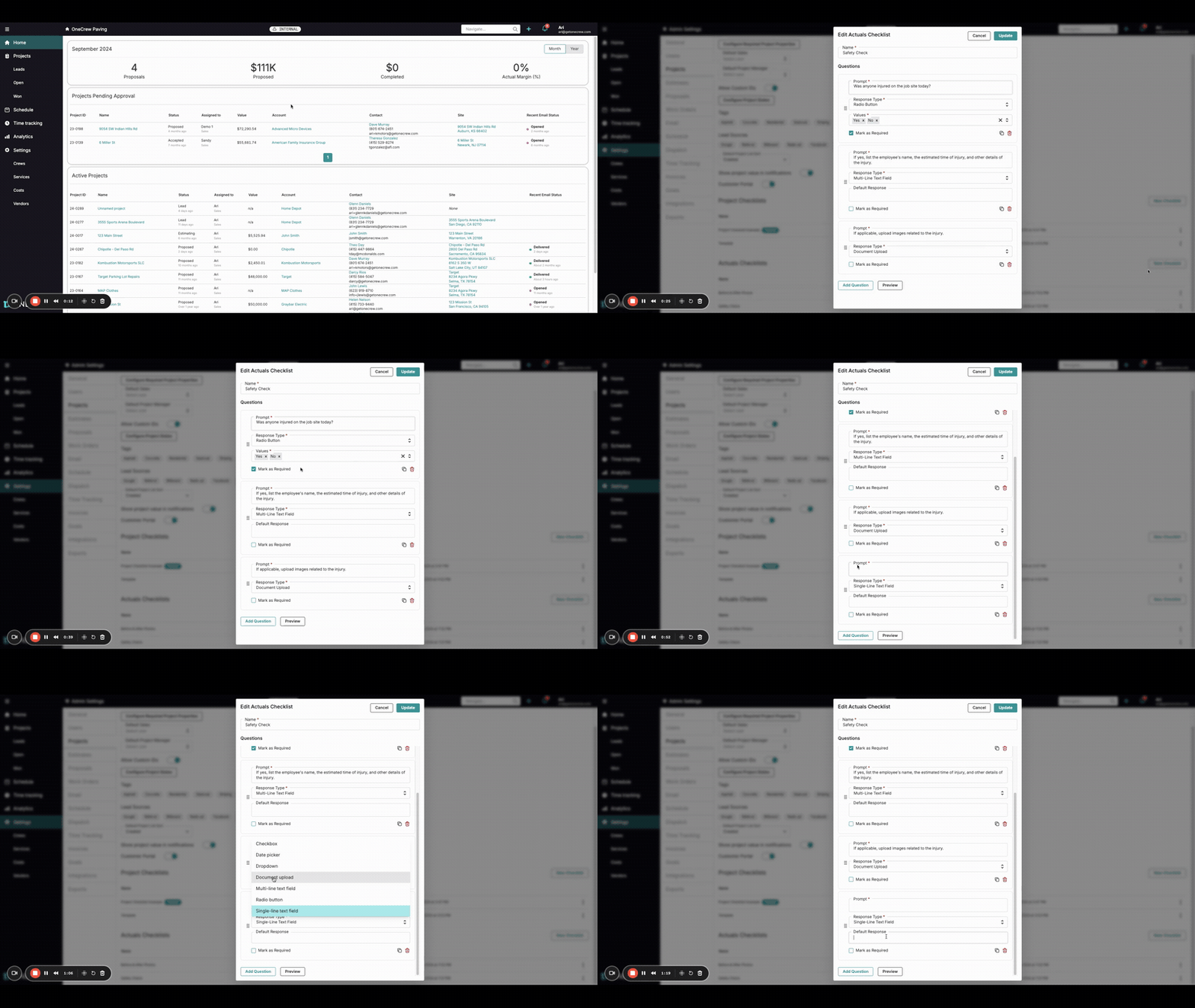
Setting up Actuals Checklists is straightforward. You can create multiple checklists tailored to different needs.
Creating a New Actuals Checklist
Navigate to Settings from the main application menu.
Under Admin Settings, select Projects.
Scroll down the Projects settings page until you find the Actuals Checklists section.
Click the New Checklist button on the right.
In the Name field, enter a clear and descriptive name for your checklist (e.g., "End-of-Day Site Securement", "Client Walkthrough Sign-off").
Adding Questions to Your Checklist
Once you've named your checklist, you can start adding questions:
Click the Add Question button.
For each question, you'll need to configure the following:
Prompt: This is the actual question or instruction you want to present to the field user. Make it clear and concise.
Response Type: Select the most suitable input format for the answer from the dropdown menu:
Checkbox: Allows users to select one or more options from a list.
Date Picker: Provides a calendar for users to select a specific date.
Dropdown: Presents a list from which users can select a single option.
Document Upload: Enables users to upload files, such as photos (JPEG, PNG) or documents (PDF).
Multi-line Text Field: A larger text area for detailed notes or descriptions.
Radio Button: Allows users to select only one option from a predefined list (e.g., Yes/No, Pass/Fail).
Single-line Text Field: A small text field for short, free-form answers.
Values: If you select Checkbox, Dropdown, or Radio Button as the response type, you will need to define the selectable options in the Values field.
Mark as Required: Check this box if an answer to this specific question is mandatory. Field users will not be able to submit their actuals if a required checklist question is unanswered.
Pro Tip: Use the Preview button at the bottom of the checklist configuration window frequently as you build. This allows you to see exactly how the checklist will appear to your field team, helping you refine questions and ensure ease of use.
Managing Existing Checklists
From the Actuals Checklists list in Settings > Projects, you have several options for managing your checklists:
Edit: Click the three-dot menu next to a checklist and select Edit to modify its name or questions.
Duplicate: Choose Duplicate to create an exact copy of an existing checklist, which you can then modify. This is useful for creating variations of a standard checklist.
Mark as Default: Selecting Mark as Default means this particular checklist will automatically be added to every newly created project. This is ideal for universal procedures like daily safety checks.
Delete: Select Delete to remove a checklist.
Important Note: Deleting a checklist template does not remove it from projects where it has already been used, nor does it delete any data previously collected using that checklist on those projects.
Insight: The "Mark as Default" option is a significant time-saver for standard procedures. It enforces consistency across all projects from their inception without requiring manual addition each time.
Use Cases
Actuals Checklists are versatile and can be adapted to a wide range of scenarios. Consider using this feature when:
Documenting Procedural Adherence:
When: Specific procedures must be followed and documented on-site, such as daily safety checks, pre-work equipment inspections, or environmental compliance confirmations.
Why: To enforce company policies, meet industry regulations, and maintain a clear record of due diligence.
Requiring Photographic Evidence:
When: Visual proof is necessary, like before-and-after photos for renovation work, images of completed installation stages, or documentation of unexpected site conditions.
Why: To ensure quality control, provide clear evidence for client billing, and protect against potential disputes.
Gathering Sign-offs and Acknowledgments:
When: Confirmation is needed from field personnel regarding tasks completed, materials received, or specific instructions understood.
Why: To create an audit trail of responsibilities and ensure accountability.
Collecting Consistent Data Points:
When: You need to gather uniform information across multiple jobs, crews, or phases for analysis, reporting, or performance tracking.
Why: To identify trends, measure efficiency, and make data-driven decisions for future projects.
Pro Tip: For "Document Upload" questions, clearly specify what type of document or photo is expected in the prompt (e.g., "Upload photo of signed daily toolbox talk sheet"). This clarity minimizes confusion and ensures you get the correct information.
Examples
Actuals Checklists can solve various real-world data collection challenges. Here are a couple of scenarios:
Example 1: Daily Safety Compliance
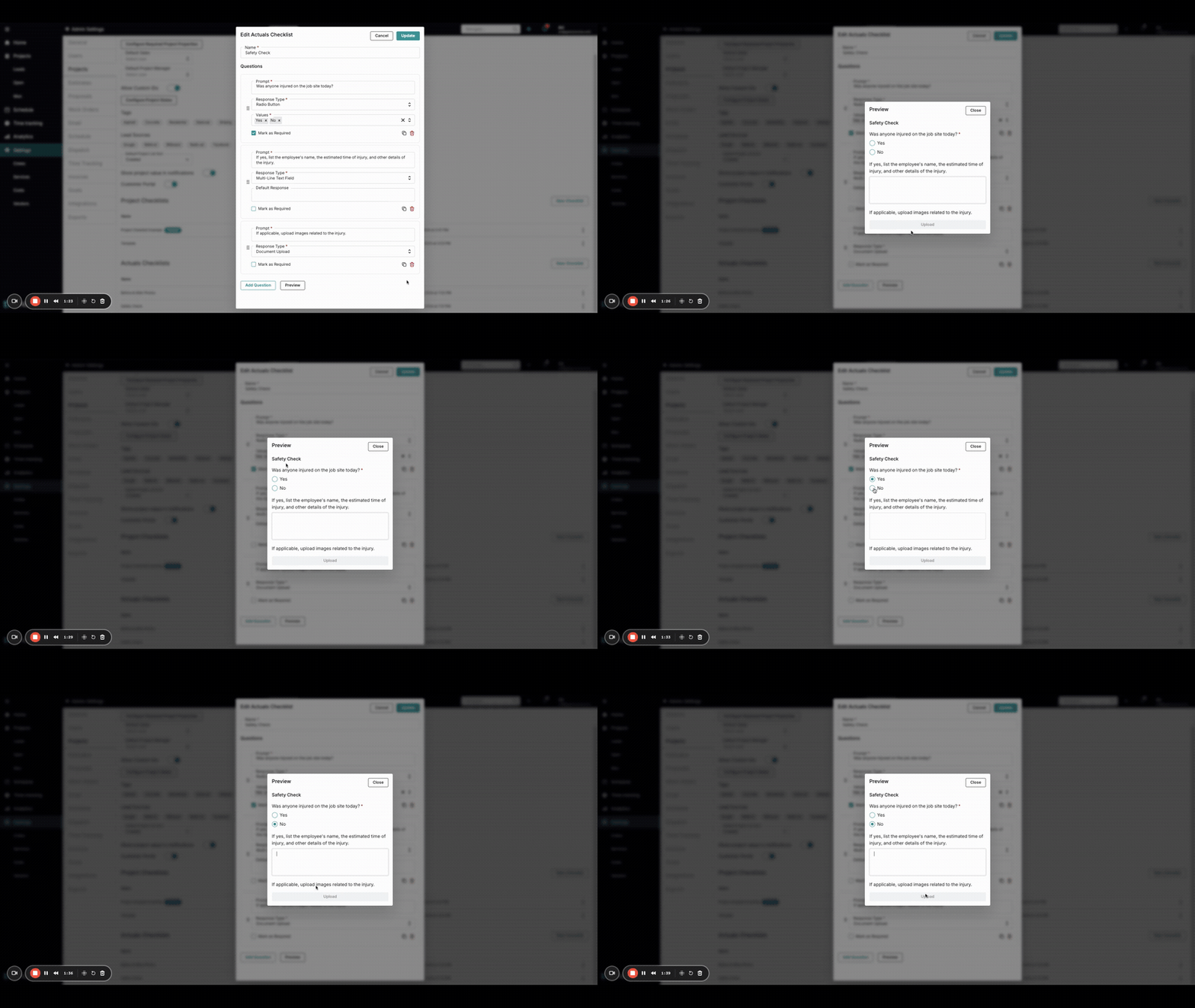
Problem: A company needs to ensure and document that crucial daily safety measures are being taken on every job site, every day.
Solution: Implement a "Daily Safety Check" Actuals Checklist.
Checklist Name: Daily Safety Check
Questions:
Prompt: "Was anyone injured on the job site today?"
Response Type: Radio Button
Values: Yes, No
Mark as Required: Yes
Prompt: "If yes, list the employee's name, the estimated time of injury, and other details of the injury."
Response Type: Multi-line Text Field
Mark as Required: No (as it's conditional)
Prompt: "If applicable, upload images related to the injury."
Response Type: Document Upload
Mark as Required: No
Value: This checklist, likely marked as Default, ensures that safety status is actively reported daily. It provides a clear record for compliance and helps in the timely reporting and management of any incidents.
Example 2: Documenting Work Progress with Before & After Photos
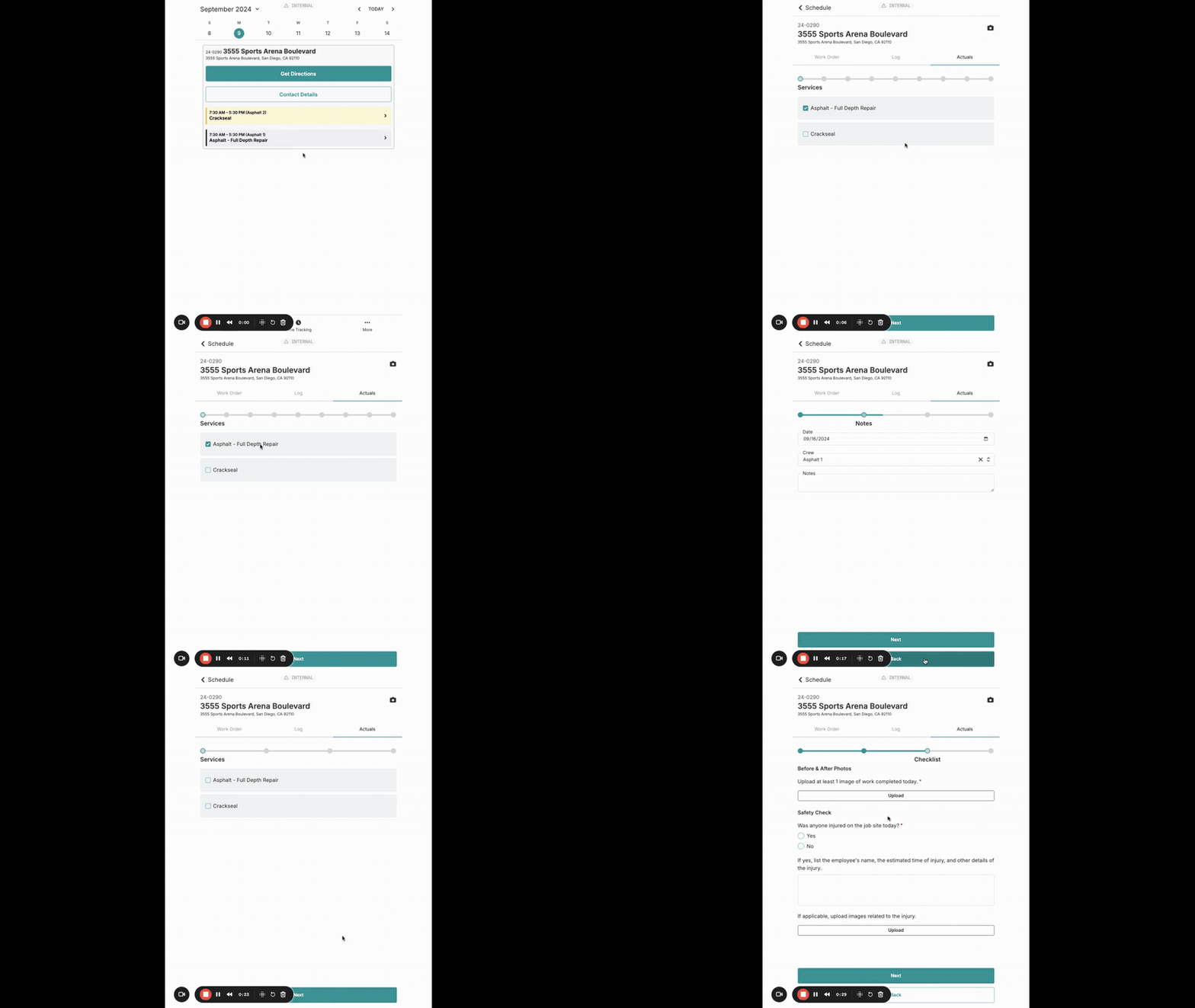
Problem: A contracting business needs to visually document the state of a work area before starting and after completing a job to ensure quality and for client verification.
Solution: Create a "Before & After Photos" Actuals Checklist.
Checklist Name: Before & After Photos
Questions:
Prompt: "Upload at least 1 'Before Work' image of the completed area today."
Response Type: Document Upload
Mark as Required: Yes
Prompt: "Upload at least 1 'After Work' image of the completed area today." (This could be a separate checklist or combined, depending on workflow)
Response Type: Document Upload
Mark as Required: Yes
Value: This provides indisputable visual evidence of the work performed and the conditions, which is invaluable for quality assurance, resolving disputes, and showcasing completed projects. This checklist might be manually added to specific project types.
Adding Checklists to Projects
New Projects: Checklists marked as Default are automatically included. You can add other non-default checklists from the Actuals Checklists dropdown during project creation.
Existing Projects:
Navigate to the specific project and open its details/edit page.
Locate the Actuals Checklists field.
Select any additional checklists you wish to associate with this project.
Save the project changes.
Submitting Actuals with Checklists
When a field lead submits actuals, either from the desktop or mobile application:
They complete the standard actuals information (time, materials, etc.) for the relevant services.
The system will then present the questions from all Actuals Checklists assigned to that project.
Checklists or questions marked with an asterisk (*) are required and must be completed.
Once all required checklist items are filled, the actuals can be submitted.
On mobile, if a field lead only needs to submit checklist information without any cost data for certain services, they can unselect those services. The workflow will then proceed to any notes and directly to the checklist questions.
Pro Tip: Regularly review your active checklists. Are the questions still relevant? Are there new procedures that need to be documented? Keeping your checklists up-to-date ensures they remain a valuable tool.