Work Orders
Last updated: August 7, 2025
Watch Video Demo Here
Overview
Work Orders are essential documents that translate an accepted project estimate into actionable instructions for your field crews. They serve as a central point of communication, detailing the specific services to be performed, necessary materials, equipment, important site notes, and any visual aids like project maps or documents. The primary purpose of a Work Order is to ensure that field teams have all the information they need to execute a job correctly and efficiently.
Key benefits include:
Clarity for Field Teams: Provides a clear scope of work, reducing ambiguity and potential errors.
Centralized Information: Consolidates all pertinent job details, including notes, service descriptions, maps, and documents, in one place.
Customization: Allows for tailoring the information presented based on the specific crew or task.
Accessibility: Can be viewed as a PDF for printing or accessed directly via the mobile app for on-the-go reference.
Improved Communication: Ensures consistent information flow from the office to the field.
Configuration
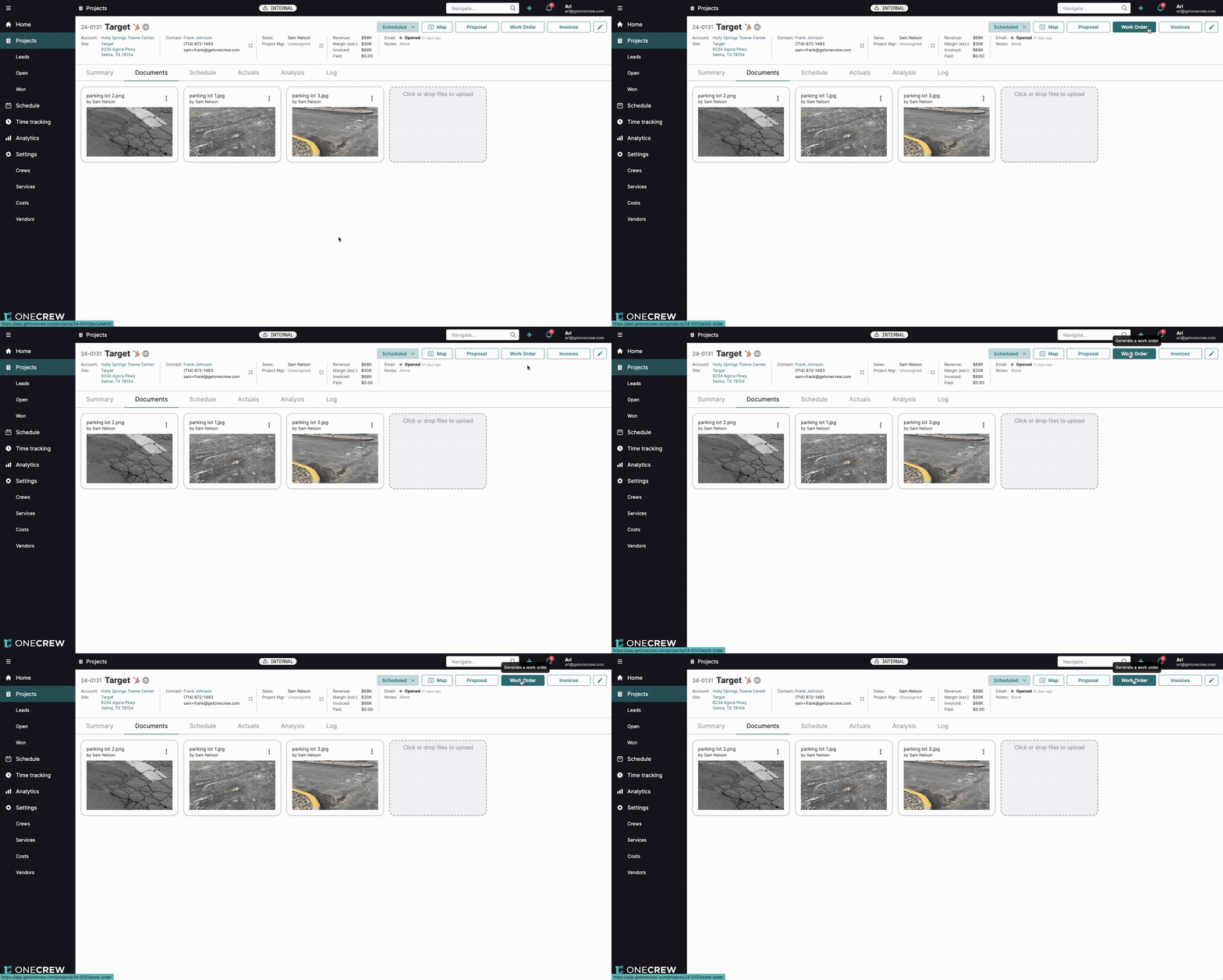
Creating and customizing a Work Order involves several configurable sections, ensuring all necessary information is conveyed to the field. Access the Work Order by navigating to an accepted project and clicking the Work Order button in the top right.
Work Order Notes
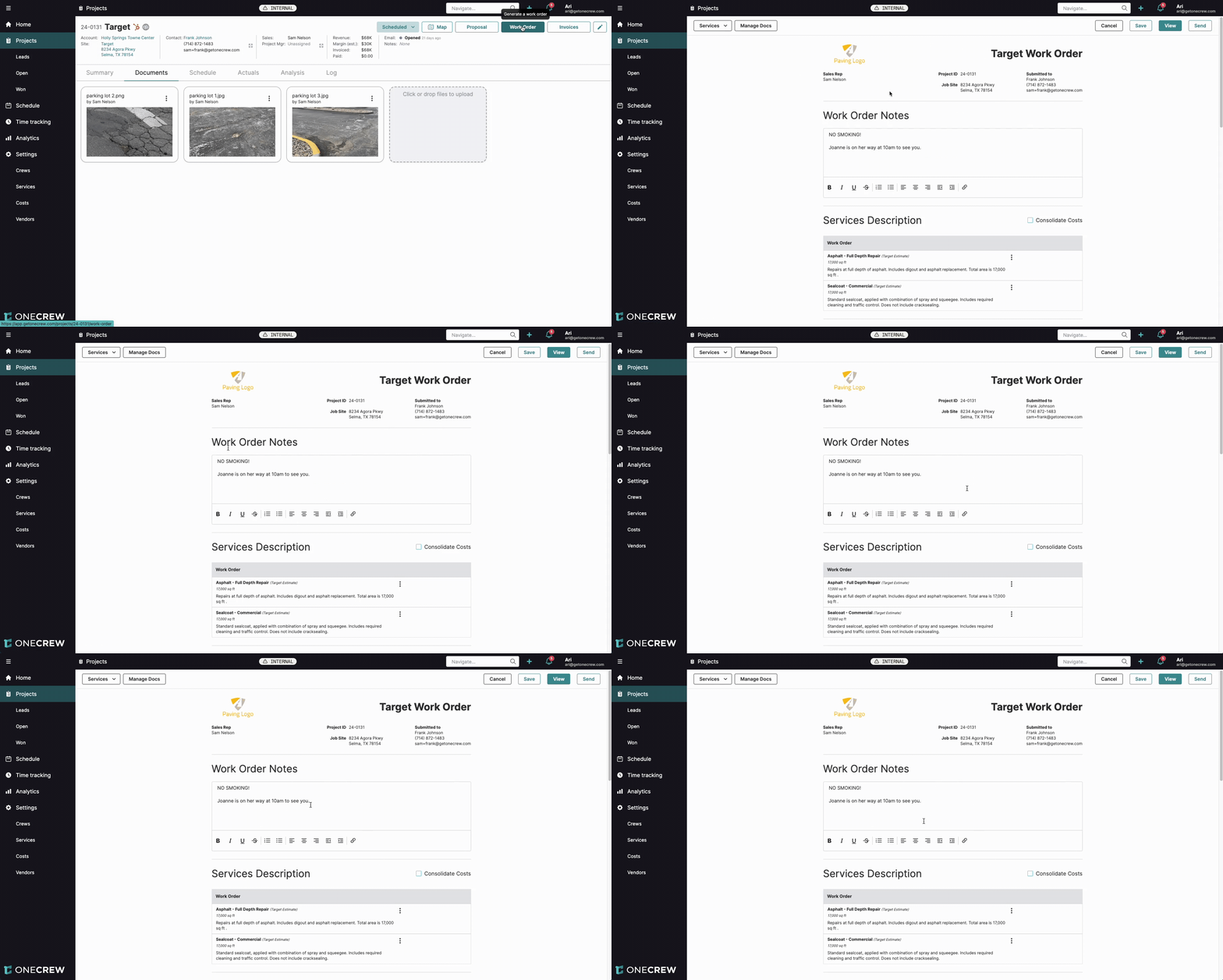
This is a free-text field at the top of the Work Order, perfect for crucial, high-level information.
Purpose: Communicate immediate, important instructions or context.
Examples: "NO SMOKING!", "Joanne is on her way at 10am to see you."
Formatting: Rich text editing tools (bold, underline, lists, links) are available.
Services Description
This section lists the services included in the project, derived from the estimate.
Content: Each service shows its name, quantity (e.g., 17,000 sq ft), and a detailed description of the work involved.
Editing: Click the three-dot menu next to a service and select Edit to modify its description specifically for the Work Order. This is useful for removing pricing information or adding field-specific details not relevant to the customer-facing proposal.
Selection: Use the Services dropdown at the top left of the Work Order editor to select which services from the project estimate appear on this specific Work Order. Unchecking a service will exclude it.
Services Additional Information
This section provides more granular, often procedural, details for each service.
Content: Typically includes itemized steps, specifications, or disclaimers related to the service execution.
Inclusion: By default, this information is pulled from the service setup. You can choose to include or exclude this section for each service on the Work Order using the Include checkbox.
Checklist
If your project services have associated checklist items, they can be included.
Purpose: Ensure specific tasks or checks are completed.
Display: Shows the prompt (e.g., "Traffic control needed?") and a space for completion status or response.
Project Map
Visual representation of the job site.
Functionality: If a project map has been created (e.g., outlining the "Asphalt full depth repair area"), it can be included in the Work Order to provide clear visual guidance. Click Load Project Map if it doesn't appear automatically.
Project Documents
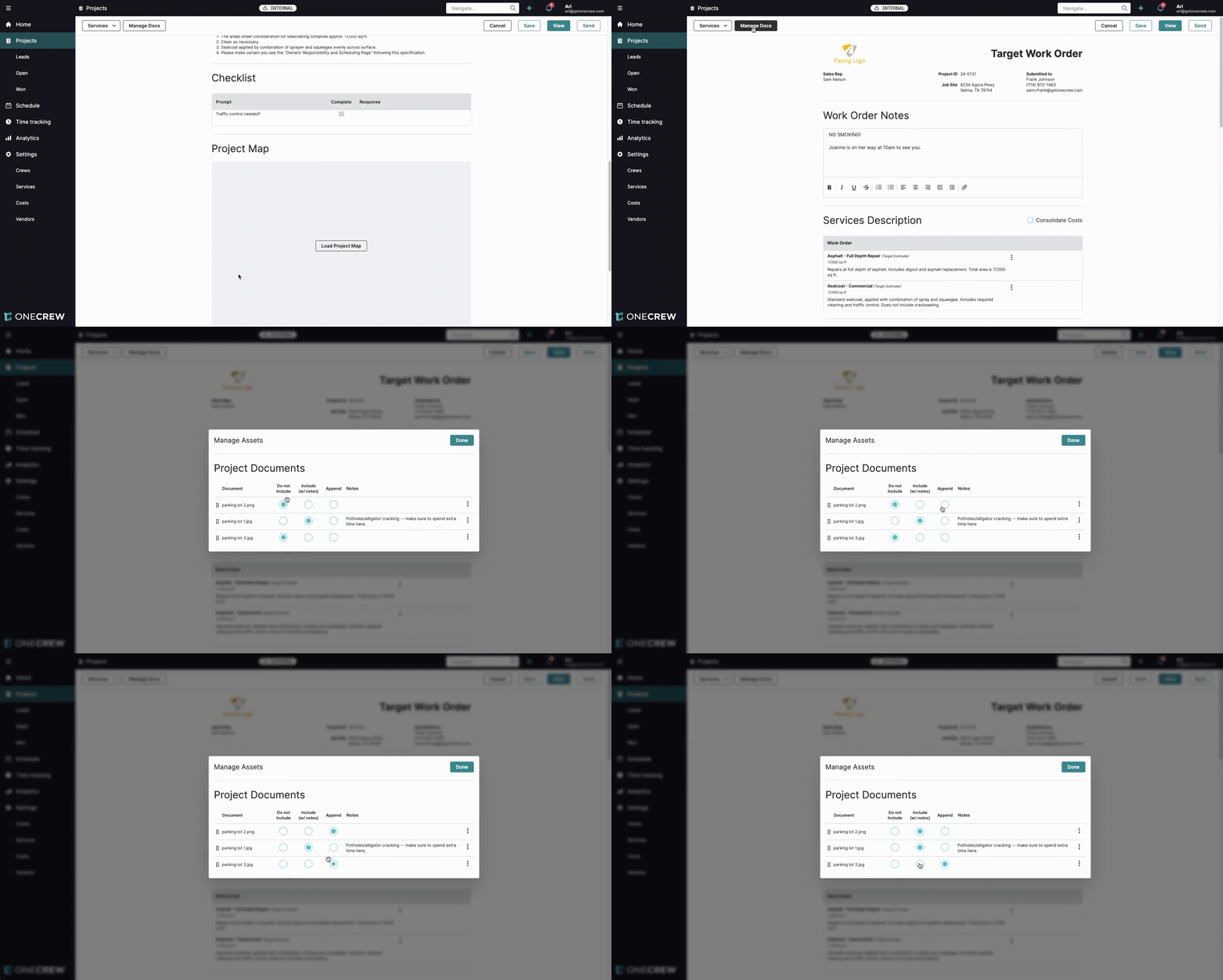
Edit animation Attach relevant images or documents.
Management: Click the Manage Docs button.
Options: For each document/image, choose to:
Do not include: The document will not appear on the Work Order.
Include (w/ notes): The document and its associated notes will be part of the Work Order.
Append: The document will be added as an appendix, typically at the end.
Notes: Edit notes for each document directly within the Manage Assets modal.
Output Options
Located in the top right corner:
Save: Saves the current configuration of the Work Order.
View: Generates a PDF preview of the Work Order as it will appear to the crew or if printed.
Send: Opens an email dialog to send the Work Order (as a PDF attachment) to specified recipients.
Pro Tip: Regularly update your master service descriptions and additional information templates. This ensures that Work Orders automatically pull in the most current and accurate details, saving time on manual edits for each project.
Use Cases
Work Orders are indispensable in various scenarios throughout the project lifecycle, particularly after a project has been won and scheduled.
Daily Job Briefing: Before a crew heads to a job site, the Work Order can be used as the primary document for their daily briefing, outlining tasks, specific instructions (e.g., "NO SMOKING," customer contact on-site times), and required resources.
Multi-Service Projects: For projects involving multiple distinct services (e.g., asphalt repair and sealcoating), you can generate Work Orders that include all services or selectively show only the services relevant to a particular crew or phase of the project.
Resource Allocation: Helps in clearly communicating the specific labor, materials, and equipment allocated for each service within the project.
Site-Specific Instructions: Ideal for conveying critical site-specific details, such as access points, areas to avoid, or specific customer requests, through notes, maps, and attached project documents.
Quality Control: By including checklists and detailed service descriptions, Work Orders support quality control efforts, ensuring tasks are completed to specification.
Insight: Work Orders bridge the gap between planning and execution, empowering your field teams with the precise information they need to succeed on site.
Examples:
Preparing a Work Order for a Paving Crew
A project involves two services: "Asphalt - Full Depth Repair" and "Sealcoat - Commercial." The paving crew only needs information for the asphalt repair.
Navigate to the project and click Work Order.
In the Work Order Notes, add: "Site contact: Frank Johnson (714-872-1483). Please call 30 mins before arrival."
From the Services dropdown, uncheck "Sealcoat - Commercial" so only "Asphalt - Full Depth Repair" is selected.
Review the Services Description for "Asphalt - Full Depth Repair." If it contains pricing, click the three-dot menu, select Edit, and remove the pricing details.
Ensure Services Additional Information for the asphalt repair is checked to Include.
Click Manage Docs. Select the site photos showing the damaged asphalt areas to Include (w/ notes). For example, a note might read: "Potholes/alligator cracking – make sure to spend extra time here."
Click View to preview the PDF. It will show:
Work Order Notes.
"Asphalt - Full Depth Repair" service description (without pricing) and its additional information.
Labor, materials (Tack Oil, SF Asphalt, etc.), and equipment (Cold Plane Milling Machine, Paver, etc.) for the asphalt repair.
Vendor information (e.g., Trucking: Tri Counties - Yuba City).
Included project documents (site photos with notes).
A contacts list at the end, including primary, billing, and vendor contacts.
This PDF can then be printed or the crew can access this tailored Work Order via the mobile app.
Field Crew Accessing Work Order on Mobile
A crew member assigned to the "Asphalt - Full Depth Repair" service on the "Target" project accesses the job details on their mobile app.
From the mobile app's schedule view, they tap on the "Target" project event.
The event details screen appears, showing options like Get Directions and Contact Details.
Under the Work Order tab (or by tapping into the service itself), they see:
The Work Order Notes: "Site contact: Frank Johnson..."
The "Asphalt - Full Depth Repair" service details, including its description.
Expandable sections for:
Details: Shows labor, materials, equipment, trucking, and other units.
Additional Information: Lists the specific steps for the asphalt repair.
Checklist: Any relevant checklist items.
Project Documents: Displays the included site photos with their notes. Tapping a photo opens it for a larger view.
Project Map: Shows the visual map of the repair area.
The crew member has all necessary information for their specific task, optimized for mobile viewing. Any updates made to the Work Order in the office (and saved) will be reflected when they refresh or next view the Work Order in the app.
Insight:
The ability to selectively include services and manage documents on a Work Order ensures that crews receive only the information pertinent to their tasks, reducing confusion and improving focus. The mobile view further enhances this by making critical information easily digestible in the field.