Emailing Work Orders
Last updated: August 7, 2025
Watch Video Demo Here
Overview
This tutorial provides a step-by-step guide on how to email work orders directly from the platform. Emailing work orders is a crucial step for dispatching job details to your field teams, subcontractors, or even for sending a confirmation to clients. This process ensures everyone has the necessary information in a structured format, streamlining operations and reducing miscommunication.
Step-by-Step Guide
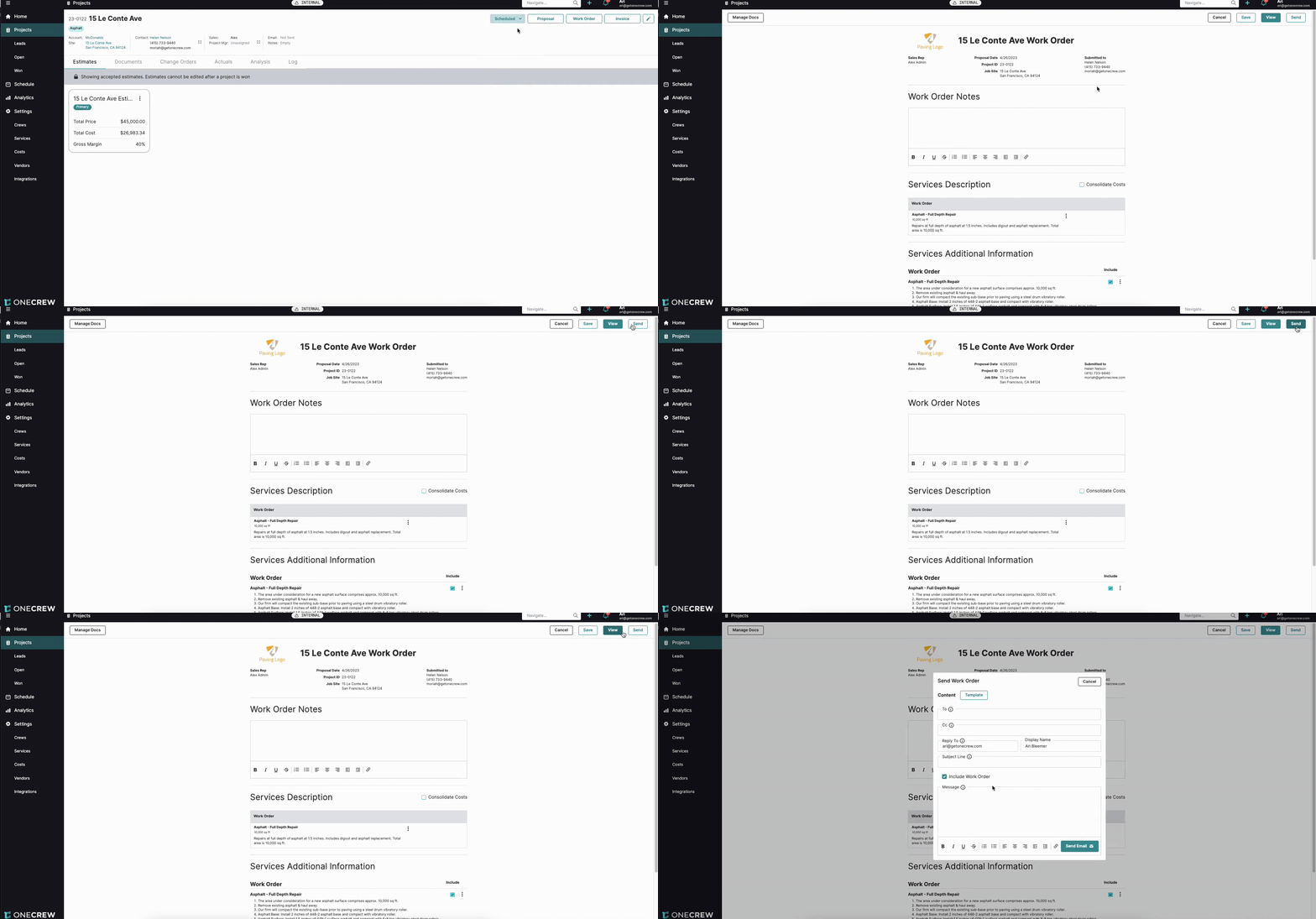
Follow these steps to efficiently email a work order:
Access the Work Order: Navigate to the specific project for which you want to send a work order. Ensure the project has progressed to at least the "Accepted" stage (e.g., "Scheduled"). From the project's main page, click the Work Order button, typically located in the upper right section of the screen. This action will take you to the work order generation page.
Review Work Order Details: On the work order page, review all details such as Work Order Notes, Services Description, and any Services Additional Information. Make any necessary additions or modifications to ensure the work order is accurate and complete.
Initiate Email: Once you're satisfied with the work order content, locate the Send icon (often resembling an envelope or paper airplane) in the top right corner of the work order screen. Clicking this icon will open the Send Work Order email composer pop-up window.
Configure Recipients:
In the To field, enter the email address of the primary recipient.
If you need to send the work order to additional people, you can add their email addresses in the Cc field, or add multiple comma-separated emails in the To field.
Pro Tip: To list multiple email addresses in the To or Cc fields, separate each address with a comma only (e.g.,
email1@example.com,email2@example.com). Do not add spaces after the comma.
Set Sender Details (Optional):
The Reply To field will be pre-filled with your email address. If replies should go to a different email, you can change it here.
The Display Name field shows how your name will appear to the recipient. Adjust if necessary.
Compose Your Email:
Enter a concise and informative Subject Line for your email.
Write your message in the Message body. You can include any specific instructions or notes for the recipient.
Use an Email Template (Optional):
If you have pre-defined email templates, click the Template button. A small window will appear allowing you to select an Email Template from a dropdown list.
Important: Applying an email template will overwrite any existing content in the Subject Line and Message fields.
Include Work Order Attachment: Ensure the Include Work Order checkbox is selected. This is crucial as it attaches the generated work order document (typically as a PDF) to the email.
Send the Email: After reviewing all fields in the email composer, click the Send Email button. The work order will be dispatched to the specified recipients.
Troubleshooting
Encountering issues? Here are some common problems and their solutions:
Recipient Did Not Receive the Email:
Double-check that the recipient's email address was entered correctly in the To or Cc field.
Ask the recipient to check their spam or junk mail folder.
Verify your email sending reputation, as emails might be blocked by the recipient's server.
Work Order Document Not Attached:
Before sending, always confirm that the Include Work Order checkbox was selected in the email composer. If an email was sent without it, you'll need to resend the email with the option checked.
Error When Sending to Multiple Recipients:
Ensure that multiple email addresses in the To or Cc fields are separated only by a comma, with no spaces (e.g.,
jane@example.com,john@example.com).
"Send Email" Button is Grayed Out/Disabled:
Make sure there's at least one valid email address in the To field.
Check if all other mandatory fields (if any specific to your configuration) in the email composer are filled.