Consolidating Project Costs in Work Orders
Last updated: August 7, 2025
Watch Video Demo Here
Overview
When managing projects with multiple services, each having its own labor, materials, and equipment costs, work orders can become lengthy. Consolidating these costs into a single, summarized table provides a cleaner, more digestible overview of all project expenditures. This is particularly useful for internal reviews, giving your team a quick understanding of the total resources allocated without sifting through costs service by service. This tutorial will guide you through enabling and understanding cost consolidation on your work orders.
Insight: Consolidating costs offers a bird's-eye view of project expenditures, making it easier to grasp the overall financial picture at a glance, especially for complex projects with numerous services.
Step-by-Step Guide
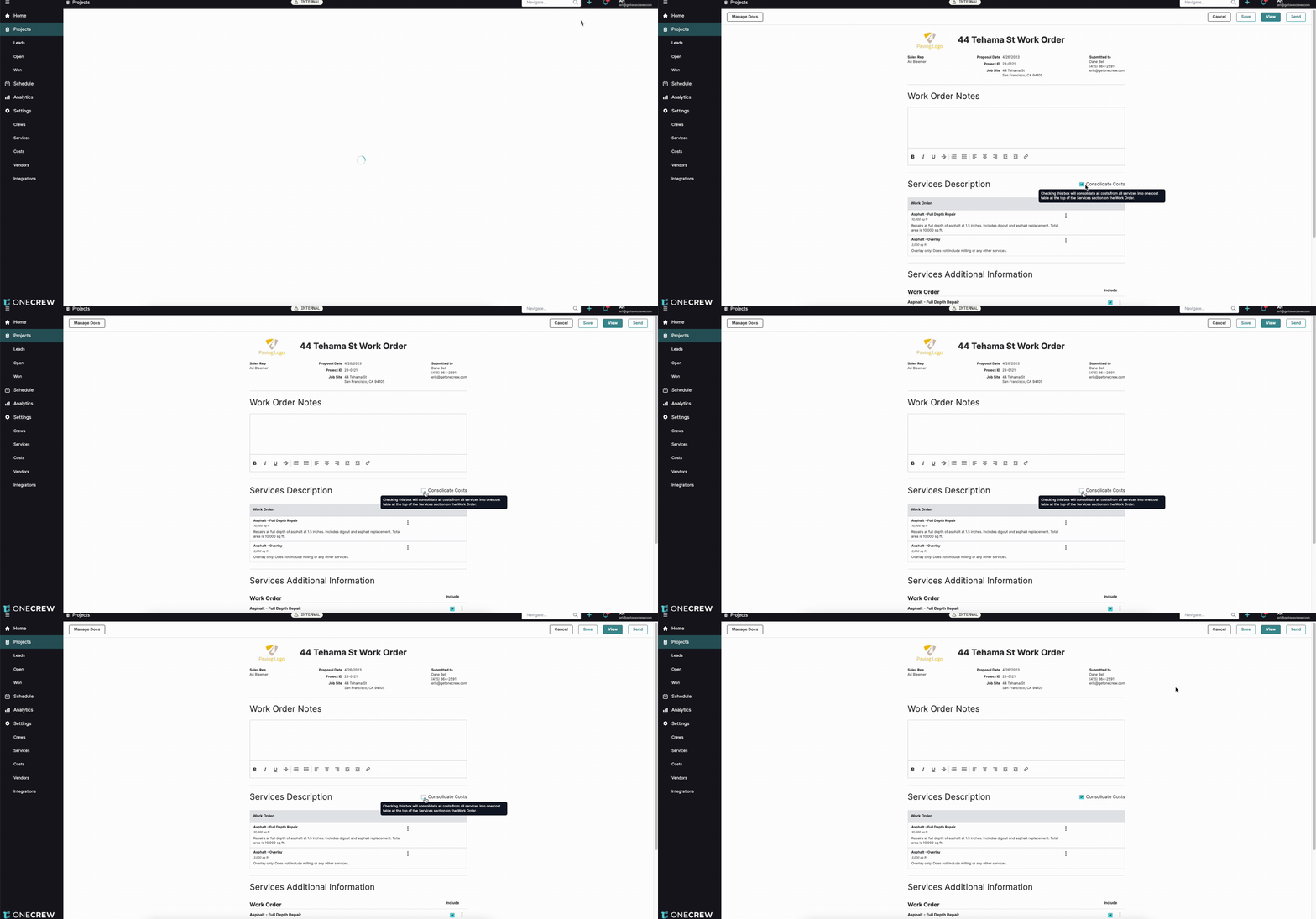
Let's walk through how to consolidate costs from an estimate with multiple services into a single table on your work order. Imagine an estimate with two services: "Asphalt - Full Depth Repair" and "Asphalt - Overlay".
The "Full Depth Repair" service might use a 7-man paving crew, asphalt from "Tahoe Asphalt," and 2 trucks.
The "Asphalt - Overlay" service might use a 5-man paving crew, asphalt from "SF Asphalt," and 1 truck.
Both services might share some equipment (like a paver), use the same tack oil, and have a mobilization cost.
Navigate to Your Project: Open the project containing the accepted estimate you want to generate a work order for.
Generate Work Order: From the project screen, click the Work Order button to begin generating the document.
Enable Cost Consolidation: On the work order setup page (e.g., "44 Tehama St Work Order"), locate the Services Description section. You will see a checkbox labeled Consolidate Costs. Check this box. A tooltip explains that this will "consolidate all costs from all services into one cost table at the top of the Services section on the Work Order."
Save and View Work Order: After checking the box, save or generate the work order. Upon viewing the document, you'll notice a single, comprehensive "Services" table at the top, detailing all costs, instead of separate cost breakdowns under each service description.
Understanding the Consolidated Table: The system intelligently groups or separates line items:
Identical Items Consolidate: Costs like "Tack Oil" or "Mobilization - paving," if identical across services, will appear as single line items with their total quantities or costs summed.
Equipment Hours Summed: If the same piece of equipment (e.g., "Paver - LeeBoy 8500") is used in multiple services (e.g., 10 hours for Full Depth Repair and 4 hours for Overlay), the consolidated table will show the total hours (e.g., 14 hours for the Paver).
Different Cost Items Remain Separate:
Labor: If crew sizes differ (e.g., "Paving (7-man)" and "Paving (5-man)"), they will be listed as separate labor costs.
Materials: If the same material type (e.g., "Asphalt (3/8" surface)") is sourced from different vendors (e.g., "Tahoe Asphalt" vs. "SF Asphalt"), these will be listed separately.
Quantities: If an item like "Trucking" has different quantities specified per service (e.g., one service uses "2 trucks" and another uses "1 truck"), these will be listed as distinct line items.
Pro Tip: For optimal consolidation, ensure consistent naming for identical cost items across different services in your estimate. For example, always use "Standard Compactor Rental" instead of "Compactor Hire" in one service and "CR-30 Rental" in another if they refer to the same cost.
Troubleshooting
Common issues often relate to why certain costs don't merge as expected in the consolidated table.
Costs Not Merging?
Exact Name Match: Ensure the cost item names are identical in the estimate. Even minor variations can cause them to be treated as separate items.
Different Vendors/Sources: For materials, if they are sourced from different vendors or plants (e.g., "Tahoe Asphalt" vs. "SF Asphalt" for the same type of asphalt), they will be listed separately.
Varying Quantities/Attributes: Items like "Trucking" will not consolidate if the number of units (e.g., 2 trucks vs. 1 truck) differs between services. Similarly, labor costs defined by different crew sizes will remain separate.
Unique Cost Items: Any cost item that is unique to a single service will naturally appear as its own line in the consolidated table.
The system consolidates line items when they represent the exact same cost, vendor (if applicable), and quantity/defining characteristic. If any of these differ, the items will be itemized separately to maintain accuracy.