Creating Unit Contracts
Last updated: August 7, 2025
Watch Video Demo Here
Overview
This tutorial will guide you through creating a Unit Contract estimate, a powerful feature for when you need to provide clients with precise, itemized pricing. Unit Contracts are particularly useful for projects where final quantities of labor, materials, or equipment usage might vary, offering transparency and flexibility. By defining a price per unit (e.g., per hour, per ton, per day), you can build comprehensive estimates and bill customers accurately based on actual work performed.
Step-by-Step Instructions
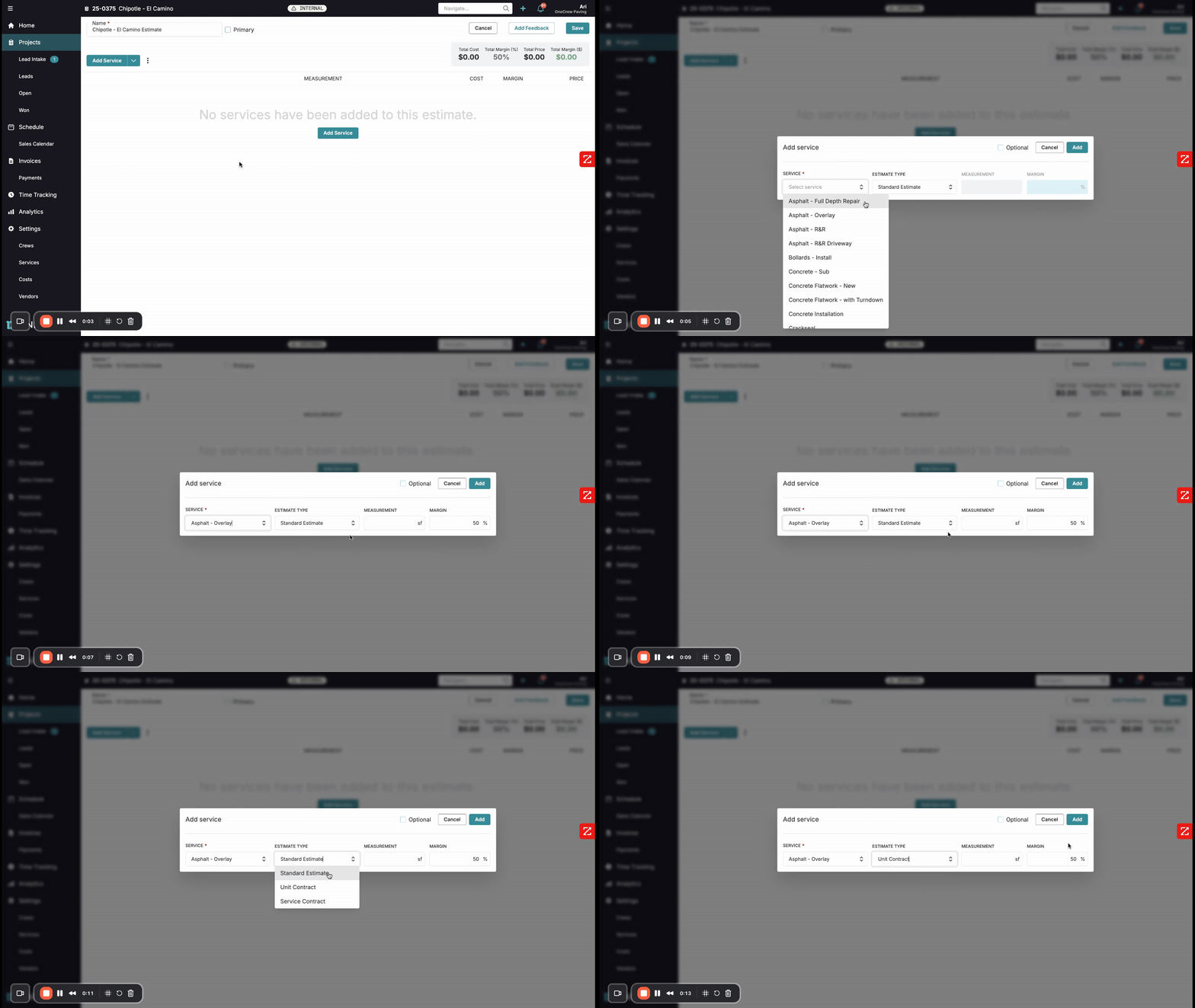
Creating a Unit Contract involves specifying unit prices for each component of your service. Here's how:
Initiate a New Estimate:
Navigate to the Projects section from the main menu.
Select an existing project or create a new one.
Inside the project, click the + New Estimate button located in the Estimates section.
Add a Service and Select Estimate Type:
The "Add service" modal will appear. Choose the relevant Service from the dropdown menu (e.g., "Asphalt - Overlay").
In the Estimate Type field, click the dropdown and select Unit Contract. This is a key step that changes how the estimate is structured.
Click Add.
Enter Overall Measurement (Optional but Recommended):
The estimate will load, displaying categories like Labor, Materials, Equipment, Trucking, and Other for the selected service.
You can enter an overall Measurement for the service at the top (e.g., "1000 sf" for an asphalt overlay). This helps in contextualizing the estimate but the core of unit contract pricing lies in the line items.
Define Unit Prices and Quantities for Each Cost Item:
For each line item under Labor, Materials, Equipment, Trucking, and Other, you will define the terms of your unit contract.
You'll typically see columns for Units (e.g., hours, tons, days), your internal cost Rate, your desired Margin, the Unit Price (your selling price per unit), and the total Price for that line item.
Labor:
Example: For "Paving," input estimated Units (e.g., 4 hrs). Set the Unit Price (e.g., $100.000 / hr). The total Price for paving labor will be calculated.
Materials:
Example: For "Asphalt (3/8" surface)," input estimated Units (e.g., 10 tn). Set the Unit Price (e.g., $160.000 / tn).
Equipment:
Example: For "Paver - LeeBoy 8500," input estimated Units (e.g., 4 hrs). Set the Unit Price (e.g., $250.000 / hr).
Trucking & Other:
Similarly, set Units and Unit Price for items like "Trucking Minimum" (e.g., $8,000.000 / day) or "Mobilization - paving" (e.g., $500.000 / day).
Insight: The Unit Price column is where the magic happens for Unit Contracts. It allows you to meticulously set the selling price for each individual component of the job. This gives you granular control over your pricing and margins for every distinct part of the service, independent of the underlying cost if needed.
Review and Save:
As you input or adjust quantities and Unit Prices, the total Price for each line item, the sub-totals, and the overall Total Price and Total Margin (%) for the estimate will update in real-time.
Review all entries to ensure accuracy.
Once satisfied, click the Save button in the top right corner.
Proposal Generation and Customer View:
When you generate a proposal using this unit contract estimate, it will clearly present the itemized pricing to your customer.
Under the Services Description, the customer will see the total estimated price for the contract (e.g., "$13,980.00").
Crucially, below the total, each line item (Paving, Asphalt, Tack Oil, Paver, etc.) will be listed with its corresponding Unit Price (e.g., "$100.000 / hrs", "$160.000 / tn"). This transparency shows the customer exactly how they will be charged.
Troubleshooting
Incorrect Total Price or Margin:
Ensure that both Units and a Unit Price are entered for every line item you intend to charge for.
The overall margin reflects the sum of individual line item margins. If the margin is not what you expect, review and adjust the Unit Price for specific items. Remember, the Unit Price is your direct input for the selling price per unit.
Unit Prices Not Displaying on Proposal:
Confirm that the estimate type was correctly set to Unit Contract when the service was added. If it was a standard estimate, the unit price breakdown will not appear in the same way.
Customer Confusion about Unit Pricing:
It's important to communicate clearly how unit contracts work.
Pro Tip: Use the service description field within the estimate (which often carries over to the proposal) to add a clear explanatory note. For example: "The total amount is an estimate based on anticipated quantities. Final invoicing will reflect actual units of labor, material, and equipment used, charged at the rates specified below."