Using Trucking Calculator in Estimates
Last updated: August 7, 2025
Overview
The Trucking Calculator in OneCrew is a powerful tool designed to help you accurately estimate trucking requirements for your projects. By inputting key variables, you can quickly determine the number of trucks and the hours needed, ensuring your bids are more precise and your resource planning is efficient. This tutorial will guide you through enabling, configuring, and using the Trucking Calculator.
Step-by-Step Guide
Enabling and Setting Defaults for the Trucking Calculator
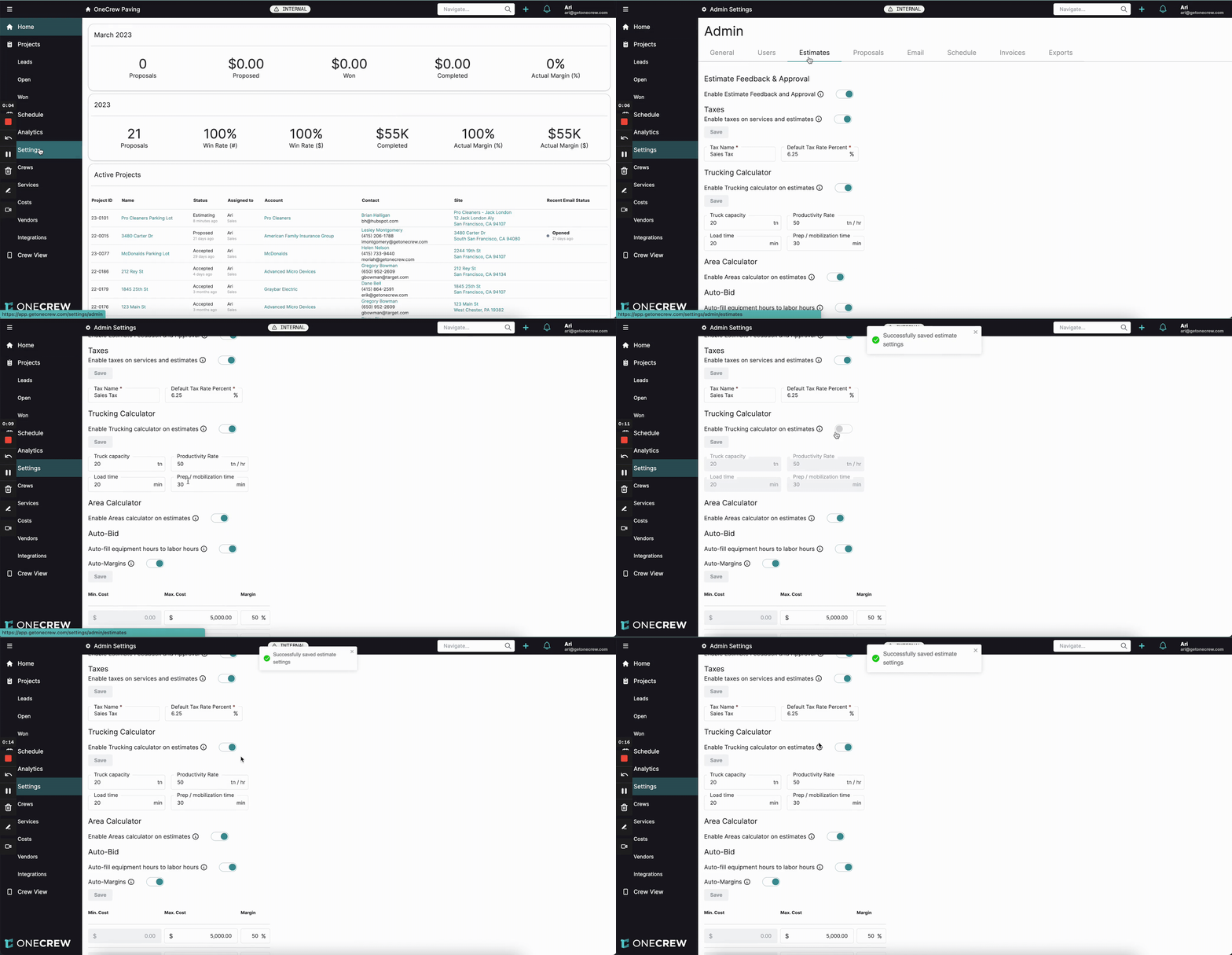
To start using the Trucking Calculator, you first need to enable it in your settings and configure its default values. These defaults will save you time when creating estimates.
Navigate to Settings from the main menu on the left.
Within the Admin settings, click on the Estimates tab.
Scroll down to the Trucking Calculator section.
Toggle the switch for Enable Trucking calculator on estimates to the "on" position.
Set your company's standard default values for:
Truck capacity (e.g., 20 tons)
Productivity Rate (e.g., 50 tons/hour)
Load time (e.g., 20 minutes)
Prep / mobilization time (e.g., 30 minutes)
Click the Save button. A confirmation message "Successfully saved estimate settings" will appear.
Insight: Setting accurate default values for the Trucking Calculator streamlines the estimation process, as these pre-filled values serve as a consistent baseline for most of your jobs.
Using the Trucking Calculator in an Estimate
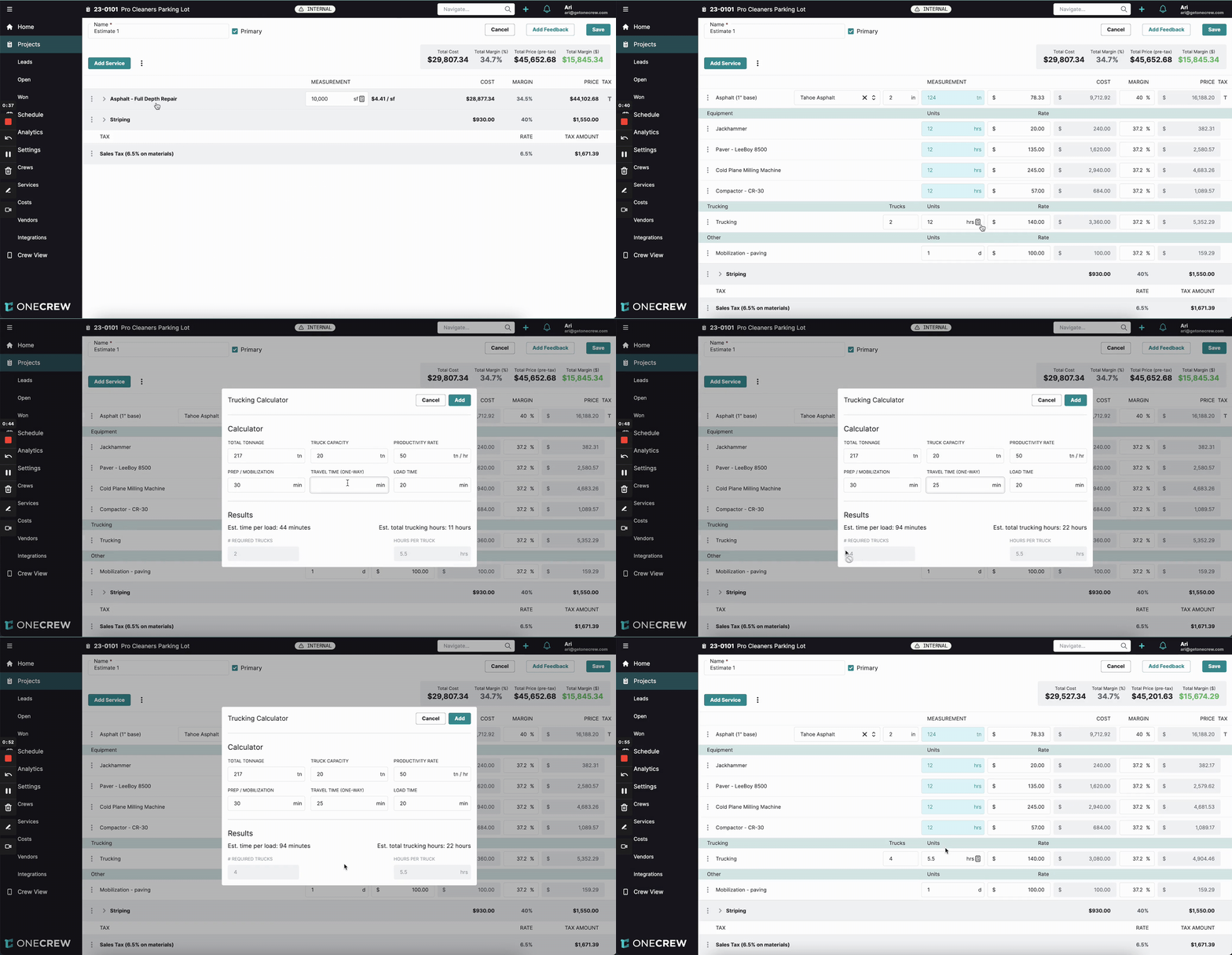
Once enabled, you can use the Trucking Calculator directly within your project estimates.
Open an existing project and navigate to the Estimates tab. Select the estimate you want to work on.
Within the estimate, locate the service item that requires trucking (e.g., Asphalt - Full Depth Repair). Expand the service to see its line items.
Scroll down to the Trucking line item. You'll see a calculator icon next to the Units field. Click this icon.
The Trucking Calculator window will appear. Fields like Total Tonnage, Truck Capacity, Productivity Rate, Prep / Mobilization, and Load Time will be pre-filled based on your material inputs and the defaults you set in Settings.
Enter the Travel Time (One-Way) in minutes for the specific job.
The calculator will automatically update the Results section, showing:
Est. time per load
Est. total trucking hours
# Required Trucks
Hours per Truck
Click the Add button. The calculated # Required Trucks and Hours per Truck will populate the Trucks and Units (hours) fields in your estimate's trucking line item.
Understanding Manual Adjustments
You can manually change the Trucks and Units (hours) fields in the estimate even after using the calculator.
If you adjust the Trucks or Units fields directly on the estimate line item, these changes will not automatically update the values shown if you re-open the Trucking Calculator for that line item.
The calculator will retain the inputs and results from its last calculation (or the defaults if it's the first time for a new line). This allows reviewers or approvers to see the original basis of the calculation if needed, even if you've made manual tweaks to the final numbers in the estimate.
Pro Tip: While the calculator provides a strong baseline, always review its suggestions against specific job conditions and make manual adjustments in the estimate if necessary. The calculator can be re-opened to show the original calculated figures for reference.
Troubleshooting
Trucking Calculator icon not visible: Ensure the Enable Trucking calculator on estimates toggle is switched on in Settings > Estimates.
Calculations seem off: Double-check that your default values in Settings > Estimates for Truck capacity, Productivity Rate, Load time, and Prep / mobilization time are accurate for your typical operations. Also, verify the Travel Time (One-Way) entered for the specific job.
Manual changes in estimate not updating calculator: This is expected behavior. The calculator stores its own set of inputs and outputs. To use new values from the estimate in the calculator, you would need to re-enter them into the calculator fields and recalculate.