Customer Portal: A Guide
Last updated: June 15, 2026
Watch Video Demo Here
Overview
The Customer Portal is a dedicated online space designed to enhance communication and collaboration between your business and your clients for specific projects. Its primary purpose is to provide a centralized hub where customers can view proposals, exchange messages, and access shared documents related to their project. This feature streamlines interactions, increases transparency, and offers a professional, organized way to manage project communications from start to finish.
The scope of the Customer Portal is project-specific, meaning each project can have its own unique portal accessible only to the designated customer contact(s) and your internal team.
Key benefits include:
Improved Communication: Centralizes all project-related messages, reducing reliance on scattered emails and phone calls.
Enhanced Transparency: Customers have direct access to relevant documents and project updates, fostering trust.
Streamlined Proposal Process: Allows for easy sharing of proposals and facilitates a quicker acceptance and signing process.
Document Management: Both your team and the customer can share and access important files like photos, site plans, and signed agreements.
Professionalism: Offers a polished and modern interface for customer interactions.
Accessibility: The portal is mobile-friendly, allowing customers to engage from any device.
Insight: The Customer Portal empowers your clients by giving them a clear, accessible window into their project's progress and documentation, fostering a stronger, more transparent relationship.
Configuration
Setting up and utilizing the Customer Portal involves a few key steps, from global enablement to project-specific activation and content sharing.
Enabling Customer Portals Globally
Before you can use the Customer Portal for individual projects, the feature must be enabled system-wide:
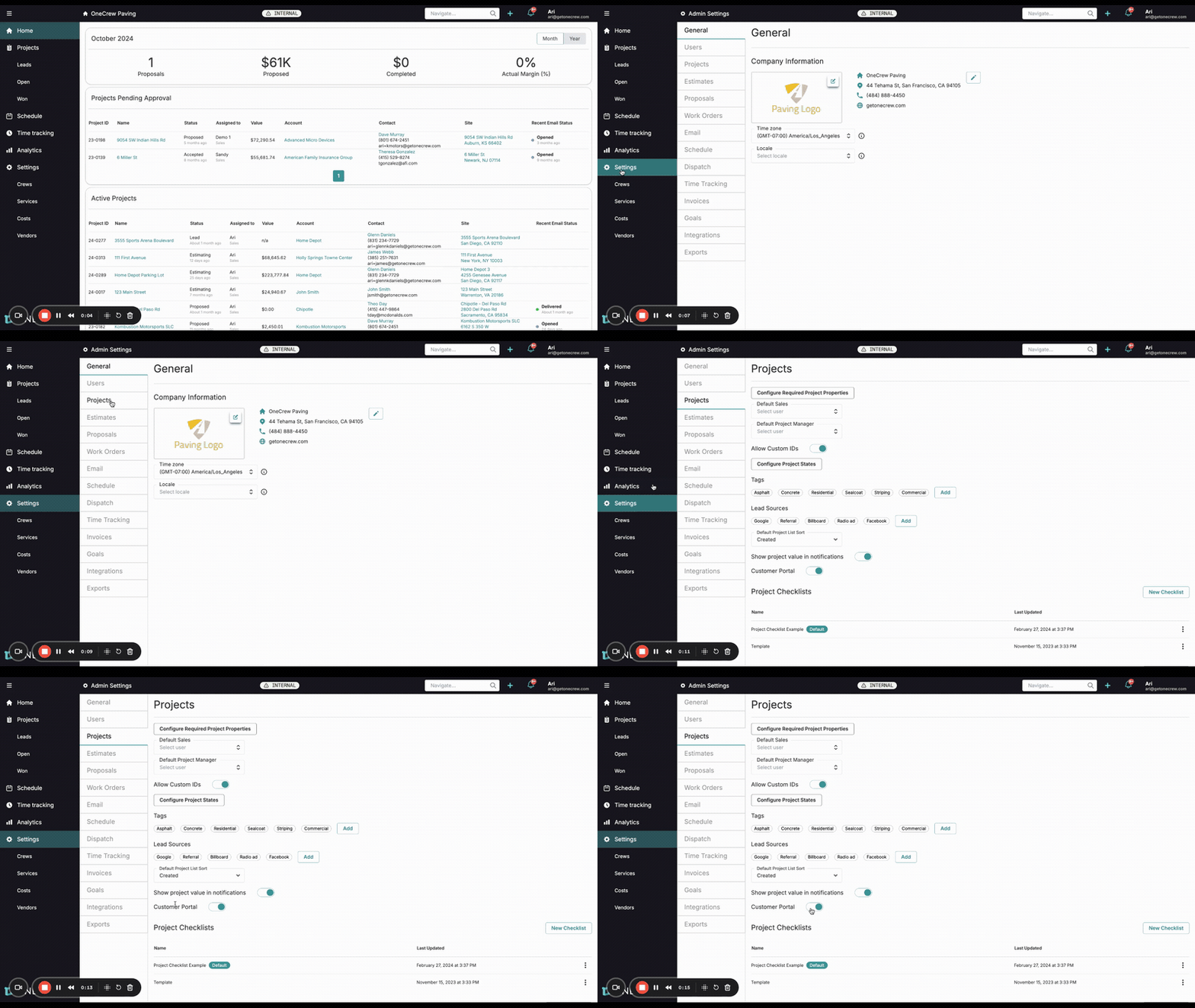
Navigate to Settings from the main menu.
Under the Admin Settings, select Projects.
Locate the Customer Portal option.
Ensure the toggle switch next to Customer Portal is turned on (it will typically show as blue or green when active).
Generating a Portal for a Project
Once globally enabled, you can create a portal for any specific project:
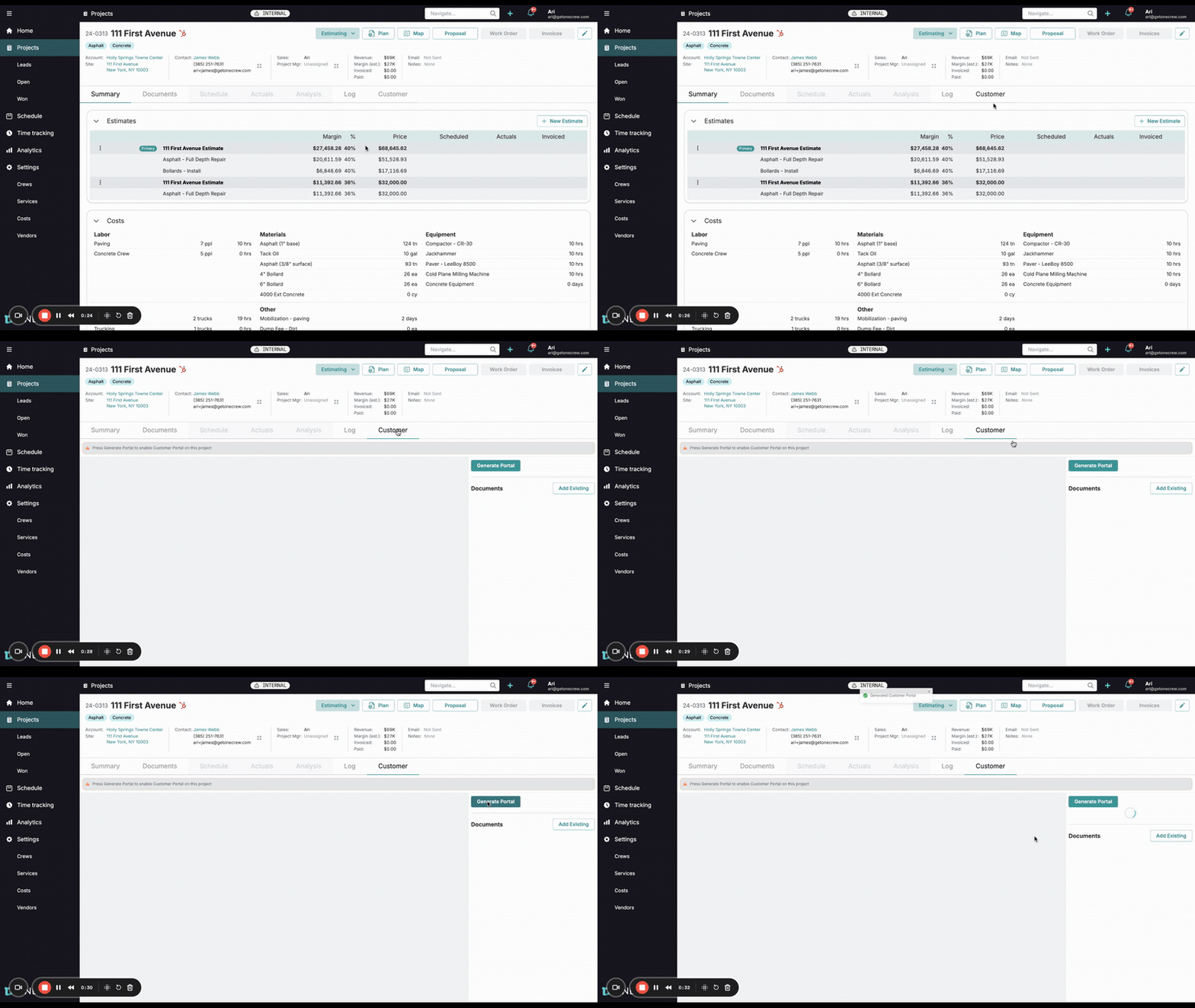
Open the project for which you want to create a portal.
Navigate to the Customer tab within that project.
Click the Generate Portal button.
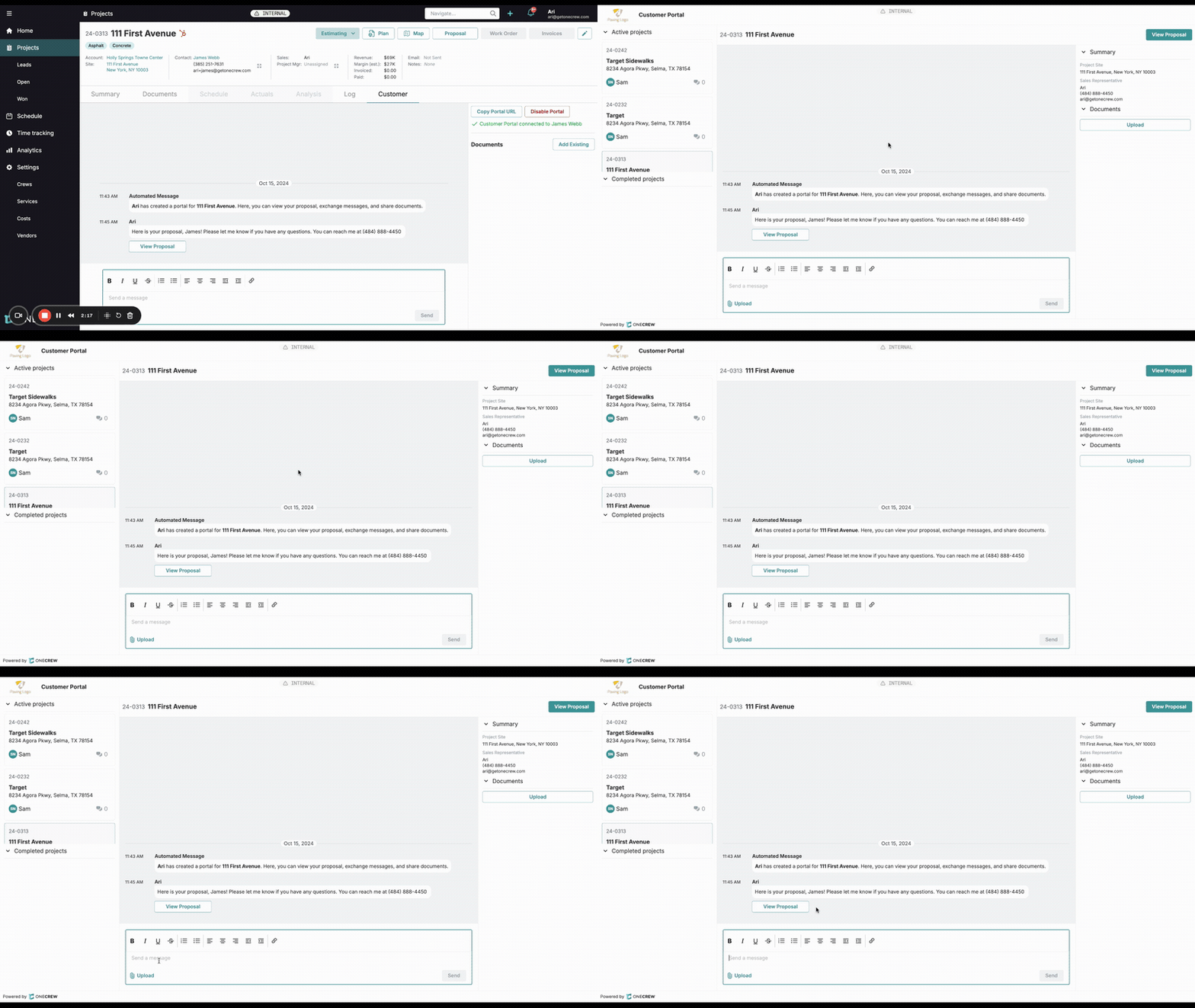
An automated message will appear in the portal feed, such as: "[Your Name] has created a portal for [Project Name]. Here, you can view your proposal, exchange messages, and share documents."
The portal is now active and connected to the project's primary contact. You can copy the Portal URL to share it directly if needed.
Sharing Documents
You can share documents (like photos, PDFs, etc.) with your customer through the portal:
First, ensure the documents are uploaded to the project via the main Documents tab.
Navigate back to the Customer tab (the portal interface).
On the right side, under the Documents section, click Add Existing.
A dialog will appear listing available documents from the project. Select the documents you wish to make visible in the portal.
Note: Documents shared this way are copies; your original files in the project's Documents tab remain unchanged.
Click Add. The selected documents will now be listed in the portal's Documents section for the customer to access. Customers can also upload documents from their end, which will appear here and in the message feed.
Sending Proposals to the Portal
Share proposals seamlessly for customer review and acceptance:
Navigate to the Proposal section of your project.
Open the proposal you wish to send.
Click the Send button (often an envelope icon) located in the top-right corner.
From the dropdown menu, select Send to Portal.
A "Send to Portal" dialog will appear. You can type a custom message to accompany the proposal.
Utilize variables like
{Contact First Name}or{Sales Phone}to personalize your message. For example: "Hi{Contact First Name}, please find your proposal attached. Let me know if you have any questions! You can reach me at{Sales Phone}."
Click Send. The proposal becomes a live web document, and your message, along with a View Proposal button, will appear in the portal's message feed.
Pro Tip: Use message variables when sending proposals or other communications through the portal. This personalizes the interaction and saves you from manually typing customer-specific details each time. Learn more about setting up message templates [add link to relevant article].
Use Cases
The Customer Portal is a versatile tool applicable throughout various stages of a project lifecycle. Here are some common scenarios where it proves invaluable:
Proposal Delivery and Acceptance:
Share detailed project proposals directly through the portal.
Customers can view proposals online and, if integrated with e-signature capabilities, sign them digitally.
Receive instant notification upon proposal acceptance.
Ongoing Project Communication:
Exchange messages with customers regarding project timelines, questions, or clarifications.
Provide updates on project milestones.
Customers can easily reach out with queries or concerns.
Document Sharing and Collaboration:
Share progress photos, site plans, design mockups, or any relevant project documentation.
Customers can upload their own documents, such as inspiration photos or existing site information.
Invoice Delivery:
Share invoices with customers as project phases are completed or as per your billing schedule. (Note: Payment processing itself may occur outside the portal or via integrated services).
Centralized Project Record:
The portal acts as a historical log of communications and shared documents for a specific project, beneficial for both your team and the customer for future reference.
Pro Tip: Clearly communicate to your customers how to use the portal and what information they can expect to find there. Setting expectations early encourages adoption and maximizes the feature's benefits.
Examples
The Customer Portal facilitates various interactions. Here are a couple of real-world examples:
Example 1: New Paving Project - From Proposal to Acceptance
Scenario: Ari, a sales representative at OneCrew Paving, has prepared a proposal for a new driveway paving project for a customer, James Webb.
Portal Activation: Ari navigates to James's project in OneCrew, goes to the Customer tab, and clicks Generate Portal. James receives an email notification with a link to his new, secure portal.
Sending the Proposal: Ari goes to the Proposal section, opens the driveway proposal, and uses the Send to Portal option. He types a friendly message: "Hi James, here's the proposal for your new driveway. Click 'View Proposal' below to review the details. Let me know if you have any questions! - Ari
Customer Interaction: James clicks the link in his email and accesses the portal. He sees Ari's message and the View Proposal button. He reviews the proposal online.
Proposal Acceptance: James is happy with the terms and signs the proposal digitally through the portal's integrated e-signature feature.
Automated Updates:
In the portal, an automated message appears: "Thank you for choosing OneCrew Paving!" (This is the configured post-signature message).
Internally, Ari receives a notification that James has accepted the proposal, and the project status automatically updates to "Accepted."
Example 2: Ongoing Communication and Document Exchange
Scenario: The paving project for James Webb is underway. Ari wants to share progress photos, and James has a question about the schedule.
Sharing Progress Photos (Internal User):
Ari uploads new photos of the completed sub-base preparation to the project's main Documents tab.
He then goes to the Customer tab for James's project, clicks Add Existing under Documents, selects the new photos, and adds them to the portal.
Ari also sends a message via the portal: "Hi James, just uploaded some photos of the sub-base. Everything is looking great and on schedule for asphalt paving next week!"
Customer Uploads a Document:
James wants to show Ari a specific type of edging he saw and liked. He takes a photo and uses the Upload button within the portal's Documents section (or the upload icon in the message composer) to share it with Ari. An automated message "James Webb uploaded parking lot 3.jpg to Customer Portal" appears in the feed.
Customer Asks a Question:
James replies to Ari's message directly in the portal: "Thanks, Ari! Looks good. Quick question: what's the estimated start time for the paving crew next Tuesday?"
Centralized Record: All these interactions—messages, photo shares from both Ari and James—are logged chronologically in the portal, creating a clear and easily accessible project history. Ari can also add further documents, like invoices, as the project progresses.
Insight: The Customer Portal transforms project communication from a series of disjointed emails and calls into a cohesive, threaded conversation, complete with a shared document repository, making it easier for everyone to stay informed and aligned.