Customizing Proposal Attachments for Specific Services
Last updated: August 7, 2025
Overview
Tailor your proposals by automatically including service-specific documents. This ensures clients receive all relevant information—like detailed service descriptions, warranties, or specific terms—without manual work for each proposal. This feature is particularly useful when different services you offer require unique accompanying documentation, streamlining your workflow and enhancing professionalism.
Step-by-Step guide
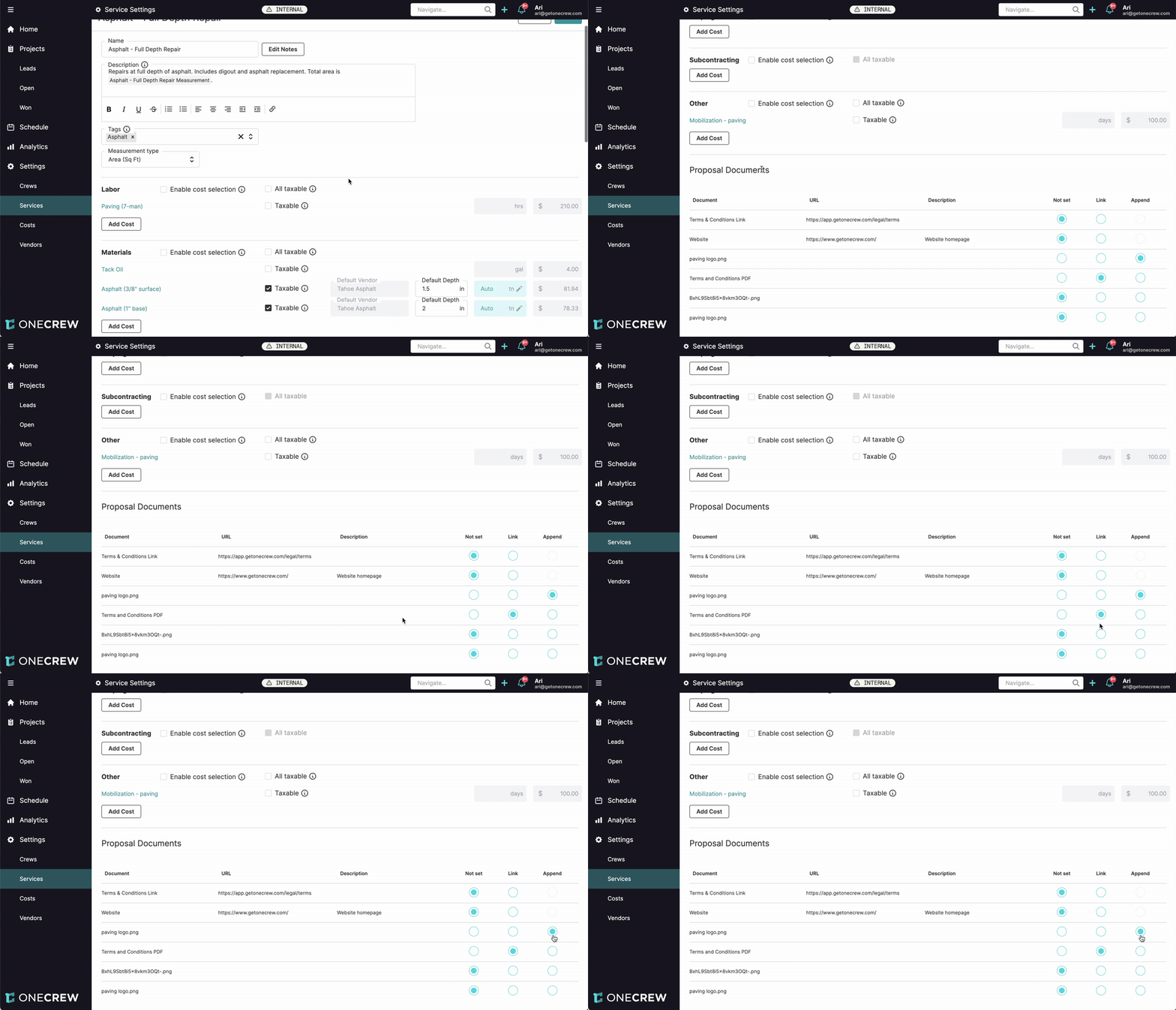
Follow these steps to configure attachments that will be automatically included when a specific service is part of a proposal:
Navigate to Service Settings:
From the main navigation menu, click on Settings.
In the Settings sub-menu, select Services. This will display a list of all services configured in your account.
Select and Edit a Service:
Click on the name of the service you wish to customize (e.g., "Asphalt - Full Depth Repair"). This opens the detailed settings page for that specific service.
Locate Proposal Documents:
Scroll down to the bottom of the service settings page. You will find the Proposal Documents section. This area lists documents that can be associated with your proposals. These documents are generally managed (uploaded or linked) in your main Proposal Settings. [add link to relevant article about managing proposal documents]
Configure Service-Specific Attachments:
For each document listed in the Proposal Documents section, you can choose how it's handled when this service is included in a proposal:
Not set: The document's inclusion will be determined by your global Proposal Settings. This service's settings will not affect it.
Link: A link to the document (if it's a URL) or the document itself (if uploaded as a file) will be included as a clickable link within the proposal.
Append: The document (e.g., a PDF, image) will be appended directly to the end of the generated proposal PDF.
Select the radio button corresponding to your desired action for each relevant document. For instance, you might choose to Append a "Service-Specific Warranty PDF" and Link to a "Detailed Technical Specification" webpage for this particular service.
Insight: Service-specific document settings offer precise control. Even if a document is marked "Do not include" in your global Proposal Settings, setting it to "Link" or "Append" for a specific service ensures it will be included whenever that service is part of a proposal.
Save Your Changes:
After making your selections, click the Save button, typically located at the top right of the service settings page, to apply your configurations.
Now, when you generate a proposal that includes this service, the documents you've designated to Link or Append will be automatically processed accordingly.
Troubleshooting
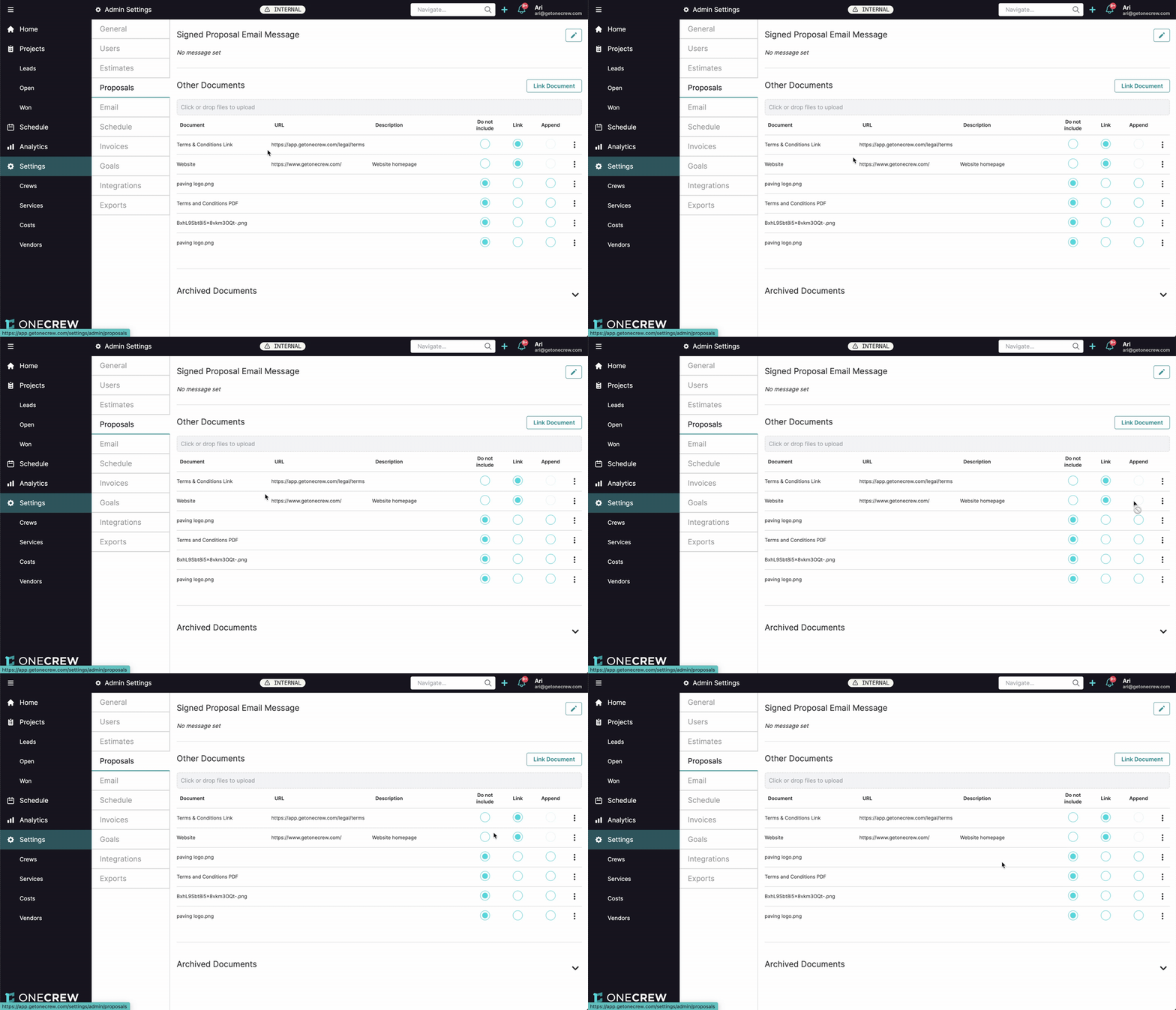
Understanding how these settings interact can prevent confusion:
Global vs. Service-Specific Settings: If a document has a global setting (e.g., "Link" in the main Proposals settings) and also a service-specific setting (e.g., "Append" for "Service X"), the service-specific setting will generally take precedence or be additive. For example, if it's globally linked but appended for a service, it will be appended when that service is in the proposal.
Multiple Services, Different Document Settings:
If "Service X" appends "Warranty X" and "Service Y" (in the same proposal) links "Spec Sheet Y," both actions will occur; "Warranty X" will be appended, and "Spec Sheet Y" will be linked.
If "Service X" is set to "Link" a specific PDF and "Service Y" (in the same proposal) is set to "Append" the exact same PDF, the system will typically perform the most inclusive action (e.g., append it). The document will only be included once, avoiding duplicates.
"Do Not Include" Globally, Set for a Service: If a document is configured as "Do not include" in your global Proposal Settings but is set to "Link" or "Append" for a particular service, it will be included as per the service's configuration whenever that service is added to a proposal.
Pro Tip: Periodically review both your global Proposal Settings (under Settings > Proposals > Other Documents) and your individual service-specific document settings. This helps ensure consistency and that your proposals always contain the correct, most current information for your clients.