Proposal Email
Last updated: February 9, 2026
Watch Video Demo Here
Overview
Sending professional proposals directly from your project management system is crucial for efficient client communication and deal closure. This tutorial will guide you through the step-by-step process of emailing a proposal to your client, ensuring they receive it promptly and you can track its progress. This feature helps you manage your sales pipeline effectively by centralizing proposal delivery and monitoring client engagement.
Step-by-Step Guide
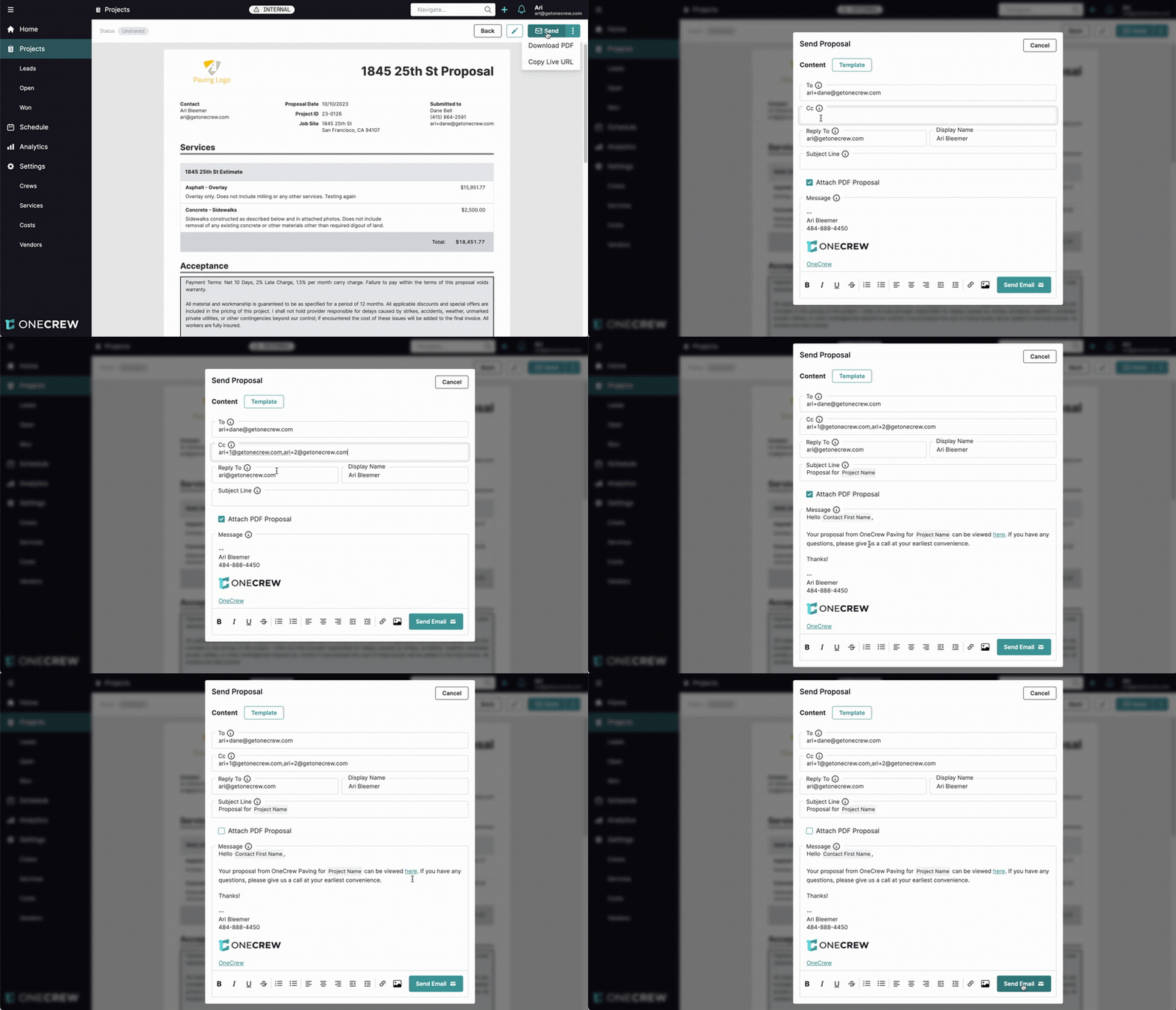
Before you begin, ensure your proposal document is finalized and ready for client review within the project.
Access Your Proposal: Navigate to the relevant project. From the project dashboard, select the Proposal tab or section to view your prepared proposal.
Initiate Email Sending: On the proposal view page, look for the Send button (often represented by an envelope icon or simply labeled Send) located typically near the top right. Clicking this will open the Send Proposal dialog box.
Configure Recipients:
The To field will automatically populate with the primary contact's email address associated with the project. Verify this is correct.
If you need to include additional recipients, enter their email addresses in the Cc field. You can add multiple emails by separating them with a comma.
Your Reply To email address and Display Name will be pre-filled based on your user profile settings.
(Optional but Recommended) Apply an Email Template:
To save time and maintain consistency, click the Template button.
A dialog or dropdown will appear, allowing you to Select email template. Choose the appropriate template.
The Subject Line and Message body will populate with the template's content, often including dynamic variables like Project Name or Contact First Name.
Insight: Using email templates is a powerful way to standardize your client communications, reduce manual entry, and ensure all necessary information is included every time.
Review and Customize Your Email:
Carefully review the auto-populated Subject Line and Message. Make any specific adjustments or additions needed for this particular client or proposal.
You'll see an option to Attach PDF Proposal. This is often checked by default. For enhanced tracking and a more interactive client experience, consider unchecking this box. The email body usually contains a link (e.g., "viewed here") for the client to access the live, online version of the proposal, which allows you to track views and e-signatures.
Send the Proposal:
Once you are satisfied with the email content and settings, click the Send Email button.
Track Proposal Status:
Upon successful sending, a confirmation message like "Email sent" will appear.
The proposal's status indicator will change (e.g., from "Unshared" to "Live" or "Sent").
You can monitor client activity, such as when the proposal is viewed or signed, by checking the Events section associated with the proposal. Additionally, the project's main summary page might display an email status like Email: Delivered, which will later update to Opened once the client views it.
Troubleshooting
Client Did Not Receive Email:
Advise the client to check their spam or junk mail folder.
Verify the accuracy of the email addresses in the To and Cc fields.
Ensure your email integration settings are correctly configured. [add link to relevant article on email settings]
Email Template Issues:
If a template doesn't load or is missing, confirm that email templates have been properly created and saved in your system settings. [add link to relevant article on creating email templates]
Proposal Status Not Updating:
Try refreshing the page, as there can sometimes be a slight delay in status updates.
Confirm you have a stable internet connection.