Send a Bulk Email
Last updated: August 7, 2025
Watch Video Demo Here
Overview
Sending personalized emails to multiple project contacts simultaneously can be a significant time-saver. This tutorial will guide you through the process of sending bulk emails directly from your Projects list in OneCrew. You'll learn how to select projects, compose your message using templates and variables, and even attach individualized PDF proposals, making it perfect for sending out reminders, updates, or new proposals efficiently.
Step-by-Step Guide
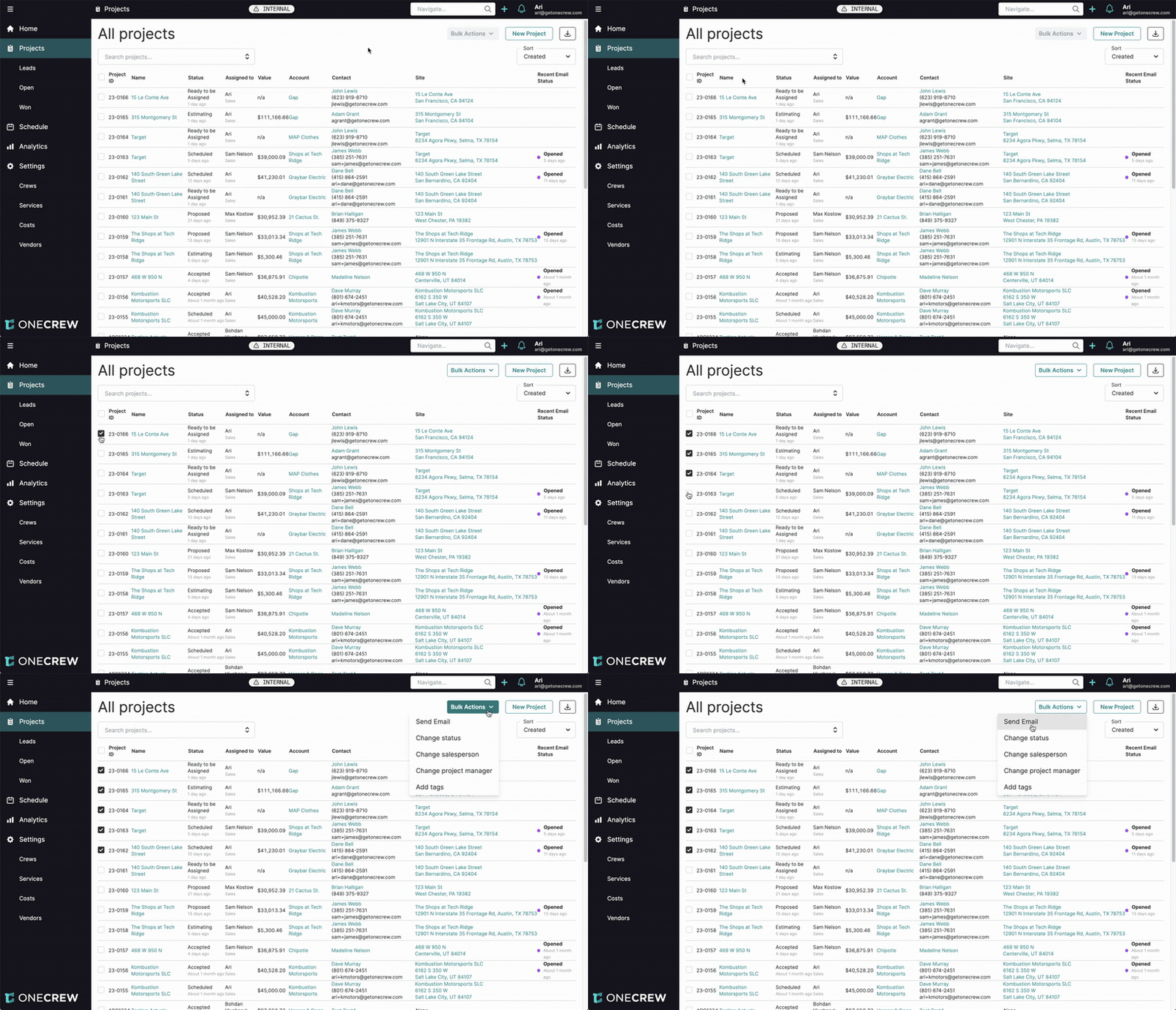
Follow these steps to send bulk emails:
Navigate to the Projects section from the main left-hand menu. You'll see a list of all your projects.
Select the projects you want to include in your bulk email by clicking the checkboxes next to each Project ID.
Once you've selected the desired projects, click the Bulk Actions button located at the top right of the project list.
From the dropdown menu, select Send Email. This will open the Send Email modal.
In the Send Email modal, review the Recipients list on the right. This list automatically populates with the primary contact person for each selected project.
Important Note: Bulk emails are sent only to the primary contact of each selected project. CC or BCC options are not available for bulk emails.
Compose your email:
Reply To and Display Name will be pre-filled with your information.
Enter a Subject Line. You can use variables here.
Write your Message in the text editor.
(Optional) Click the Template button to select a pre-written email template. A pop-up will appear; choose your desired template from the Email Template dropdown and click Add. This will populate the Subject Line and Message fields.
Adding an email template will overwrite any content currently in the Subject Line and Message Fields.
(Optional) Insert variables like
#{{Contact First Name}}or#{{Project Name}}to personalize each email. You can also use#{{Proposal Link}}to include a unique link to each project's proposal. Click the variable icon (often resembling{ }or a tag) in the message editor to see available options.(Optional) If you want to send the proposal as a PDF attachment, check the Attach PDF Proposals box. This will attach the specific proposal PDF for each respective project to its corresponding email.
Insight: Using the
#{{Proposal Link}}variable is a powerful way to send many clients direct access to their unique proposals in a single, efficient action, perfect for follow-ups or reminders.Once your email is ready, click the Send X Emails button (where X is the number of selected projects). A "Sending emails..." notification will appear.
Troubleshooting
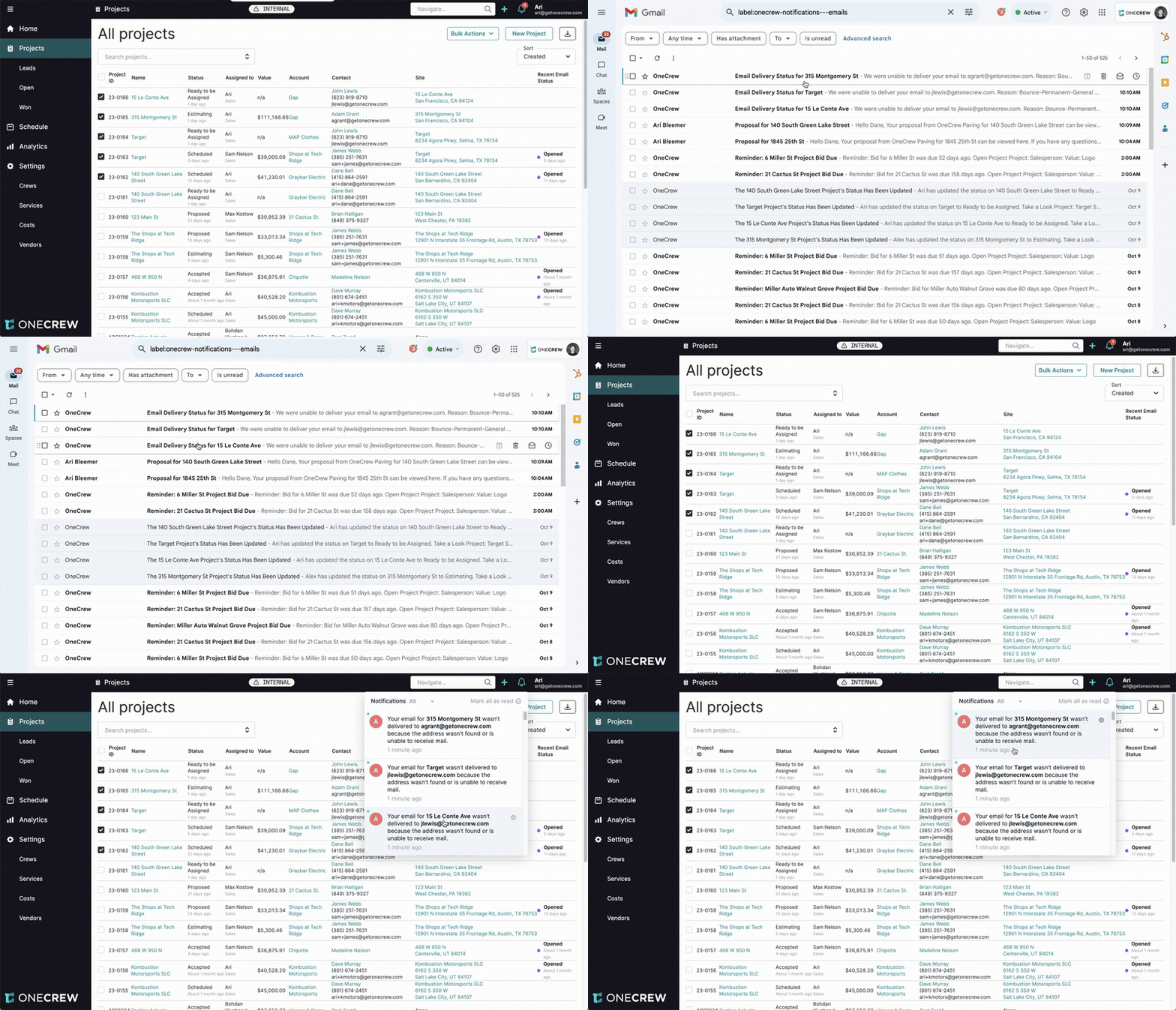
After sending your bulk email, it's important to monitor its delivery:
Delivery Status Notifications: OneCrew will notify you of any delivery issues.
Email Notification: You will receive an email in your own inbox for each email that bounces or fails to deliver, indicating the recipient and the reason for failure (e.g., "address wasn't found or is unable to receive mail").
In-App Notification: You will also see notifications within OneCrew (accessible via the bell icon in the top right corner) for any emails that were not delivered.
Verify Contact Information: If an email bounces, check the contact's email address in the respective project to ensure it's correct. Update it if necessary before attempting to resend.
By following these steps and monitoring delivery, you can effectively use OneCrew's bulk email feature to communicate with multiple project contacts at once.