Adding Multiple Costs to an Estimate
Last updated: August 7, 2025
Watch Video Demo Here
Overview
Creating detailed estimates often involves adding numerous cost items. This tutorial will guide you through the process of efficiently adding multiple costs to an estimate in a single operation. This feature is particularly useful for complex projects, allowing you to build out your estimates quickly and accurately, saving valuable time.
Step-by-Step Instructions
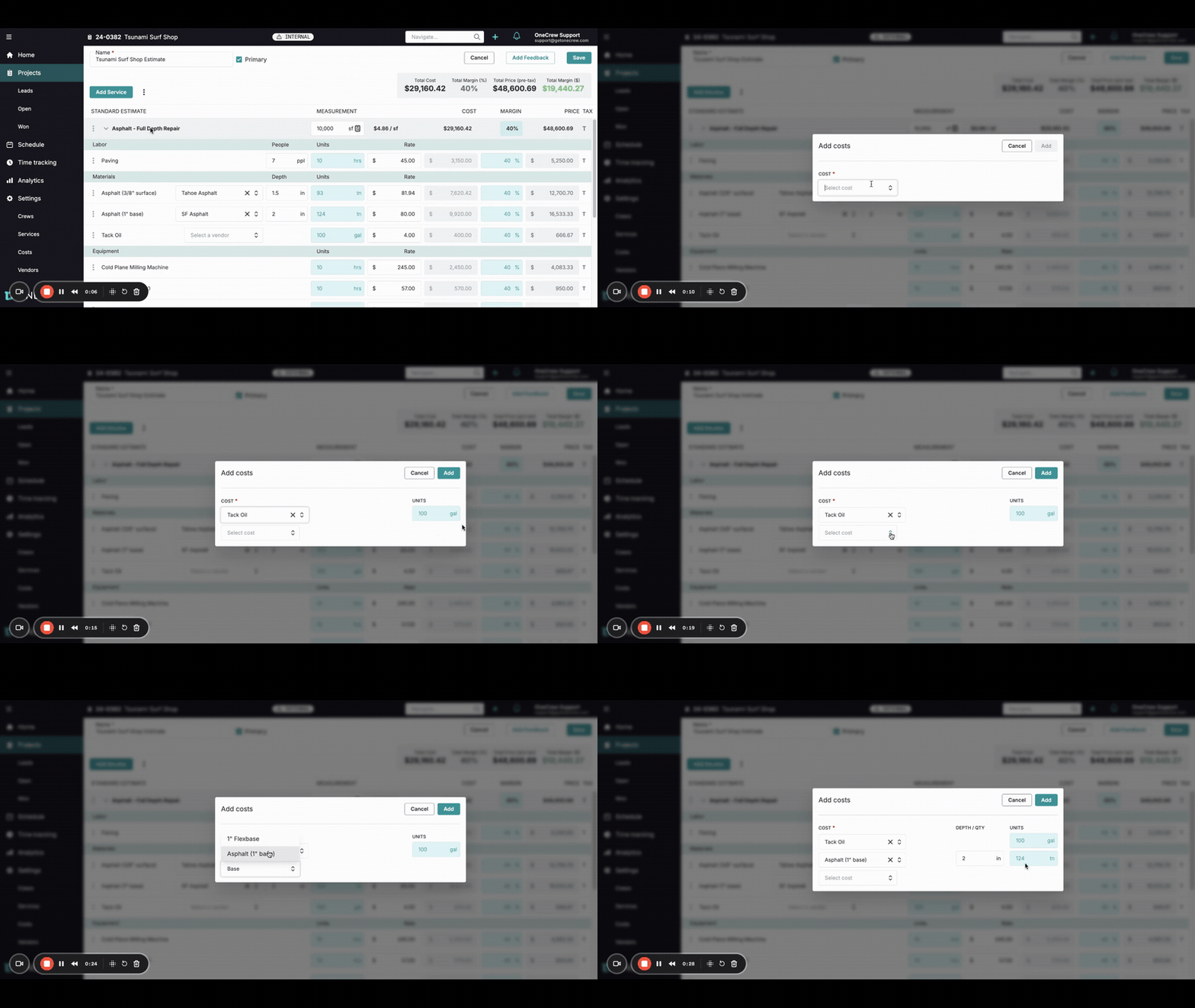
Follow these steps to add multiple costs to your existing estimate:
Navigate to the project and open the estimate you wish to modify. You will see your existing estimate sections, such as "Standard Estimate," which may already contain line items for labor, materials, and equipment.
Locate the specific section of your estimate where you want to add costs (e.g., "Asphalt - Full Depth Repair"). Click on the three-dot menu icon (ellipsis) to the left of the section name.
From the dropdown menu that appears, select Add costs.
An "Add costs" pop-up window will appear, allowing you to select and configure multiple cost items.
In the Add costs window, click on the first Select cost dropdown field. Start typing the name of your first cost item or select it from the list. For example, select "Tack Oil."
Observe the Units field. For some items, the system might auto-populate a default quantity (e.g., "100 gal" for Tack Oil). Adjust this if necessary.
To add another cost item, click on the next available Select cost dropdown field directly below the previous one.
Select your next cost item, for example, "Asphalt (1" base)."
If the item requires further details, such as Depth/Qty, enter the required values. For instance, if adding "Asphalt (1" base)," you might enter "2" in the Depth/Qty field (measured in inches). The system may automatically calculate the total Units (e.g., in tons) based on your project's measurements and the depth entered.
Insight: The system's ability to auto-calculate units based on pre-defined measurements and inputs like depth significantly speeds up the estimation process and reduces manual calculation errors.
Continue adding more cost items as needed by using subsequent Select cost fields in the same window.
Once all desired costs have been added and configured in the pop-up, click the Add button.
You will see the newly added cost items appear as line items within the relevant categories (e.g., "Materials") in your main estimate view. The estimate totals for Total Cost, Total Price (pre-tax), and Total Margin ($) will update automatically.
Troubleshooting
Costs not appearing: If the added costs don't appear in the estimate, ensure you clicked the Add button in the "Add costs" window. If you clicked Cancel or closed the window, the changes were not saved. Try adding them again.
Incorrect quantities or units: Double-check the quantities and units entered in the "Add costs" window before clicking Add. If a cost is already added with incorrect details, you may need to edit or remove that specific line item from the estimate and re-add it if direct editing isn't sufficient.
Cost item not found: If you can't find a specific cost item in the Select cost dropdown, ensure it has been predefined in your system's cost catalog. You may need to add it to the catalog first. [add link to relevant article on managing cost catalog]