Understanding Accounts, Contacts, and Sites
Last updated: August 7, 2025
Watch a Video Demo Here
Overview
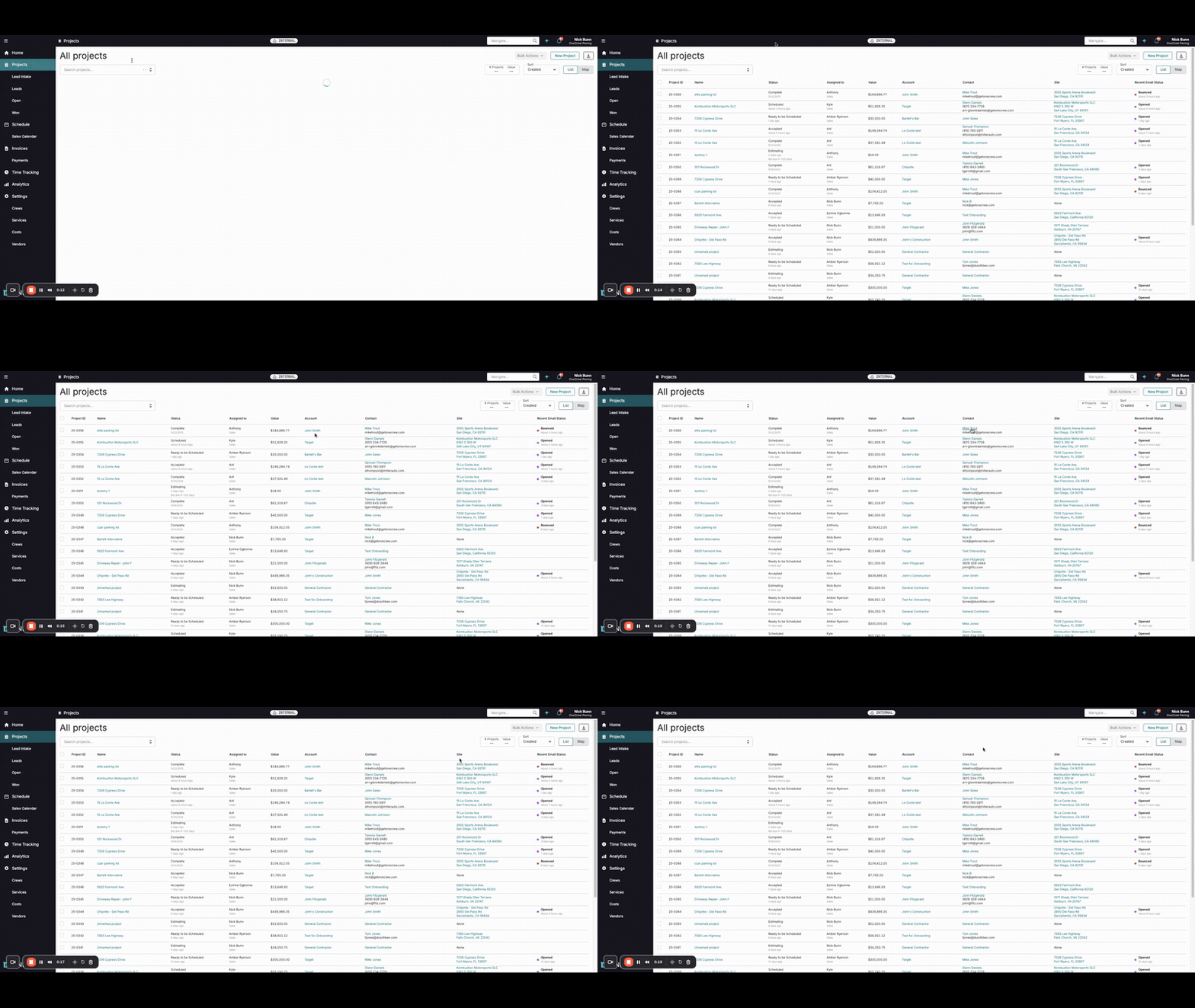
In OneCrew, a clear hierarchical structure underpins how customer and project information is organized. This structure revolves around three key entities: Accounts, Contacts, and Sites. Understanding their relationship is fundamental to effectively managing your customer interactions and projects.
The primary purpose of this hierarchy is to provide a logical and scalable way to manage all data related to your clients and the work you do for them.
Scope: This hierarchy applies to all customer-facing activities and project management within OneCrew. Every project is intrinsically linked to an Account, a specific Contact within that Account, and a physical Site where the work is performed.
Benefits:
Organized Data: Keeps all client-related information—communications, project history, site details—neatly bundled.
Improved Efficiency: Quickly locate any project, contact, or site information starting from the overarching Account.
Comprehensive View: Gain a 360-degree view of your relationship with a client, including all associated individuals, locations, and projects.
Scalability: Easily manage clients ranging from single individuals to large corporations with multiple points of contact and numerous job sites.
Insight: Mastering the Account, Contact, and Site hierarchy unlocks the full potential of OneCrew's CRM capabilities, transforming raw data into actionable intelligence for better customer relationship management and streamlined operations.
Configuration
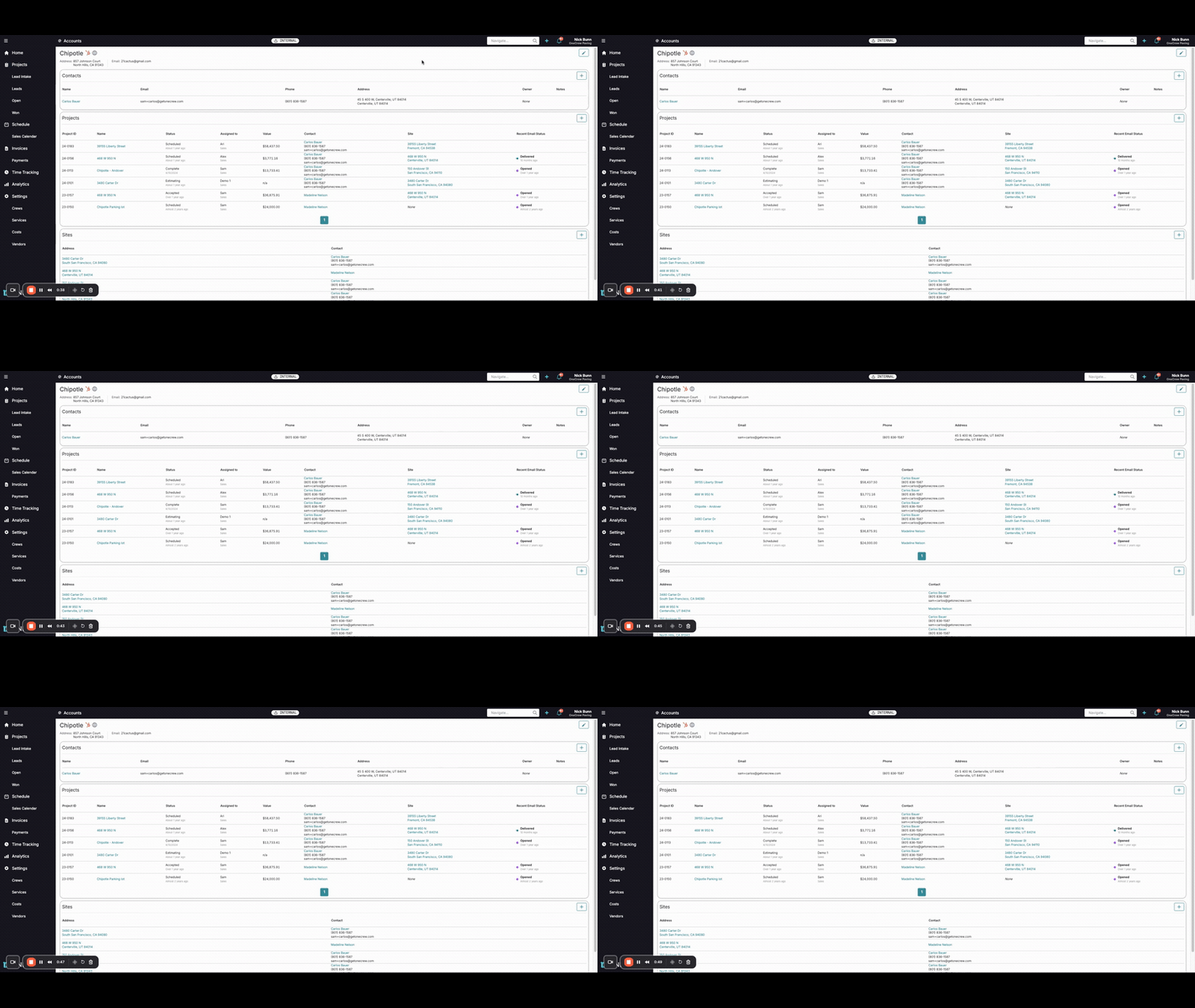
The relationship between Accounts, Contacts, and Sites is inherent to the OneCrew system design. There isn't a separate configuration panel for the hierarchy itself; rather, it's defined by how these entities are created and linked.
Here’s how they are structured:
graph TD A[Account] -->|Can have multiple| C[Contacts] A -->|Can have multiple| S[Sites] A -->|Can have multiple| P[Projects] P -->|Is associated with one| C P -->|Is performed at one| S style A fill:#f9f,stroke:#333,stroke-width:2px style C fill:#ccf,stroke:#333,stroke-width:2px style S fill:#cfc,stroke:#333,stroke-width:2px style P fill:#fec,stroke:#333,stroke-width:2pxAccount:
This is the highest-level entity, representing the client organization or individual customer.
When searching, Accounts are often identifiable by a building icon or an "@" symbol prefix in search results, though this can vary slightly.
All Contacts, Sites, and Projects are ultimately nested under an Account.
Contacts:
These are individuals associated with an Account.
An Account can have one or many Contacts. For a commercial Account, these might be different employees. For a residential Account, it might be the homeowner, their spouse, or a property manager.
Contacts are typically identified by a person icon in search results.
Sites:
These are the physical locations or addresses where work is performed for an Account.
An Account can have one or many Sites. A business might have multiple branches, or an individual might own several properties.
Projects:
These represent specific jobs, tasks, or engagements.
Every Project must be linked to:
One Account (the client).
One primary Contact (the main point of person for that project, belonging to the Account).
One Site (the location for the project, belonging to the Account).
Pro Tip: When creating new Projects, always ensure you're linking to the correct existing Account, Contact, and Site. If they don't exist yet, create them first. This diligence maintains data integrity and ensures your CRM remains a reliable source of truth. Learn more about creating projects [add link to relevant article].
Use Cases
The Account, Contact, and Site structure is versatile, catering to various business scenarios:
Managing Large Commercial Clients:
Scenario: You work with a national retail chain like "Chipotle" that has multiple branches and various points of contact (e.g., corporate office, regional managers, individual store managers).
How it works: "Chipotle" would be the Account. Each manager would be a Contact under this Account. Each restaurant location would be a Site. A project, like "Parking Lot Repaving at North Hills Branch," would be linked to the "Chipotle" Account, the specific "North Hills Branch" Site, and potentially the "Store Manager" Contact for that location.
Handling Residential Customers:
Scenario: You provide services to individual homeowners, such as "John Smith."
How it works: "John Smith" can be the Account (representing the household or property owner). John Smith himself would be a primary Contact. If he has a spouse or a property manager involved, they can be added as additional Contacts under the same "John Smith" Account. The property address (e.g., "123 Main Street") is the Site. A "Driveway Repair" project would link to the "John Smith" Account, the "John Smith" Contact, and the "123 Main Street" Site.
Tracking Multi-Site Projects for a Single Client:
Scenario: A property development company (the Account) hires you for work on several different properties (Sites) they own.
How it works: Each property is a distinct Site under the main Account. Projects are created for each Site, allowing for clear separation and tracking of work, costs, and communications specific to each location, all while rolling up to the central client Account.
Maintaining Historical Records:
Scenario: You need to review all past work done for a specific client, including who you dealt with and where the work was performed.
How it works: Navigating to the client's Account page provides a consolidated view of all associated Contacts, Sites, and a complete history of Projects, offering easy access to past interactions and job details.
Examples
Let's look at how this hierarchy plays out in real-world scenarios:
Example 1: Commercial Client - "Chipotle"
Account: Chipotle
This represents the entire Chipotle corporate entity you're working with.
The Account page for "Chipotle" would serve as the central hub.
Contacts (under the "Chipotle" Account):
Carlos Bauer (e.g., primary corporate liaison)
Jane Doe (e.g., regional manager for West Coast)
John Smith (e.g., store manager for the North Hills location)
Multiple individuals can be listed, each with their roles and contact details.
Sites (under the "Chipotle" Account):
857 Johnson Court, North Hills, CA 91343
150 Andover St, Fremont, CA 94536
3456 Carter Dr, South San Francisco, CA 94580
Each physical location where work might be performed is a separate site.
Projects (linked to the "Chipotle" Account and specific Contacts/Sites):
Project ID: 24-0153, Name: Chipotle - Andover
Account: Chipotle
Contact: Carlos Bauer (or a site-specific contact)
Site: 150 Andover St, Fremont, CA 94536
Project ID: 23-0547, Name: Chipotle Parking Lot
Account: Chipotle
Contact: Madeline Nelson (potentially another contact for this specific project)
Site: 486 W 800 N, Centerville, UT 84014 (Note: Sites can be diverse geographically but still roll up to the main account)
Example 2: Residential Client - "John Smith"
Account: John Smith
This represents John Smith as the client, often the homeowner. In residential cases, the Account name and primary Contact name are frequently the same.
Contacts (under the "John Smith" Account):
John Smith (primary homeowner,
jsmith@getonecrew.com)Mike Trout (
mtrout@getonecrew.com, perhaps a property manager or secondary contact)This shows that even residential accounts can have multiple associated individuals.
Sites (under the "John Smith" Account):
Address: 10900 East Avenue North, Maple Grove, MN 55369
Address: 723 Main Street, Roseville, CA 22100
John Smith might own multiple properties where work is needed.
Projects (linked to the "John Smith" Account and specific Contacts/Sites):
Project ID: 25-0345, Name: Elite Parking Lot (This name might be generic, context is key)
Account: John Smith
Contact: Mike Trout
Site: 3555 Sparta Ave Boulevard, San Diego, CA 92110
This structure allows for tracking work done for John Smith, even if managed by Mike Trout, at a specific property.
By consistently using this hierarchical structure, businesses can maintain a well-organized, easily navigable, and comprehensive record of all their client interactions and project activities within OneCrew.