Reminders and Activity Logging
Last updated: August 7, 2025
Watch Video Demo Here
Overview
In today's fast-paced business environment, maintaining strong customer relationships is paramount. Two fundamental features within our CRM, Activity Logging and Reminders, are designed to help you meticulously track interactions and proactively manage follow-ups. This guide provides a comprehensive look at how these tools can streamline your workflow, enhance team collaboration, and ensure no opportunity slips through the cracks.
Activity Logging allows you to create a detailed historical record of all communications with a contact, including calls, emails, and meetings. This ensures that every interaction is documented, providing valuable context for future engagements.
Reminders enable you to schedule and receive notifications for important follow-up actions related to a contact. This proactive approach helps you stay organized and meet your commitments, fostering trust and reliability.
Benefits:
Improved Organization: Centralize all contact interactions and tasks in one place.
Enhanced Customer Relationships: Never miss a follow-up or forget key details from previous conversations.
Increased Productivity: Streamline communication tracking and task management.
Better Team Collaboration: Share contact history and assign tasks seamlessly across your team.
Data-Driven Insights: Build a rich dataset of customer interactions to inform your strategies.
Configuration
Configuring activities and reminders is straightforward, allowing for detailed tracking and customized notifications. These features are typically found on individual contact pages.
Activity Logging
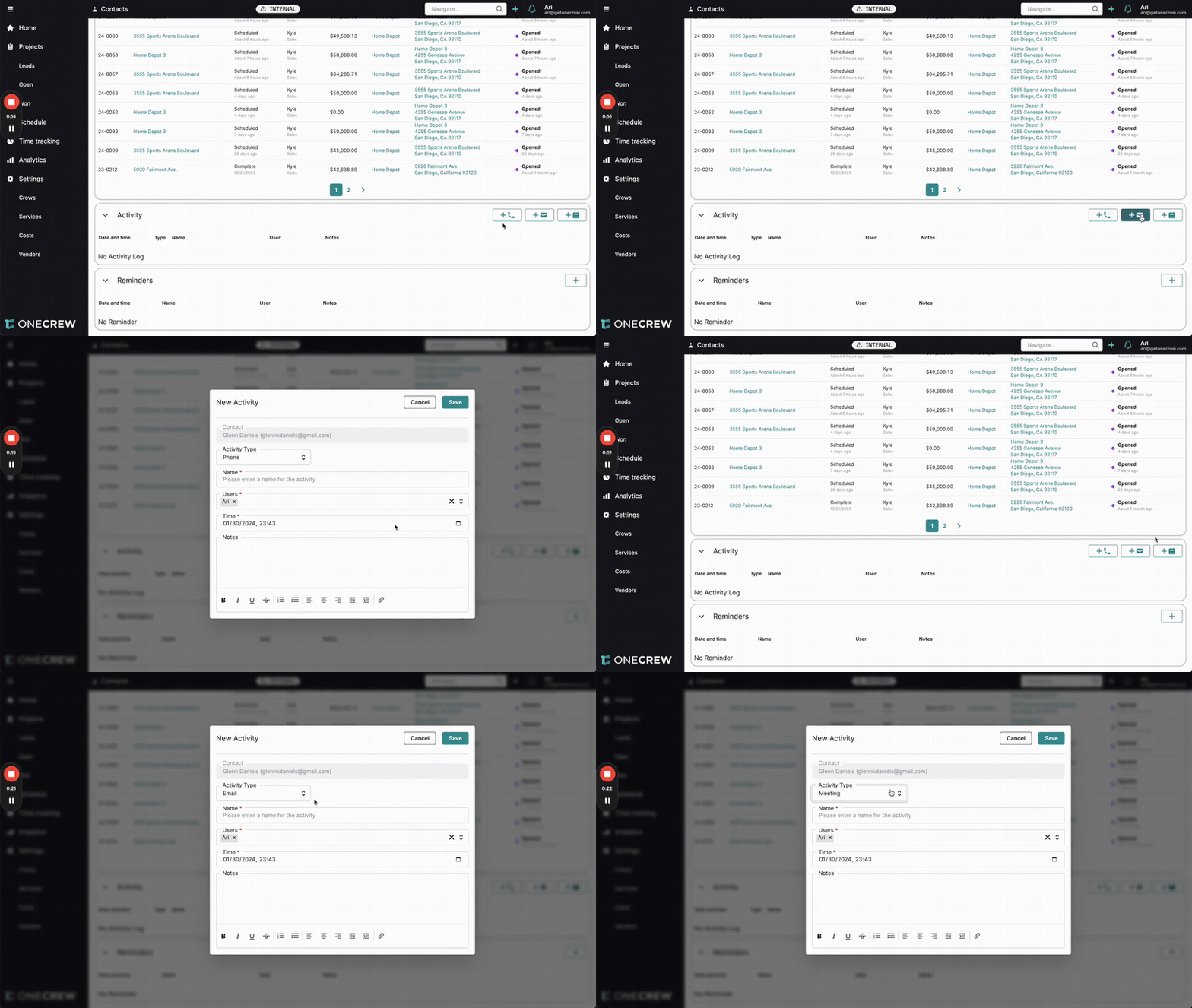
The Activity section on a contact's page displays a chronological log of all recorded interactions. To add a new activity:
Locate the Activity section. You'll typically see icons to log specific types of activities.
Click the relevant icon:
+ Phone for logging a call.
+ Email for logging an email interaction.
+ Meeting for logging a meeting.
A New Activity form will appear. Fill in the following fields:
Contact: This will be pre-filled with the current contact's name.
Activity Type: Pre-selected based on the icon you clicked (e.g., Phone, Email, Meeting). You can change this from the dropdown if needed.
Name*: Enter a concise and descriptive name for the activity (e.g., "Q1 Check-in Call," "Project Proposal Email"). This field is required.
Users*: Assign one or more users who were involved in or are relevant to this activity. By default, the user creating the log is added. You can add other team members. This field is required.
Time*: The date and time the activity occurred. This defaults to the current date and time but can be adjusted. This field is required.
Notes: Provide a detailed account of the interaction. Include key discussion points, outcomes, action items, or any other relevant information. This field often supports rich text formatting for clarity.
Click Save to add the activity to the contact's log.
Reminders
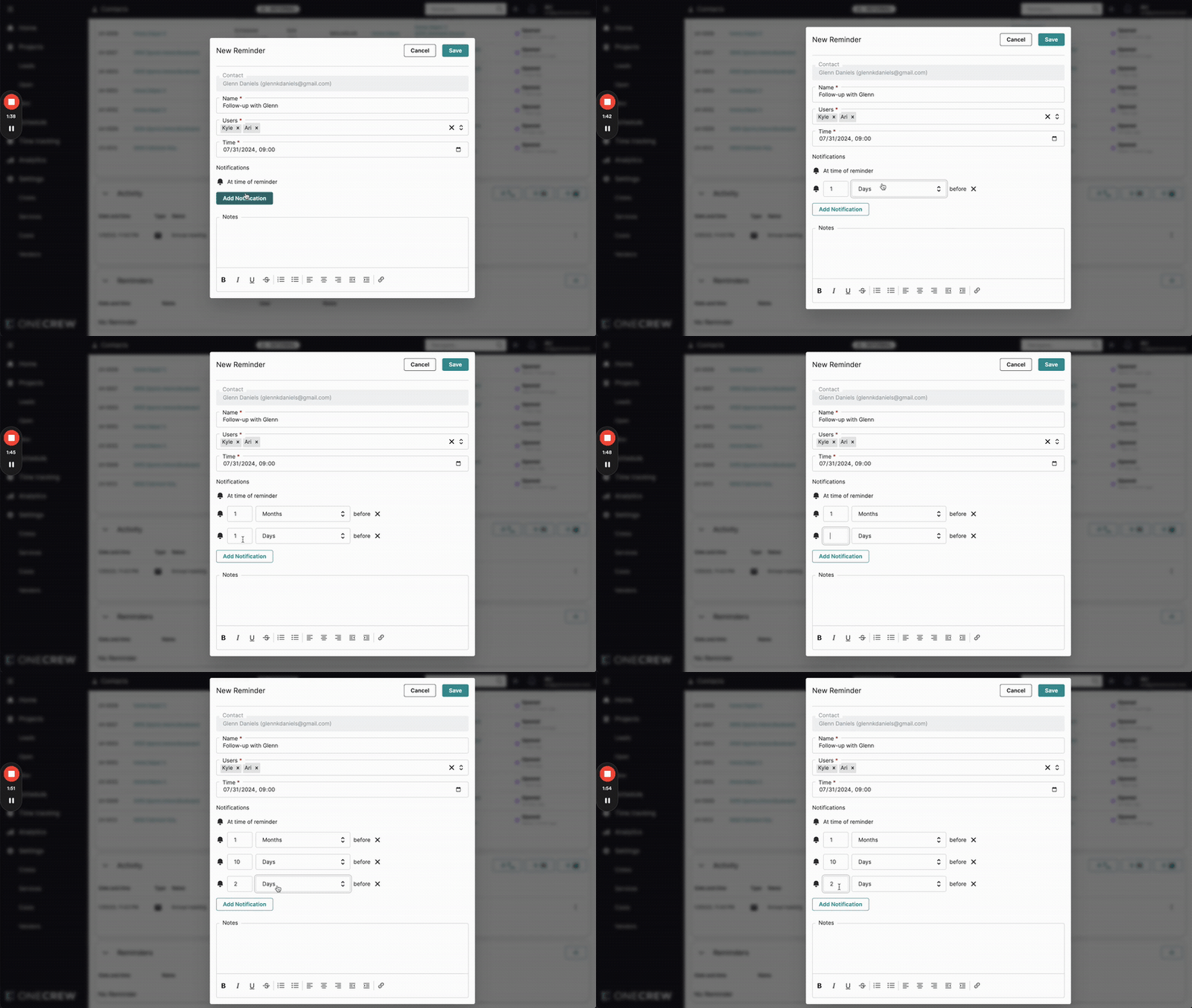
The Reminders section allows you to set and manage follow-up tasks. To create a new reminder:
Navigate to the Reminders section on the contact's page.
Click the + (Add) button.
A New Reminder form will open. Complete the following details:
Contact: This will be pre-filled with the current contact's name.
Name*: Give the reminder a clear and actionable title (e.g., "Follow up on proposal," "Schedule Q2 review"). This field is required.
Users*: Assign the reminder to one or more users who are responsible for the action. By default, the user creating the reminder is added. This field is required.
Time*: Set the due date and time for the reminder. This is when the primary notification will trigger if no other notifications are set. This field is required.
Notifications: Configure when users should be notified:
A default notification is typically set for "At time of reminder."
Click Add Notification to create additional, custom notifications. For each custom notification:
Enter a numerical value (e.g., 1, 5, 10).
Select a time unit from the dropdown: Minutes, Hours, Days, or Months.
This sets a notification to trigger that amount of time before the main reminder Time. You can add multiple such advance notifications.
Notes: Add any specific instructions, context, or relevant links for the reminder. This field may support rich text formatting.
Click Save to schedule the reminder.
Existing reminders can usually be edited or deleted via a menu (often a three-dot icon) associated with each reminder entry.
Use Cases
Understanding when and why to use Activity Logging and Reminders can significantly impact your customer engagement effectiveness.
Activity Logging is ideal for:
Recording Sales Call Outcomes: Documenting key discussion points, objections, and agreed-upon next steps after a phone conversation.
Tracking Important Email Exchanges: Saving summaries or key takeaways from significant email threads.
Documenting Meeting Minutes: Capturing decisions made, action items assigned, and insights gained during client meetings.
Onboarding Team Members: Providing new colleagues with a complete history of a contact's interactions, enabling them to get up to speed quickly.
Maintaining Compliance: Keeping an auditable trail of communications where required.
Reminders are essential for:
Scheduling Follow-up Calls: Ensuring you connect with a prospect after a demo or initial inquiry.
Managing Contract Renewals: Setting advance notifications to initiate renewal discussions.
Timely Responses: Reminding yourself or a team member to reply to a client's question by a specific deadline.
Task Delegation: Assigning follow-up actions to colleagues and tracking their completion.
Long-Term Nurturing: Setting reminders for periodic check-ins with key contacts, even if months in the future.
Insight: Consistently logging activities and setting reminders transforms reactive customer service into proactive relationship management, building stronger, more loyal customer connections.
Examples
Let's illustrate how Activity Logging and Reminders work together to ensure seamless contact management.
Scenario: Logging a Key Client Meeting and Scheduling a Long-Term Follow-Up
Imagine you've just finished an important annual review meeting with your client, Glenn Daniels from Home Depot. Your colleague, Kyle, was also present.
Log the Activity:
Navigate to Glenn Daniels' contact page.
In the Activity section, click the + Meeting icon.
Activity Type: Meeting
Name:
Annual Review Meeting - Home Depot Q1Users: Add yourself (Ari) and Kyle.
Time: Set to the date and time the meeting concluded.
Notes:
Discussed performance over the last year. Glenn is happy with services. Made a plan for the next strategic discussion in 6 months. Key action item: Send summary notes by EOD.Click Save.
Set a Reminder for the Next Strategic Discussion:
In the Reminders section on Glenn's contact page, click +.
Name:
Prep for Strategic Discussion - Glenn Daniels (Home Depot)Users: Assign to yourself (Ari) and Kyle.
Time: Set the date for 6 months from now (e.g., July 31st, 2024, 09:00 AM).
Notifications: To ensure ample preparation:
At time of reminder (July 31st, 09:00 AM)
Add Notification:
1Months beforeAdd Notification:
14Days beforeAdd Notification:
10Days before
Notes:
Follow-up from annual meeting. Prepare agenda for next strategic discussion. Review past performance and identify new opportunities.Click Save.
Pro Tip: When assigning activities or reminders to multiple users, ensure clear communication outside the system about who is primarily responsible for which part of the task, if applicable. The CRM will notify all assigned users.
By systematically logging this meeting and setting a multi-stage reminder, both Ari and Kyle are kept in the loop, have a record of what was discussed, and will receive timely prompts to prepare for the next important engagement with Glenn Daniels. This structured approach minimizes the risk of oversight and helps maintain a high level of professionalism and preparedness in client interactions.