Creating a New Account or Contact from Global Navigation
Last updated: August 7, 2025
Overview
Efficiently managing your customer data is crucial for any service business. In OneCrew Paving, creating new accounts and contacts is a fundamental step to organizing client information, tracking interactions, and setting up projects. This tutorial provides a detailed walkthrough of how to quickly add new accounts and contacts using the global creation menu, helping you maintain a structured and accessible client database.
Step-by-Step Guide
Accessing the Global Creation Menu
No matter where you are in OneCrew Paving, you can quickly add new records:
Locate the plus (+) icon in the top right corner of your screen.
Click the plus (+) icon.
A dropdown menu will appear, presenting options such as New project, New account, and New contact.
Creating a New Account
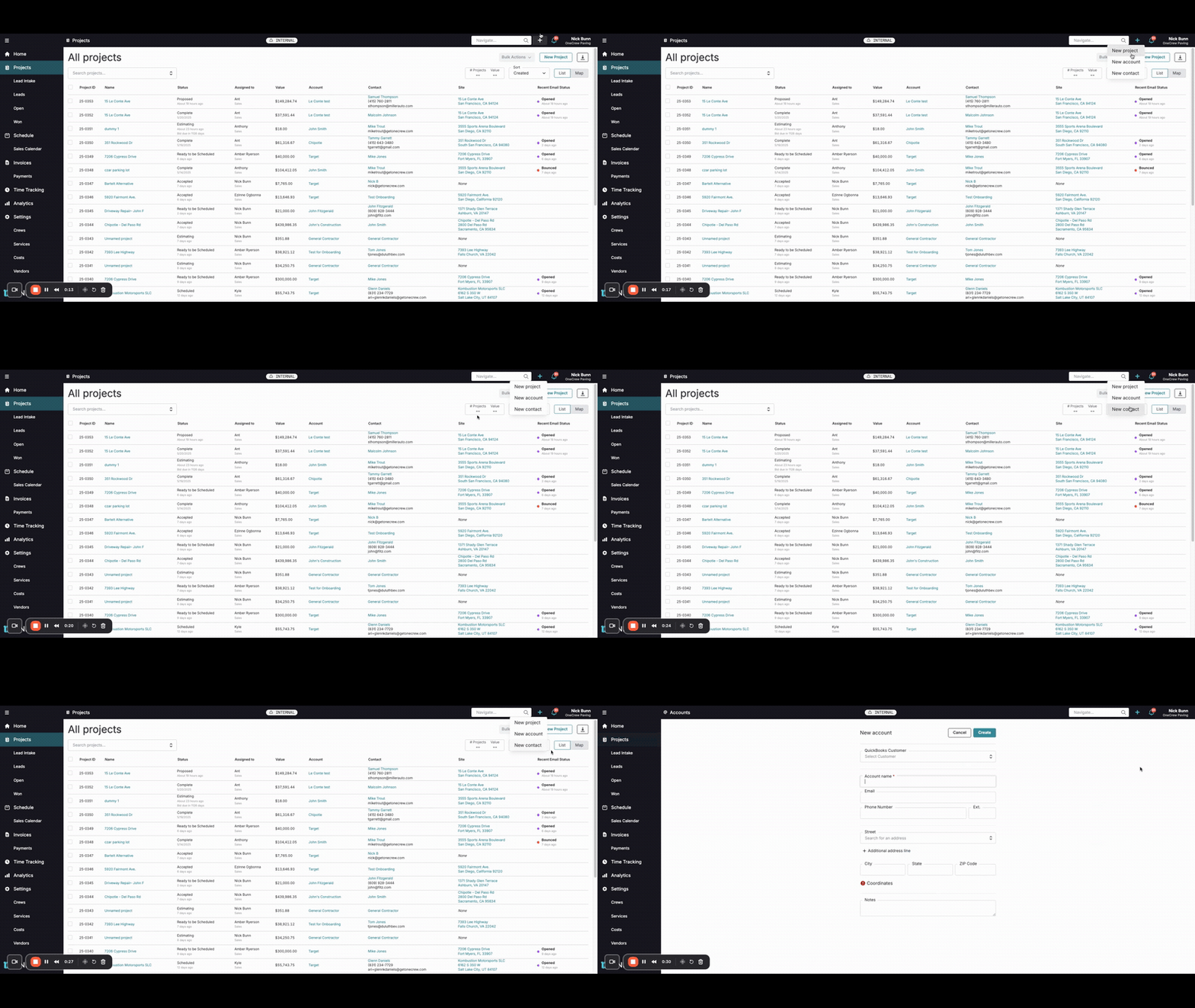
Accounts typically represent the companies or organizations you work with.
From the plus (+) icon dropdown menu, select New account.
The New account form will open.
Fill in the Account Name. This field is required.
Enter other relevant information such as Email, Phone Number, Street address (including City, State, ZIP Code), and any internal Notes.
If you integrate with QuickBooks, you can link this account to an existing QuickBooks Customer by selecting it from the dropdown list.
Once all necessary information is entered, click the Create button at the top right of the form to save the new account.
Insight: Accounts are the central hub for your customer information. Keeping these details accurate and up-to-date streamlines communication and project management, forming the foundation for all interactions with a client company.
Creating a New Contact
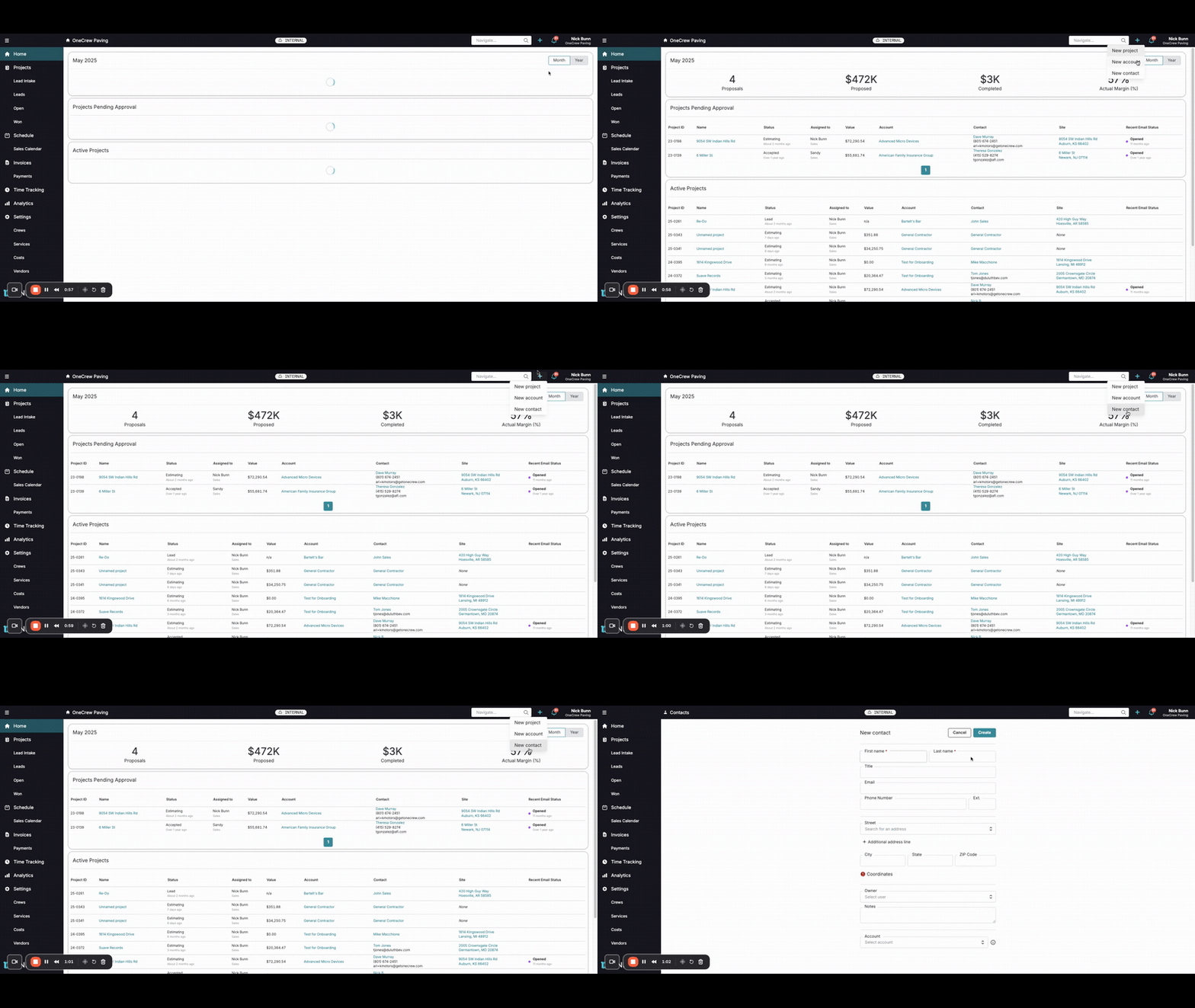
Contacts are the individuals associated with your accounts.
From the plus (+) icon dropdown menu, select New contact.
The New contact form will appear.
Enter the contact's First name and Last name. These fields are required.
Populate other fields as needed, such as Title, Email, Phone Number, and Street address.
You can assign an Owner to the contact, which is typically an internal user from your team responsible for managing this contact. Select the user from the Owner dropdown.
Add any specific Notes related to the contact in the provided field.
Associate the contact with an Account. Start typing the account's name in the Account field; existing accounts will appear in a dropdown for selection.
Pro tip: If the account doesn't exist yet, you can create it on the fly! Type the new account name into the Account field. An option like "+ New account '[Typed Account Name]'" will appear. Click this to open the New account form, which will pre-fill some details (like Account Name and Email if entered for the contact) allowing you to quickly create and link the new account.
After filling in the details, click the Create button at the top right of the form.
Every project in OneCrew Paving requires both an account and an associated contact. Creating these records accurately from the outset is key for smooth project initiation and ongoing management.
Troubleshooting
Here are a few common issues you might encounter:
Cannot Save Record: If you click Create and the record isn't saved, or you see an error, ensure all required fields (marked with an asterisk *) are completed. For accounts, Account Name is mandatory. For contacts, First name and Last name are required.
Linking to an Existing Account: When creating a contact, if you're unsure if an account already exists, always use the search function within the Account field first. This helps prevent duplicate account entries.
QuickBooks Customer Not Found: If you are trying to link a new OneCrew Paving account to a QuickBooks Customer and cannot find it in the dropdown, verify that the customer record exists in your QuickBooks application. Also, ensure your QuickBooks integration with OneCrew Paving is active and has recently synced. Learn more about QuickBooks integration [add link to relevant article on QB integration].