Rename a Cost in Estimates
Last updated: August 7, 2025
View a Video Example Here
Introduction
This guide helps you quickly rename cost items on your estimates for clearer project details. A clear name ensures everyone understands the scope when it's time to do the work.
Key Features
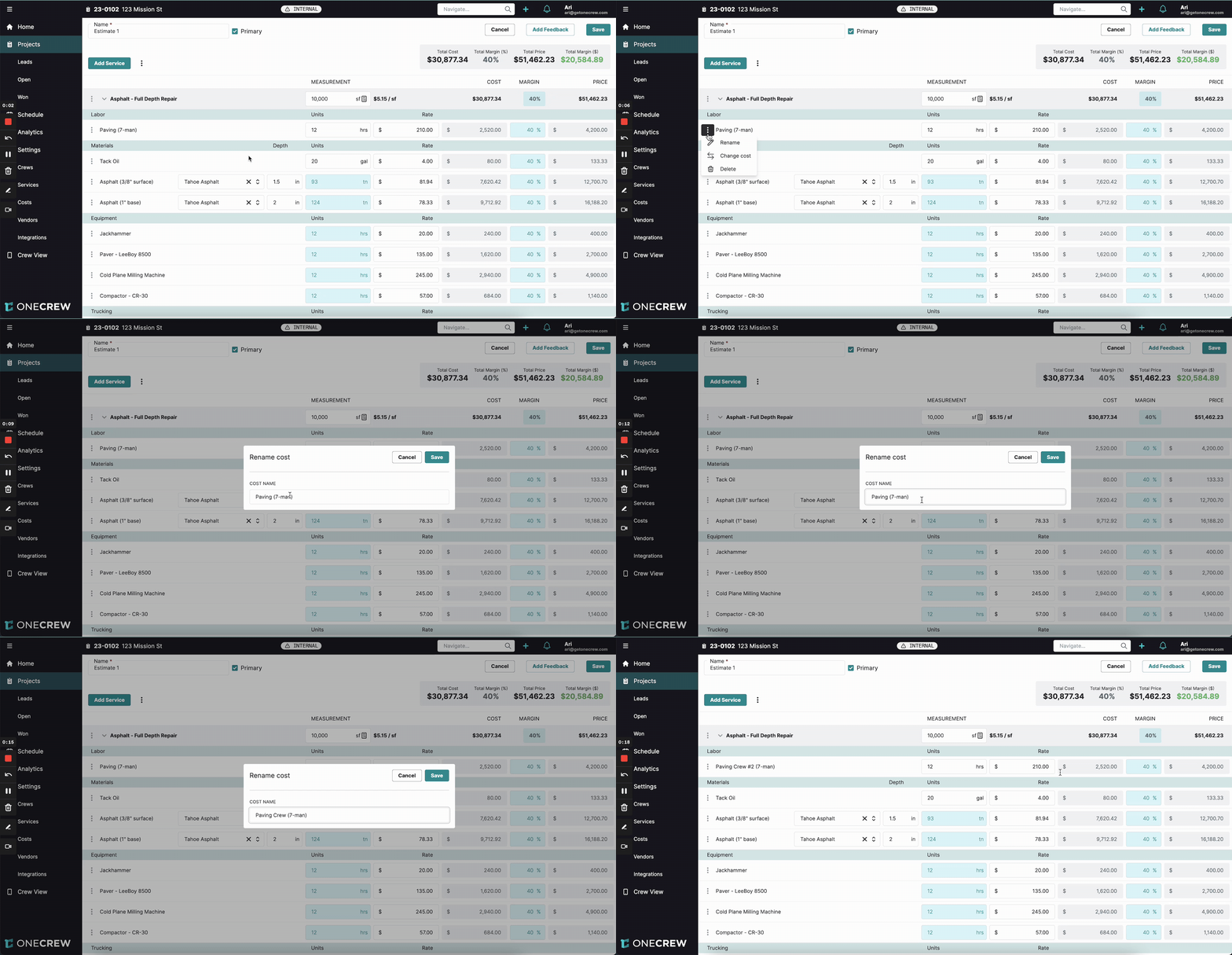
Edit animation Need to give your cost items more descriptive names? Here’s how to make that quick update:
Locate the cost item you wish to update within your estimate.
Click the three-dot menu (options icon) found next to the current cost name.
Select Rename from the dropdown menu. This opens the Rename cost window.
In the COST NAME field, type your new, descriptive name for the cost item.
Click the Save button. The cost name is instantly updated on your estimate!
Insight: This isn't just a label change on the estimate! The new, clearer name you provide will automatically carry over to associated work orders and schedules, ensuring consistent communication and understanding for your team.
Common pitfalls
Renaming a cost directly on an estimate changes its name for that specific estimate and any work orders generated from it. This action does not alter the original item in your master cost catalog. If you need to make a permanent change to a cost item for all future estimates, you'll want to edit it in your cost catalog settings.