Adding an Email Signature
Last updated: June 15, 2026
Watch Video Demo Here
Overview

A well-crafted email signature adds a professional touch to all your outgoing communications, ensuring recipients have your key contact information and a consistent brand experience. This tutorial will guide you through setting up your personalized email signature, which will automatically append to emails sent from the platform, such as when sending proposals or other project-related messages.
Insight: A standardized email signature across your team reinforces brand identity and professionalism with every client interaction.
Step-by-Step Guide
Follow these steps to create and save your email signature.
Access Profile Settings:
Click on your profile icon or name located in the top-right corner of the navigation bar.
Select Profile Settings from the dropdown menu. This will take you to your user profile page.
Locate the Email Signature Section:
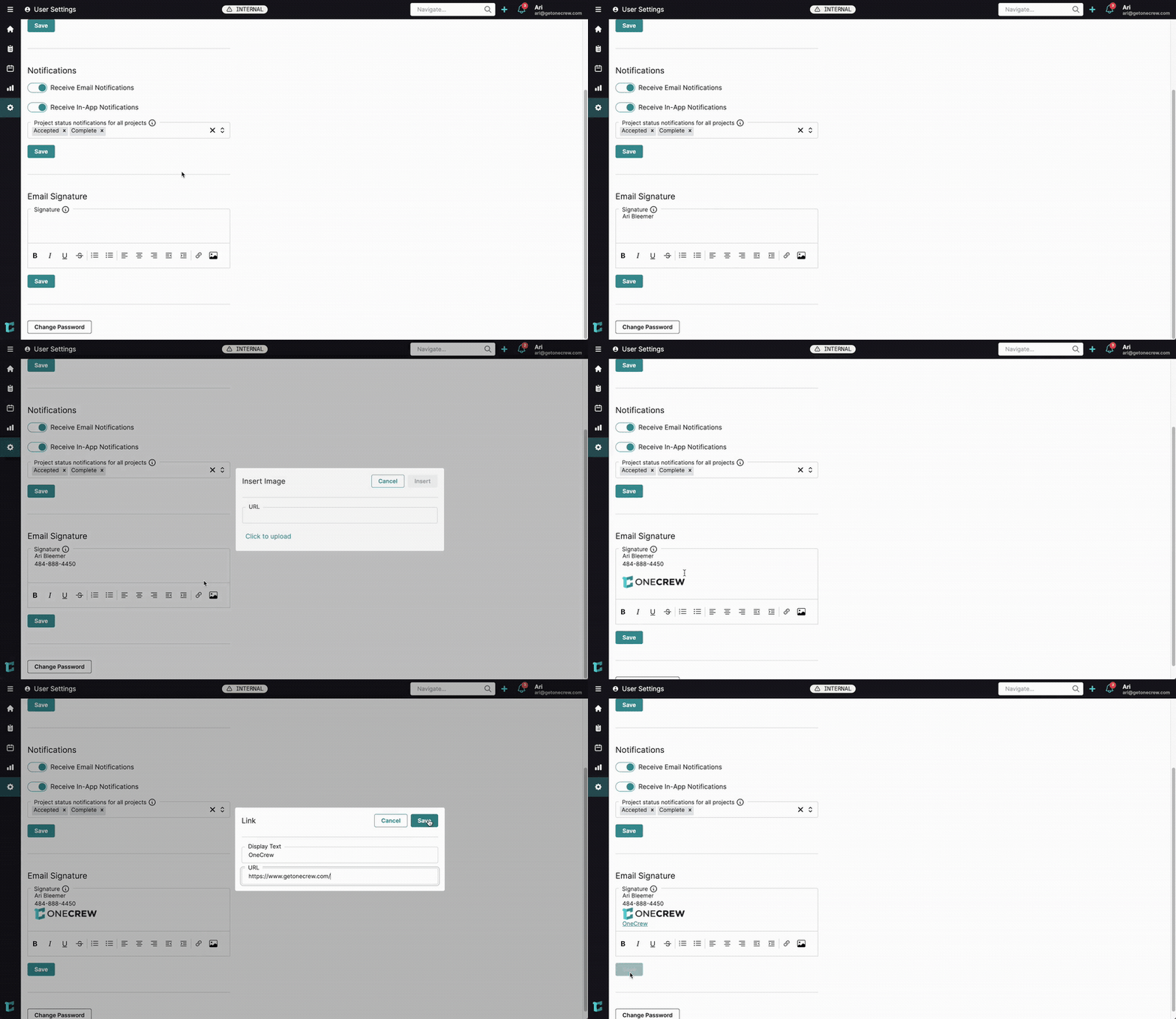
On the Profile page, scroll down until you find the Email Signature section. You'll see a text editor box labeled Signature.
Compose Your Signature:
Click into the Signature text box.
Type your desired signature information. Common details include your full name, title, company name, and phone number. For example:
Ari Bleemer 111-111-1111
Add an Image (e.g., Company Logo):
Position your cursor where you want the image to appear in your signature.
Click the Insert Image icon (often looks like a picture or landscape) in the toolbar of the text editor.
In the Insert Image dialog, you can either paste a URL if your image is hosted online, or click Click to upload to select an image file from your computer.
Select your desired image (e.g.,
horizontal_logo_small.png) and click Open. The image will be uploaded and inserted into your signature.
Pro Tip: Use a relatively small image file for your logo to ensure emails load quickly for recipients.
Make Your Image Clickable (Optional):
Click on the inserted image in the signature editor to select it.
Click the Link icon (often looks like a chain link) in the toolbar.
In the Link dialog:
Enter Display Text (e.g., "OneCrew"). This text will be shown if the image doesn't load.
Enter the URL you want the image to link to (e.g.,
https://www.getonecrew.com/).Click Save. Your image is now a hyperlink.
Save Your Signature:
Once you are satisfied with your signature, click the Save button located directly beneath the Email Signature text editor.
A confirmation message, "Saved email signature," will briefly appear at the top of the screen.
Verify Your Signature (Example):
Navigate to a project and open a proposal.
Click the Send button. In the Send Proposal pop-up, your newly created signature will automatically appear in the Message body.
Note that if you apply an Email Template by clicking the Template button, the template's content will overwrite the current message body but your signature will remain appended below the template content.
Troubleshooting
Encountering issues? Here are some common problems and their solutions:
Image Not Displaying:
If you uploaded an image, ensure the upload completed successfully. Try re-uploading.
If you used a URL, verify the URL is correct and publicly accessible.
The image file might be too large or in an unsupported format. Try a smaller, standard format like PNG or JPG.
Link Not Working:
Double-check the URL you entered for the hyperlink. Ensure it includes
http://orhttps://and has no typos.Reselect the image/text and re-apply the link.
Signature Not Appearing in Emails:
Make sure you clicked the Save button under the Email Signature section in Profile Settings. If you navigated away without saving, your changes were not stored.
Formatting Looks Incorrect:
Use the formatting tools (bold, italics, lists) within the signature editor sparingly. Complex HTML might not render as expected in all email clients. Keep it simple for best results.