Template Variables: Dynamic Content for Personalized Documents
Last updated: August 7, 2025
Overview
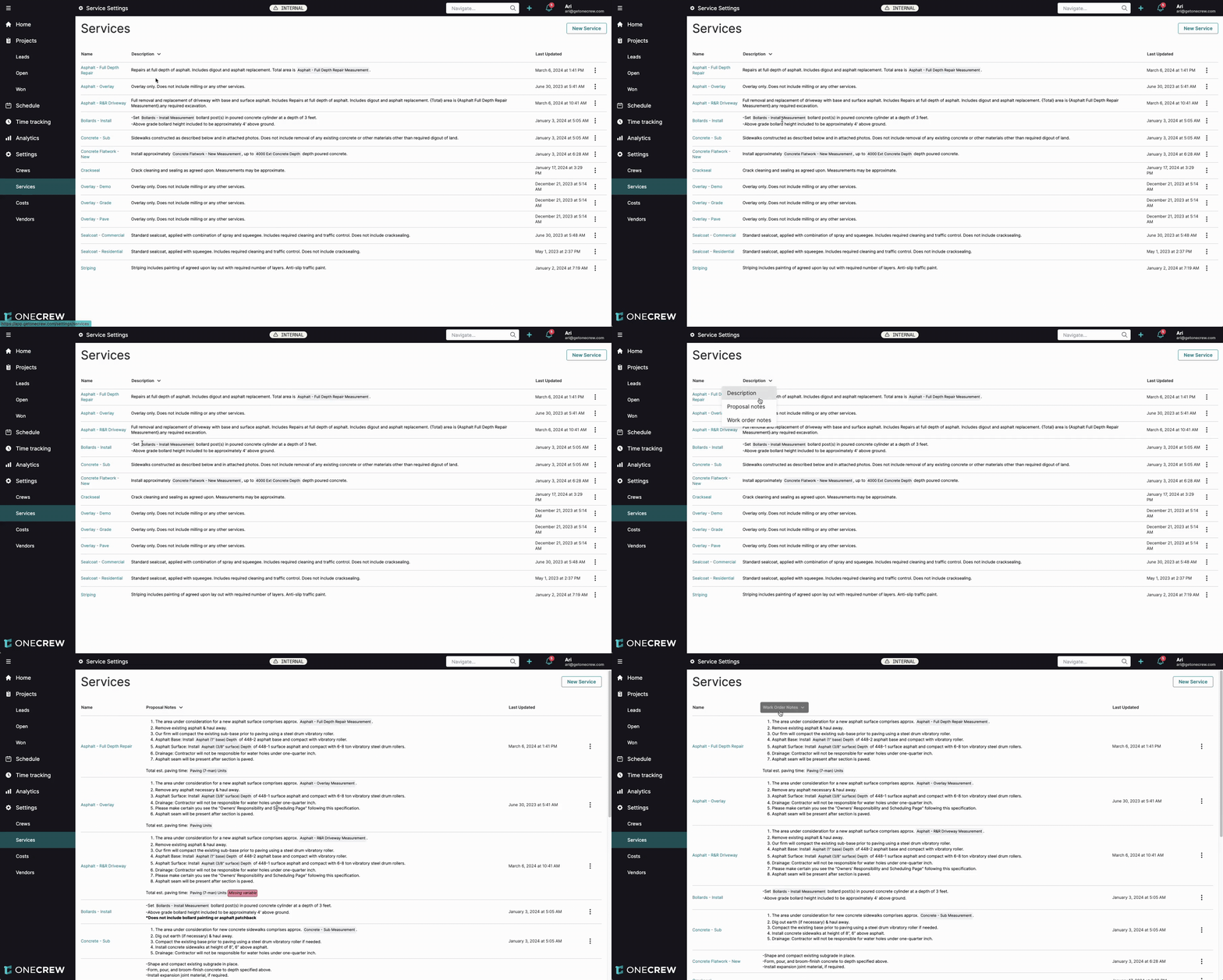
Template Variables are powerful placeholders that dynamically insert specific project, service, contact, or company data into your documents and communications. Instead of manually typing repetitive information, you can use variables to automatically populate relevant details, ensuring accuracy and saving significant time. In the user interface, these variables often appear as gray-highlighted text within template editor fields.
Purpose and Scope: Template Variables allow you to create standardized yet personalized templates across various parts of the application. They can be used in:
Service descriptions and notes (for proposals and work orders)
Proposal sections (e.g., service descriptions, additional information)
Post-signature messages displayed to clients
Automated email templates for proposals and other communications
Benefits:
Efficiency: Drastically reduces manual data entry and the time spent creating documents.
Consistency: Ensures uniform information and formatting across all communications.
Accuracy: Pulls data directly from the source (e.g., estimates, project details, user profiles), minimizing typos and errors.
Personalization: Tailors documents and emails to specific clients and projects, enhancing professionalism.
Insight: Template Variables transform static templates into dynamic, personalized documents with minimal effort, ensuring every communication feels tailored and accurate.
Configuration
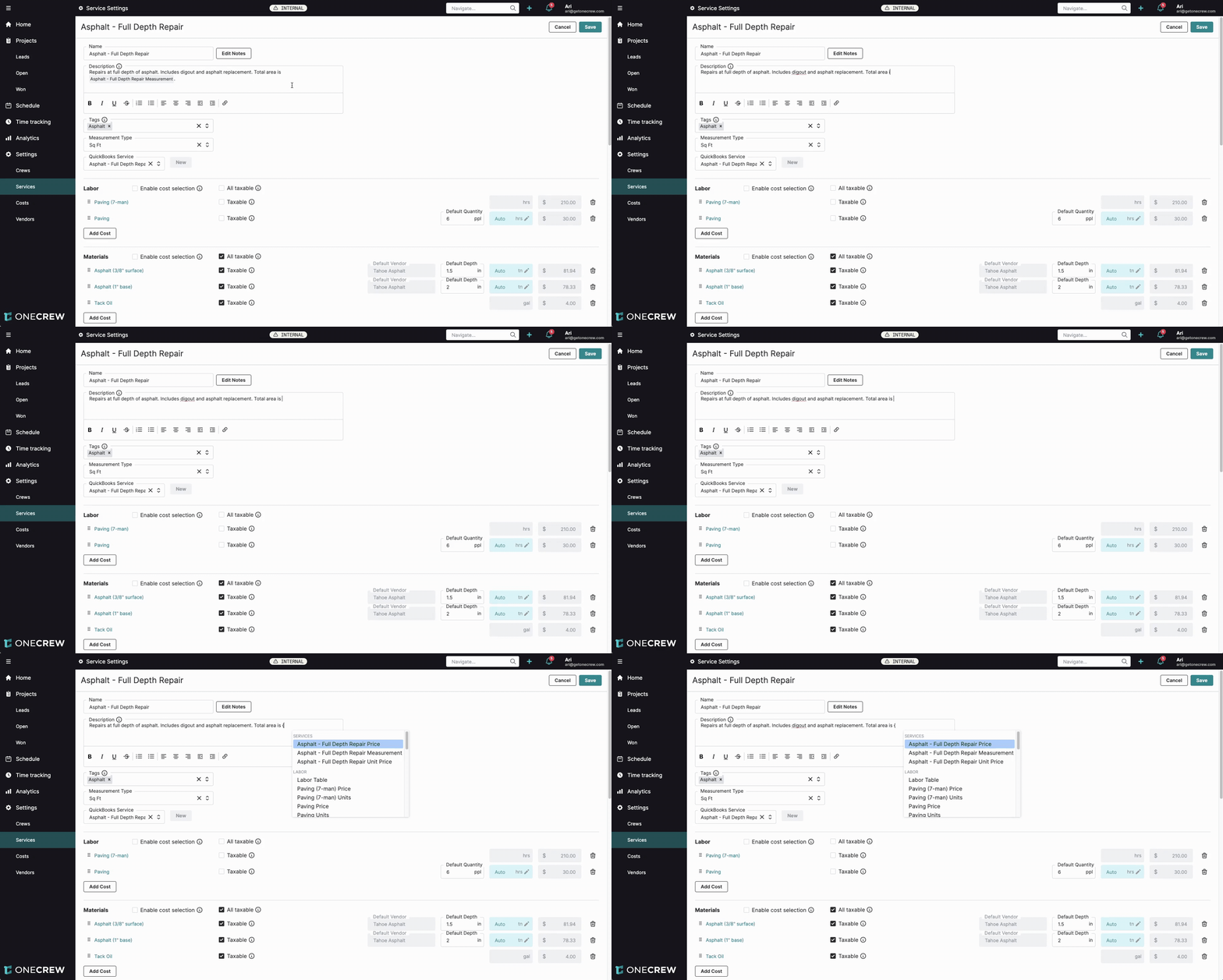
Configuring and using Template Variables is straightforward. The primary method involves typing an open curly bracket { in a supported text field, which will then display a list of available variables relevant to that context.
Accessing Template Variables:
Navigate to a text field where variables are supported (e.g., Service Description, Proposal Notes, Email Template body).
Type an open curly bracket:
{A dropdown list will appear, categorizing available variables (e.g., SERVICES, LABOR, MATERIALS, PROJECT, CONTACT).
Select the desired variable from the list. It will be inserted into your text, typically formatted like
{VariableName}.
Locations for Configuration:
Service Templates (under Services settings):
Description field: For the main description of the service.
Proposal Notes and Work Order Notes: Accessed by clicking the Edit Notes button within a specific service's settings. These allow for different detailed notes for proposals versus internal work orders.
Proposal Documents (at the Project level):
Editable text sections within a proposal, such as the Service Description (which pulls from the service template but can be overridden), Additional Service Information sections, or custom text blocks.
Global Proposal Settings (Settings > Proposals):
Post Signature Message: The message displayed to a client immediately after they electronically sign a proposal.
Signed Proposal Email Message: The content of the automated email sent to a client after they sign a proposal.
Global Email Templates (Settings > Email):
Email Subject line.
Email Message body.
Types of Template Variables: The available variables are context-dependent. Here are common types:
Service-Level: Referencing the overall service. Examples:
{Asphalt - Full Depth Repair Measurement},{Asphalt - Overlay Unit Price}.Cost-Item Specific: Referencing individual line items within a service (Labor, Materials, Equipment). Examples:
{Paving (7-man) Price},{Asphalt (3/8" surface) Units},{Asphalt (1" base) Depth}.Table Variables: Compile a list of all items within a cost category for a service. Examples:
{Materials Table},{Labor Table}.Project-Specific: Details about the project. Examples:
{Project Name},{Project ID},{Project Price},{Proposal Link}.Contact-Specific: Details about the client contact. Examples:
{Contact First Name},{Contact Last Name}.Salesperson-Specific: Details about the salesperson assigned to the project. Examples:
{Sales First Name},{Sales Phone},{Sales Email}.Other: General utility variables. Example:
{Current Date}.
Pro Tip: Variables are context-aware. The list of available variables in the dropdown will change depending on where you are inserting them (e.g., service templates have access to detailed cost item variables, while global email templates might focus on project and contact variables).
Use Cases
Template Variables offer flexibility for a wide range of scenarios. Here’s when and why you might use them:
When to Use This Feature:
Standardizing Service Details: Automatically include specific measurements, material types, or quantities within service descriptions on proposals or work orders. For example, always show the square footage and depth for an asphalt repair.
Personalizing Proposals: Add client-specific information to cover letters, acceptance clauses, or other proposal sections.
Automating Client Follow-ups: Send personalized thank-you emails after a proposal is signed, automatically including the salesperson's name and contact details.
Streamlining Email Communication: Quickly draft emails by using templates that pull in project names, contact details, or relevant links.
Providing Detailed Breakdowns: Offer clients more insight by including tables of materials or labor components within a service description on a proposal.
Why Use This Feature:
Save Time: Eliminate the need to look up and re-type information for every document.
Reduce Errors: By pulling data directly from the system, you minimize the risk of manual input errors.
Maintain Professionalism: Consistently provide clients with accurate, well-formatted, and personalized documents.
Enhance Clarity: Give customers a clearer understanding of the services being offered, for example, by itemizing materials in a table.
Examples
Here are some real-world examples demonstrating how Template Variables can solve problems and add value:
Example 1: Dynamic Service Descriptions in Proposals
Scenario: You want your asphalt repair service description on proposals to always show the total measured area and the calculated unit price based on the estimate. Configuration: In the Description field of your "Asphalt - Full Depth Repair" service template (or directly in the proposal's service description section): Repairs at full depth of asphalt. Includes digout and asphalt replacement. Total area is {Asphalt - Full Depth Repair Measurement} @ {Asphalt - Full Depth Repair Unit Price}. Result on Proposal (assuming 10,000 sq ft and $2.90/sq ft unit price from estimate): "Repairs at full depth of asphalt. Includes digout and asphalt replacement. Total area is 10,000 sq ft @ $2.90 / sq ft."
Example 2: Displaying a Detailed Materials List
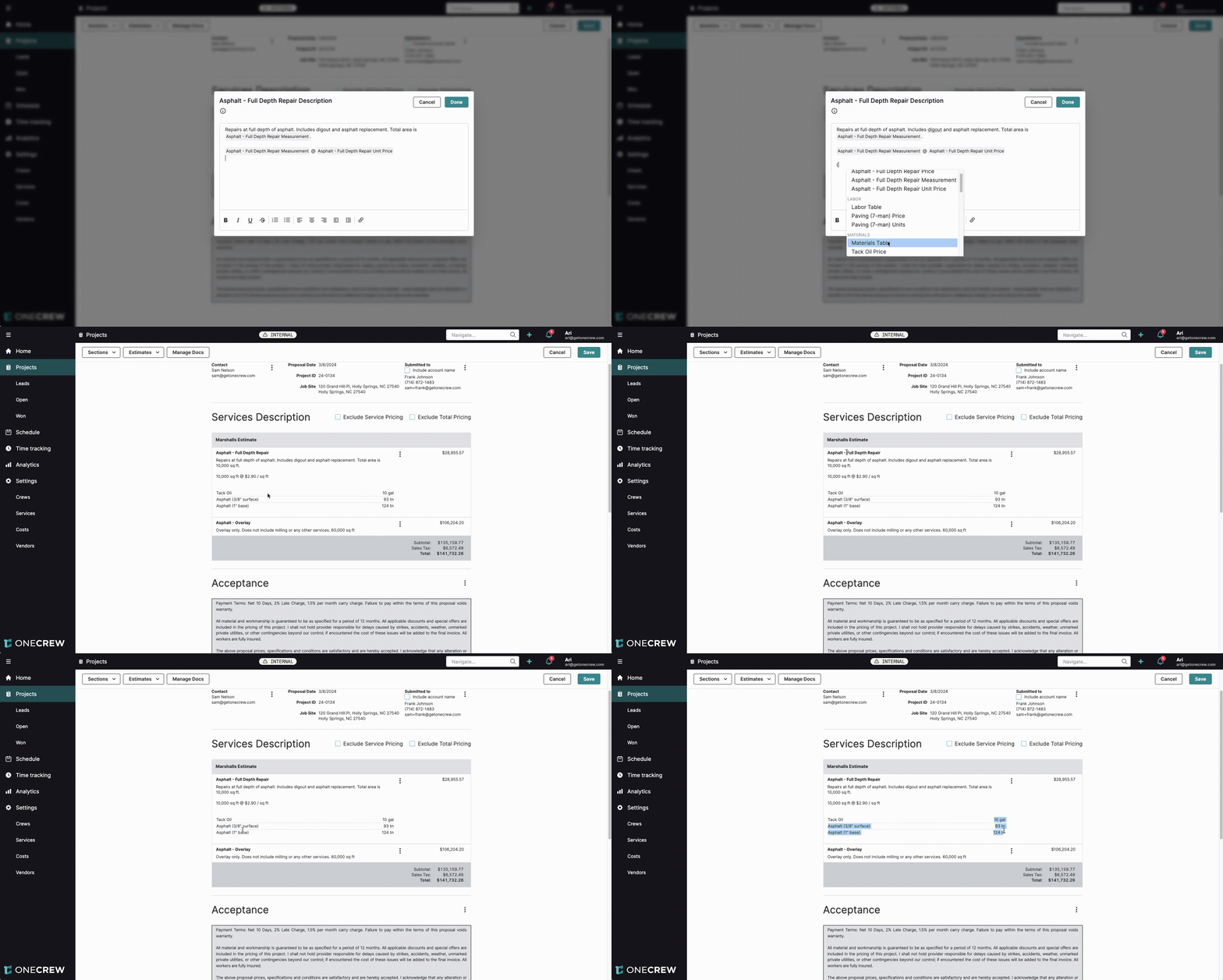
Scenario: For a full depth repair, you want to provide the client with a transparent list of the major materials and their quantities directly within the service description on the proposal. Configuration: In the Description or Proposal Notes for the "Asphalt - Full Depth Repair" service: {Materials Table} Result on Proposal (based on estimate data):
Tack Oil 10 gal Asphalt (3/8" surface) 93 tn Asphalt (1" base) 124 tnThis table lists each material cost item from the service's estimate and its corresponding units.
Insight: Table variables like {Materials Table} offer transparency by listing out components of a service without cluttering the main estimate with individual line item pricing if not desired on the proposal. This builds trust and clarity with your clients.
Example 3: Personalized Post-Signature Email
Scenario: After a client signs a proposal, you want an automated email to go out, thanking them and providing the direct contact information of the salesperson who handled their project. Configuration (in Settings > Proposals > Signed Proposal Email Message): Thanks for signing our proposal for project: {Project Name}! We appreciate your business. If you have any questions or wish to discuss next steps, please reach out to your sales representative, {Sales First Name}, directly at {Sales Phone} or via email at {Sales Email}. Resulting Email (for a project "Marshalls Site Work" with salesperson Ari): "Thanks for signing our proposal for project: Marshalls Site Work! We appreciate your business. If you have any questions or wish to discuss next steps, please reach out to your sales representative, Ari, directly at (555) 123-4567 or via email at ari@getonecrew.com."
Example 4: Dynamic Proposal Link in Email Templates
Scenario: You're creating a standard email template to send proposals to clients, and you want to include a direct, clickable link to view the proposal online. Configuration (in Settings > Email, when creating or editing an Email Template): In the email Subject: Proposal for {Project Name} In the email Message body: Hello {Contact First Name}, Please find your proposal from OneCrew Paving for project {Project Name}. It can be viewed online here: {Proposal Link} Thanks, The OneCrew Team
(The {Proposal Link} variable will automatically render as a clickable URL in the sent email. You can also customize the link's display text. For example, you could type "View Your Proposal", select this text, click the hyperlink icon in the editor, and then insert {Proposal Link} as the URL.) Resulting Email: Subject: Proposal for 123 Main St. Paving Message: Hello Jane Doe, Please find your proposal from OneCrew Paving for project 123 Main St. Paving. It can be viewed online here: https://app.getonecrew.com/proposals/unique_proposal_id_link Thanks, The OneCrew Team