Setting Up Hubspot Integration
Last updated: February 26, 2026
Watch Video Demo Here
Overview
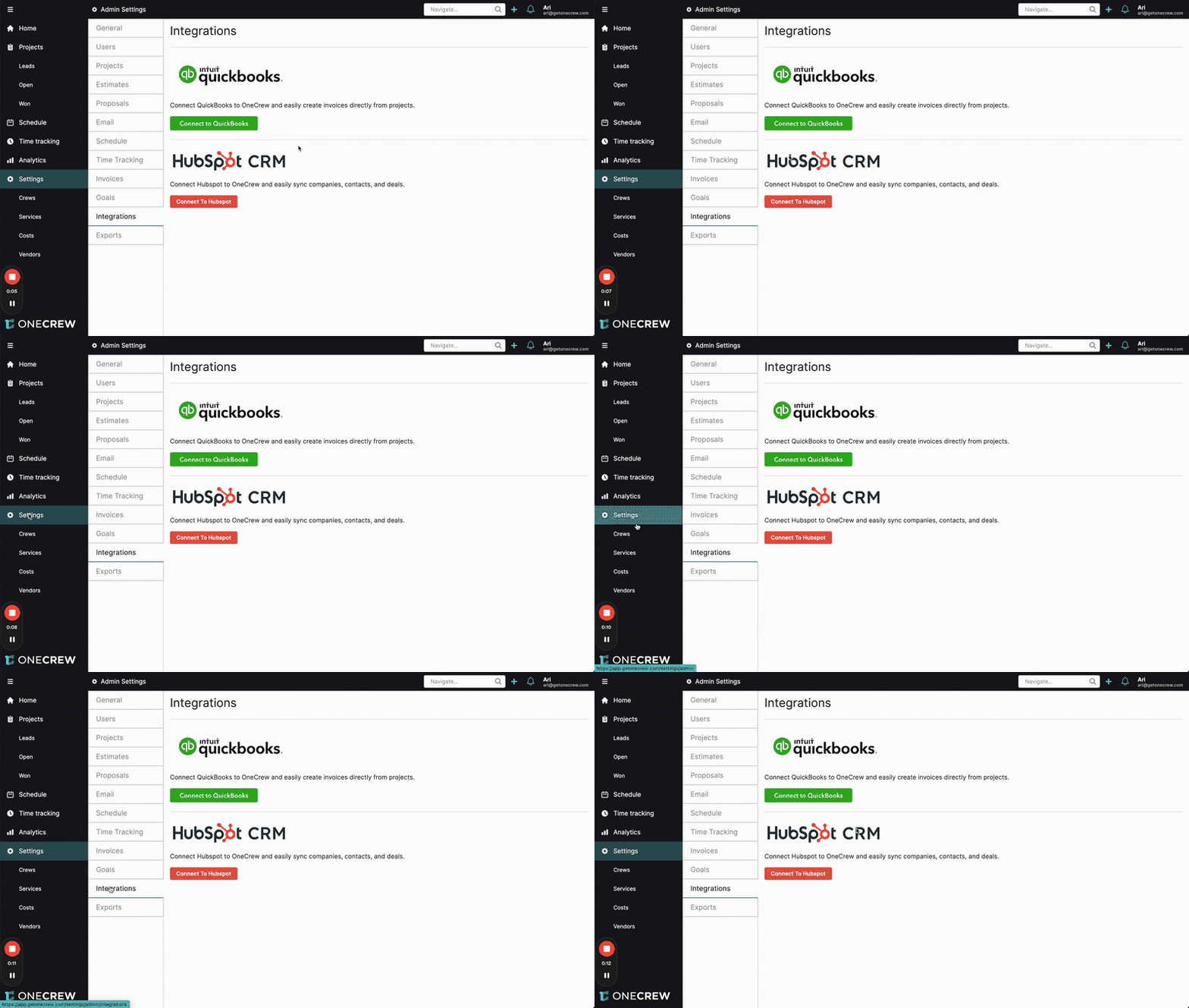
Integrating OneCrew with HubSpot CRM allows you to seamlessly sync your sales and project management data. This connection ensures that your teams have up-to-date information, reducing manual data entry and improving overall efficiency. This tutorial will guide you through setting up and configuring the HubSpot integration in OneCrew.
Step-by-Step Guide
1. Connect to HubSpot
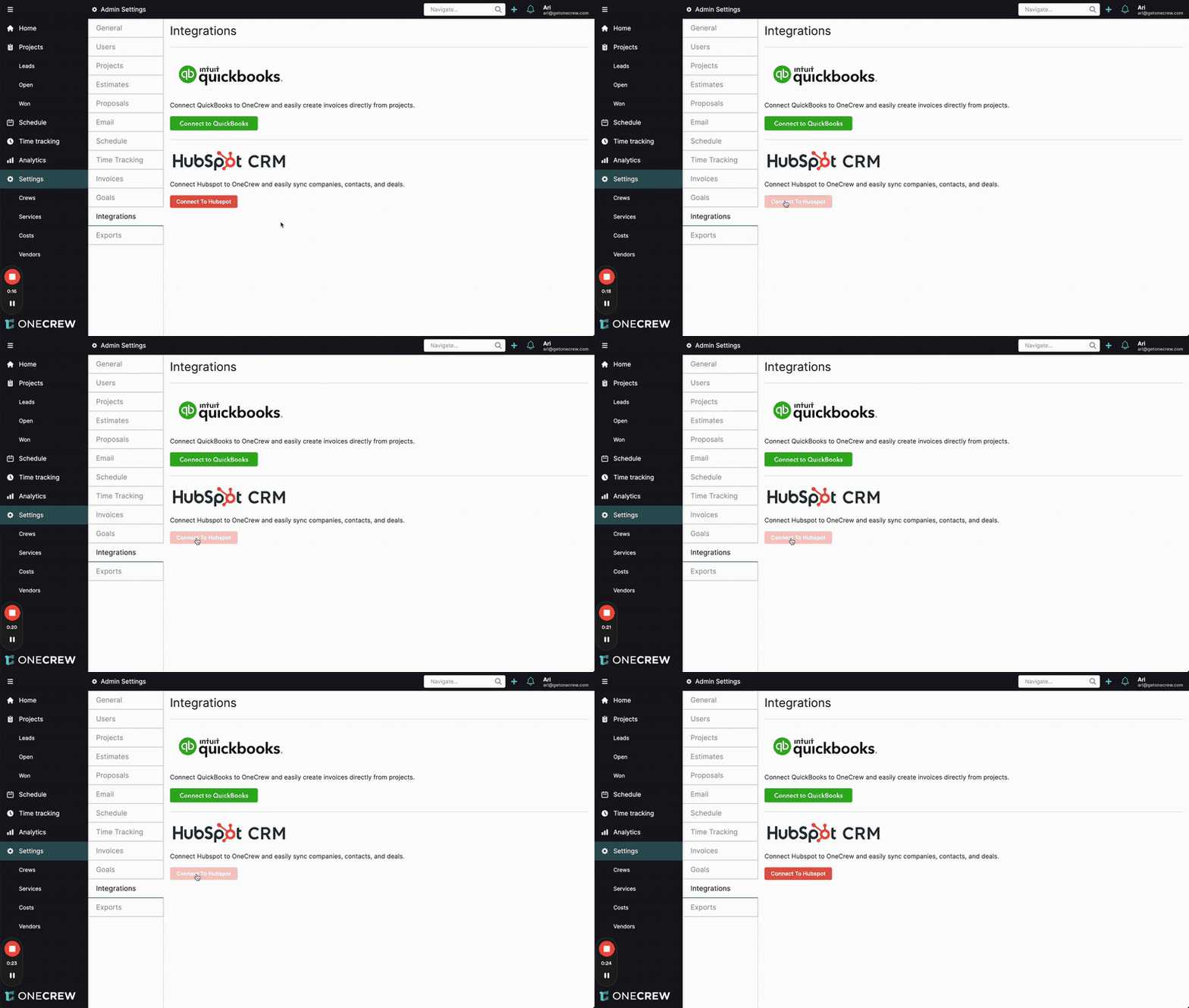
First, you'll need to establish the connection between OneCrew and your HubSpot account.
Navigate to Settings in the OneCrew left-hand sidebar.
Under Admin Settings, select Integrations.
On the Integrations page, locate the HubSpot CRM section.
Click the Connect To Hubspot button.
You will be redirected to HubSpot. Follow the on-screen instructions to log in to your HubSpot account and authorize the connection with OneCrew. Once connected, you'll see your HubSpot Hub ID and Hub Domain displayed on the Integrations page in OneCrew.
2. Sync Accounts & Contacts
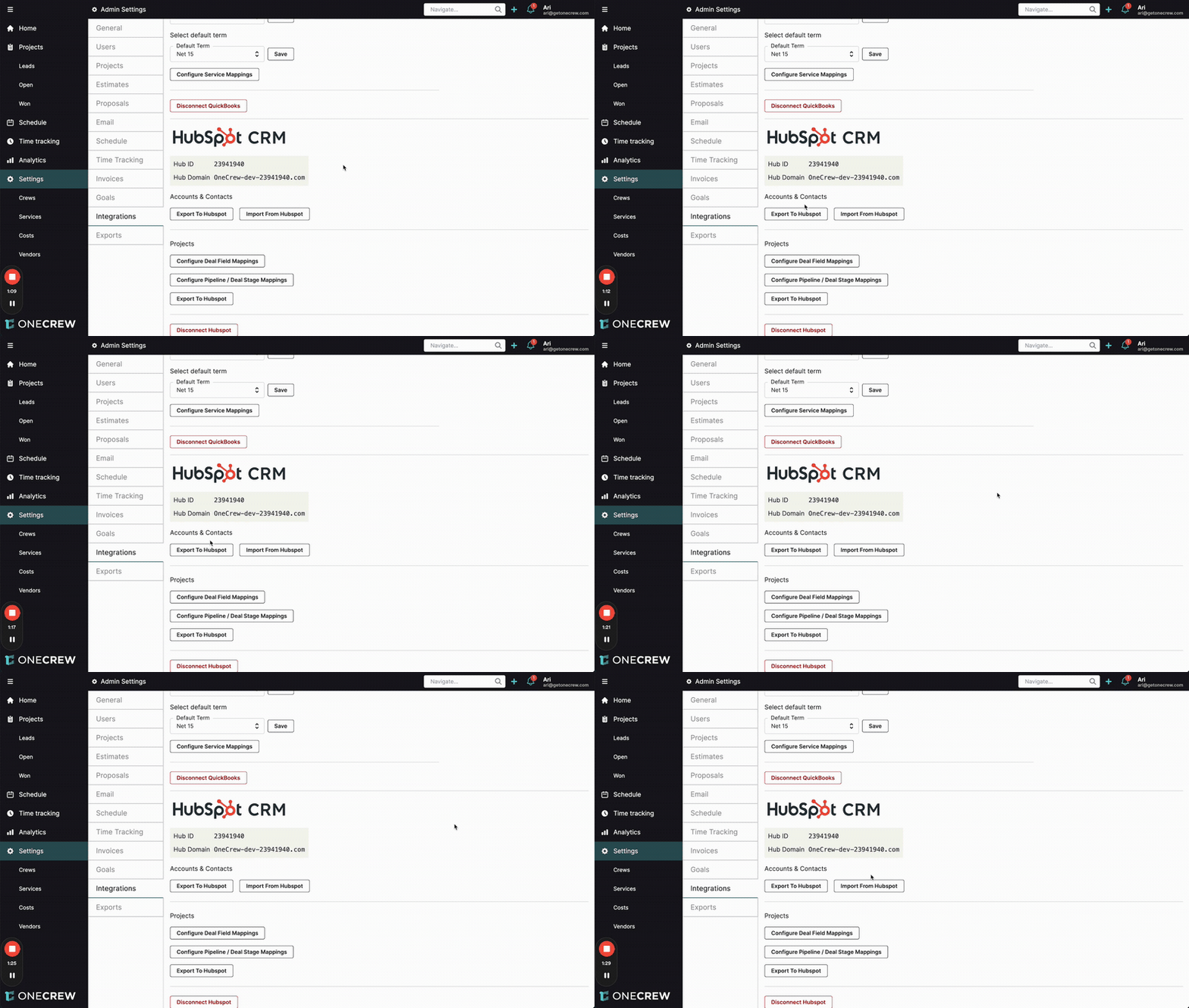
After connecting, you need to perform an initial sync of your account and contact data. This ensures both systems have a consistent baseline.
Under the HubSpot CRM section, find Accounts & Contacts.
You have two options for the initial sync:
Export To Hubspot: Choose this if your primary account and contact data is in OneCrew. This will push all OneCrew accounts and contacts to HubSpot.
Import From Hubspot: Choose this if your primary account and contact data is in HubSpot. This will pull all HubSpot companies and contacts into OneCrew.
Click your chosen option.
Pro tip: It's recommended to perform either an export or an import (but not both initially) to establish a single source of truth. Once this initial sync is done, ongoing changes to accounts/companies and contacts will be synced between both systems.
3. Configure Project Data Sync (Optional Initial Export)
If you've been using OneCrew for a while and have existing projects you'd like to see in HubSpot as deals, you can export them.
Scroll down to the Projects section within the HubSpot CRM integration settings.
Click the Export To Hubspot button. This will push your existing OneCrew projects to HubSpot as deals.
4. Configure Deal Field Mappings

Mapping fields ensures that information from OneCrew projects correctly populates the corresponding fields in HubSpot deals, and vice-versa for select fields.
In the Projects section, click Configure Deal Field Mappings.
A modal will appear showing OneCrew Project Property on the left and HubSpot Deal Property on the right.
For each OneCrew Project Property, select the corresponding HubSpot Deal Property from the dropdown.
Fields marked with an asterisk (
*) (e.g., Name*, State*, Salesperson*) will sync bi-directionally, with HubSpot updates potentially overwriting OneCrew.All other fields primarily sync from OneCrew to HubSpot. This is because OneCrew often holds detailed project information (like estimates and costs) that should be the source of truth.
HubSpot custom deal properties will appear in the dropdowns, but ensure the field types are compatible (e.g., a number field in OneCrew should map to a number field in HubSpot).
Insight: Carefully consider the sync direction. For most project financial details, OneCrew is the master. For deal status and ownership, HubSpot can influence OneCrew.
Once you've configured your mappings, click Save.
Note: Changes to these mappings will only apply to future sync events and will not apply retroactively.
5. Configure Pipeline / Deal Stage Mappings
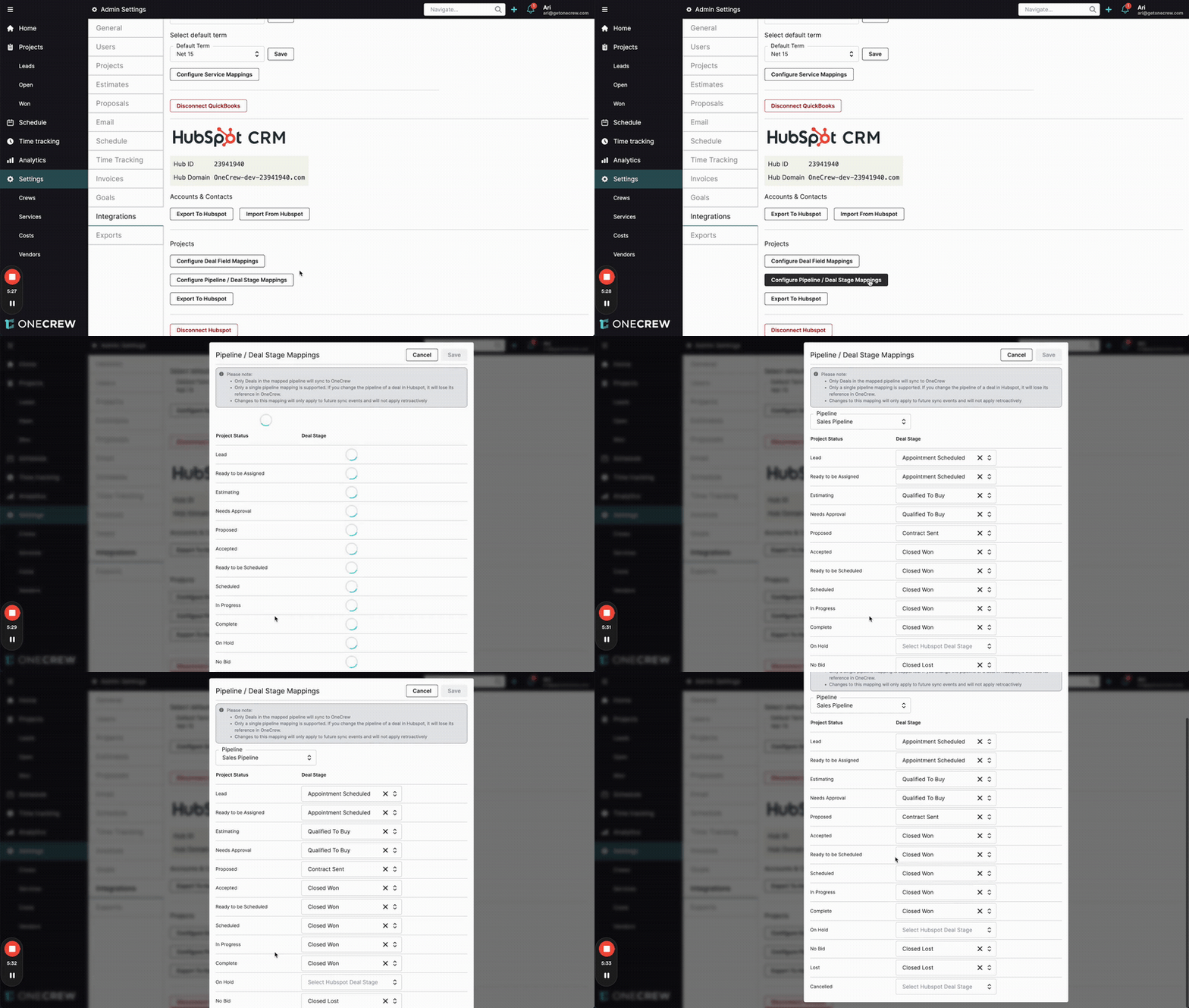
This step links your OneCrew project statuses to specific deal stages within a chosen HubSpot pipeline.
In the Projects section, click Configure Pipeline / Deal Stage Mappings.
First, select the HubSpot Pipeline you want to sync with from the dropdown at the top. Only one pipeline mapping is supported.
For each Project Status in OneCrew (including any custom statuses you've created), select the corresponding HubSpot Deal Stage from the dropdown.
You can map multiple OneCrew project statuses to a single HubSpot deal stage. For example, OneCrew's "Accepted," "Ready to be Scheduled," "Scheduled," and "In Progress" might all map to HubSpot's "Closed Won" deal stage.
After configuring the stage mappings, click Save.
Below is a table view of the data flow between HubSpot and OneCrew.
OneCrew Project Property <> HubSpot Deal Field Mapping
*Any OneCrew Project Statuses can be mapped to any HubSpot Deal Stages that exist in the selected HubSpot Sales Pipeline. Only one HubSpot Sales Pipeline may be selected per OneCrew account.
**Blank fields above can be mapped to any available HubSpot Fields by an admin user.
OneCrew Contact Properties <> HubSpot Contact Fields Mapping
OneCrew Account Properties <> HubSpot Company Fields Mapping
Troubleshooting
Field not appearing in mapping dropdown: Ensure the field types are compatible between OneCrew and HubSpot (e.g., date to date, number to number). HubSpot Deal Properties are filtered based on field type compatibility.
Mapping changes not immediate for existing records: Field mapping changes generally apply to future sync events and may not retroactively update already synced records.
Only one HubSpot pipeline can be mapped: The integration supports syncing with a single HubSpot sales pipeline at a time. If you change the mapped pipeline, deals will sync according to the new pipeline's stage mappings.
Syncing Deal Company and Contact Associations: Syncing company and contact associations from HubSpot to OneCrew for deals is not currently supported. Associations made in OneCrew will sync to HubSpot.