Using Table Variables to Detail Services
Last updated: August 19, 2025
Overview
This tutorial walks you through using table variables in your proposals. These variables automatically pull itemized lists of costs—like specific materials, labor components, or custom service items—directly from your project's estimate into your client-facing documents. This helps you provide clear, detailed breakdowns of services, such as listing all individual striping elements (e.g., handicap stalls, arrows) for a paving project, enhancing transparency and professionalism.
Step-by-Step Guide
Prepare Your Estimate:
Ensure your project's estimate contains the detailed line items you want to display. For example, if your service is "Striping," your estimate might have a cost category also named "Striping." Within this category, you would list specific items like "ADA Handicap stall," "Arrow," and "Single line stall," each with their respective quantities (e.g., 3 ea, 14 ea). These are the items that the table variable will pull.
Navigate to the Proposal Editor:
From your project dashboard, select the project you're working on.
Go to the Proposal tab. This is where you'll configure the content and appearance of your proposal document.
Edit Service Proposal Notes:
In the proposal editor, you'll see the services included in your proposal (e.g., "Striping Estimate").
To add an itemized breakdown for a service, locate it in the list. Click the three-dots menu (...) next to the relevant service line item.
Select Edit from the dropdown menu. This will open the proposal notes editor for that specific service (e.g., "Striping Proposal Notes").
Insert the Table Variable:
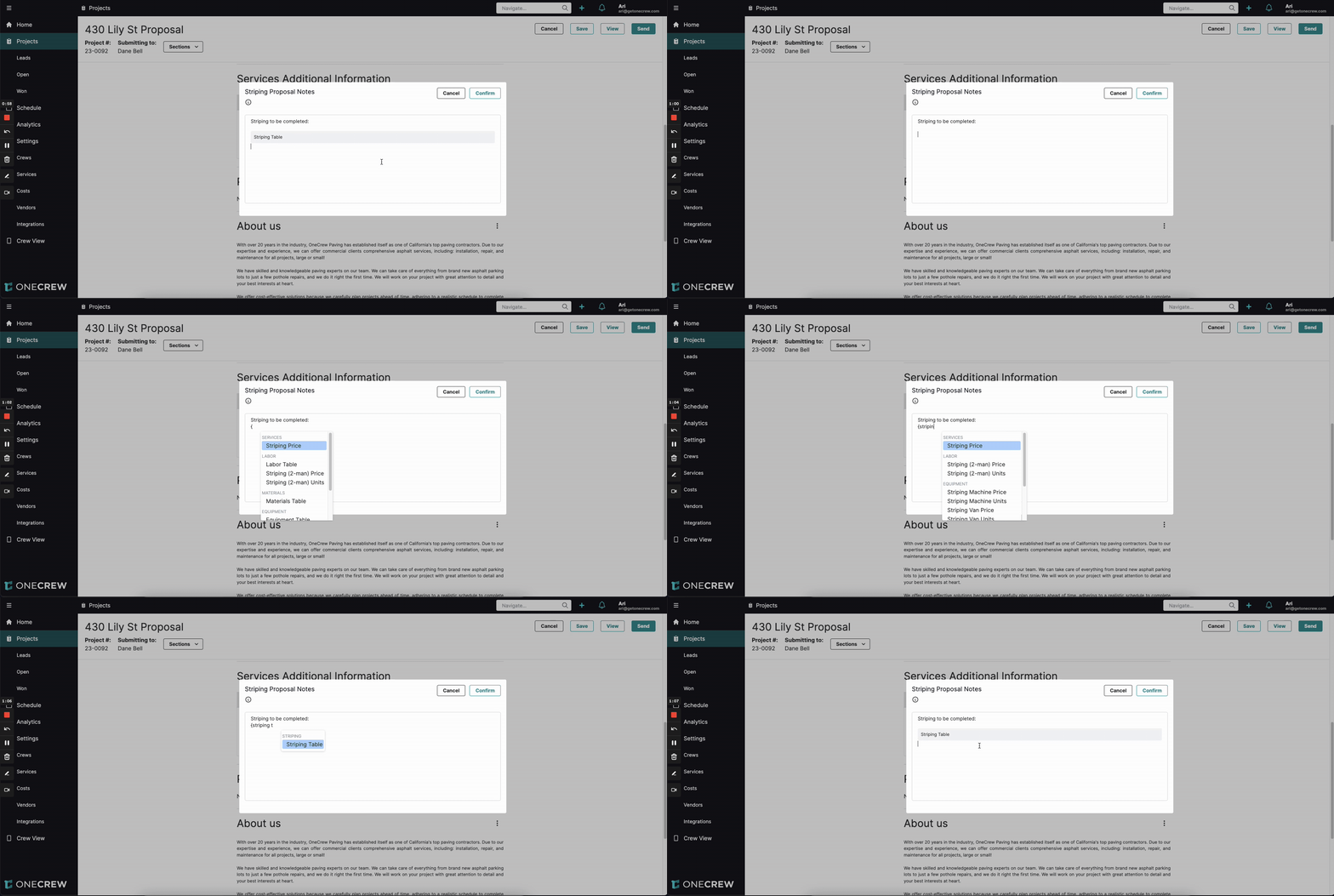
In the notes editor, you can add introductory text if desired, for example: "Scope of striping work to be completed:".
On a new line, type an open curly bracket
{to initiate the variable insertion.Begin typing the name of the cost category from your estimate that you wish to itemize (e.g., "Striping", "Labor", "Materials", "Equipment").
A dropdown list will appear, filtering available variables as you type. Select the appropriate table variable, which typically follows the format
{CostCategoryName Table}(e.g., {Striping Table}, {Labor Table}, {Materials Table}).
Confirm and Review:
Once the variable (e.g.,
{Striping Table}) is inserted into the notes, click the Confirm button.You'll be returned to the proposal editor. The section for the service you just edited will now show a preview of the populated table, listing each item from the specified cost category in your estimate along with its quantity (e.g., "ADA Handicap stall 3 ea", "Arrow 3 ea").
Save and Generate Proposal:
After reviewing the preview and making any other necessary adjustments to your proposal, click Save.
When you generate or view the final proposal document (often as a PDF), the table variable will render as a neatly formatted, itemized list, providing clear and detailed information to your client.
Insight: Table variables bridge the gap between your detailed internal estimates and clear client communication. By dynamically pulling line items, they ensure accuracy and save you from manually transcribing data, reducing errors and keeping proposals consistent with your estimates.
Troubleshooting
Table Variable Not Appearing or is Empty:
Verify that the corresponding cost category (e.g., "Striping," "Labor") in the project's primary estimate has line items with defined quantities. If the source section in the estimate is empty, the table in the proposal will also be empty.
Ensure you have selected the correct estimate to be included in the proposal settings.
Double-check that the variable name is spelled correctly and enclosed in curly brackets (e.g.,
{Striping Table}).
Incorrect Items Displayed in the Table:
Review the line items under the relevant cost category in your project's estimate. The table variable populates directly from these entries.
Confirm that you've used the correct table variable for the intended items (e.g.,
{Striping Table}for striping items, not{Materials Table}if striping items are under their own category).
Pro Tip: Configure default proposal notes for your services in your main Service Settings. By including relevant table variables (like {Materials Table} or a custom one like {Striping Table}) in these templates, detailed breakdowns will automatically populate when you add that service to a project's proposal. Learn more about setting up Service Templates [add link to relevant article on Service Templates].