Set Up and Use Margin Holds
Last updated: August 7, 2025
Watch Video Demo Here
Overview
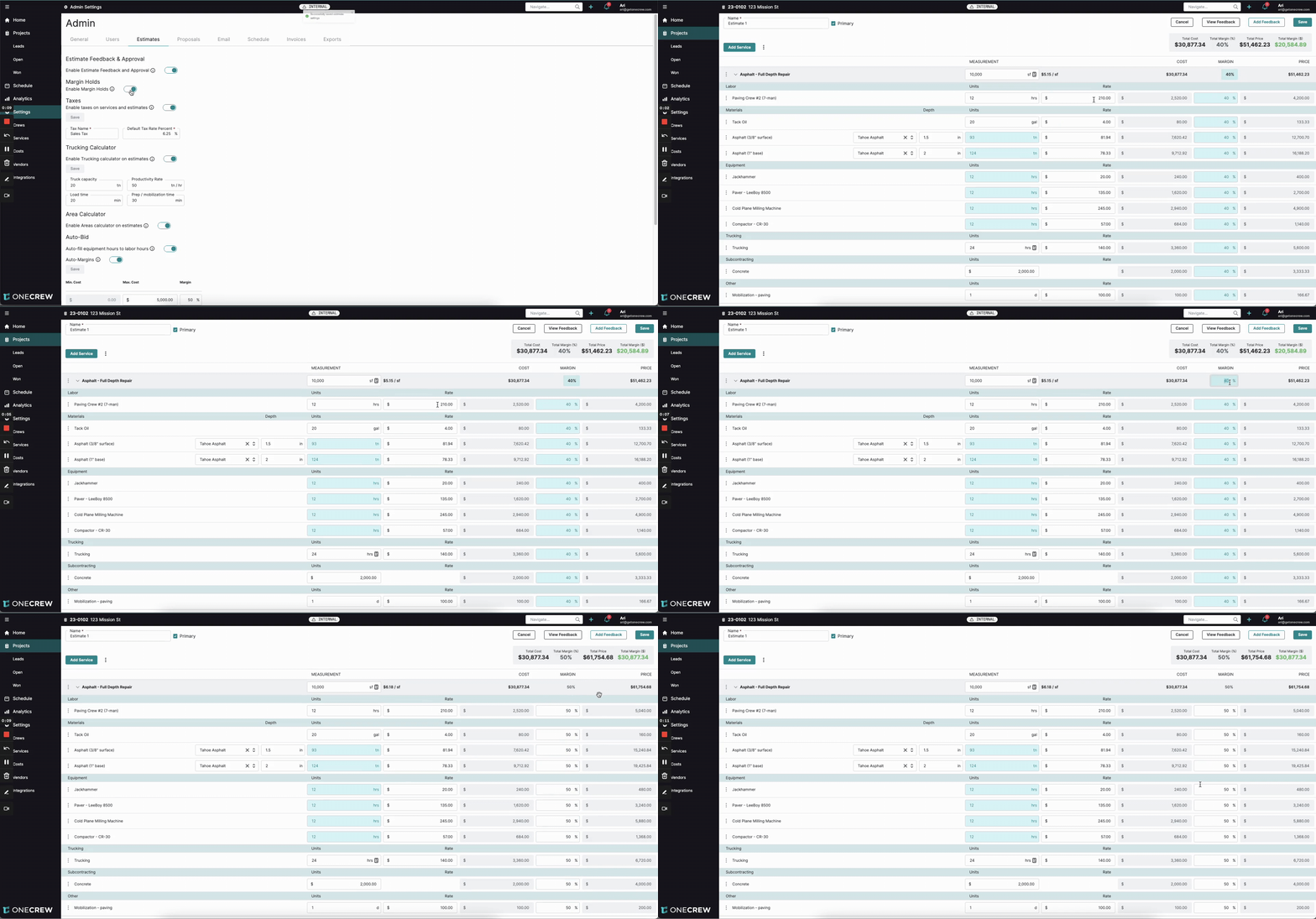
Margin Holds are a powerful feature designed to give you precise control over the profitability of individual line items within your estimates. This is particularly useful when you need to maintain specific margins for certain costs, like subcontracted work or key materials, while still having the flexibility to adjust the overall estimate margin or total price. By using Margin Holds, you can ensure your critical profit centers are protected during negotiations or when making global estimate adjustments.
Step-by-Step Instructions
Enabling Margin Holds
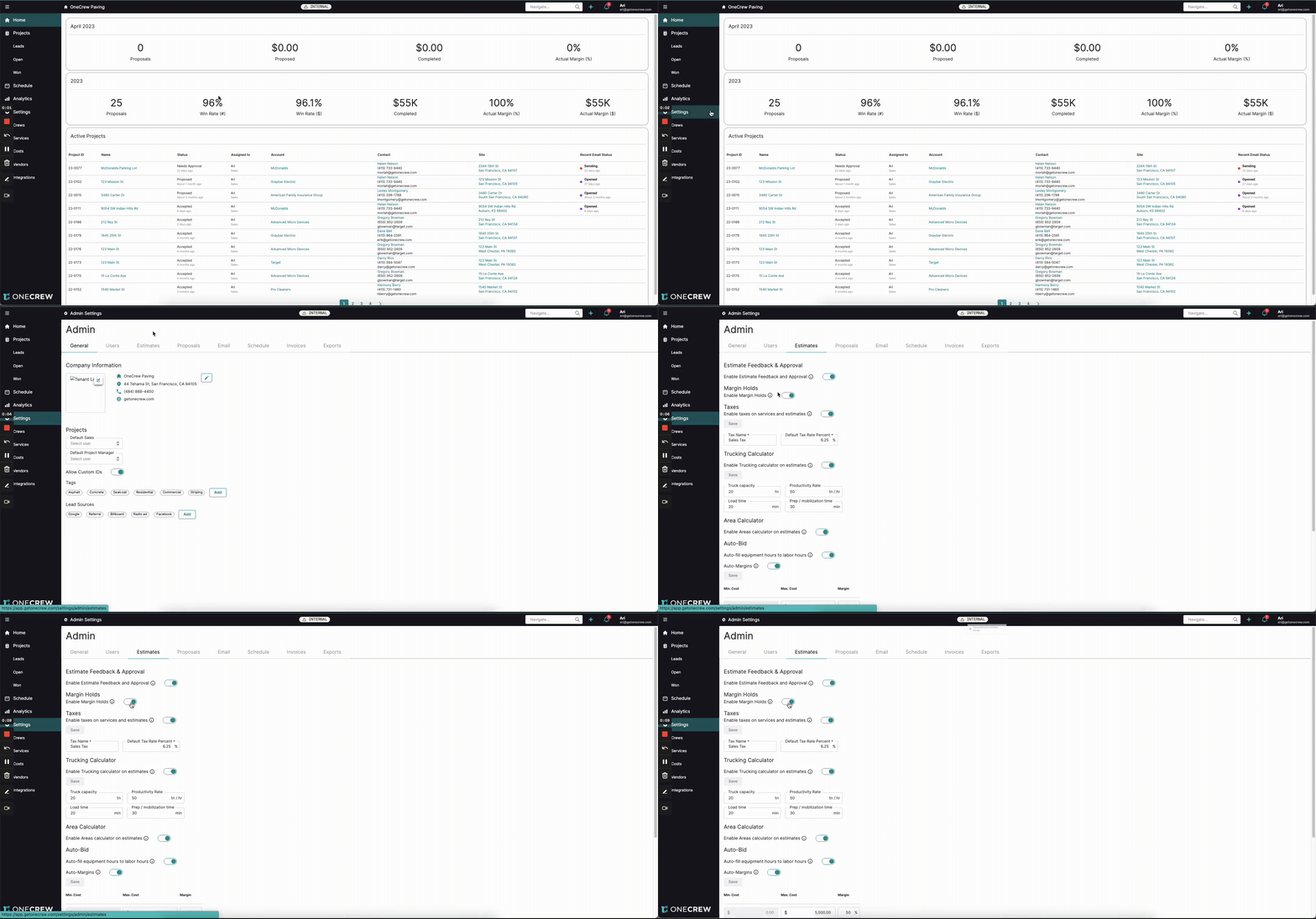
Before you can use Margin Holds, you need to activate the feature in your account settings.
Navigate to Settings from the main menu. You can typically find this by clicking your user icon or a gear icon.
Within Admin Settings, select the Estimates tab.
Locate the Margin Holds option.
Toggle the switch next to Enable Margin Holds to the "on" position. A confirmation message, "Successfully saved estimate settings," should appear.
Applying Margin Holds to Line Items
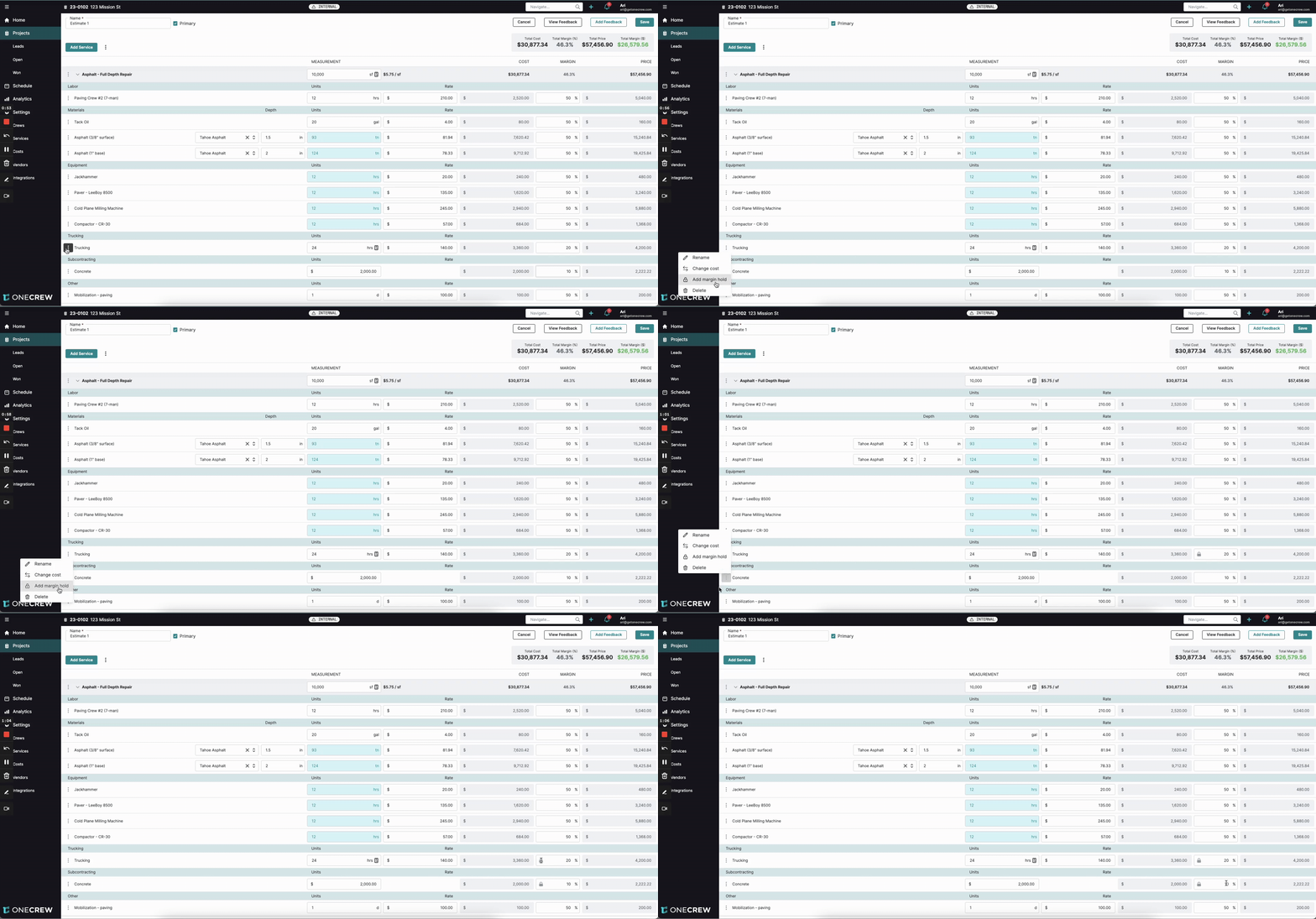
Once enabled, you can apply holds to specific cost categories in your estimates.
Open an existing estimate or create a new one.
For the line items where you want to secure the margin (e.g., Trucking, Subcontracting), first adjust their individual Margin (%) to your desired value. For example, set Trucking to 20% and Subcontracting to 10%.
Hover over the cost category header (e.g., Trucking). A three-dot menu icon will appear to the left.
Click the three-dot menu icon.
Select Add margin hold from the dropdown menu.
A lock icon will now appear next to the Margin (%) for that line item, indicating the margin is held. Repeat for any other line items you wish to hold.
Insight: Margin Holds give you granular control over profitability, ensuring that critical margins on specific services or materials are preserved, even when making global adjustments to an estimate.
Adjusting Overall Estimate Margin with Holds Active
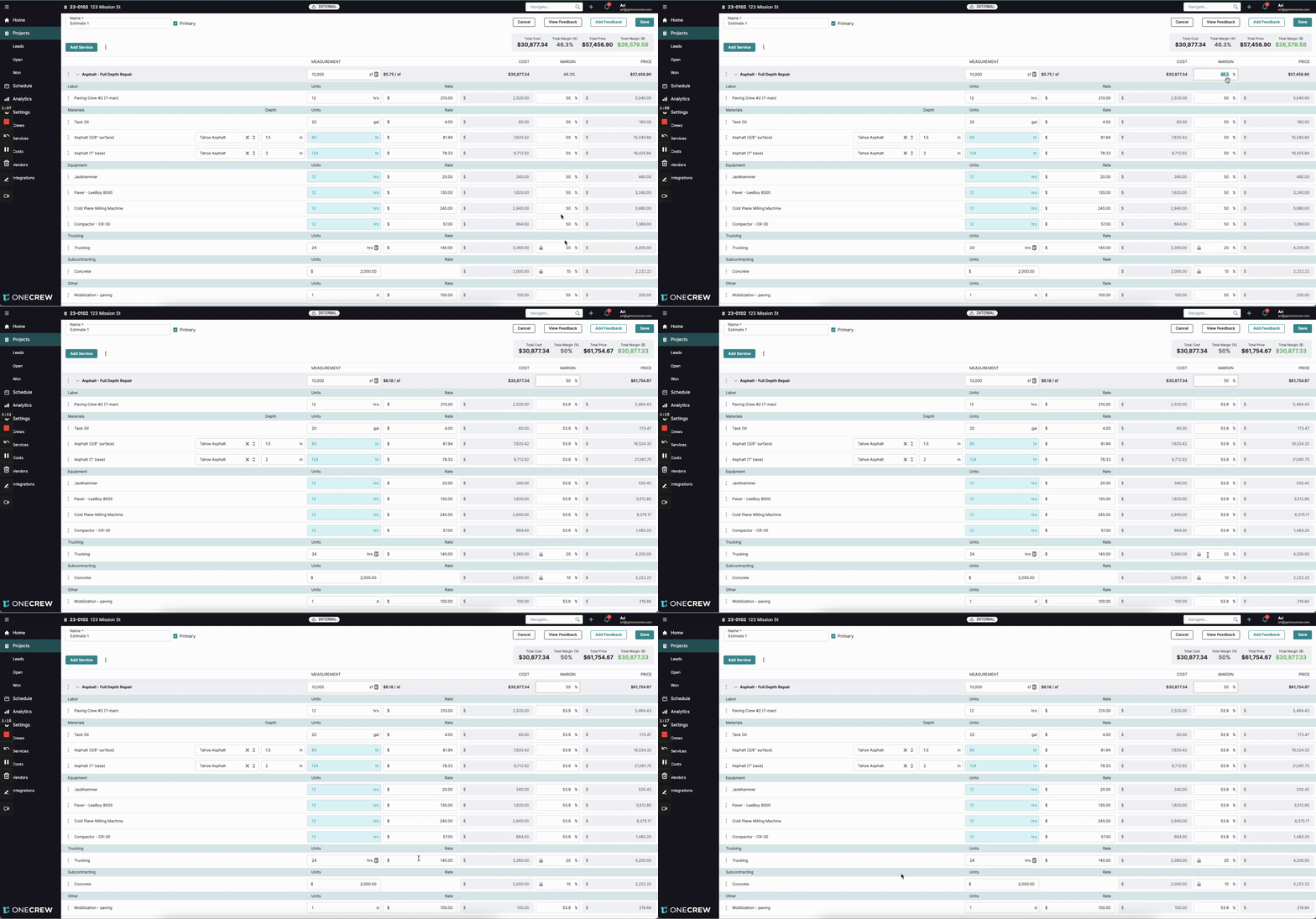
With Margin Holds in place, observe their effect when changing the overall estimate margin.
Locate the Total Margin (%) field at the top of your estimate.
Change this value to a new overall target, for example, from 46.3% to 50%.
Notice that the margins for your held items (e.g., 20% for Trucking, 10% for Subcontracting) remain unchanged.
The system automatically adjusts the margins of the non-held line items to achieve the new Total Margin (%).
You can also adjust the Total Price of the estimate (e.g., to $62,000). The held margins will still be protected, and the system will recalculate other non-held item margins and rates accordingly.
Removing Margin Holds
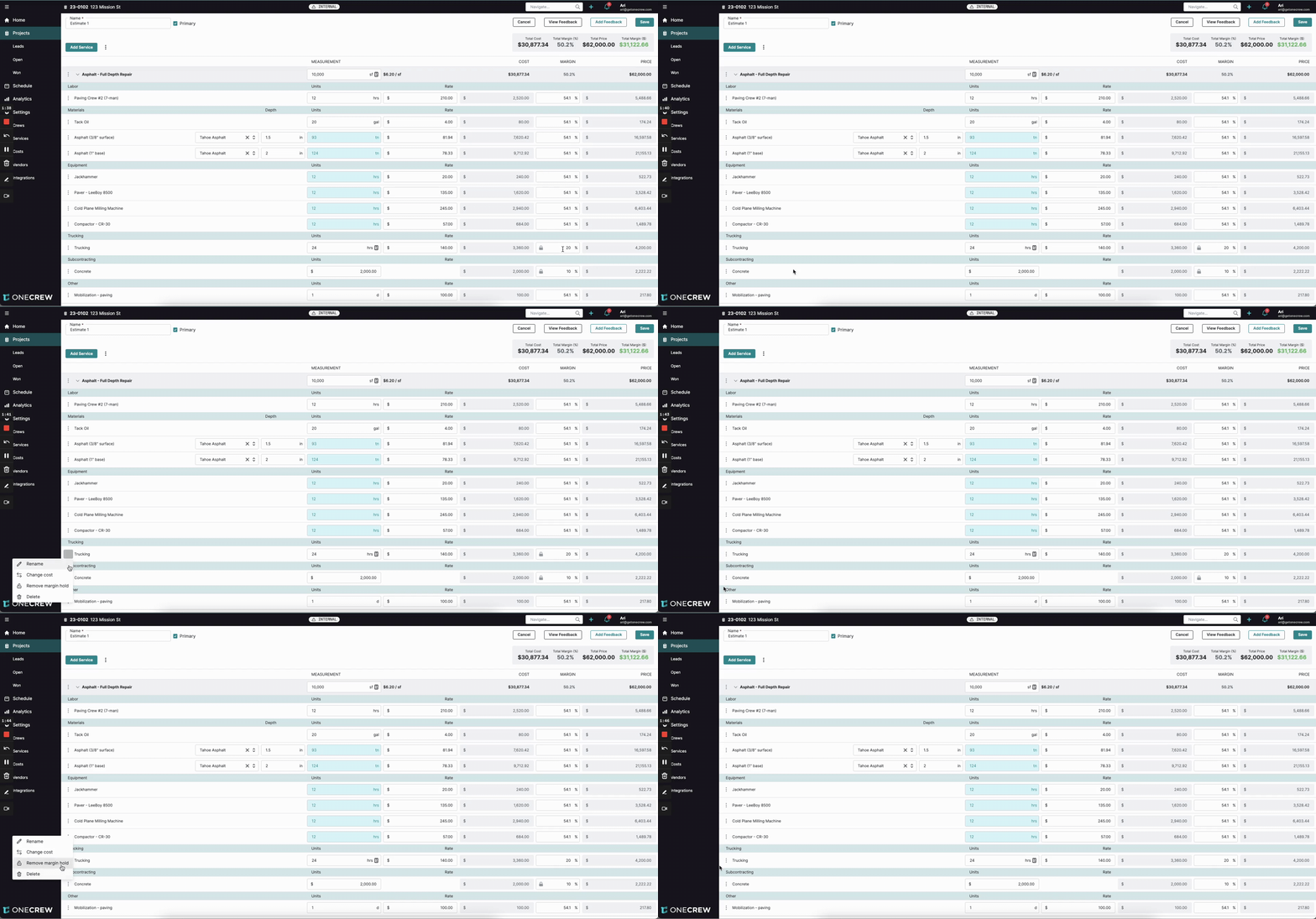
If you no longer need to hold a margin for a specific item:
Hover over the cost category header of the item with an active margin hold (e.g., Subcontracting).
Click the three-dot menu icon that appears to the left.
Select Remove margin hold from the dropdown menu.
The lock icon next to the item's Margin (%) will disappear, and its margin will now adjust if the overall estimate margin or price is changed.
Troubleshooting
Margin Holds option not visible in Estimates: Ensure you have enabled Margin Holds in Admin Settings > Estimates as described in Step 1.
Changing overall margin still affects my "held" item: Double-check that the lock icon is present next to the line item's margin. If it's not there, the hold was not successfully applied or may have been removed. Re-apply the hold using the steps above.
All items change when I adjust the total margin: This will happen if no margin holds are active. Make sure to apply holds to the specific line items you want to protect before adjusting the overall margin.