Customizing Cost Calculations by Service
Last updated: August 7, 2025
Watch Video Demo Here
Overview
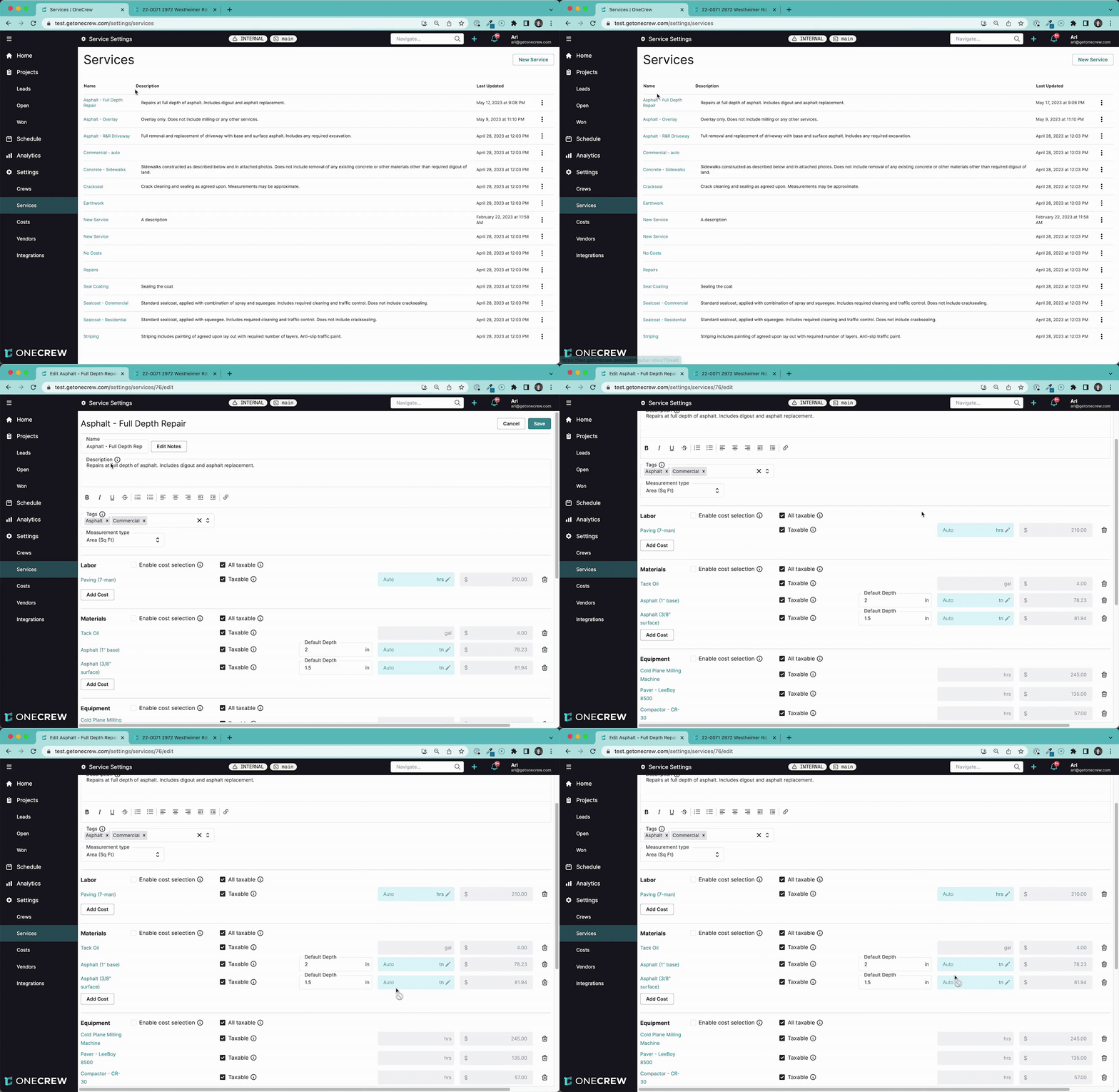
Auto-bid streamlines your estimation process by automatically calculating cost units from service measurements. However, default calculations may need tailoring for specific services or job requirements. This tutorial guides you through customizing auto-bid settings at the service level. You'll learn to override conversion factors or disable auto-calculation for individual costs, ensuring your estimates are both efficient and precise.
Step-by-Step Instructions
1. Access Your Service Templates
First, navigate to your service templates:
Go to Settings from the main navigation menu.
Select Services. You'll see a list of your service templates.
Click the name of the service template you wish to modify (e.g., Asphalt - Full Depth Repair). This opens the service editing page, showing costs like labor and materials. Items with an Auto button next to their unit fields have auto-bid active.
2. Modify an Auto-Bid Conversion Factor
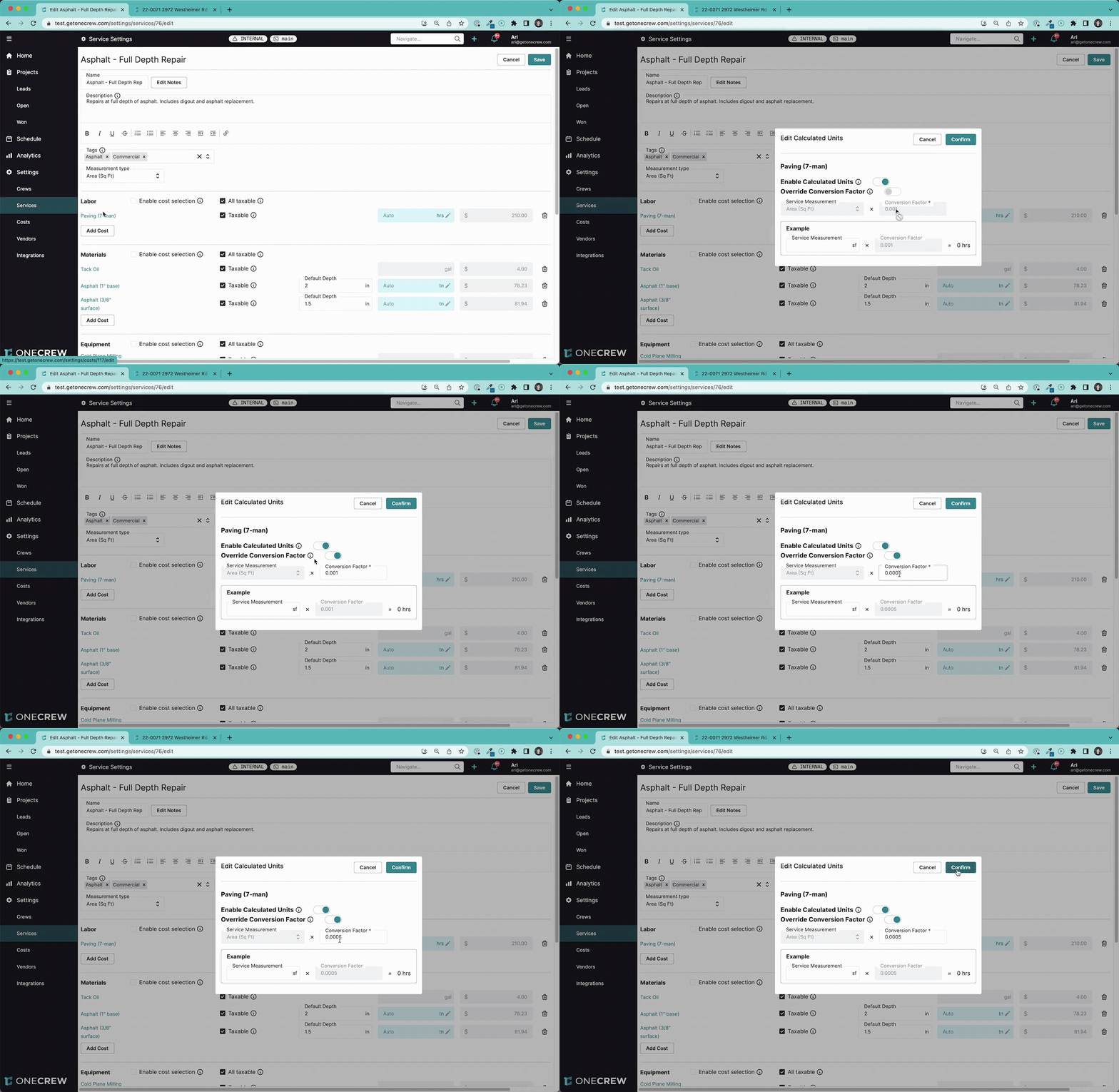
If a default auto-bid calculation isn't suitable for a specific cost within a service, adjust its conversion factor.
Locate the cost item (e.g., Paving (7-man) under Labor) you want to adjust.
Click the Auto button next to its unit input field.
In the "Edit Calculated Units" pop-up, toggle on Override Conversion Factor.
Enter your new Conversion Factor. For instance, if the original factor was
0.001, changing it to0.0005will halve the calculated units for the same service measurement.Click Confirm. A notification will explain that for existing estimates using this service, auto-calculation for this cost will be disabled, preserving its current value. Click Confirm again.
The Auto button will now display as Auto (Modified), indicating a service-specific override.
Insight: Modifying conversion factors at the service level provides granular control, allowing you to fine-tune calculations for specific services without altering global cost settings.
3. Disable Auto-Bid for a Specific Cost
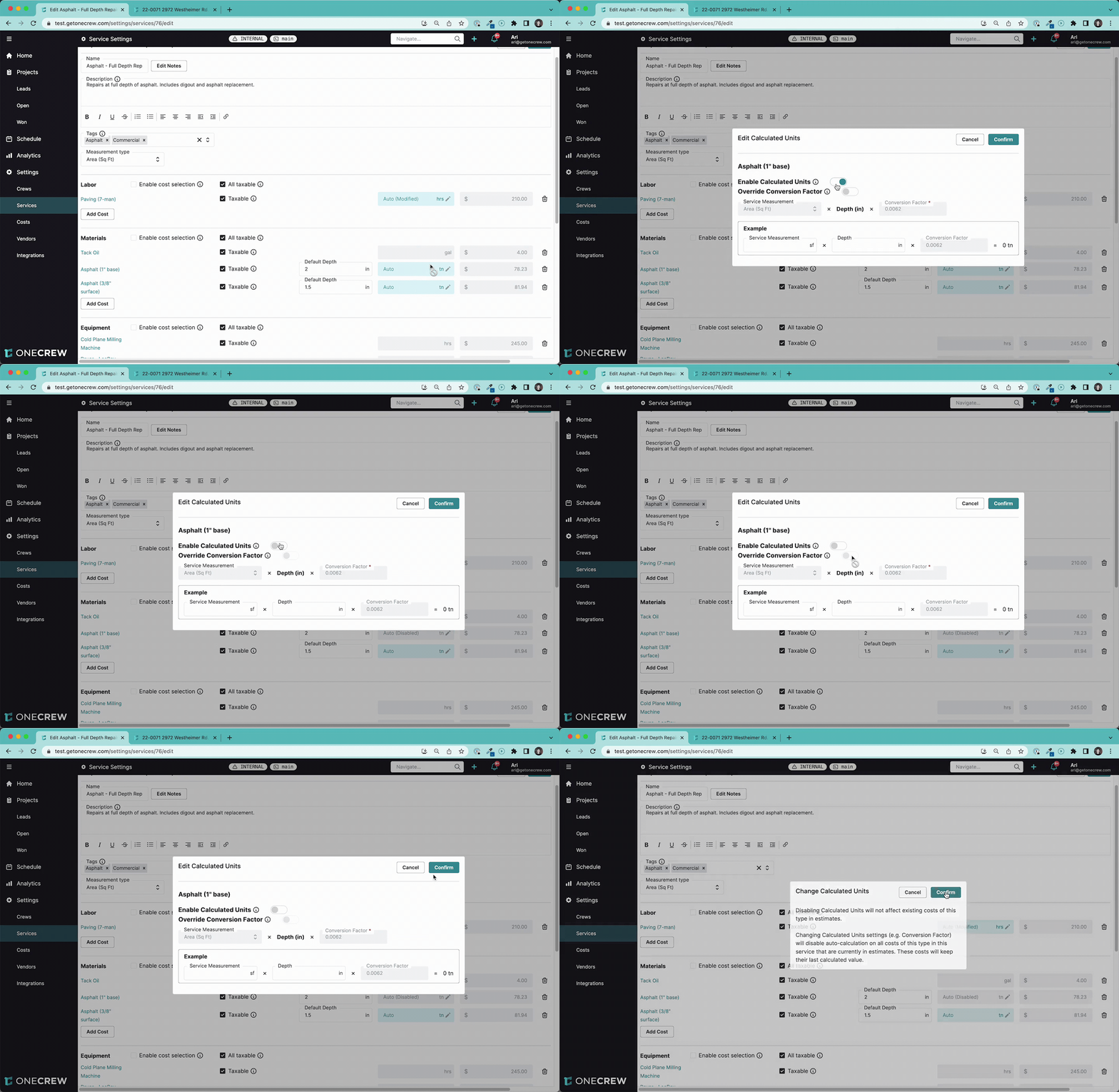
Sometimes, you might prefer to manually enter units for a cost.
Locate the cost item (e.g., Asphalt (1" base) under Materials) for which you want to disable auto-bid.
Click the Auto button.
In the "Edit Calculated Units" pop-up, toggle off Enable Calculated Units.
Click Confirm. You'll see the same notification regarding existing estimates. Click Confirm again.
The Auto button will now display as Auto (Disabled). Units for this cost will no longer be auto-calculated when this service is added to an estimate.
4. Save Your Service Template
After making changes, click the Save button at the top right of the service editing page to apply these new auto-bid rules.
5. Observe Impact on Estimates
Your changes affect estimates differently:
New Estimates: When this modified service is added to a new estimate, auto-bid will use your updated settings. The labor cost with the modified factor will calculate new units, and the material cost with auto-bid disabled will require manual unit entry.
Existing Estimates: For estimates already containing this service, the system disables auto-calculation for the modified/disabled costs to preserve their original values. The unit fields for these costs will no longer be blue, indicating they are now under manual control.
6. Resetting Calculations in Existing Estimates
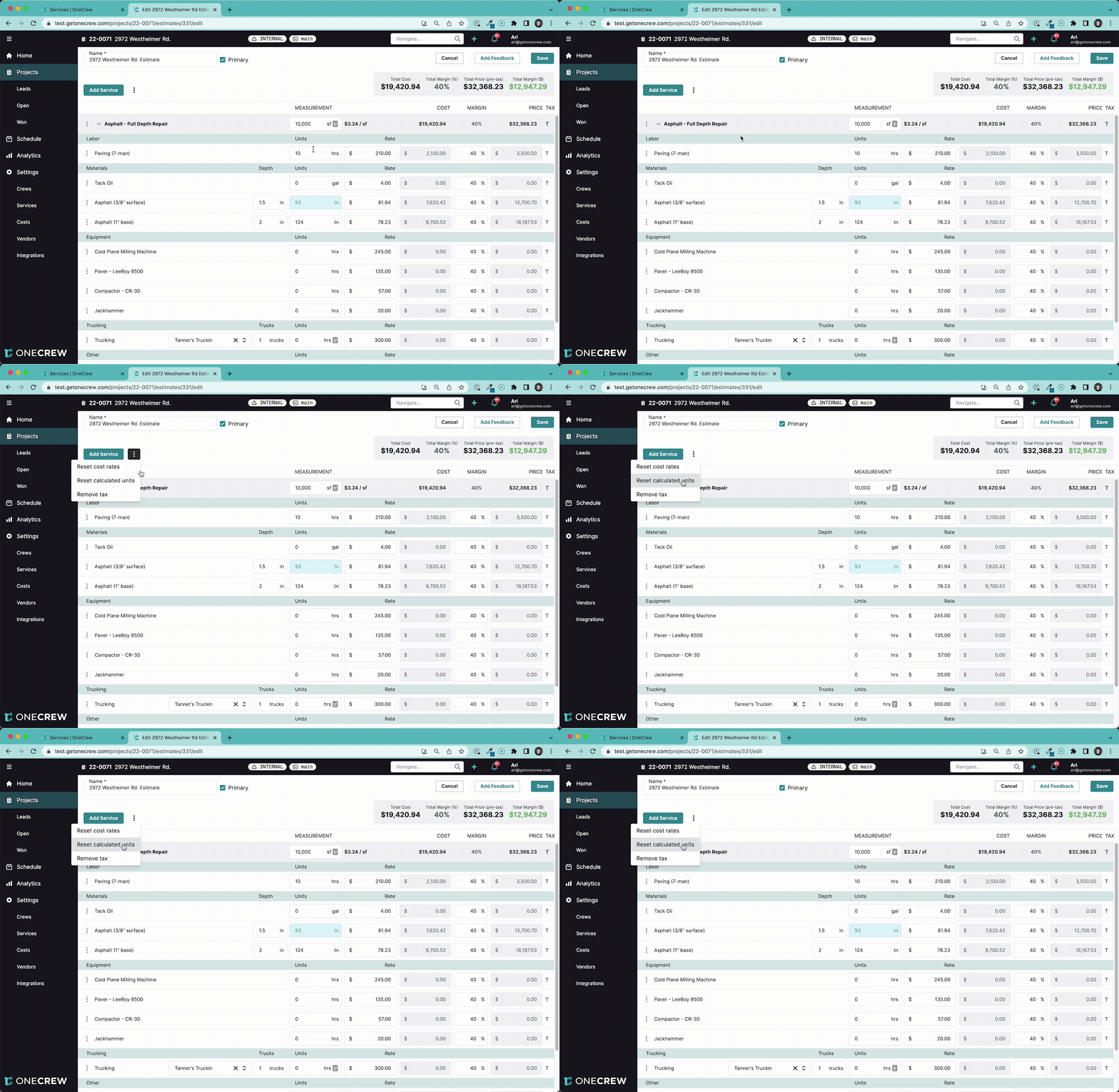
To apply the new service-level auto-bid settings to an existing estimate:
Open the existing estimate.
Find the relevant service line item.
Click the three-dot menu icon next to the service name.
Select Reset calculated units.
The system recalculates units for that service instance based on the current auto-bid settings in the service template. Costs with modified conversion factors will update, and costs with disabled auto-bid will clear their units.
Troubleshooting
Auto-bid changes not reflecting in old estimates: Changes to service-level auto-bid settings disable auto-calculation on existing estimate line items to protect their original values. Use the "Reset calculated units" option on the service within the estimate to apply new rules.
Units are unexpectedly blank for a cost: If units are blank where you expected auto-calculation, check the service template. Auto-bid for that cost item might be set to Auto (Disabled).