Adding Default Margins on Costs
Last updated: August 7, 2025
Watch Video Demo Here
Overview
The Default Margins feature provides a powerful way to standardize your pricing strategy across various services and cost items. Its primary purpose is to allow you to pre-set profit margins or fixed prices for specific components of your jobs, ensuring consistency, saving time during estimation, and helping to protect your profitability. This feature applies to both individual Costs (like materials or specific labor tasks) and broader Services. By setting defaults, you reduce manual entry, minimize errors, and ensure that your bids consistently reflect your desired financial outcomes.
The benefits are:
Consistency: Apply standard margins across similar jobs or item types.
Efficiency: Speed up the estimating process by auto-populating margins.
Accuracy: Reduce the chance of manual errors in pricing.
Profitability Management: Proactively build desired profit into your estimates.
Configuration
You can configure default margins at two levels: for individual Costs and for overall Services.
Configuring Default Margins for Costs
This allows you to set a specific margin or sale price for individual line items that make up your services, such as materials, labor types, or equipment.
Navigate to Costs from the main menu. You'll see costs categorized (e.g., Labor, Materials, Striping).
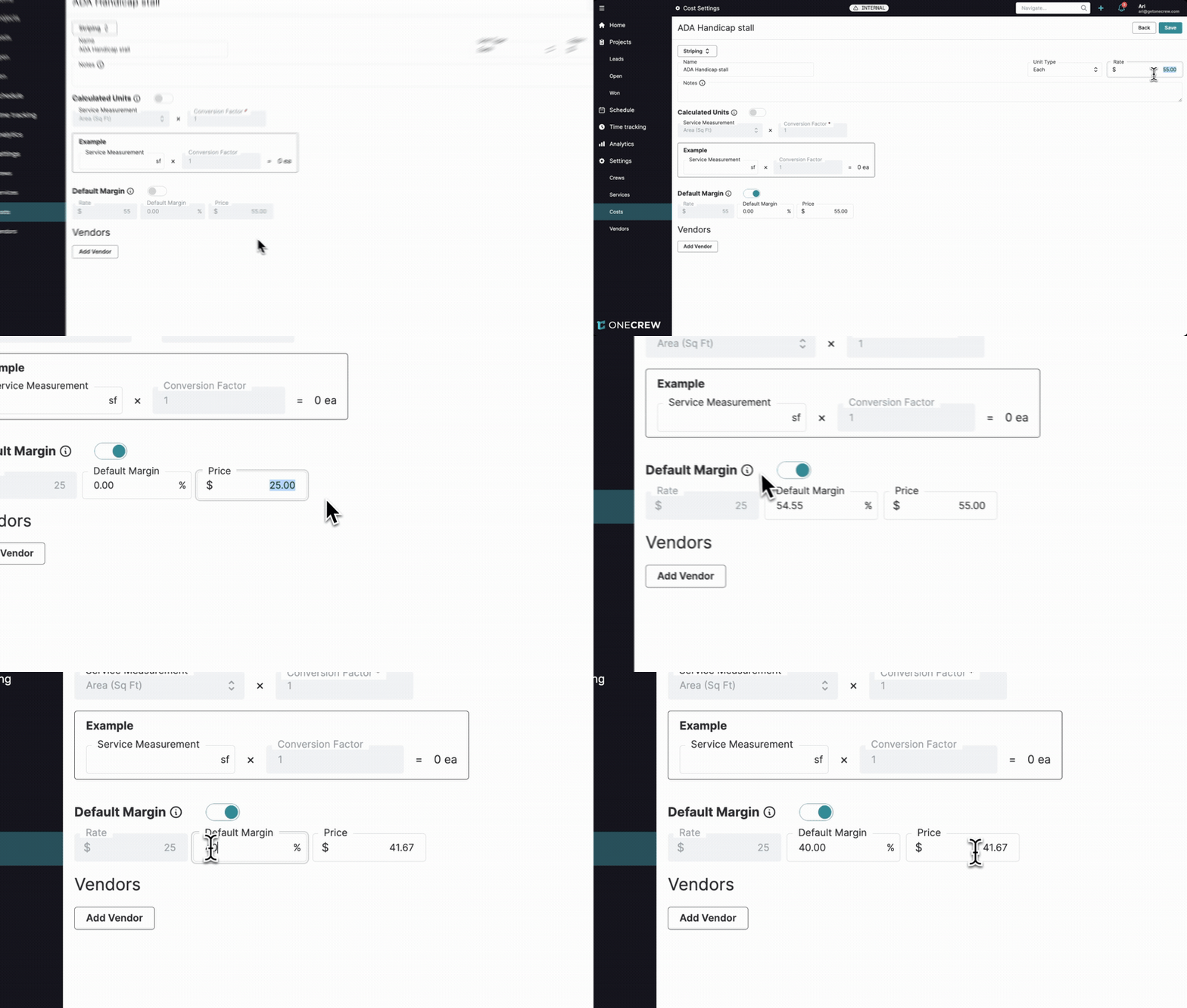
Select the category (e.g., Striping) and then click on the specific cost item you want to configure (e.g., ADA Handicap stall).
Scroll down to the Default Margin section.
Toggle the switch to enable Default Margin for this cost item.
You have two ways to set the default:
Set a specific Price: Enter the desired sale Price for the item (e.g., $55.00). The system will use the item's base Rate (your cost, e.g., $25.00) to automatically calculate and display the Default Margin percentage.
Set a Default Margin percentage: Enter the desired Default Margin percentage (e.g., 40%). The system will use the item's base Rate to automatically calculate and display the sale Price.
Click Save.
Configuring Default Margins for Services
This allows you to set a blanket default margin for an entire service category.
Navigate to Services from the main menu.
Select the service you want to configure (e.g., Asphalt - Overlay).
Locate the Default Margin field.
Enter the desired margin percentage (e.g., 30%). This percentage will be applied to the total cost of all items within this service when it's added to an estimate, unless an individual cost item within that service has its own overriding default margin.
Click Save.
Pro Tip: Use cost-level default margins for specific items with fixed markups or sale prices. Use service-level default margins for broader categories where you want to apply a consistent target profit across all components of that service.
Use Cases
Understanding when and why to use Default Margins can significantly enhance your estimating workflow and financial control.
Standardizing Material Markups: If you consistently mark up certain materials (e.g., specific striping paint, asphalt types) by a set percentage or to a fixed sale price, setting a default margin for these cost items ensures this is automatically applied.
Service-Specific Profit Targets: Different types of services may have different target profit margins. For instance, you might aim for a 30% margin on asphalt overlay services but a 40% margin on sealcoating. Default margins at the service level allow you to preset these targets.
Complex Assemblies with Fixed-Price Components: For services that include various sub-items, some of which have fixed sale prices (like an ADA-compliant stall), you can set a default price for that specific cost item.
Streamlining Bids for Recurring Jobs: If you frequently bid on similar types of projects, pre-setting default margins for the common services and costs involved can dramatically reduce the time spent creating new estimates.
Ensuring Minimum Profitability: For items with fluctuating costs, setting a default percentage margin ensures your profit moves with the cost, while setting a default price can lock in revenue for items with stable costs.
Insight: Default Margins act as your pricing guardrails. They ensure that even with multiple estimators or complex jobs, your baseline profitability targets are consistently integrated into every proposal from the start.
Examples
Let's see how these configurations play out in real-world estimating scenarios.
Example 1: Cost Item with a Default Price
Imagine an ADA Handicap stall (a cost item under the Striping service) has a base cost (Rate) of $25. You've configured its Default Margin by setting the Price to $55. This results in a calculated default margin of 54.55%.
When you create a new estimate and add the Striping service, and then include the ADA Handicap stall cost item:
If the Striping service itself has an "Auto Margin" (a general margin setting, say 50%), this will apply to other striping costs.
However, for the ADA Handicap stall line item, its specific default price of $55 (and thus the 54.55% margin) will be used, overriding the service's general "Auto Margin" for that particular item. If you add 30 ADA stalls, the price for that line item will be 30 * $55 = $1,650.
Example 2: Service with a Default Margin
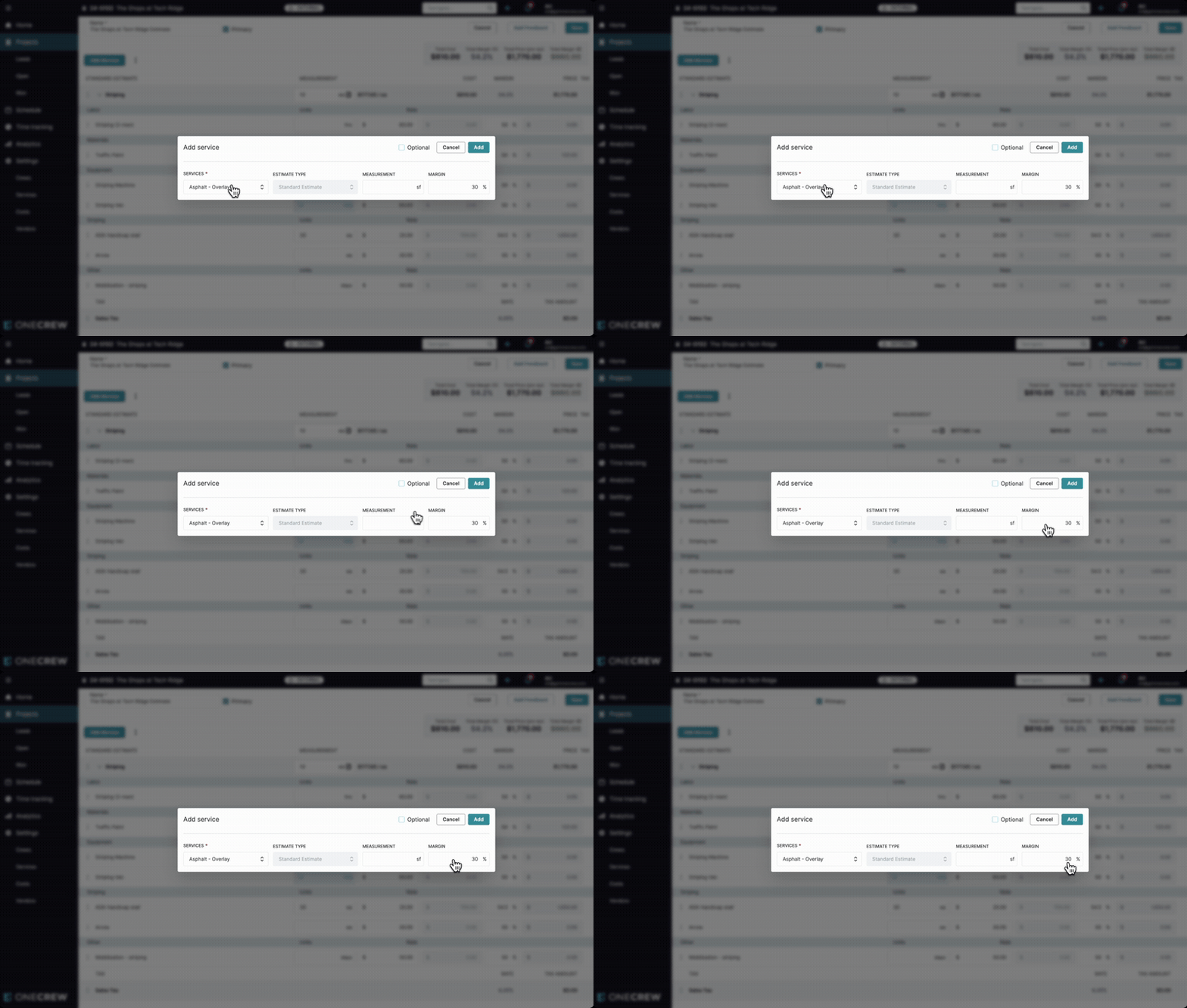
Suppose you've configured the Asphalt - Overlay service to have a Default Margin of 30%.
When you create a new estimate and add the Asphalt - Overlay service:
Add the service to your estimate.
Input the necessary measurements (e.g., 10,000 sq ft).
The system calculates the total cost of all labor, materials, and equipment for the asphalt overlay.
The pre-set Default Margin of 30% will automatically be applied to this total cost to determine the sale price for the Asphalt - Overlay service. For instance, if the calculated cost is $12,990.42, a 30% margin will result in a price of $18,557.74.
This ensures that all Asphalt - Overlay jobs start with your target 30% margin built-in, streamlining the bidding process and maintaining pricing discipline. If any individual cost items within the Asphalt - Overlay service (e.g., a specific type of asphalt) also have their own default margins set, those specific item margins would take precedence for those lines, while the 30% service margin applies to items without their own specific default.