Using Vendor Selector
Last updated: August 7, 2025
Watch Video Demo Here
Overview
This tutorial will guide you through selecting specific vendors for materials within your project estimates. This feature is crucial for creating highly accurate estimates by associating material costs directly with your chosen suppliers, allowing you to compare options based on price and proximity to your job site.
Step-by-Step Instructions
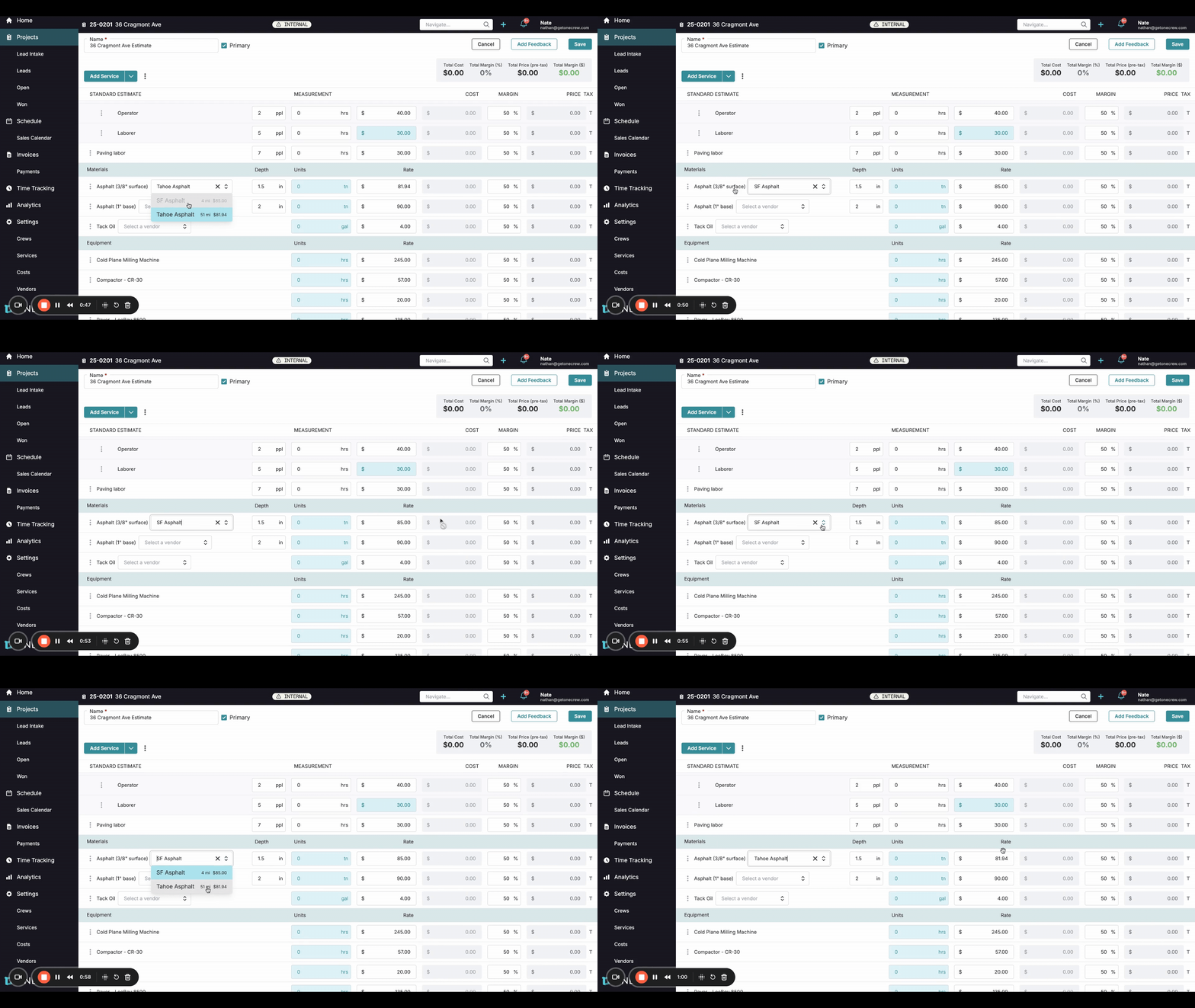
Follow these steps to assign vendors to materials in your estimate:
Access Your Estimate: Navigate to Projects and open the project containing the estimate you wish to edit. Click on the specific estimate from the Estimates list under the Summary tab. The estimate details will load.
Locate the Materials Section: Scroll down within the estimate to find the Materials section. This lists materials like "Asphalt (3/8" surface)" or "Tack Oil".
Open the Vendor Selector: For each material line item, click the vendor selection field to open a dropdown list of available vendors for that specific material.
Review Vendor Options: The dropdown list displays vendors, their distance from your project site, and their unit price for that material. Vendors are automatically sorted by proximity, with the closest appearing at the top.
Insight: This dynamic list, sorted by distance and showing prices, allows for quick, data-driven decisions, helping you optimize material procurement for cost and logistics.
Select a Vendor: Click on the vendor you wish to use for that material.
Confirm Rate Update: Once selected, the Rate field for that material line item automatically populates with the chosen vendor's price.
Assign Vendors to Other Materials (Optional): Repeat steps 3-6 for any other materials in your estimate requiring vendor assignment.
Save Your Estimate: After assigning all desired vendors, click the Save button to save your changes.
Troubleshooting
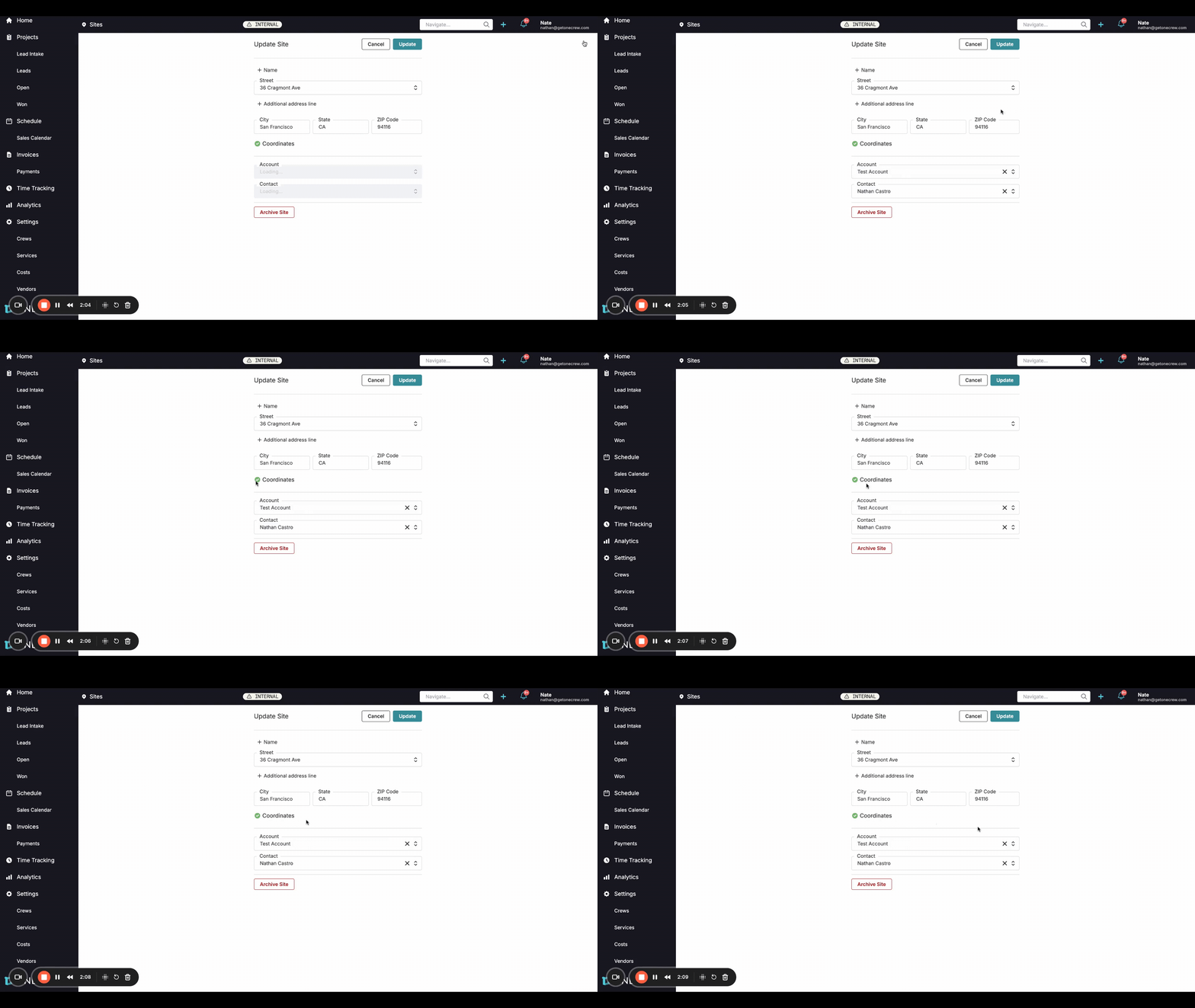
If vendor distances don't appear in the selection dropdown, it often means an address issue prevents distance calculation.
Issue: Vendor distance or price is not displayed in the dropdown.
Solution:
Verify Project Site Coordinates:
Navigate to your project's site details and select to Edit the site.
Ensure there's a green checkmark next to the Coordinates field. This confirms the site address is geocoded.
If missing, verify and update the Street, City, State, and ZIP Code, then save.
Verify Vendor Address Coordinates:
Go to the Vendors section from the main navigation menu.
Select the relevant vendor.
Check their address details for the green Coordinates checkmark.
If missing, verify and update the vendor's address information, then save.
Pro Tip: Accurate distance calculation relies on both the project site and vendor addresses having valid, complete information (Street, City, State, ZIP Code) and being successfully geocoded.