Setting Default Quantities in Service Templates
Last updated: August 7, 2025
Overview
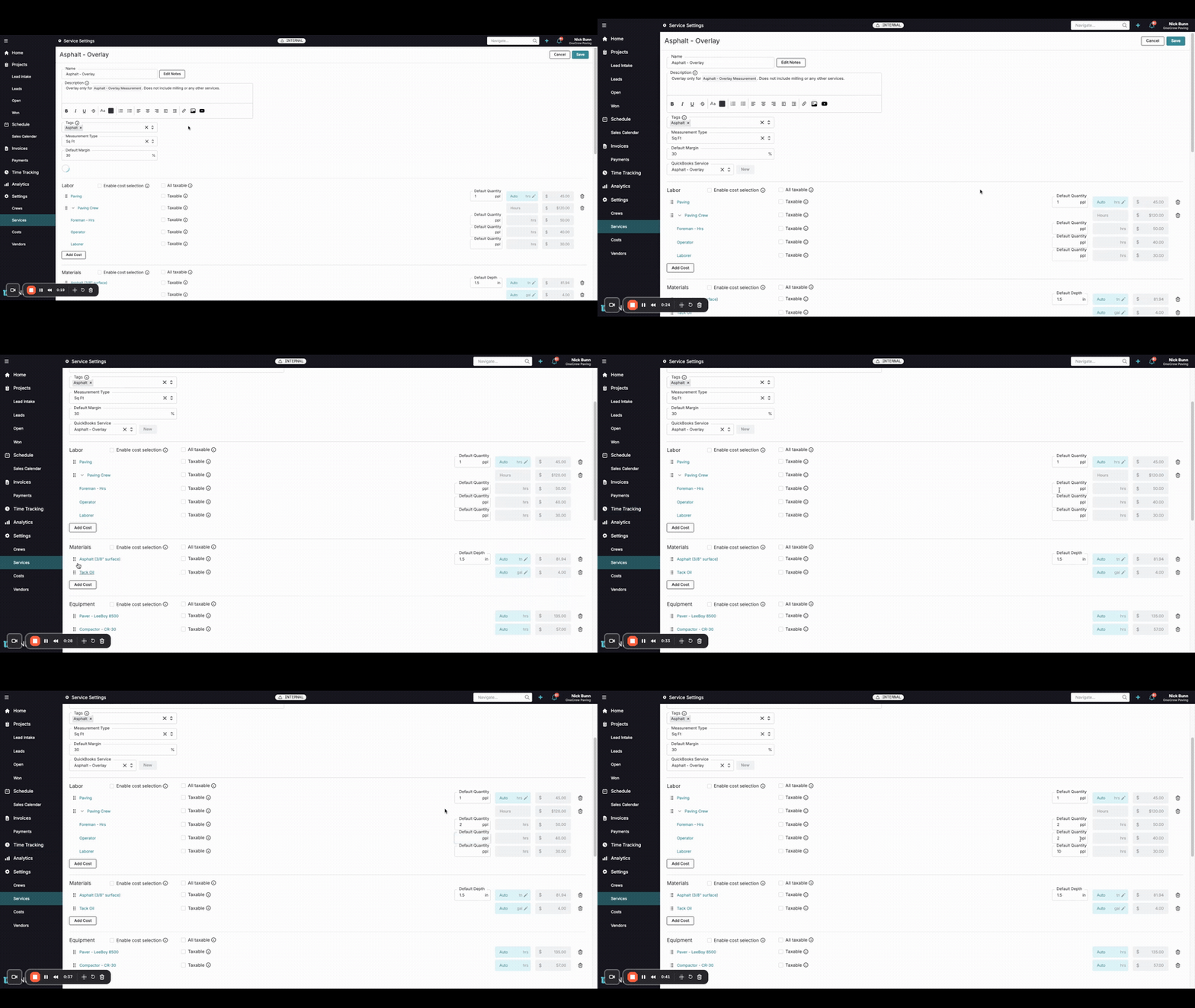
Efficiency in creating estimates is key to winning more bids. One powerful way to speed up this process is by setting default quantities for items within your service templates. This feature allows you to pre-define standard amounts for labor, materials, and equipment, automatically populating them when you add a service to an estimate. This is particularly useful for recurring job types where crew sizes, material depths, or equipment needs are generally consistent. This tutorial will guide you through setting up these defaults to make your estimating workflow faster and more consistent.
Step-by-Step Guide
Follow these steps to configure default quantities in your service templates:
Navigate to Service Settings: From the main navigation menu on the left, click on Settings.
Access Services: Within the Settings menu, select Services. This will display a list of all your existing service templates.
Select a Service Template: Click on the name of the service template you wish to modify. For this example, we'll use "Asphalt - Overlay."
Locate Cost Item Sections: On the service template editing screen, scroll down to the Labor, Materials, or Equipment sections. Here, you'll find individual line items associated with the service.
Set Default Quantities: For each line item where you want to establish a default, look for fields like Default Quantity or Default Depth.
For Labor items (e.g., under Paving Crew), you can set the Default Quantity of people (ppl) for roles like Foreman - Hrs, Operator, or Laborer. For instance, you might set
2for Foreman - Hrs,2for Operator, and10for Laborer.For Materials (e.g., Asphalt (3/8" surface)), you can set a Default Depth in inches (e.g.,
1.5in).For Equipment or Trucking (e.g., Trucking Minimum), you can set a Default Quantity (e.g.,
1truck).
Insight: By pre-filling these common values, you significantly reduce manual data entry, ensuring consistency and saving valuable time when building new estimates.
Save Your Changes: Once you've entered all desired default values, click the Save button located in the top-right corner of the screen.
Your service template is now updated with these default quantities. When you add this service to a new project estimate, the fields for labor counts, material depths, and equipment quantities will automatically populate with the defaults you've set. You can always override these pre-filled values directly within the estimate if a specific job requires different amounts.
Troubleshooting
Defaults Not Appearing in Estimate:
Ensure you clicked the Save button after setting the defaults in the service template.
Verify you are adding the correct, updated service template to your estimate.
Incorrect Default Value:
Navigate back to Settings > Services and edit the specific service template. Double-check the value entered in the Default Quantity or Default Depth field and correct it if necessary, then save.
Need to Change Value for a Specific Job:
Remember, these are defaults. When the service is added to an estimate, you can simply click into the quantity or depth field for any line item and change it to suit the specific requirements of that particular project.
Pro tip: Aim to set defaults that cover 80-90% of your typical scenarios. This maximizes time savings while still allowing flexibility for unique jobs.