Percentage Based Costs
Last updated: August 7, 2025
Watch Video Demo Here
Overview
Percentage-Based Costs offer a dynamic way to calculate certain expenses within your services and estimates. Instead of fixed amounts, these costs are automatically derived as a percentage of either the total direct costs of a service or its total sales price. This feature is primarily configured within the Costs settings under the Other category and seamlessly integrates into your Services and Estimates.
The primary benefits include significant time savings in estimate creation, improved accuracy for variable costs like overhead or surcharges, and streamlined actuals tracking for better job costing insights. By automating these calculations, you ensure consistency across projects and reduce the risk of manual entry errors.
Insight: Percentage-based costs transform complex, manual calculations into automated, accurate line items, ensuring consistent pricing and cost tracking.
Configuration
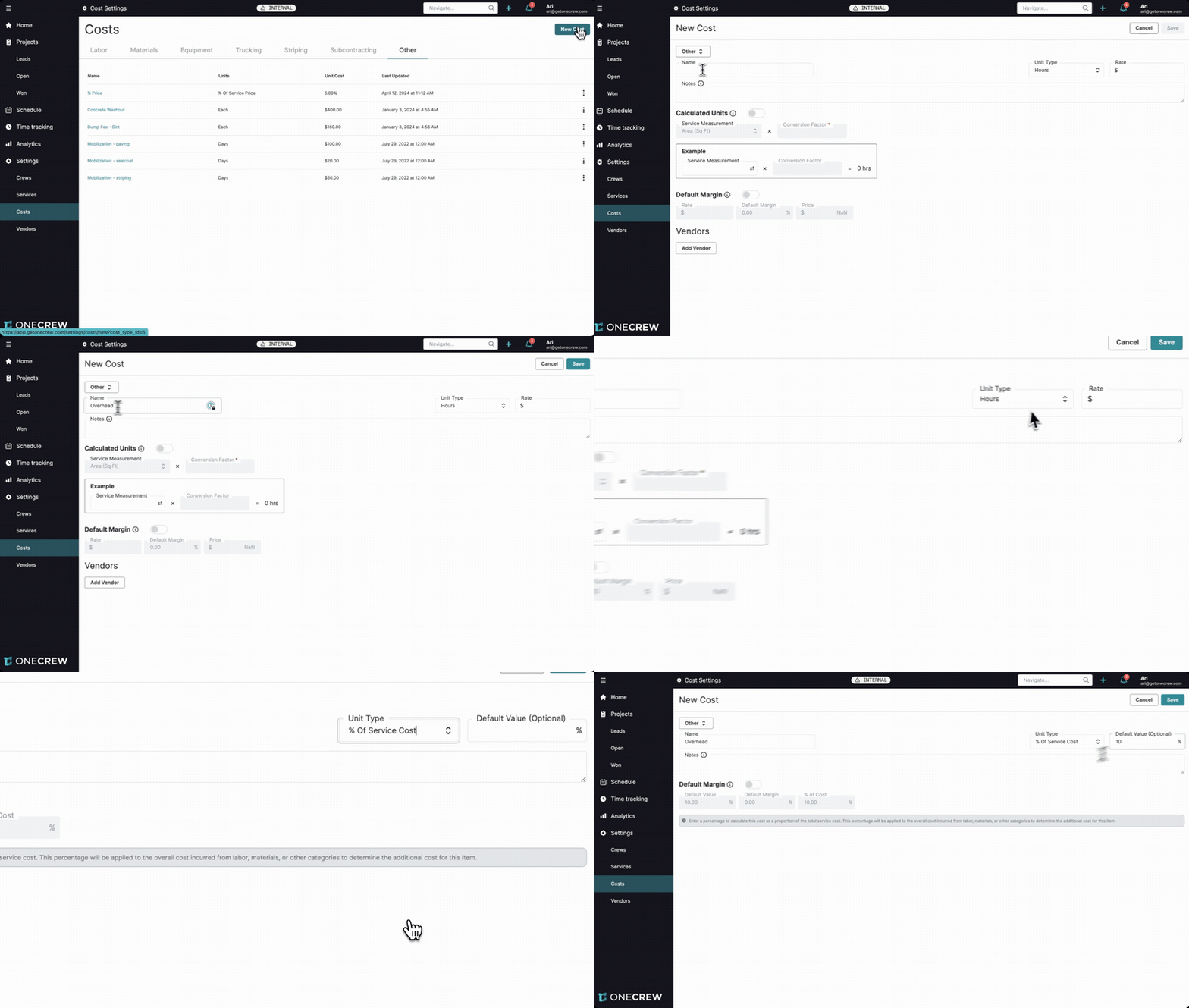
Setting up Percentage-Based Costs involves two main steps: defining the cost item and then adding it to your services.
Defining a Percentage-Based Cost Item
Navigate to Settings from the main menu, then select Costs.
Within the Costs screen, click on the Other tab. This is where percentage-based costs are managed.
Click the New Cost button.
Fill in the cost details:
Name: Provide a clear, descriptive name for the cost (e.g., "General Overhead," "Fuel Surcharge").
Unit Type: This is crucial. Choose one of the two percentage-based options from the dropdown list:
% Of Service Cost: The cost will be calculated as a percentage of the sum of all other direct costs (Labor, Materials, Equipment, Trucking, Subcontracting, and other fixed "Other" costs) within the service.
% Of Service Price: The cost will be calculated as a percentage of the total billed amount (price) of all other items in the service before this specific percentage cost item is added.
Default Value (Optional): Enter the percentage value (e.g.,
10.00for 10%). This will be the default percentage applied when this cost is added to a service, but it can be overridden.Default Margin:
Enable the toggle and enter a percentage if you want this cost item to have a fixed margin (e.g.,
0.00%if it's a direct pass-through or a cost that shouldn't have additional profit applied directly to it).If the Default Margin toggle is not enabled, the margin for this cost item will typically float with the overall margin set for the service it's part of.
Click Save.
Adding Percentage-Based Costs to Services
Once defined, you can incorporate these costs into your service templates:
Navigate to Settings > Services.
Select an existing service to edit, or create a new one.
Scroll down to the Other costs section within the service configuration.
Click Add Cost.
Select your newly created percentage-based cost from the list.
The Default Value (%) you set earlier will populate, but you can override this percentage specifically for this service if needed.
The margin behavior (fixed or service-level) is determined by the Default Margin setting in the original cost definition.
Insight: The Default Margin setting is powerful: use it to fix a margin (e.g., 0% for pass-throughs) or let the cost item's margin float with the overall service margin for flexibility when added to an estimate.
Use Cases
Percentage-Based Costs are versatile and can be applied in various scenarios to reflect how your business operates:
Calculating Overhead: Automatically allocate overhead costs (e.g., office rent, utilities, administrative salaries) to each job by defining it as a percentage of the total direct costs (labor, materials, equipment, etc.) of a service. This ensures that each project fairly contributes to covering fixed operational expenses.
Applying Surcharges: Implement surcharges like fuel, environmental, or administrative fees as a percentage of the total sales price. This is useful for costs that fluctuate with the overall project value or market conditions.
Franchise Fees or Royalties: If your business involves franchise fees or royalties calculated on revenue, a Percentage-Based Cost tied to the service price can automate this calculation.
Commissions: While not a direct cost in the same vein, the logic could be adapted for internal tracking of sales commissions based on project price, though this might typically be handled elsewhere. The core feature focuses on costs added to estimates.
Pro Tip: For frequently used surcharges like fuel or environmental fees, configure them as '% Of Service Price' costs with a 0% Default Margin to transparently add them to the customer's bill as a clear line item.
Examples
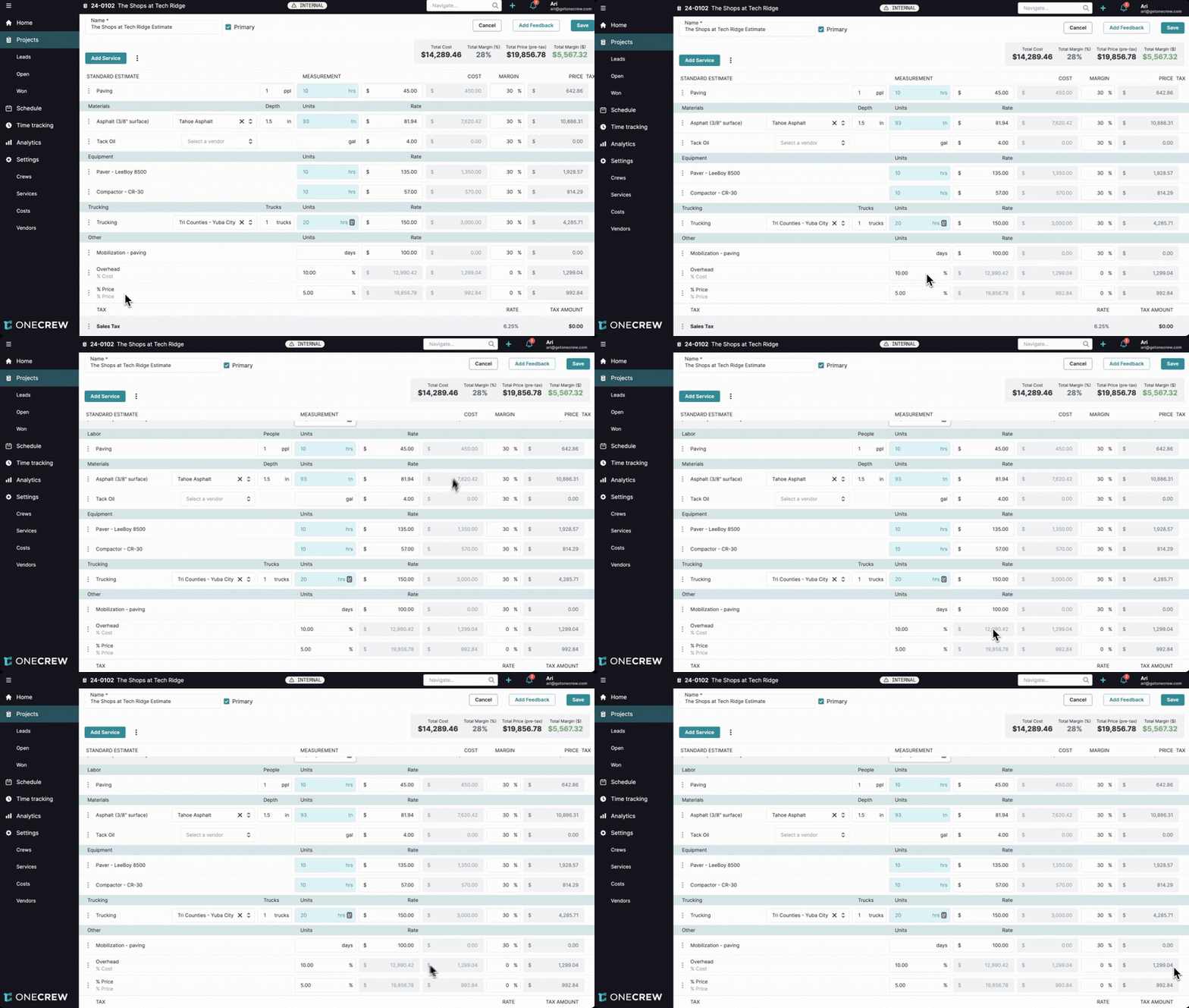
Let's explore how these configurations play out in real-world estimating scenarios:
Scenario 1: Overhead Calculation (% Of Service Cost)
Imagine you've configured an "Overhead" cost item:
Unit Type:
% Of Service CostDefault Value:
10.00%Default Margin: Enabled, set to
0.00%
You add this "Overhead" cost to your "Asphalt Overlay" service. When creating an estimate for a project using this service:
The system first calculates the sum of all other direct costs (labor, materials, equipment, trucking, etc.) for the "Asphalt Overlay" service. Let's say this sum is $12,990.42.
The "Overhead" line item will appear. Its Rate (the base for calculation) will show $12,990.42.
Its Cost will be calculated as 10% of $12,990.42, which is $1,299.04.
Since the Default Margin was set to 0%, its Price will also be $1,299.04.
If you later decide this specific overhead item should have a 30% margin within the estimate, you can adjust its margin. The price would then become $1,299.04 / (1 - 0.30) = $1,855.77.
Scenario 2: Surcharge (% Of Service Price)
Consider a "Service Surcharge" cost item:
Unit Type:
% Of Service PriceDefault Value:
5.00%Default Margin: Enabled, set to
0.00%
You add this to your "Asphalt Overlay" service. In an estimate:
As you build your estimate, the system calculates the total price of all other line items (labor, materials, equipment, etc., and any other "Other" costs like the Overhead from Scenario 1). Let's say this subtotal price is intended to be $22,000.00 (you might even override the service price to this amount).
The "Service Surcharge" line item will appear. Its Rate will be $22,000.00.
Its Cost will be 5% of $22,000.00, which is $1,100.00.
With a 0% Default Margin, its Price is also $1,100.00.
The final service price will then be $22,000.00 (from other items) + $1,100.00 (surcharge) = $23,100.00.
Pro Tip: When using '% Of Service Price', if you manually override the total service price in an estimate, the percentage cost will recalculate based on your overridden price and then be added on top of it to arrive at the new grand total.
Automatic Actuals Generation
A significant benefit is the automation of actuals. When an estimate containing these percentage-based costs is accepted and the project moves to an active state:
Navigate to the project and select the Actuals tab.
You will find that actual cost entries for your percentage-based costs (e.g., "Overhead," "Service Surcharge") have been automatically generated. The notes for these entries will indicate they were "Generated by OneCrew."
The values for these auto-generated actuals will match the calculated costs from the accepted estimate.
This ensures that your job costing starts with accurate baseline figures for these variable expenses, simplifying financial tracking and profitability analysis. If a project status reverts from accepted, these auto-generated actuals are removed, and they will be recreated if the project is accepted again. Learn more about managing project actuals [add link to relevant article on actuals].