Setting up Calculated Units
Last updated: August 7, 2025
View Video Overview Here.
Overview
Accurately estimating material quantities is crucial for profitable projects. The Calculated Units feature allows you to automatically convert service measurements (like area in square feet or length in feet) into the precise amount of material needed (like tons of asphalt or cubic yards of concrete). This tutorial will guide you through setting up Calculated Units for a cost item, streamlining your estimating process and ensuring you order the right amount of material every time.
Step-by-Step Guide
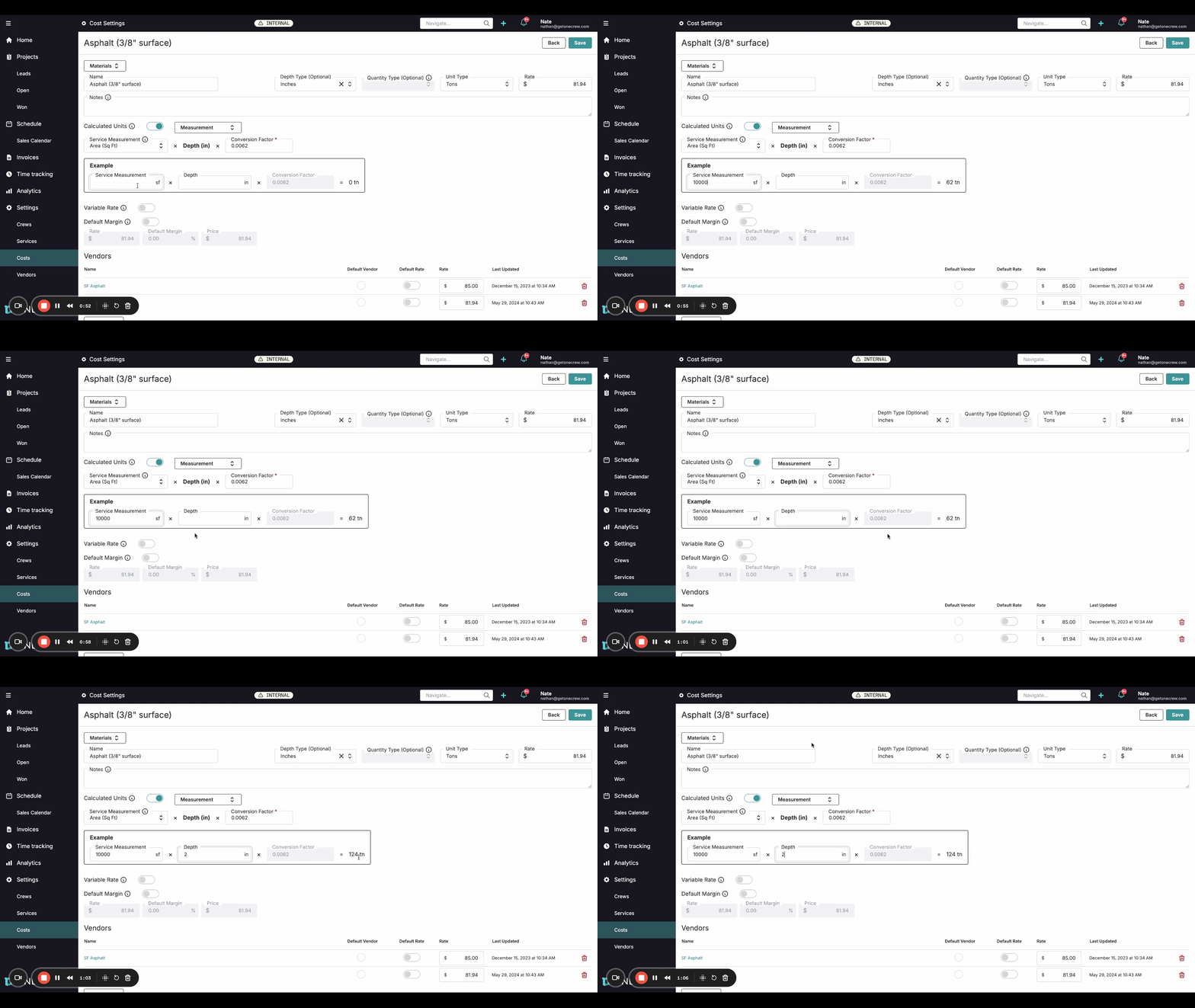
Follow these steps to configure Calculated Units for your material costs:
Navigate to Cost Settings:
From the main navigation menu, click on Settings.
Under Settings, select Costs. You'll see a list of your existing cost items, categorized by type (e.g., Labor, Materials, Equipment).
Select or Create a Material Cost:
Click on the Materials tab.
Choose an existing material cost item you wish to configure (e.g., "Asphalt (3/8” surface)") or create a new one by clicking New Cost.
Enable Calculated Units:
On the cost item's detail page, find the Calculated Units toggle switch.
Click the toggle to turn it on. This will reveal the calculation setup fields.
Define the Calculation Logic:
Service Measurement: From the dropdown menu, select how this material will typically be measured as part of a service. Options include:
Area (Sq Ft)
Length (ft)
Count (each)
Depth (Optional): If the material quantity depends on depth (e.g., asphalt, concrete), this will be part of the calculation. The Depth Type (e.g., Inches, Feet) is usually set near the top of the cost item details page next to the cost Name.
Conversion Factor: This is the key to the calculation. Enter the numerical factor that converts your Service Measurement (and Depth, if applicable) into the material's Unit Type (e.g., Tons, Cu Yd, Each), which is also defined for the cost item. The formula displayed is typically: Service Measurement x Depth (in) x Conversion Factor = Material Unit.
Verify with the Example Calculator:
Below the setup fields, you'll find an Example section. This is a mini-calculator to test your conversion.
Enter a sample value for Service Measurement (e.g., 10000 sf).
If depth is used, enter a sample Depth (e.g., 2 in).
The system will instantly calculate the resulting material quantity (e.g., 124 tn) based on your Conversion Factor.
Adjust the Conversion Factor until the example output accurately reflects a known conversion (e.g., if you know 10,000 sq ft of asphalt at 2 inches depth requires 124 tons, ensure your factor produces this result).
Save Your Configuration:
Once you're satisfied with the setup and verification, click the Save button at the top right of the page.
Insight: Calculated Units bridge the gap between how you measure a service (e.g., square footage of paving) and how you purchase materials (e.g., tons of asphalt). This automation minimizes errors and ensures your estimates are consistently accurate.
Troubleshooting
Incorrect Material Quantity Calculated:
Solution: The most common issue is an incorrect Conversion Factor. Double-check your math and use the Example calculator to test different values. Ensure the Service Measurement type (Area, Length, Count) matches how you intend to measure the service during estimation.
Calculation Fields Not Visible/Working:
Solution: Make sure the Calculated Units toggle switch is turned on for the specific cost item. If it's off, the calculation logic will not be applied.
Depth Not Factored In:
Solution: Ensure that the cost item is set up to consider depth if needed (e.g., the Depth Type field is appropriately set for materials like asphalt or concrete). If depth is not relevant for a material, the calculation will correctly exclude it.