Editing Time Cards on Mobile
Last updated: August 7, 2025
Watch Video Demo Here
Overview
This tutorial provides a step-by-step guide on how to edit existing time cards directly from your mobile device. Whether you need to adjust service durations, add a forgotten break, or reorder activities, this process allows for accurate time tracking even after a time card has been initially logged. This is particularly useful for field staff and supervisors who need to make quick corrections on the go, ensuring payroll and job costing remain precise.
Step-by-Step Guide
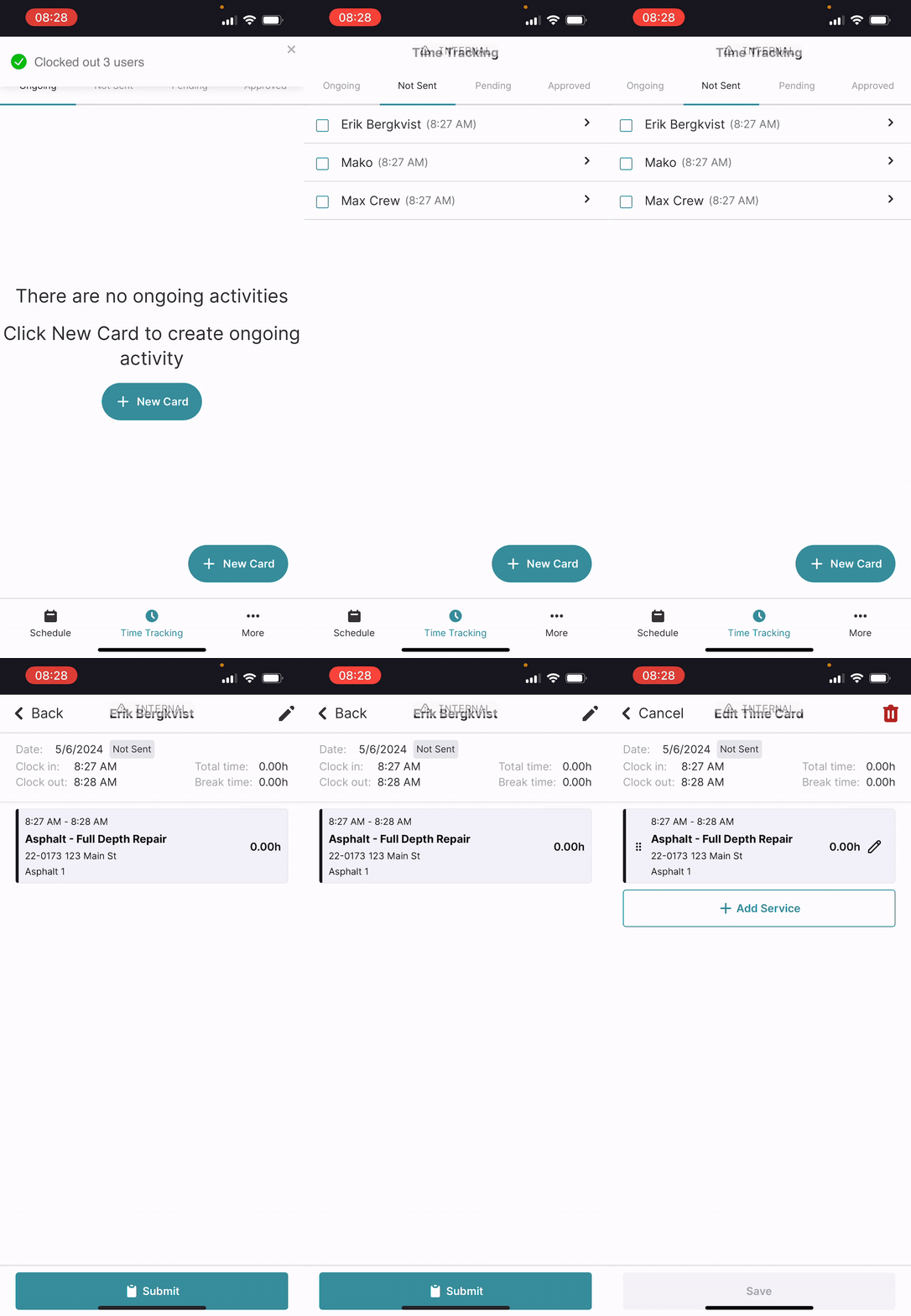
After your crew has clocked out, their time cards typically move to a Not Sent status, awaiting review or submission. This is where you can make necessary adjustments.
Navigate to Time Cards:
Open the time card section of the mobile application.
Tap on the Not Sent tab. You'll see a list of time cards for individual users, often with the clock-in time displayed.
Select and Open a Time Card:
Tap on the specific user's time card you wish to edit from the list. This will open a summary view showing details like the date, clock-in/out times, total time, and a breakdown of services.
Enter Edit Mode:
In the top right corner of the time card summary screen, tap the pencil icon. This action transitions the view to the Edit Time Card screen.
Edit an Existing Service:
On the Edit Time Card screen, you'll see a list of services for that day. Each service will have its duration and a pencil icon next to it.
Tap the pencil icon next to the service you want to modify.
Adjust the Start Time or End Time as needed. For example, to change the duration, tap the End Time field and select the correct time from the pop-up time picker.
Tap Done on the time picker. The duration for that service will update.
Tap the Back arrow or equivalent to return to the main Edit Time Card screen.
Insight: Editing service times directly ensures that job costing and labor hours are accurately reflected, preventing discrepancies down the line.
Add a New Service:
On the Edit Time Card screen, tap the + Add Service button.
Select the type of service you want to add (e.g., Lunch, Travel Time, Shop Time).
The new service will be added, typically at the end of the current clock-out time. Adjust its Start Time and End Time as needed to reflect the actual duration. For example, if adding a 30-minute lunch break, set the End Time 30 minutes after the Start Time.
Tap Done on the time picker and then the Back arrow to see it in the list of services.
Reorder Services (if necessary):
If you've added a service that occurred between other activities (e.g., a lunch break), you may need to reorder it.
Tap and hold the drag handle (often represented by three vertical dots or lines) next to the service entry you want to move.
Drag the service to its correct chronological position in the list and release.
The system will automatically adjust the start and end times of the surrounding services to accommodate the reordered entry, while keeping the overall clock-in and clock-out times of the day fixed.
Save Changes:
Once all edits are complete, tap the Save icon (often a floppy disk symbol or checkmark) in the top right corner of the Edit Time Card screen.
A confirmation pop-up will appear asking, "Save changes? Are you sure you want to update this time card?"
Tap Save. A message like "Successfully updated time card" will confirm the changes.
You can now navigate back to the Not Sent list and select the time card again to view the updated summary, reflecting all your edits.
Troubleshooting
Incorrect Total Hours: If the total hours don't seem right after editing, double-check that there are no overlapping times between services or unintended gaps. The system usually prevents overlaps when reordering but manual edits to start/end times could cause issues.
Changes Not Saving: Ensure you tap the final Save button on the confirmation pop-up. If you navigate away before confirming, your edits might be lost.
Unable to Edit: If a time card is already in a Pending or Approved state, you may not be able to edit it directly from the mobile app, or it might require different permissions. Check the status of the time card.
Pro Tip: Always verify the overall Clock in and Clock out times at the top of the summary screen after making edits to ensure the day's total duration is as expected.