OneCrew Mobile App: Your Guide
Last updated: August 7, 2025
Watch Video Demo Here
Overview
OneCrew Mobile is designed to empower field teams by providing seamless access to essential project information and functionalities directly from their smartphones. This mobile-optimized web application ensures that crews in the field can stay informed, productive, and connected, regardless of their location.
The primary purpose of OneCrew Mobile is to bridge the gap between the office and the field. It allows users to view their schedules, access detailed work order information, review project documents, communicate updates, and log actual hours and materials used on a job. This real-time data flow enhances operational efficiency, improves communication, and provides accurate data for project tracking and costing.
Key benefits include:
Enhanced Productivity: Access all necessary job information without needing to return to the office or carry bulky paperwork.
Real-Time Data Capture: Log labor, materials, and equipment usage as it happens, ensuring accuracy.
Streamlined Communication: Keep the entire team updated with project progress and on-site developments through the project log.
Improved Accessibility: Easily view schedules, job details, and documents anytime, anywhere with an internet connection.
Configuration
Accessing and setting up OneCrew Mobile is straightforward. As a web-based application, no traditional app store download is required.
Initial Access & Login
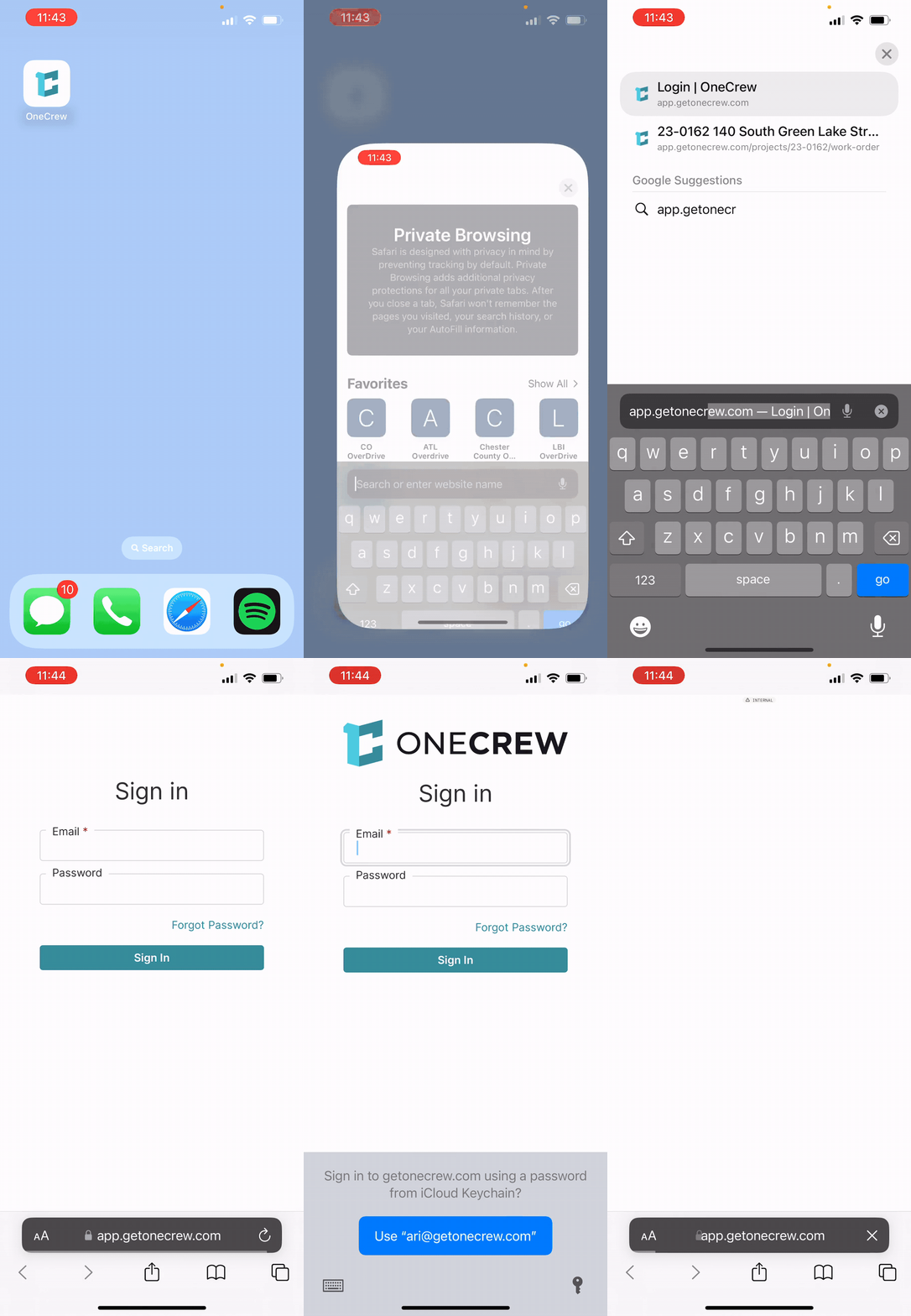
Open the web browser on your smartphone (e.g., Safari, Chrome).
Navigate to
app.getonecrew.com.On the Sign in page, enter your registered Email and Password.
Tap Sign In. Your device may offer to save your credentials or use features like Face ID/fingerprint scanning for future logins.
Adding to Home Screen for Quick Access
For a more app-like experience, you can add OneCrew Mobile to your phone's home screen. The steps below are for iOS (Safari); Android steps may vary slightly (typically look for an "Add to Home screen" option in the browser menu).
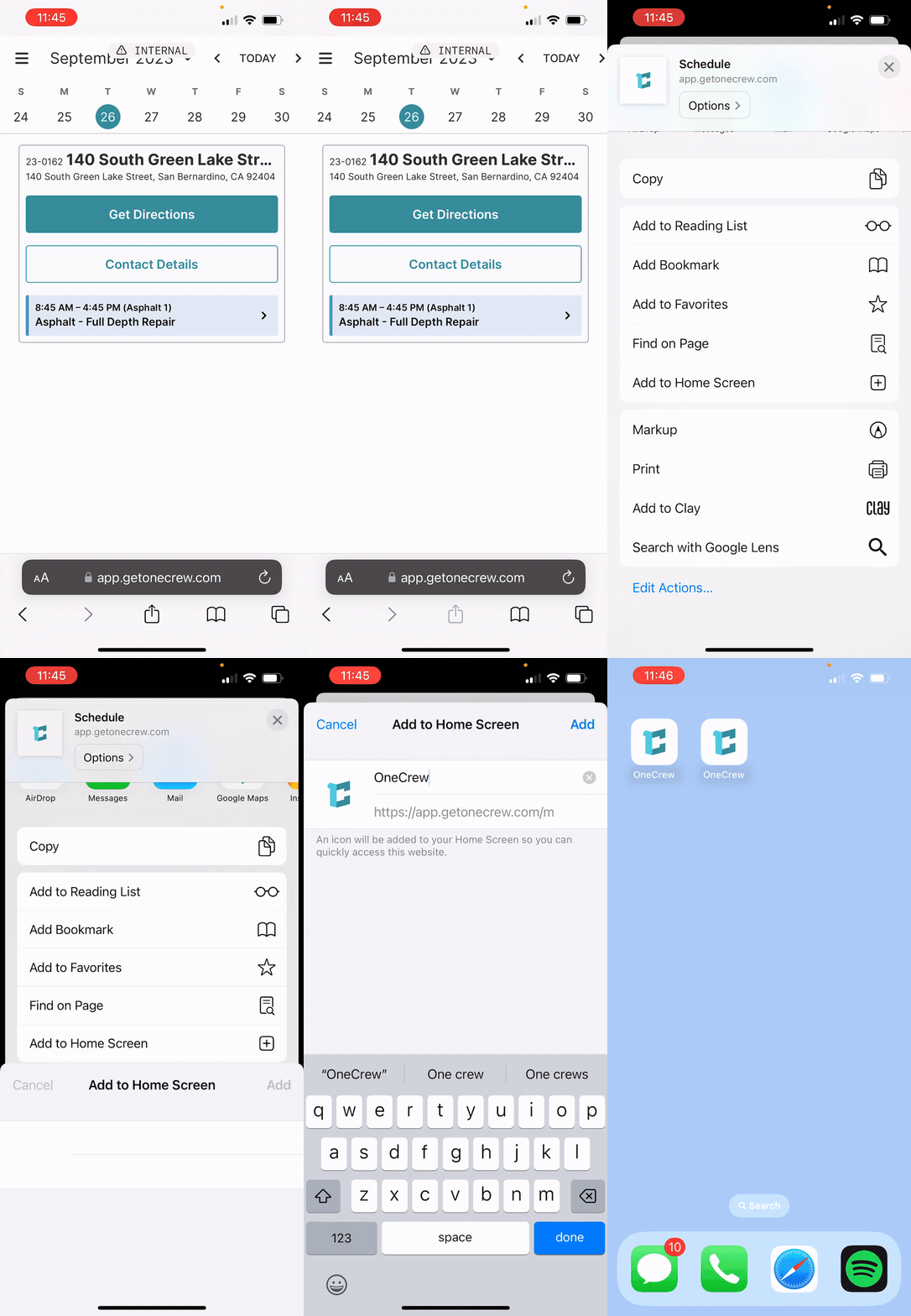
Once logged into OneCrew Mobile in your browser, tap the Share icon (usually a square with an upward arrow, located at the bottom of the Safari browser).
Scroll down through the share options and tap Add to Home Screen.
You can customize the name for the shortcut (default is "OneCrew" or "Schedule").
Tap Add in the top-right corner.
An icon for OneCrew Mobile will now appear on your home screen, allowing you to launch it directly like a native application.
Pro Tip: Adding OneCrew Mobile to your home screen provides the quickest way to access your schedule and job details, mimicking the convenience of a native app without taking up significant storage space.
Account and Display Options
Once logged in, you'll primarily see your Schedule. You can tap the hamburger menu icon (three horizontal lines) in the top-left corner to access additional options:
Select Crew(s): Filter the schedule view if you are part of multiple crews.
Reload: Refreshes the current view with the latest data.
Open Full App: If you need features not available in the streamlined mobile view, this option (if configured) might redirect you to the full desktop version.
Sign Out: Securely log out of your OneCrew Mobile session.
You can also pull down on the schedule screen to refresh the displayed events.
Use Cases
OneCrew Mobile is an indispensable tool for various field operations scenarios:
Daily Job Management:
Crews can start their day by checking their Schedule to see assigned jobs, locations, and times.
Quickly access driving directions to the job site using the Get Directions feature.
On-Site Information Access:
Before starting work, review the full Work Order details, including scope of work, estimated labor, materials, and equipment.
Access Project Documents such as site plans, photos of pre-existing conditions, or specific instructions.
View Contact Details for the project if coordination is needed.
Progress Tracking and Reporting:
Log actual labor hours, materials consumed, and equipment usage directly into the Actuals section as work is completed.
Provide real-time updates to the office or other team members via the Project Log.
Documentation and Communication:
Capture and upload photos of job progress, completed work, or any on-site issues directly to the Project Log.
Send messages or notes related to the project that become part of the permanent project record.
Examples
OneCrew Mobile equips you with powerful tools to manage your fieldwork efficiently. Here’s how you can use its key features:
Accessing Your Schedule and Job Details
Upon logging in, you're presented with a calendar view of your Schedule.
Navigate to the desired date to see scheduled jobs.
Tap on a specific job entry. This will display initial details like the project identifier, address, and buttons for Get Directions and Contact Details.
Tap on the job item itself (e.g., "Asphalt - Full Depth Repair") to open the detailed view, which defaults to the Work Order tab.
Work Order Tab:
View the project address and access Contact Details.
See a summary of the service (e.g., "Asphalt - Full Depth Repair, 10,000 sq ft").
Tap Details to expand sections showing estimated Labor, Materials, Equipment, and Trucking for the job.
Access Additional Information if any has been provided.
Tap Project Documents to view any attached files, such as site photos or plans. You can tap on an image thumbnail to view it larger.
Collaborating with the Project Log
The Log tab (located at the bottom of the screen when viewing a job's details) is your central hub for communication and historical tracking for the project.
Navigate to a job and tap the Log tab.
Scroll through existing entries to see past communications, system updates, or uploaded files.
To add an update:
Type your message in the "Write a comment..." field.
Tap Send.
To upload a photo or file:
Tap the Upload button next to the comment field. Choose from Photo Library, Take Photo, or Choose Files.
Alternatively, tap the camera icon in the top-right corner of the job details screen to quickly add photos.
Recording Actuals for Accurate Job Costing
The Actuals tab allows you to log the actual resources consumed on a job, which is crucial for accurate job costing and payroll.
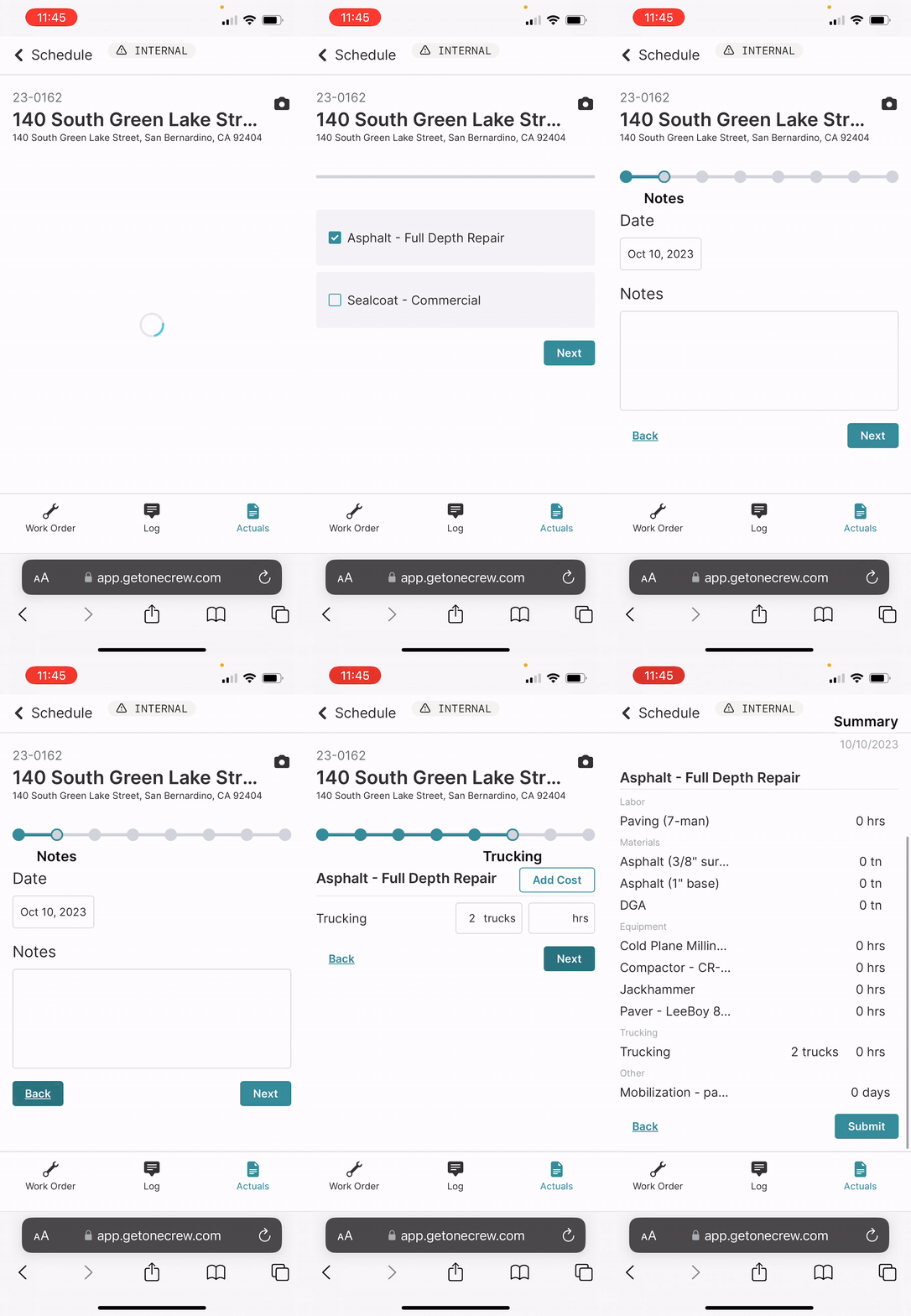
From the job details screen, tap the Actuals tab at the bottom.
Select the service(s) you completed by checking the corresponding boxes (e.g., Asphalt - Full Depth Repair).
Tap Next.
You'll be guided through a series of screens to input actuals:
Notes: Confirm the Date and add any relevant Notes for the day's work. Tap Next.
Labor: Enter the hours worked for each labor category (e.g., "Paving (7-man)"). Tap Next.
Materials: Input the quantity of each material used (e.g., "Asphalt (3/8" surface)" in tons). Tap Next.
Equipment: Log the hours for each piece of equipment used. Tap Next.
Trucking: Record trucking details, such as number of trucks and hours. Tap Next.
Other: Add any other miscellaneous costs (e.g., "Mobilization - paving" in days). Tap Next.
Summary: Review all the actuals you've entered for the selected date and service(s).
If everything is correct, tap Submit. This information will then be available for reporting and analysis in the main OneCrew application.
Insight: By consistently and accurately logging actuals via OneCrew Mobile, field teams directly contribute to precise job costing. This data is invaluable for understanding project profitability, improving future estimates, and ensuring efficient resource allocation.