Cost Sets: A Step By Step Guide
Last updated: August 7, 2025
Watch Video Demo Here
Overview
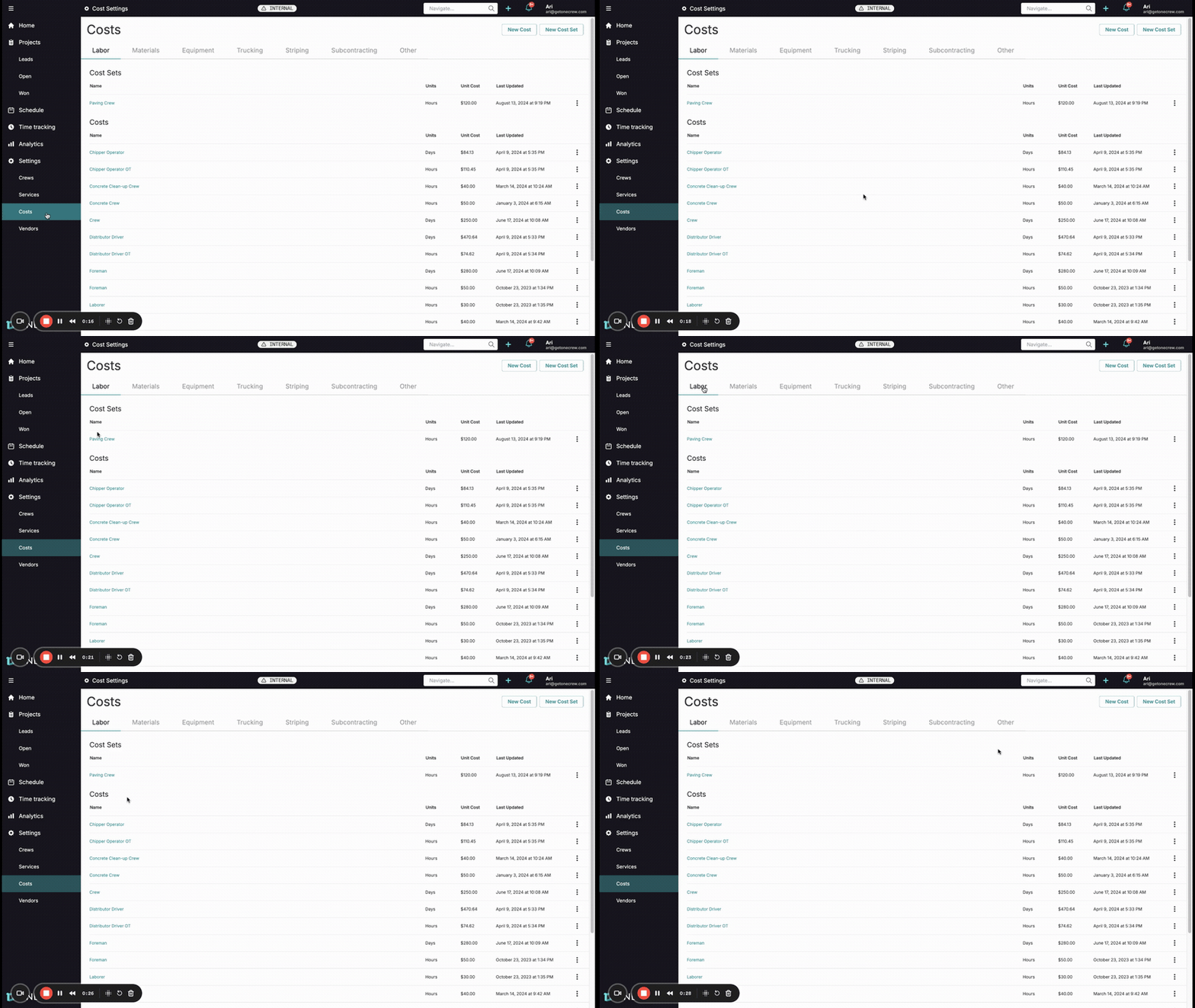
Cost Sets are a powerful feature designed to streamline your project costing process by allowing you to group related individual costs—such as labor, materials, or equipment—into reusable templates. Think of a Cost Set as a predefined bundle of costs that you frequently use together.
The primary purpose of Cost Sets is to enhance efficiency, ensure consistency, and simplify data entry across various stages of your project lifecycle. You configure Cost Sets in your system settings, incorporate them into Service templates, apply them when creating Project Estimates, and utilize them for tracking Actual costs.
Key Benefits:
Efficiency Boost: Drastically reduce the time spent adding individual line items to services and estimates. Instead of adding multiple labor roles one by one, add a single "Crew" Cost Set.
Improved Consistency: Ensure that standard crews, material kits, or equipment packages are costed uniformly across all projects, minimizing discrepancies.
Simplified Actuals Tracking: Make it easier for field teams to log time and materials. For example, they can report hours for an entire crew (Cost Set) with a single entry, which then intelligently distributes those hours to the individual members.
Enhanced Accuracy: By pre-defining common cost groupings, you reduce the likelihood of manual entry errors or forgetting critical cost components.
Reduced Repetitive Work: Define it once, use it many times. Cost Sets eliminate the need to rebuild the same groups of costs repeatedly.
Insight: Cost Sets transform individual cost items into powerful, manageable building blocks, significantly boosting efficiency and consistency in project costing from estimate to actual.
Configuration
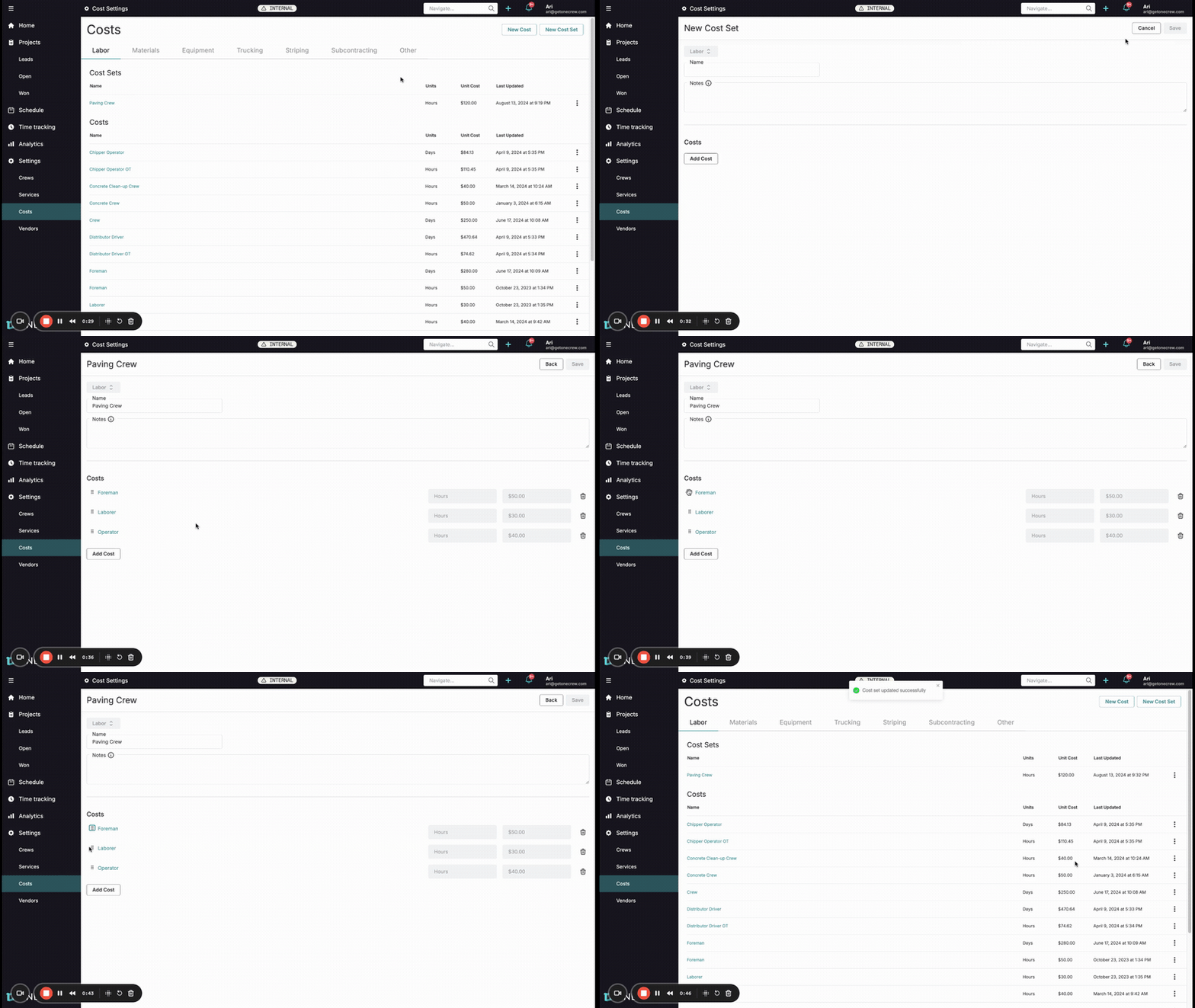
Setting up Cost Sets is done within the main system settings, allowing you to create a library of reusable cost bundles.
Creating a New Cost Set
Navigate to Settings from the main menu.
Select the Costs section. You'll see tabs for different cost categories (e.g., Labor, Materials, Equipment, Trucking, etc.).
Click on the tab corresponding to the type of costs you want to group (e.g., click the Labor tab to create a crew-based Cost Set).
At the top right of the cost list, click the New Cost Set button.
A "New Cost Set" form will appear:
The selected category (e.g., Labor) will be pre-filled.
Enter a descriptive Name for your Cost Set (e.g., "Paving Crew," "Standard Material Kit").
Optionally, add any relevant details in the Notes field.
Under the "Costs" section of this form, click the Add Cost button. This will allow you to search and select existing individual cost items (e.g., "Foreman," "Laborer," "Operator" if you are in the Labor category). Add all the desired costs that will make up this set.
Once costs are added, you can drag and drop them to reorder their appearance within the set if needed.
Click Save in the top right corner.
Your newly created Cost Set will now appear in a dedicated Cost Sets grouping at the top of the list within its respective category (e.g., under the Labor tab). This list will show the Cost Set Name, its default Units (often "Hours" for labor, or derived from its contents), and a Unit Cost (which is typically the sum of the base rates of the included items, assuming a quantity of one for each).
Managing Existing Cost Sets
From the Settings > Costs screen, within the Cost Sets grouping for a category:
Click on a Cost Set name to edit its details (name, notes, included costs).
Use the three-dot menu next to a Cost Set to Edit or Delete it.
Incorporating Cost Sets into Services
To make your Cost Sets readily available for estimates, you should add them to your Service templates:
Navigate to Settings > Services.
Either select an existing service to edit or create a New Service.
Scroll to the relevant cost category section within the service configuration (e.g., Labor).
Click the Add Cost button for that category.
In the cost selection dropdown, search for the name of your Cost Set (e.g., "Paving Crew"). The system will identify it with a "Cost Set" label.
Select the Cost Set. It will be added to the service, and its constituent individual costs will appear nested underneath it.
For each individual cost item within the Cost Set, you can now specify a Default Quantity (e.g., for a "Paving Crew" labor Cost Set, you might set Foreman: 1, Operator: 1, Laborer: 4). This quantity represents the number of units (e.g., people) for that specific role within this service.
Configure any other service details as needed.
Click Save to update the service template.
Pro Tip: Regularly review and update your individual costs (e.g., labor rates, material prices) as Cost Sets pull from these. Keeping base costs accurate ensures your Cost Sets remain reliable.
Use Cases
Cost Sets are incredibly versatile and can be applied in numerous scenarios to optimize your workflow. Here are some common situations where using Cost Sets adds significant value:
Defining Standard Labor Crews:
Scenario: You consistently use a specific team composition for certain jobs, like a "Paving Crew" (e.g., 1 Foreman, 1 Operator, 4 Laborers) or an "Installation Team" (e.g., 2 Technicians, 1 Supervisor).
Why: Quickly add the entire crew to a service or estimate, and easily adjust total hours worked for the entire group in estimates and actuals.
Bundling Material Kits:
Scenario: Specific jobs require a standard set of materials, such as a "Repair Kit" containing various components or a "Starter Pack" for a particular service.
Why: Ensures all necessary materials are included and makes it easier to manage inventory and costing for these bundles.
Grouping Equipment Packages:
Scenario: Certain tasks always need a combination of equipment, like a "Trenching Package" (e.g., excavator, tamper, safety cones).
Why: Simplifies the process of allocating equipment costs and ensures all required machinery is accounted for.
Recurring Task Assemblies:
Scenario: Any set of costs (labor, material, equipment, or a mix) that are consistently used together for a specific operation or phase of a project.
Why: Speeds up the creation of detailed estimates for complex projects with multiple, repetitive phases.
Quick Unit Adjustments for Groups:
Scenario: You've estimated a crew will work for a certain number of hours, but need to quickly see the impact of changing that duration.
Why: Modify the hours at the Cost Set level in an estimate, and the system automatically recalculates for all included labor items, saving significant time.
Pro Tip: For complex jobs with multiple crews or phases, create distinct Cost Sets for each (e.g., "Prep Crew," "Paving Crew," "Cleanup Crew") to maintain clarity in your estimates and actuals.
Examples
Let's explore how Cost Sets are used in practice, from estimation to tracking actuals.
Example 1: "Paving Crew" Labor Cost Set
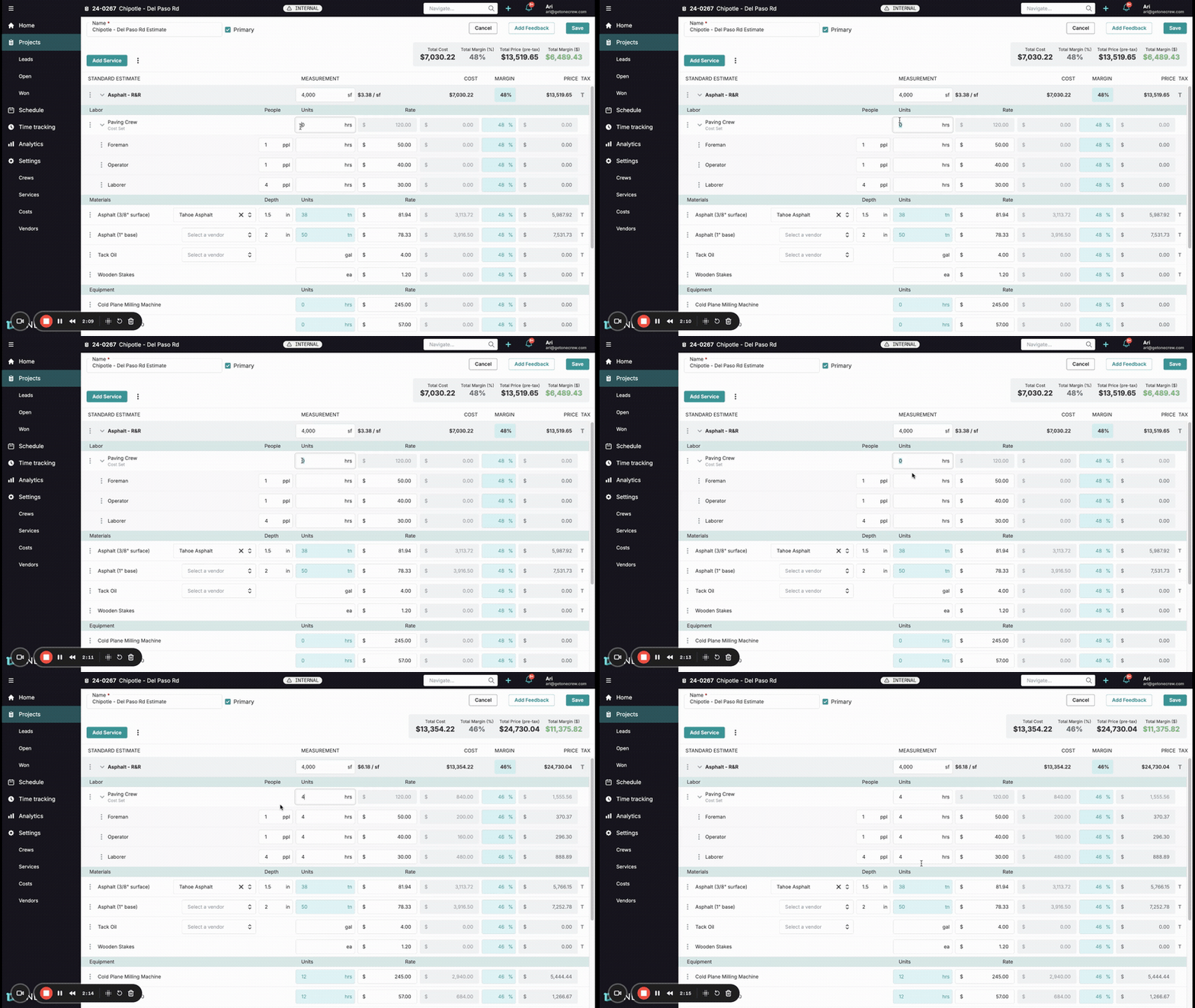
Scenario: A paving company needs to estimate and track labor for an asphalt repair job. They use a standard "Paving Crew" consisting of 1 Foreman, 1 Operator, and 4 Laborers.
1. Configuration (as detailed in the Configuration section):
A "Paving Crew" Cost Set is created under Settings > Costs > Labor, including individual costs for "Foreman," "Operator," and "Laborer."
2. Usage in Service Template:
The "Paving Crew" Cost Set is added to the "Asphalt - R&R" service template.
Within this service, Default Quantity is set: Foreman = 1, Operator = 1, Laborer = 4.
3. Usage in an Estimate:
A new project requires an estimate for "Asphalt - R&R."
The "Asphalt - R&R" service is added to the estimate.
The Labor section of the estimate automatically includes the "Paving Crew" Cost Set, showing the nested Foreman (1 ppl), Operator (1 ppl), and Laborer (4 ppl).
The estimator determines the job will take approximately 4 hours.
Instead of entering "4 hours" for each of the three labor lines individually, the estimator enters 4 into the Units (hrs) field at the "Paving Crew" Cost Set level.
The system automatically calculates the labor:
Foreman: 1 person * 4 hours = 4 total hours
Operator: 1 person * 4 hours = 4 total hours
Laborer: 4 people * 4 hours = 16 total hours
The total cost for the Paving Crew is calculated based on these hours and the individual rates.
The Cost Set is collapsible for a cleaner view. If needed, the estimator can click the three-dot menu next to the Cost Set name in the estimate to Add cost (e.g., a temporary specialized role for this job only), Rename the set for this estimate, or Delete the entire set.
4. Usage in Actuals:
Desktop: When creating a New Actual for the project and selecting the "Asphalt - R&R" service, the "Paving Crew" Cost Set appears. The quantities (1 Foreman, 1 Operator, 4 Laborers) are pre-filled. The user enters the total Units (hrs) worked by the crew (e.g., 4.5 hours), and this is distributed across the members.
Mobile (Field Entry): The field crew supervisor, when logging daily actuals, sees the "Paving Crew" assigned. They confirm the number of people present for each role (which defaults from the estimate/service but can be overridden if, for instance, only 3 laborers showed up). They then enter the total hrs the crew worked (e.g., 4.5). This single hour entry is applied to all confirmed crew members.
Example 2: "Standard Equipment Spread" Cost Set
Scenario: A small excavation job typically requires a mini-excavator, a plate compactor, and a small dump truck, all rented by the day.
1. Configuration:
Create an "Excavation Equipment" Cost Set under Settings > Costs > Equipment.
Add individual costs for "Mini-Excavator (Daily Rental)," "Plate Compactor (Daily Rental)," and "Dump Truck (Daily Rental)."
2. Usage in Service Template:
Add the "Excavation Equipment" Cost Set to the "Small Excavation" service.
Set Default Quantity for each to 1 (as it's one of each piece of equipment).
3. Usage in an Estimate:
When the "Small Excavation" service is added to an estimate, the "Excavation Equipment" Cost Set appears.
If the job is estimated to take 2 days, the estimator enters 2 in the Units (days) field for the "Excavation Equipment" Cost Set. This applies 2 days of rental cost to each piece of equipment.
Insight: The real power of Cost Sets shines when unit-based costs (like labor hours or equipment rental days) for multiple items can be set with a single input, drastically reducing clicks and potential errors. This is particularly impactful for labor where crew sizes and work durations are common variables.