Creating a Cost Template
Last updated: August 7, 2025
Watch a Video Demo Here
Overview
Accurately tracking costs is fundamental to understanding job profitability. This tutorial will guide you through the process of adding new cost items to your system. By defining individual costs, such as materials or labor, you can build comprehensive service templates, generate precise estimates, and ensure your pricing strategy is robust. This structured approach helps in breaking down complex jobs into manageable, costed components.
Step-by-Step Instructions
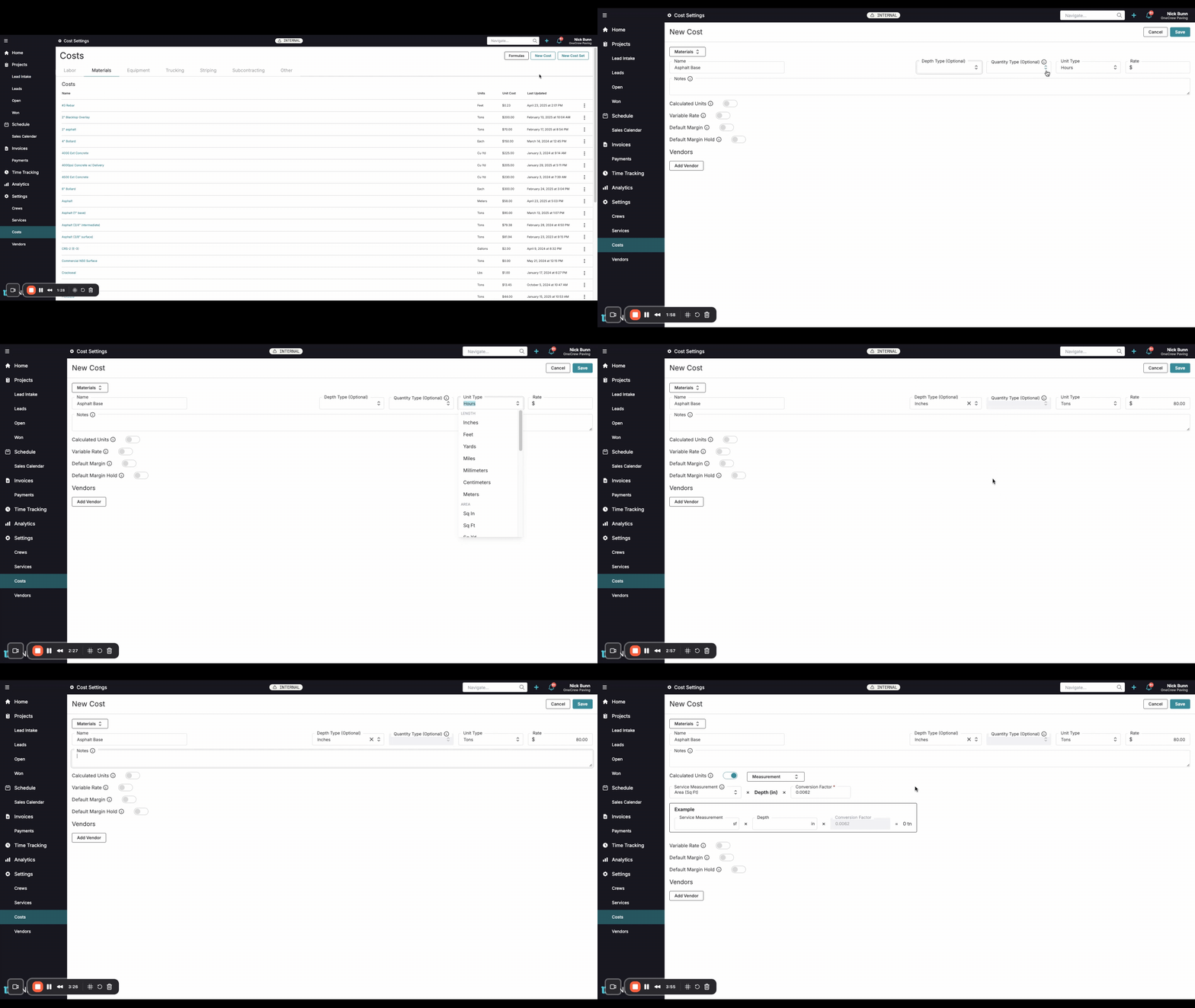
Follow these steps to add a new cost item:
Navigate to the Costs Section From the main navigation menu on the left, select Settings, then click on Costs. This will take you to the central hub for managing all your cost items.
Select the Appropriate Cost Category At the top of the Costs page, you'll see various tabs representing different cost categories like Labor, Materials, Equipment, Trucking, Striping, Subcontracting, and Other. Click on the tab that best fits the cost item you're adding. For this example, let's select Materials.
Initiate a New Cost In the top right corner of the page, click the New Cost button. This will open the New Cost form.
Enter Core Cost Details
Name: Provide a clear and descriptive name for your cost item. For instance, "Asphalt Base".
Unit Type: From the dropdown menu, select the unit that represents how this cost is measured or purchased. This is crucial as it dictates how the rate is applied. For "Asphalt Base," you might select "Tons."
Insight: The Unit Type should reflect how your business incurs the cost (e.g., how suppliers bill you), not necessarily how you bill your customers. This ensures accurate base cost tracking.
Rate: Enter the monetary value for one unit of the selected Unit Type. This is your direct cost. For example, if asphalt costs $80 per ton, enter "80".
Depth Type (Optional): For certain materials like asphalt, specifying a Depth Type (e.g., Inches, Feet) is essential for accurate calculations in estimates. Select the appropriate unit from the dropdown.
Notes (Optional): Add any internal notes or details about this cost item. These notes are for your reference and won't appear on customer-facing documents.
Configure Calculated Units (Optional) If you want the system to automatically calculate the quantity of this cost item based on service measurements (e.g., square footage of an area):
Toggle the Calculated Units switch to the "on" position (it will turn green).
Service Measurement: Select the primary measurement from the service that will drive this calculation (e.g., Area (Sq Ft)).
Depth (in): If you selected a Depth Type earlier, this field will be used in conjunction with the service measurement.
Conversion Factor: Enter the factor that converts your service measurement and depth into the Unit Type of your cost. For example, to calculate tons of asphalt needed for a given square footage at a specific depth, you'd input a conversion factor (e.g., 0.0082 to convert sq ft at 1-inch depth to tons).
Example Calculation: Use the input fields under "Example" (Service Measurement, Depth) to test your conversion factor and see the resulting quantity (e.g., "13 tn" for 1000 sq ft at 2 inches depth).
Save Your New Cost Once all necessary details are entered and verified, click the Save button in the top right corner of the form. A confirmation message "Cost created" will appear briefly, and your new cost item will be added to the list under the selected category.
Troubleshooting
Cost Not Appearing in Estimates or Services:
Ensure you clicked Save after creating the cost.
Verify the cost was added to the correct category tab (e.g., Materials vs. Labor).
When adding to a service, make sure you are looking under the correct cost category section within the service setup.
Calculations Seem Incorrect:
If using Calculated Units, double-check your Conversion Factor. A small error here can significantly impact quantities.
Ensure the Unit Type and Rate accurately reflect your actual costs.
Choosing the Right Unit Type:
The Unit Type (e.g., Hours, Tons, Each) should align with how you are billed by your suppliers or how you track internal costs. The Rate should correspond to this unit. For example, if labor is paid hourly, the Unit Type is "Hours" and the Rate is the hourly wage.