Cost Formulas: Overview
Last updated: November 15, 2025
Cost Formulas are a powerful feature designed to automate and standardize how your job costs are calculated. Instead of relying on static unit quantities or simple measurement-based calculations, you can define sophisticated formulas that dynamically determine the units for your cost items. This allows for greater accuracy, consistency, and efficiency in your estimating process.
The primary purpose of Cost Formulas is to centralize your calculation logic. You can create a library of reusable formulas that can be applied to one or many cost items. When a formula is updated in one place, all associated costs are automatically recalculated, ensuring your estimates always reflect the most current business rules and pricing.
Key Benefits:
Consistency: Apply standardized calculation methods across all estimates.
Accuracy: Reduce manual calculation errors by automating complex logic.
Efficiency: Save time by eliminating repetitive data entry and calculations.
Flexibility: Easily update formulas to reflect changes in productivity rates, material conversions, or business processes.
Dynamic Calculations: Link costs to service measurements, travel times, other cost items, and manual inputs for truly adaptive estimates.
Insight: Cost Formulas transform static cost items into dynamic calculations, ensuring estimates adapt to changing project variables and business logic, leading to more precise and reliable project costing.
Use Cases
Cost Formulas are versatile and can be applied in numerous scenarios to streamline your estimating. Here are some common situations where they add significant value:
Standardizing Labor Productivity:
Scenario: You have a standard rate for how many square feet your crew can pave per hour, but this needs to include travel time to the site and a specific number of on-site hours.
Solution: A formula can sum the automatically calculated travel time (e.g.,
{Company to Site (hrs)}) with a manually inputted value for on-site hours ({Manual Input (hrs)}), then round the result to provide a total labor time.
Calculating Material Quantities:
Scenario: The amount of asphalt needed depends on the service area, depth, and a specific conversion factor, plus a fixed amount for potential overage.
Solution: A formula like
({Service Area (sf)} * {Depth (in)} * 0.0042) + {Manual Input (tons)}could calculate the total tons of asphalt required, whereManual Input (tons)is a small fixed overage.
Determining Mobilization Costs:
Scenario: Mobilization is charged per day, and a "day" is defined as any portion of a 12-hour paving shift.
Solution: A formula can take the total hours from another cost item (e.g.,
{Paving (hrs)}), divide it by 12, and use theCEILING()function to round up to the next whole number, determining the number of mobilization days.
Factoring in Travel or Hauling Time/Distance:
Scenario: A trucking cost needs to include the time or mileage from the job site to a vendor (e.g., a dump site or material supplier).
Solution: Use variables like
{Site to Vendor (hrs)}or{Site to Vendor (mi)}within your formula to automatically add this component.
Global Updates for Standard Rates:
Scenario: You have a "Standard Labor" formula used by many different labor cost items. If your standard productivity assumption changes, you need to update all related costs.
Solution: Edit the "Standard Labor" formula once in the central Formulas settings, and all cost items using that formula will automatically reflect the change.
Pro Tip: Before creating complex formulas, map out your calculation logic on paper or in a spreadsheet. Clearly identify all necessary input variables (service measurements, manual inputs, other costs) to ensure your formula will work as expected.
Examples
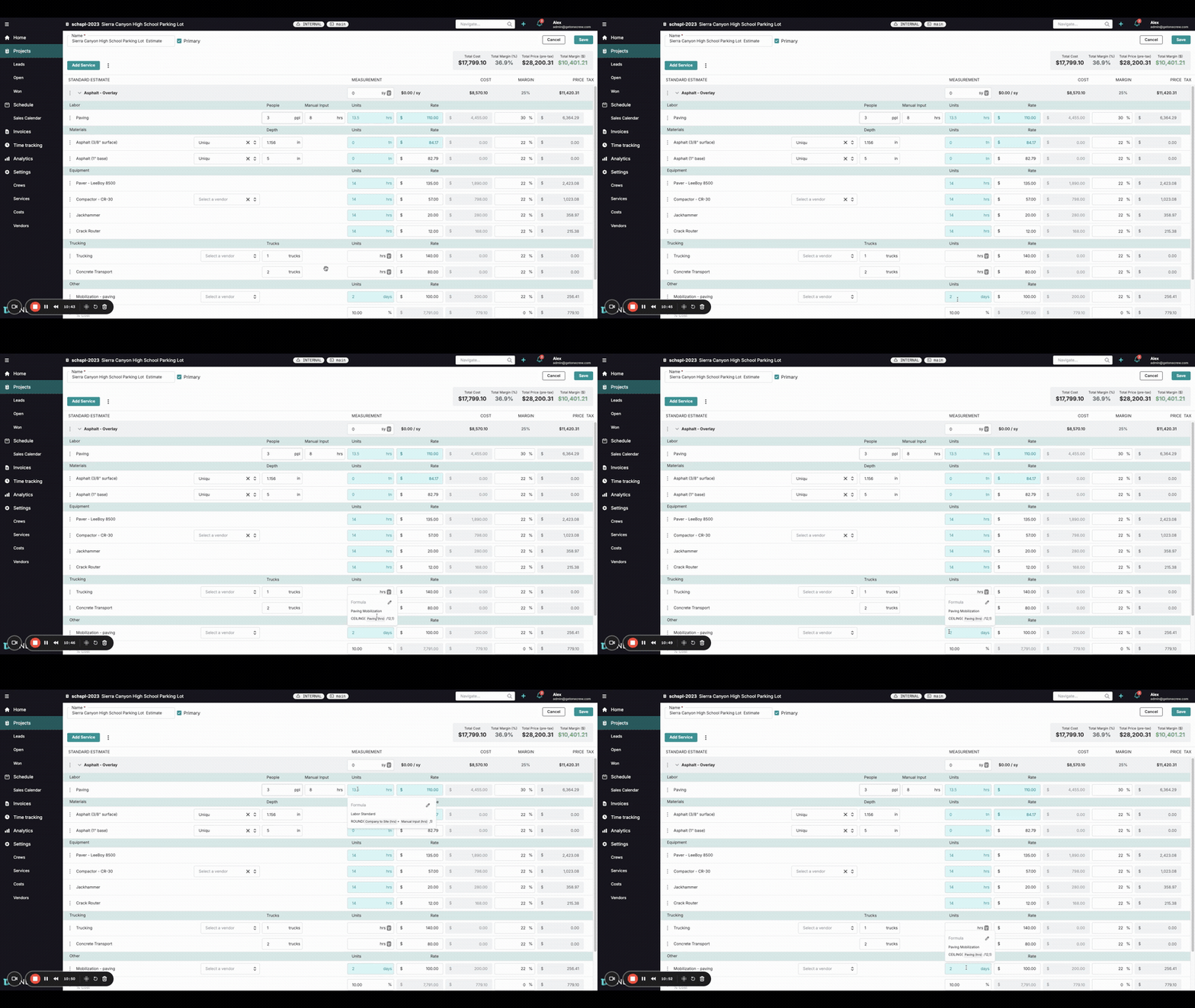
Here are a few real-world examples of how Cost Formulas can be used:
Example 1: Calculating Total Labor Hours (Including Travel)
Goal: Calculate total billable hours for a paving crew, including travel time from the office and actual work time on site.
Formula Name:
Standard Paving LaborManual Input:
On-Site Hours(Unit: hrs)Formula Logic:
ROUND( {Company to Site (hrs)} + {Manual Input (hrs)} , 1)Explanation:
{Company to Site (hrs)}automatically pulls the estimated drive time to the job site.{Manual Input (hrs)}is where the estimator enters the planned hours for work on site.These are added together, and
ROUND(..., 1)rounds the total to one decimal place.
How it's used: On an estimate, when adding the "Paving Labor" cost, the estimator will see a field for "On-Site Hours." If drive time is 0.7 hours and they input 8 for On-Site Hours, the calculated units for Paving Labor will be 8.7 hrs. If they later change On-Site Hours to 7.5, the units will auto-update to 8.2 hrs.
Example 2: Determining Mobilization Days
Goal: Calculate the number of mobilization days required for a paving job, where one mobilization day is charged if any part of a 12-hour crew day is used.
Formula Name:
Paving Mobilization DaysManual Input: None
Formula Logic:
CEILING( {Paving (hrs)} / 12 , 0)Explanation:
{Paving (hrs)}pulls the total calculated labor hours from the "Paving" labor cost item on the same estimate.This total is divided by 12 (representing a 12-hour workday).
CEILING(..., 0)rounds the result up to the nearest whole number with zero decimal places.
How it's used: If the "Paving" labor cost calculates to 13.5 hours, this formula would result in
CEILING(13.5 / 12, 0) = CEILING(1.125, 0) = 2days for mobilization. If "Paving" labor was 11 hours, it would beCEILING(11 / 12, 0) = CEILING(0.916, 0) = 1day.
Example 3: Customizing a Formula for a Specific Estimate
Goal: The standard
Paving Mobilization Daysformula uses a 12-hour threshold. For a particular job, you need to use a 14-hour threshold for calculating mobilization days, but only for this estimate.Steps:
On the estimate, locate the "Mobilization - Paving" cost item that is using the
Paving Mobilization Daysformula.Hover over the calculated units (e.g., "2 days"). A tooltip will show the current formula.
Click the pencil icon that appears next to the formula in the tooltip or directly on the cost line if available (UI may vary slightly, but the goal is to edit the formula for this instance).
Choose the Customize option. This creates a copy of the formula that is specific to this cost item on this estimate.
Modify the formula from
CEILING( {Paving (hrs)} / 12 , 0)toCEILING( {Paving (hrs)} / 14 , 0).Click Save.
Result: The mobilization days for this specific estimate will now calculate based on a 14-hour threshold, while the global
Paving Mobilization Daysformula remains unchanged for other estimates.
Pro Tip: When you customize a formula for a specific cost item on an estimate, that instance of the formula is decoupled from the global formula definition. If you later update the global formula in Settings, the customized instance on your estimate will not automatically inherit those changes. You would need to reset it or reapply the global formula if desired.