Profile Settings
Last updated: August 7, 2025
Watch Video Demo Here
Overview
Welcome to your OneCrew command center! This tutorial will walk you through customizing your user profile, from personal details to fine-tuning your notification preferences. Keeping your profile updated and notifications tailored to your needs helps you stay focused on what's important, ensuring you receive timely alerts without being overwhelmed. Let's dive in and make OneCrew work smarter for you.
Insight: Customizing your profile and notifications ensures you stay informed about what matters most, streamlining your workflow and reducing unnecessary distractions.
Step-by-Step Instructions
1. Accessing Your Profile Settings
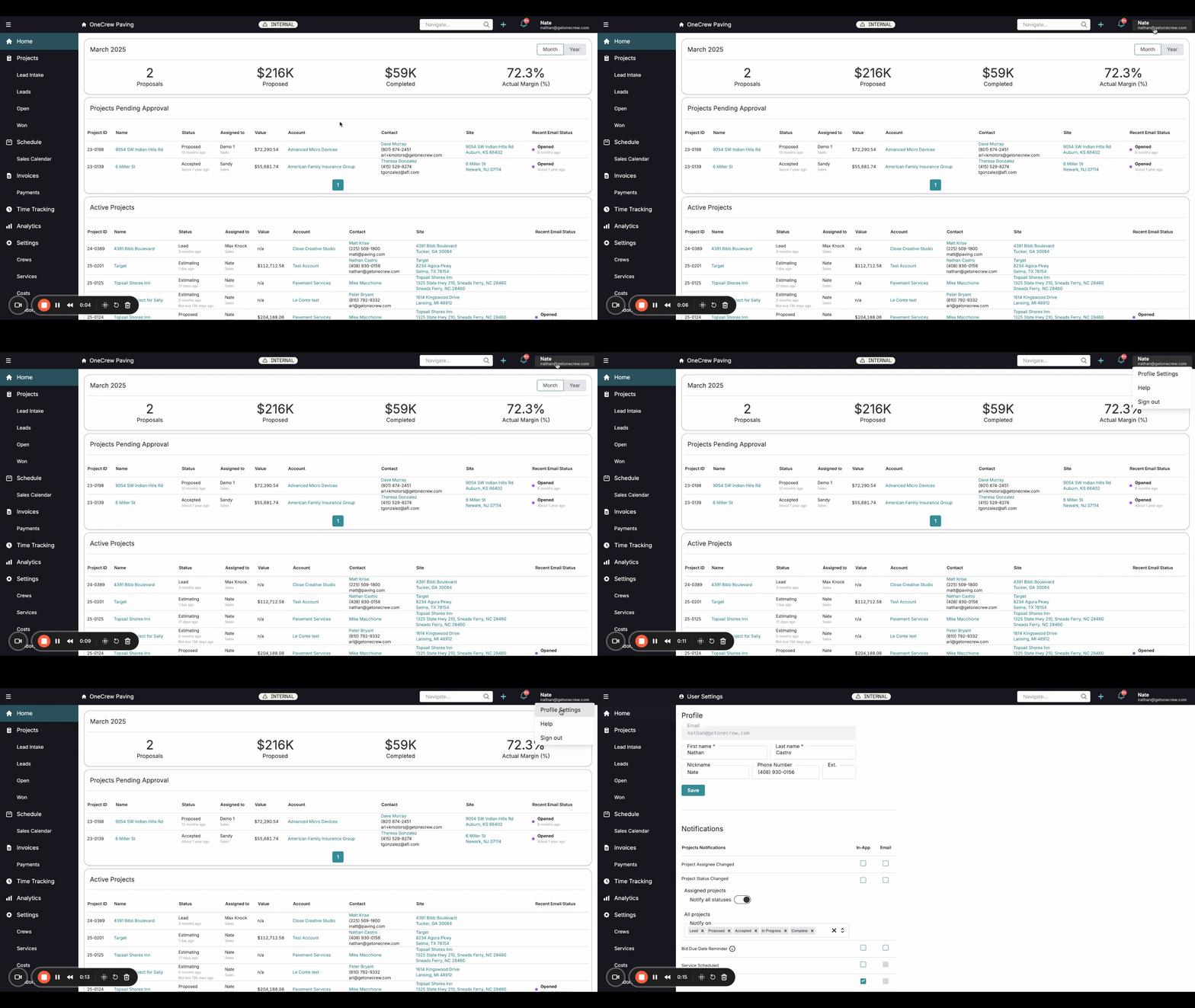
Locate your name in the top-right corner of the OneCrew interface.
Click on your name to open a dropdown menu.
Select Profile Settings from this menu. You'll now be on the User Settings page.
2. Updating Your Personal Information
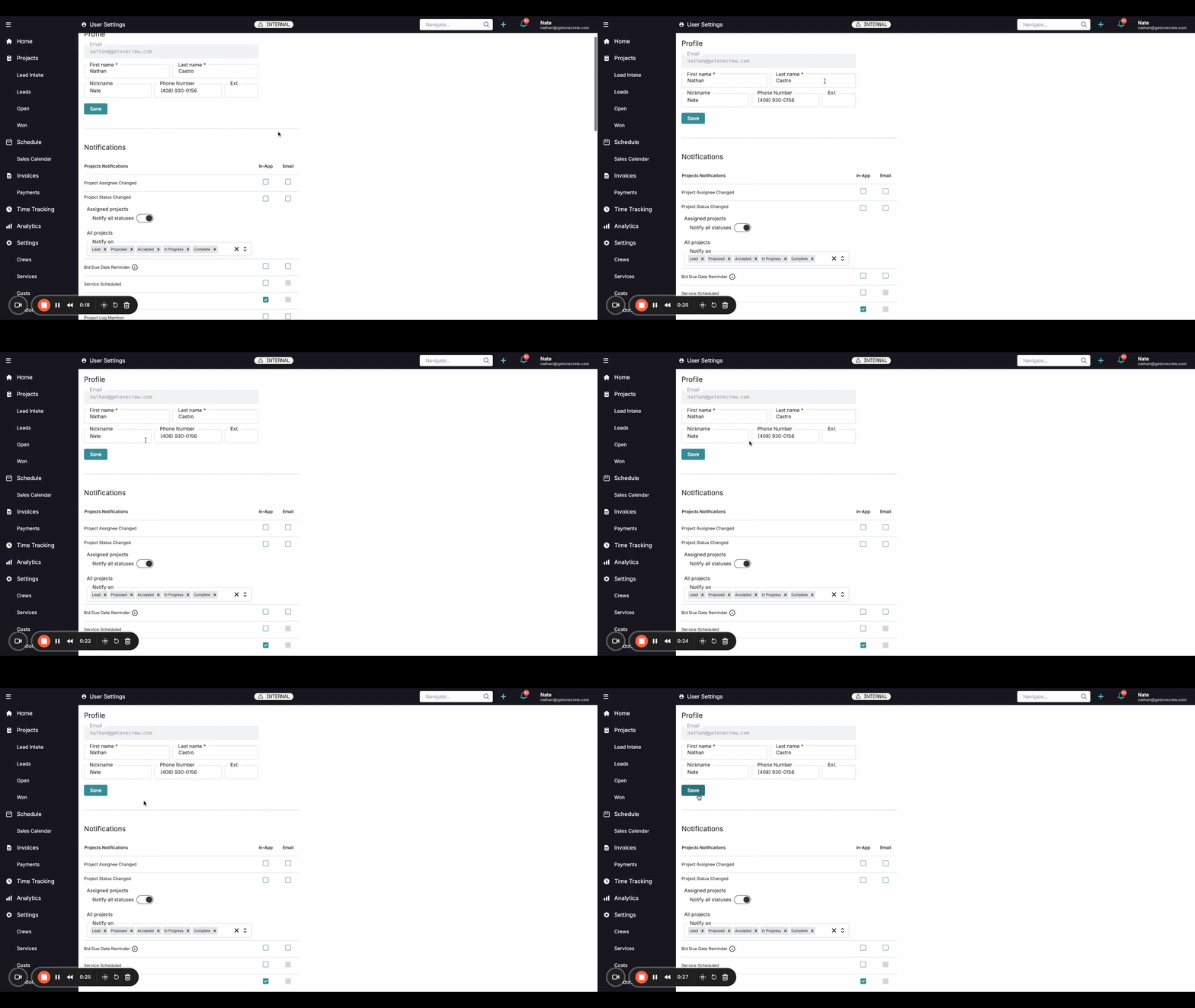
The Profile section at the top allows you to manage your basic information.
Update your First name, Last name, and Nickname as needed. Your nickname may appear in various places within OneCrew.
Enter or update your Phone Number and any Ext. (extension).
Click the Save button directly below these fields to apply your changes.
3. Customizing Notification Preferences
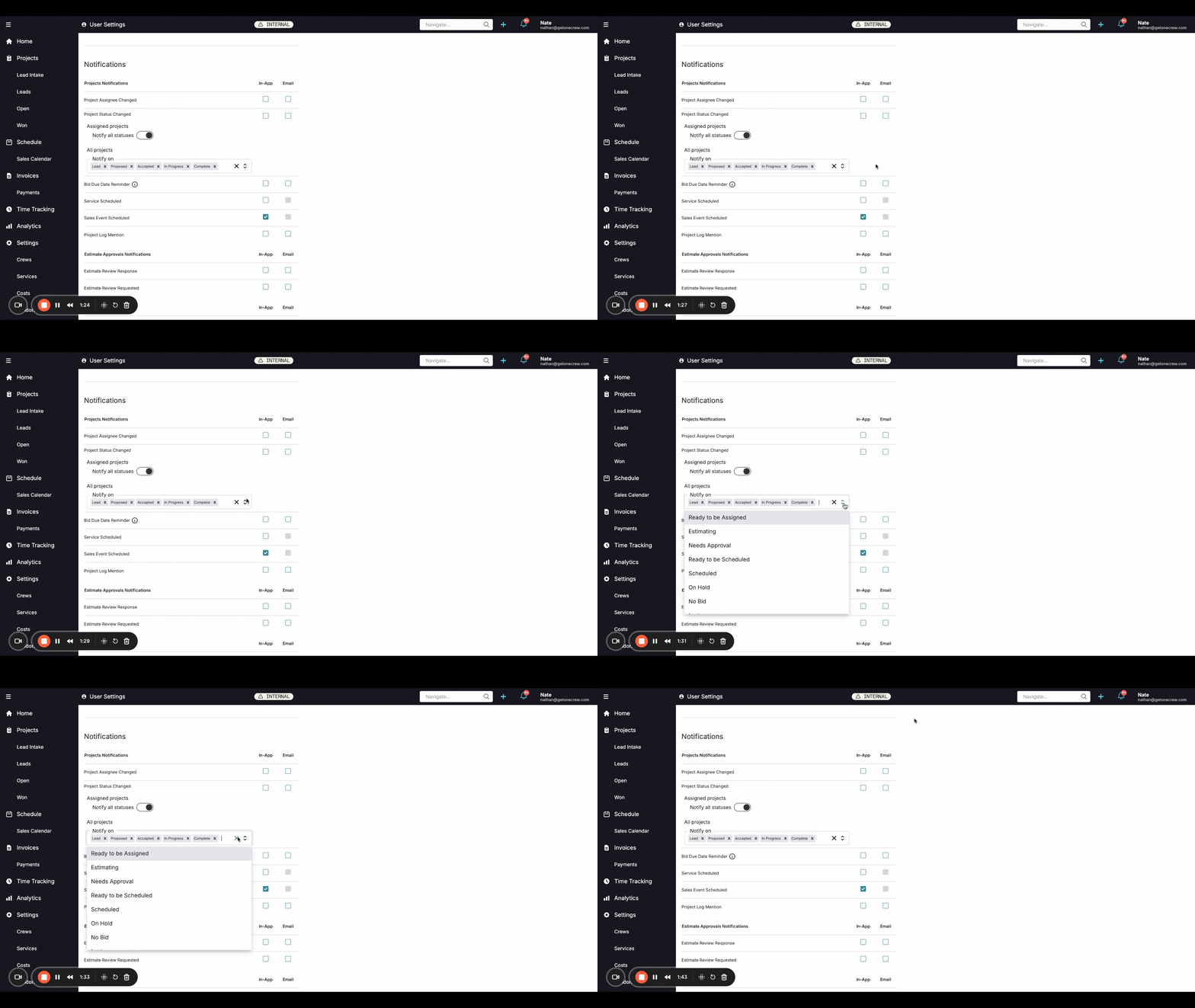
Scroll down to the Notifications section to tailor how and when you receive alerts. Notifications are grouped by categories like Projects Notifications, CRM Notifications, Estimate Approvals Notifications, etc.
For each notification event (e.g., Project Assignee Changed, Service Scheduled):
Check the In-App box if you want to receive the notification directly within the OneCrew platform.
Check the Email box if you prefer to receive an email notification. You can select one, both, or neither for each event.
Fine-tuning Project Notifications:
Under Assigned projects, you can choose to Notify all statuses. If this toggle is on, you'll get alerts for every status change on projects assigned to you.
If you prefer notifications for specific statuses only, ensure Notify all statuses is toggled off. Then, under All projects, click the Notify on field (which displays currently selected statuses like "Lead", "Proposed" as pills). A dropdown will appear, allowing you to select or deselect the specific project statuses for which you want notifications.
Review and adjust settings for other notification categories like Bid Due Date Reminder, Payments Notifications, and Web Proposal Notifications according to your preferences.
Some notification sections, like Payments Notifications, have their own Save button. Ensure you click it after making changes in that specific subsection. For other toggles, changes are often applied as you make them.
Pro Tip: Regularly review your notification settings, especially if your role or project involvement changes, to maintain an optimal alert flow and avoid missing critical updates.
4. Setting Your Email Signature
Further down the page, you'll find the Email Signature section.
Use the rich text editor to create or modify your personalized email signature. You can format text, add links, and even insert images.
This signature will automatically populate on email templates and direct emails you send from within OneCrew.
Click the Save button below the signature editor to store your changes.
5. Changing Your Password
At the bottom of the User Settings page:
Locate the Password section.
Click the Change Password button.
Follow the on-screen prompts to set a new password for your OneCrew account.
Troubleshooting
Changes not reflecting: Always ensure you click the Save button associated with the section you're editing (e.g., Profile, Email Signature, specific notification groups). If no save button is visible for a particular toggle, the change is usually applied immediately.
Not receiving expected notifications:
Double-check that the In-App and/or Email checkboxes are ticked for the specific notification event.
For project notifications, verify your settings for Assigned projects and the Notify on statuses if "Notify all statuses" is off.
Email signature issues: Confirm you've saved your signature after making changes. Test by sending a sample email if possible, or check an email template.
General issues: If settings don't seem to apply correctly, try refreshing the page after saving. If the problem persists, contact support.