Manage Project Settings
Last updated: August 7, 2025
Watch Demo Video Here
Overview
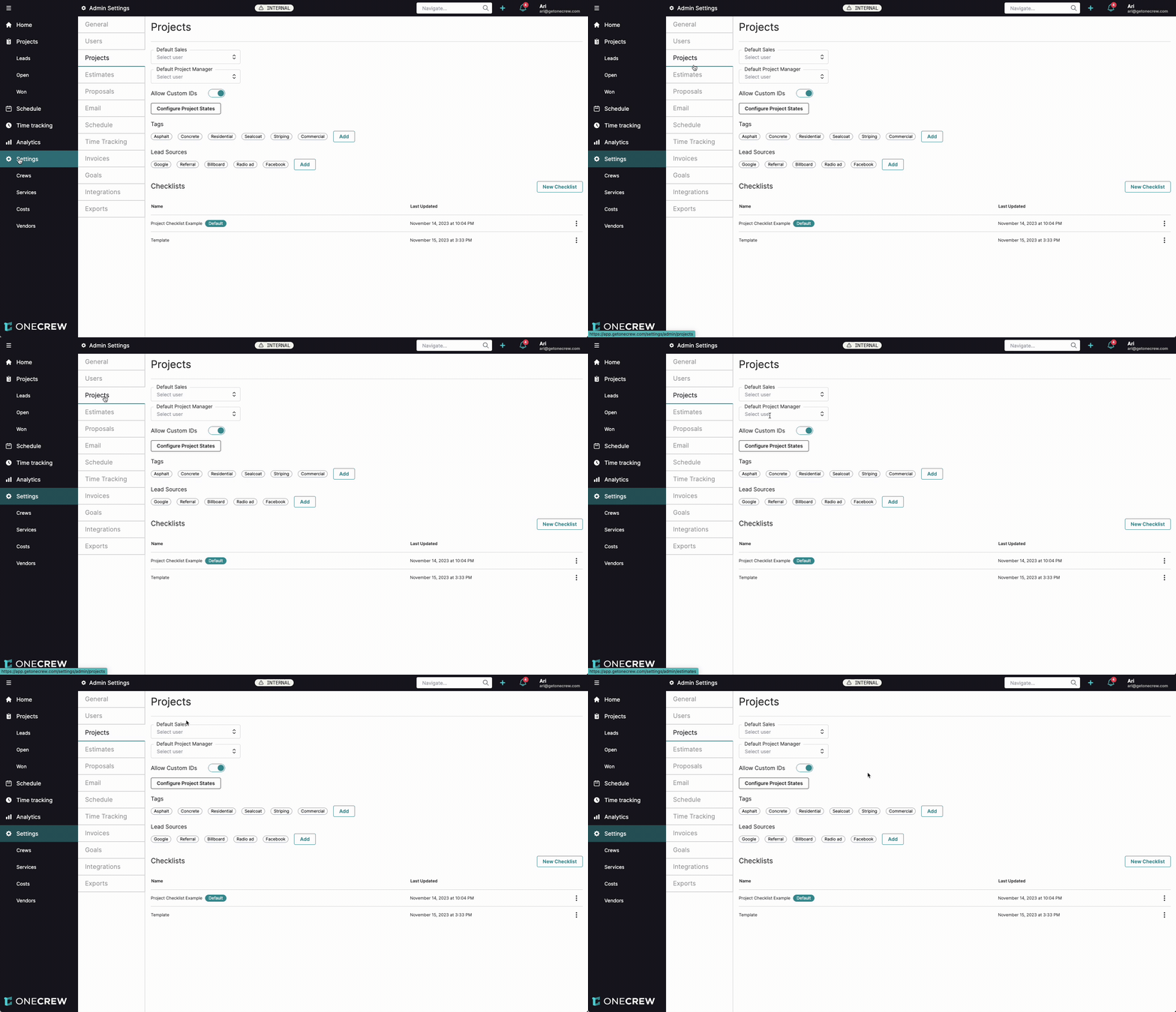
Effectively managing your projects starts with configuring your settings. This tutorial will guide you through the Projects settings tab, where you can customize default assignments, project states, identifiers, tags, lead sources, and checklists. Properly configuring these options will streamline your project creation process and improve data tracking.
Step-by-Step Instructions
Accessing Project Settings
Navigate to Settings in the left-hand sidebar.
Under Admin Settings, select the Projects tab. This is your central hub for all project-related configurations.
Configuring Default Assignments and IDs
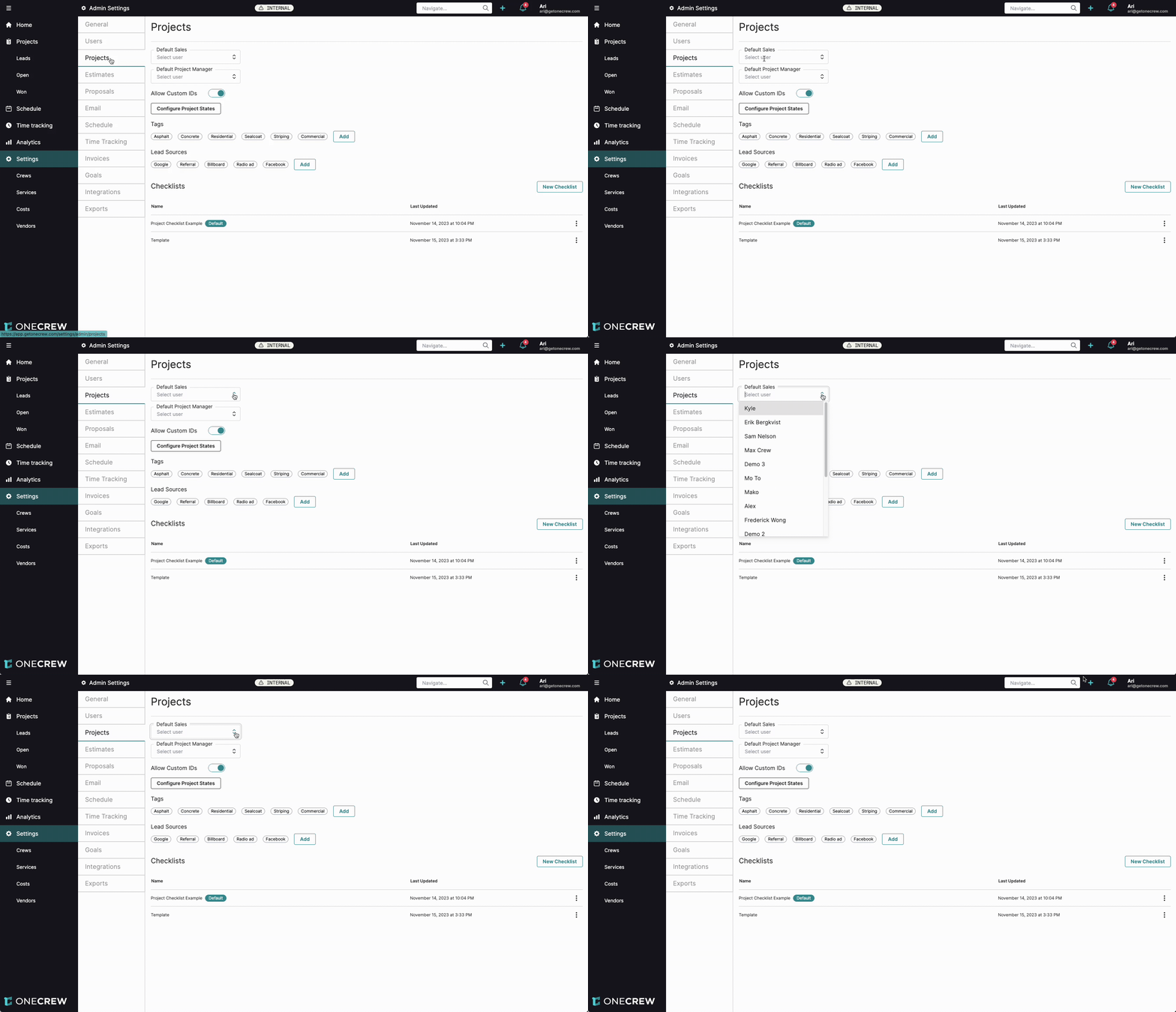
Set Default Sales User:
Click the dropdown under Default Sales.
Select a user from the list. This user will be automatically assigned to new projects, though this can be changed during project creation.
Set Default Project Manager:
Click the dropdown under Default Project Manager.
Select a user. Similar to the default sales user, this user will be pre-assigned to new projects.
Allow Custom IDs:
Toggle the Allow Custom IDs switch to the on (blue) position if you want to set your own project IDs. If off, the system will generate IDs automatically.
Configuring Project States
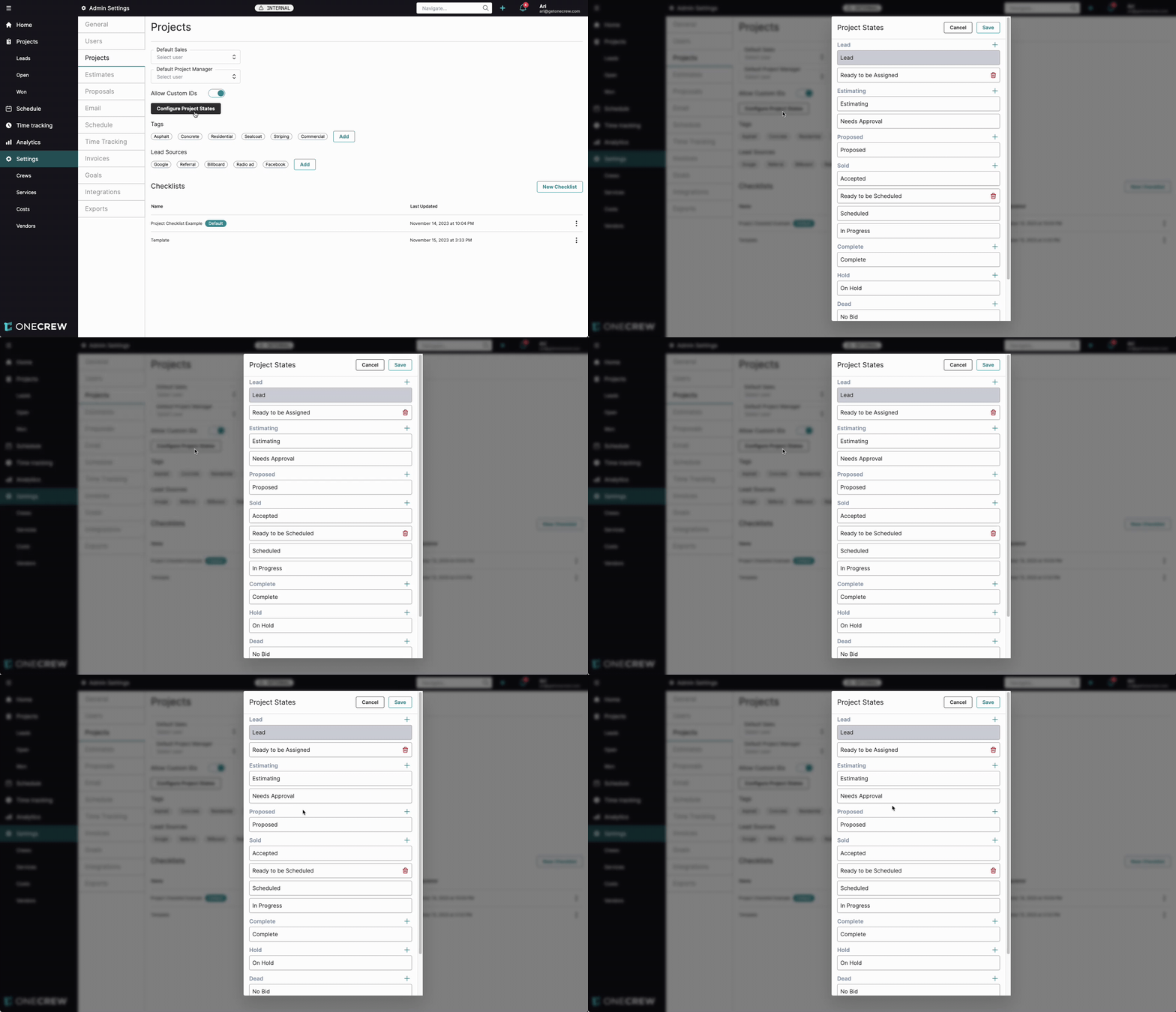
Project states help you track the progress of your projects through different stages. These states are grouped into "buckets" like Lead, Estimating, Proposed, Sold, etc., which are important for data tracking.
Click the Configure Project States button. A modal window titled "Project States" will appear.
Add a New State:
Identify the bucket (e.g., Estimating, Proposed, Sold) where you want to add a new state.
Click the + (plus icon) to the right of the bucket name or an existing state within that bucket.
In the Add Item dialog, enter the Name for your new project state.
Click Add Item.
Delete a State:
Locate the state you wish to remove.
Click the trash can icon to the right of the state name.
Reorder States:
Within a specific bucket, click and drag a project state to a new position within that same bucket.
Note: You can only reorder states within their predefined buckets (e.g., Lead, Estimating). You cannot move a state from the "Estimating" bucket to the "Sold" bucket.
Click Save in the top right of the modal to apply your changes.
Insight: The system uses these project state buckets to track key project data. For example, when a project moves into any state within the "Sold" bucket, the system logs that date and time as the project's sold date.
Managing Tags
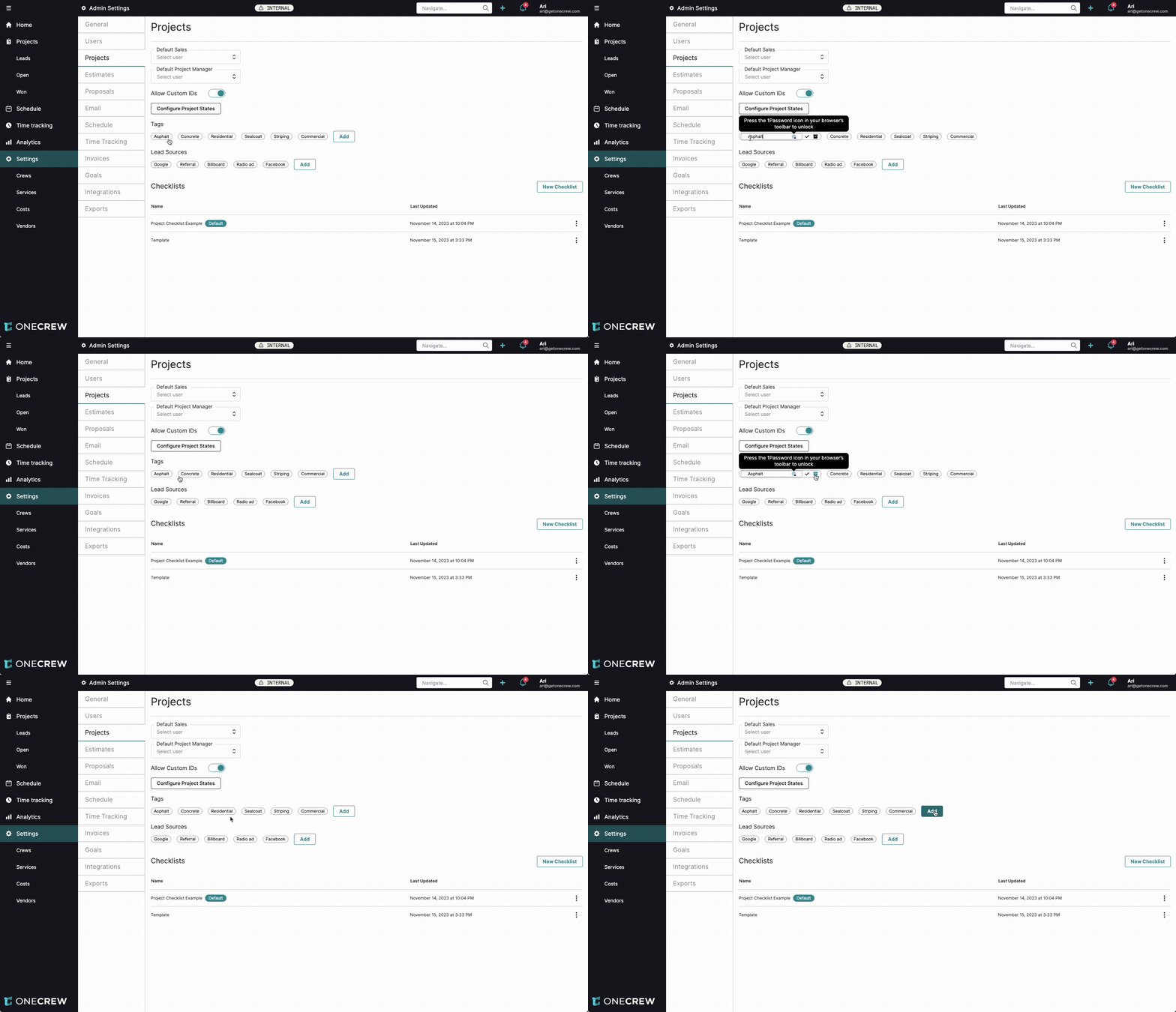
Tags help you categorize and filter projects.
Add a New Tag:
Click the Add button in the Tags section.
Enter the name for your new tag and click Add Tag.
Edit an Existing Tag:
Click directly on the tag name you wish to edit.
Modify the text.
Click the checkmark icon to save or the X icon to cancel.
Archive a Tag:
Click on the tag name to enter edit mode.
Click the archive icon (looks like a box with a downward arrow) to archive the tag.
Pro Tip: It's generally better to add new tags rather than editing existing ones if the meaning changes significantly. Editing an existing tag will change it for all historical projects that used it, which might alter your historical data.
Managing Lead Sources
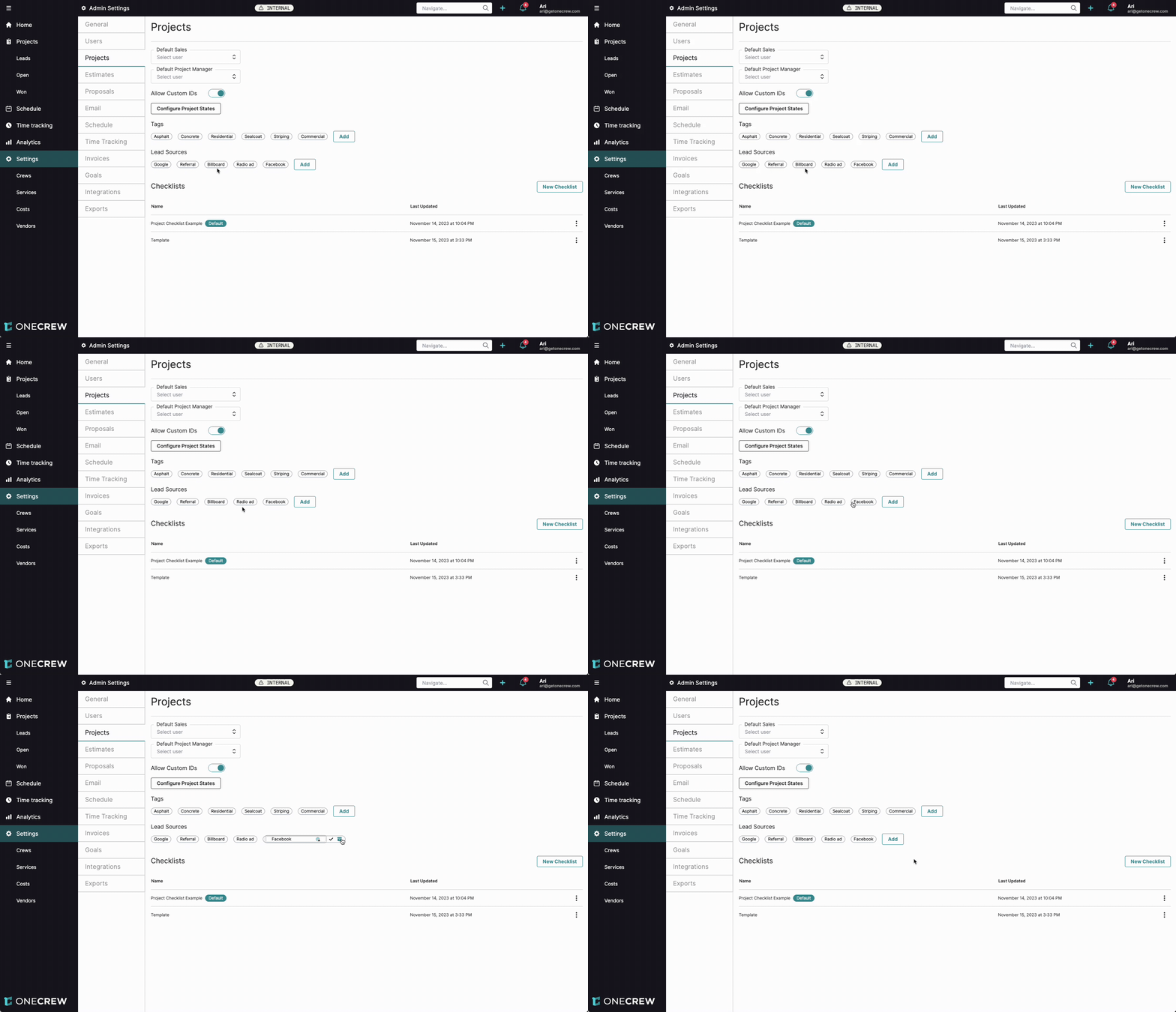
Lead sources help you track where your projects are originating from.
Add a New Lead Source:
Click the Add button in the Lead Sources section.
Enter the name for your new lead source and click Add Lead Source.
Edit an Existing Lead Source:
Click directly on the lead source name you wish to edit.
Modify the text.
Click the checkmark icon to save or the X icon to cancel.
Archive a Lead Source:
Click on the lead source name to enter edit mode.
Click the archive icon to archive the lead source.
Managing Checklists
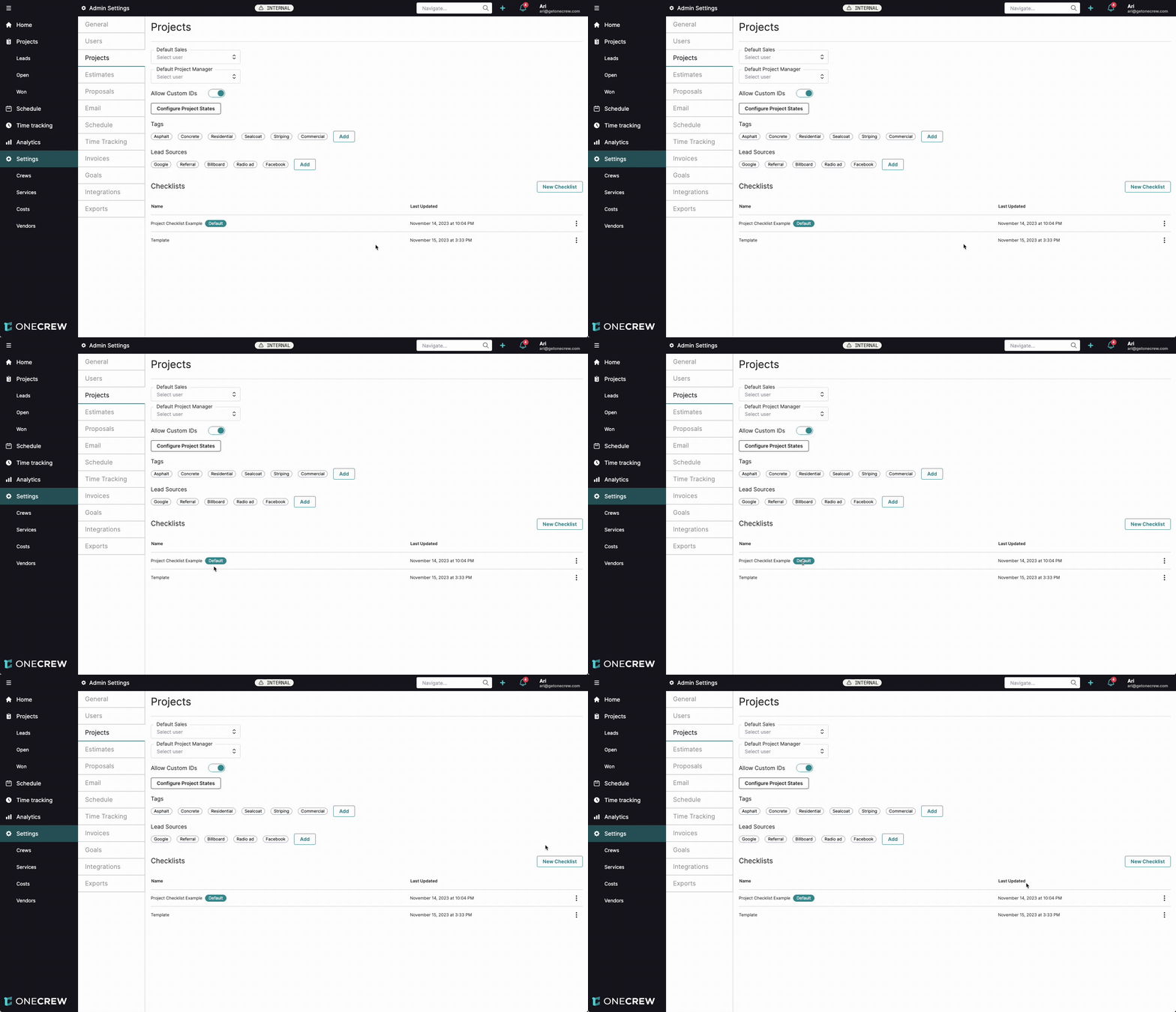
This section allows you to create and manage checklists that can be applied to your projects.
Create a New Checklist:
Click the New Checklist button.
This will take you to the checklist creation interface. (Learn more about creating and managing checklists.
Set a Default Checklist:
Once you have checklists created, you can set one as the default to be automatically applied to new projects. The "Default" label will appear next to the active default checklist.
Troubleshooting
Historical Data Changed: If you edit an existing Tag or Lead Source name, remember this change applies retrospectively to all projects that previously used that tag/lead source. If you need to preserve historical accuracy for an old term, consider archiving the old tag/lead source and creating a new one.
Cannot Move Project State to Different Bucket: Project states can only be reordered within their pre-defined parent buckets (e.g., Lead, Estimating, Sold). They cannot be moved from one bucket category to another.