Manage Crew Settings
Last updated: August 7, 2025
Watch Demo Video
Overview
Effectively managing your crews is crucial for streamlined operations and clear project scheduling. This tutorial will guide you through creating, organizing, and maintaining your crew list within the system. By defining your crews, you can easily assign them to jobs, track their progress, and ensure everyone knows who is responsible for what. This structured approach helps in better resource allocation and overall project efficiency.
Step-by-Step Instructions
Navigating to Crew Settings
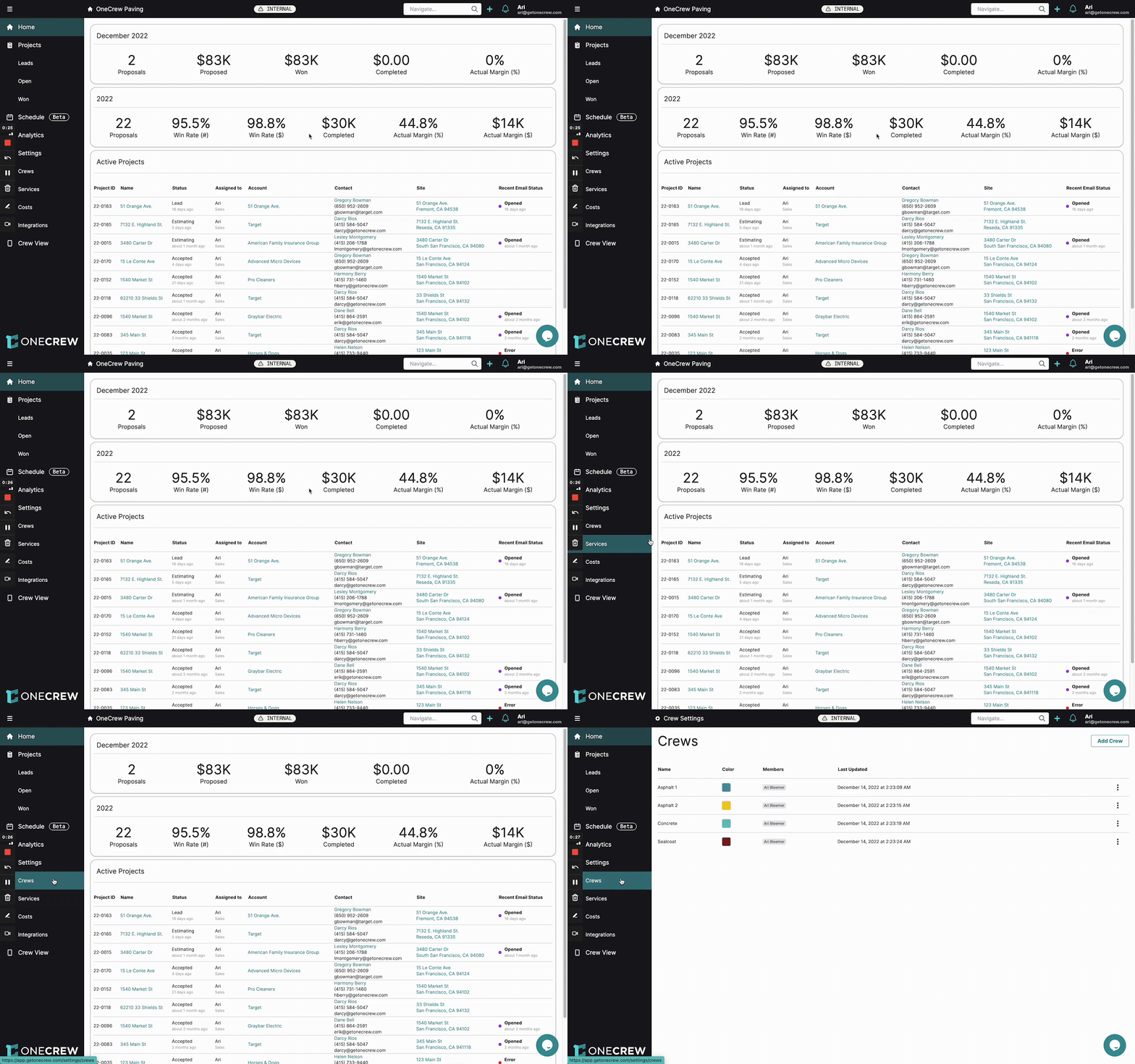
To begin managing your crews, you first need to access the Crew Settings area.
From the main navigation menu on the left, click on Settings.
In the Settings sub-menu, select Crews. You will now see the Crews page, displaying a list of any existing crews with their name, color, members, and last updated date.
Adding a New Crew
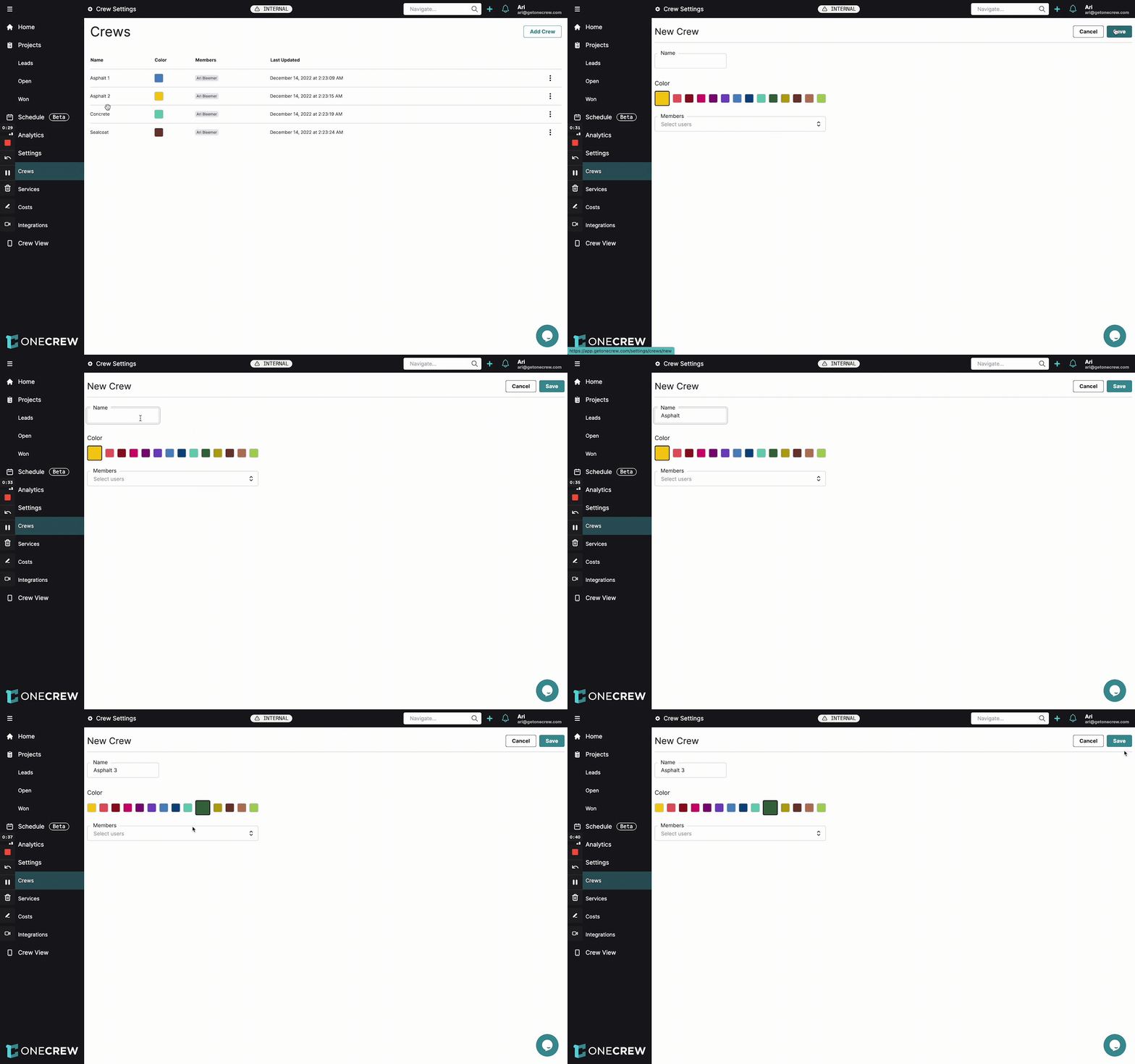
Adding new crews allows you to define distinct teams for different types of work or projects.
On the Crews page, click the Add Crew button located in the top-right corner.
You will be taken to the New Crew page.
In the Name field, enter a descriptive name for your crew (e.g., "Asphalt 3").
Under Color, select a color to visually distinguish this crew. This helps in quick identification on schedules and reports.
In the Members field, you can select users to assign to this crew from the dropdown list. (Note: Adding members is optional at this stage and can be done later when editing).
Click Save in the top-right corner. Your new crew will now appear in the list on the Crews page.
Insight: Color-coding crews provides an excellent visual cue on your schedule, making it easier to see at a glance which crew is assigned to which job.
Duplicating an Existing Crew
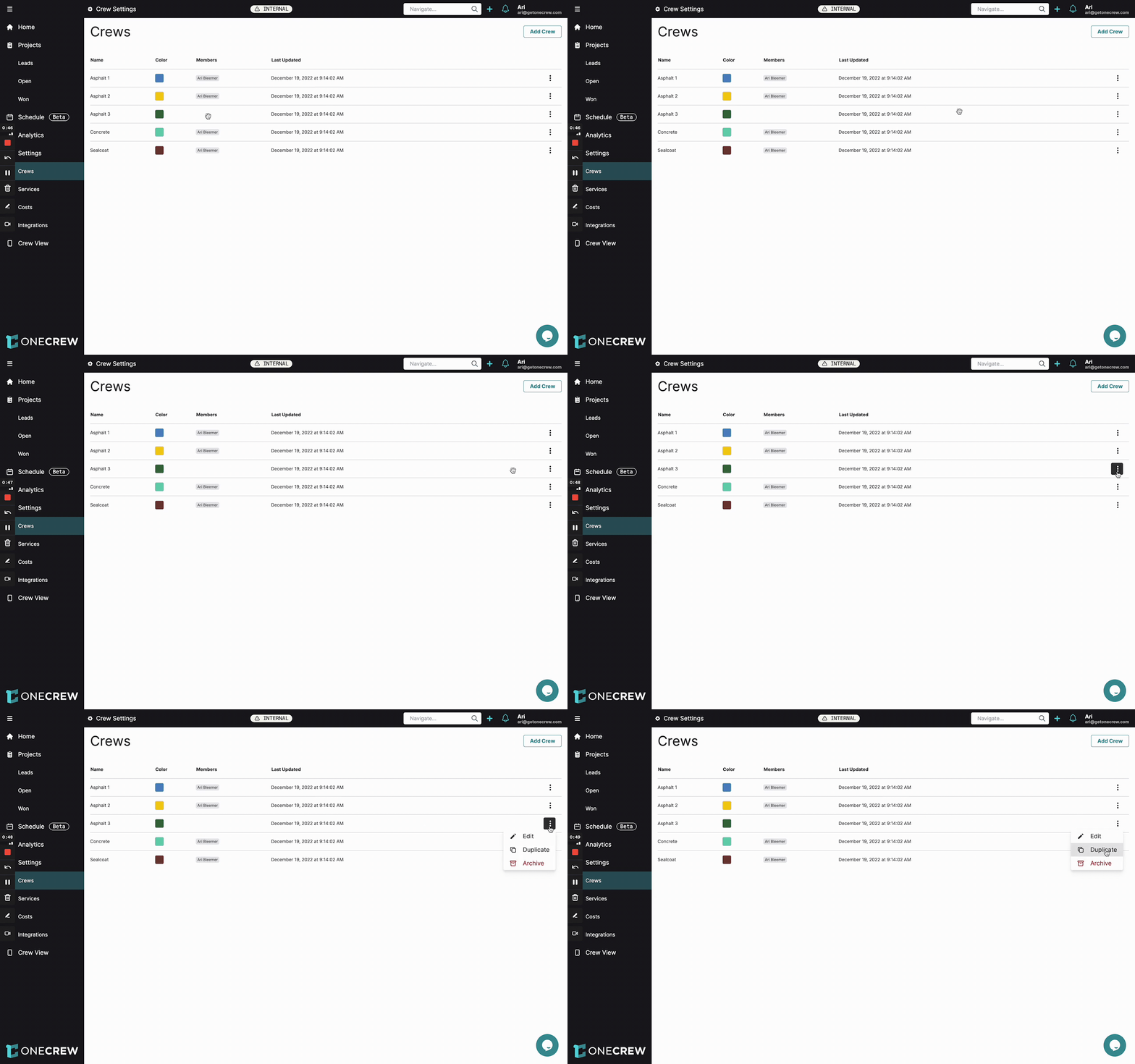
If you have multiple crews with similar setups or members, duplicating an existing crew can save you time.
On the Crews page, locate the crew you wish to duplicate in the list.
Click the three-dot menu icon (•••) on the far right of the crew's row.
Select Duplicate from the dropdown menu. A copy of the selected crew will be created and added to the list, typically with the same name. You'll likely want to edit it immediately to differentiate it.
Editing a Crew
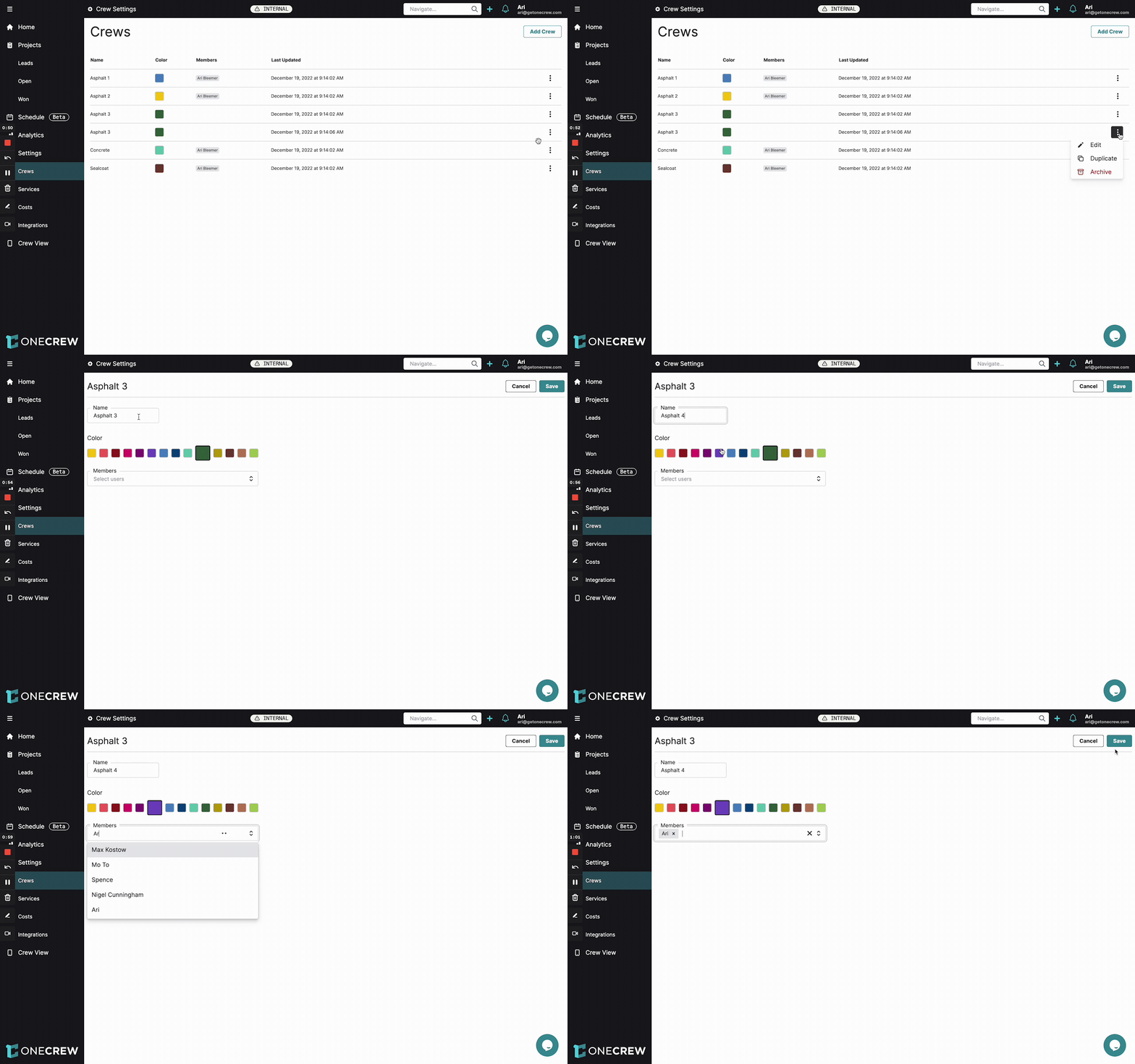
As your teams change or you need to update information, editing crews is straightforward.
On the Crews page, find the crew you want to modify.
Click the three-dot menu icon (•••) on the far right of the crew's row.
Select Edit from the dropdown menu.
On the crew's edit page, you can:
Change the Name.
Select a new Color.
Add or remove Members by typing their name in the Members field and selecting from the suggestions, or clicking the 'x' next to an existing member to remove them.
Once you've made your changes, click Save. The crew's information will be updated in the list.
Pro Tip: Regularly review and update crew members to ensure your assignments and scheduling are always accurate.
Archiving a Crew
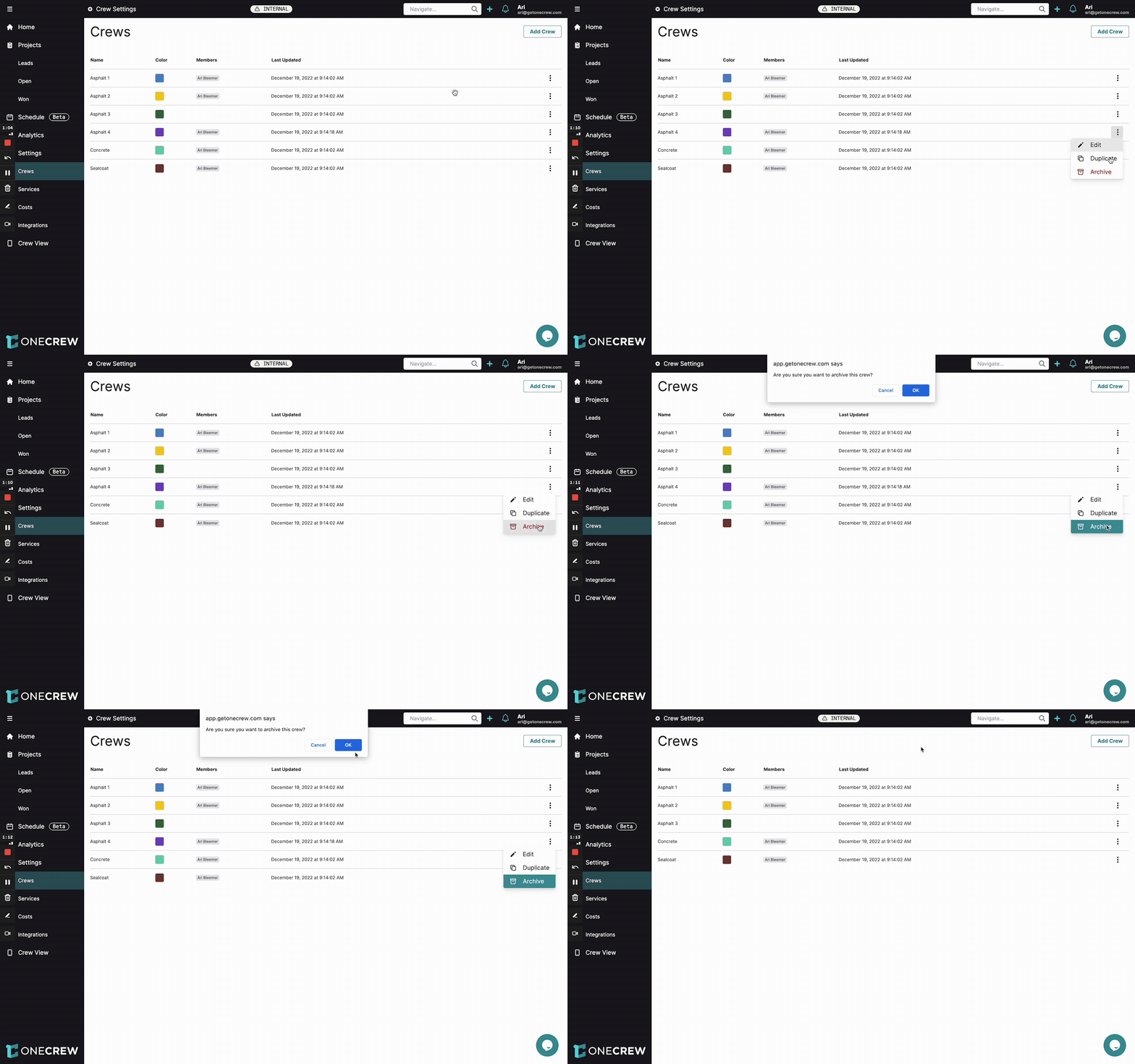
If a crew is no longer active, you can archive it to keep your crew list clean and current.
On the Crews page, find the crew you wish to archive.
Click the three-dot menu icon (•••) on the far right of the crew's row.
Select Archive from the dropdown menu.
A confirmation dialog will appear asking, "Are you sure you want to archive this crew?". Click OK. The crew will be removed from the active crew list.
Troubleshooting
Cannot find the "Crews" option in Settings: Ensure you have the necessary permissions to access and manage crew settings. If the option is missing, contact your system administrator.
A specific user is not appearing in the "Members" dropdown when adding/editing a crew: Verify that the individual has been added as a user to the system first. Only active users can be assigned to crews.
Accidentally archived a crew: Archiving a crew removes it from the active list. If you need to recover an archived crew, please check for an "unarchive" option or contact support for assistance. [add link to relevant article on unarchiving if available]