Estimate Approvals for Sales
Last updated: August 7, 2025
Watch Video Demo Here
Overview
The Estimate Approval feature in OneCrew is designed to streamline your project bidding process by introducing a formal review stage for estimates before they are finalized and sent to clients. This crucial functionality allows businesses to maintain accuracy, control margins, and ensure consistency across all proposals.
Purpose: To implement a checkpoint where estimates created by certain team members must be reviewed and approved by designated personnel (typically managers or administrators) before they can be included in proposals sent to customers.
Scope: This feature impacts the estimate creation and proposal generation workflows. It involves configuration at the system level (enabling the feature) and user level (defining roles and permissions for requesters and approvers).
Benefits:
Improved Accuracy: Reduces errors in estimates by having an extra layer of review.
Margin Protection: Helps ensure that all estimates meet company profitability targets.
Consistency: Standardizes the quality and content of estimates across the sales team.
Enhanced Control: Provides management with oversight of the bidding process.
Clear Accountability: Defines clear roles for estimate creation and approval.
Insight: Implementing an estimate approval workflow is a proactive step towards mitigating financial risks and upholding professional standards in your client interactions. It transforms estimation from a potentially isolated task into a collaborative, quality-assured process.
Configuration
Setting up the Estimate Approval workflow involves two main steps: enabling the feature globally and then configuring user-specific permissions. This must be done by an Admin user.
Enabling Estimate Approvals
Navigate to Settings from the main menu.
Select the Estimates tab.
Locate the Estimate Feedback & Approval section.
Toggle the switch for Enable Estimate Feedback and Approval to the "on" position. A success message "Successfully saved estimate settings" will confirm the change.
Configuring User Permissions
Once the feature is enabled, you need to define which users can approve estimates and which users must have their estimates approved.
In Settings, navigate to the Users tab.
You will see a list of Active Users.
Defining Approvers:
By default, users with the Admin role automatically have the permission to approve estimates. Their estimates do not require approval.
Defining Users Who Require Approval:
For users who should submit their estimates for approval (e.g., Sales roles), click the Permissions button next to their name.
In the Manage User Permissions dialog that appears, scroll down to the estimate-related permissions.
Toggle the Require Estimate Approval switch to the "on" position. This means any estimate created by this user will need to be approved.
Note that the Approve Estimates permission and the Require Estimate Approval permission are mutually exclusive. A user cannot be set to both require approval for their own estimates and also approve others' estimates. If Require Estimate Approval is on, Approve Estimates will be disabled, and vice-versa.
Click Save in the Manage User Permissions dialog.
Pro tip: Regularly review user permissions, especially as team members change roles or gain experience. A junior estimator might initially require approvals, but this could be relaxed as they become more proficient.
Use Cases
The Estimate Approval feature is particularly beneficial in several scenarios:
New Sales Team Members: When onboarding new estimators or sales staff who may not yet be fully familiar with pricing strategies, material costs, or labor calculations, requiring approval ensures their estimates are vetted by experienced colleagues.
Large or Complex Projects: For high-value or intricate projects, an approval step ensures that all aspects have been considered, and the proposed figures are sound before committing to a bid.
Maintaining Profit Margins: If a company has specific margin targets, the approval process can be used to verify that all estimates align with these financial goals. An approver can catch estimates that are priced too low.
Standardizing Proposals: To ensure all client-facing proposals maintain a consistent level of professionalism and accuracy, having estimates approved helps standardize the core financial data within them.
Training and Mentorship: The feedback loop created by the approval process can be a valuable training tool, helping less experienced team members learn and improve their estimation skills.
Essentially, if your organization values precision, financial control, and consistency in its project bidding, the Estimate Approval feature is an indispensable tool.
Examples
Let's walk through a typical workflow involving a Sales user (Sandy Sales) who requires estimate approval, and an Admin user (Alex Admin) who will approve the estimate.
Scenario: Sales User Creates and Submits an Estimate for Approval
Sales User Creates Estimate:
Sandy Sales logs in and navigates to a Project.
Under the Estimates tab, Sandy clicks New estimate.
Sandy fills in the estimate details (e.g., adds services, measurements, costs).
Upon saving the estimate (e.g., Estimate 1), a Needs Approval badge will appear on the estimate card, indicating it's not yet cleared for use in proposals.
Attempting to Use Unapproved Estimate in Proposal:
Sandy navigates to the Proposal tab for the project.
The estimate (Estimate 1) is listed with the Needs Approval badge.
If Sandy tries to View or Send the proposal, these buttons will be disabled. A tooltip will appear stating, "Selected estimates must be approved before they may be sent." This prevents premature proposal distribution.
Requesting Approval:
Sandy returns to the Estimates tab.
Sandy clicks the three-dot menu on the Estimate 1 card and selects Request Approval.
The badge on the estimate will change from Needs Approval to Requested.
A notification, "Approval Requested," will briefly appear.
Editing an Estimate After Requesting Approval:
If Sandy tries to open and edit Estimate 1 after it has been Requested, the fields will initially be locked. A banner at the top will state: "Estimate is awaiting review, upon editing, the estimate's review request will be canceled."
To make changes, Sandy must click the Edit button. A confirmation dialog, "Editing requested estimate," will appear, warning that "Editing an estimate that has been requested for approval will restart the estimate approval process. You will have to re-request this estimate for approval if you continue to editing."
If Sandy proceeds to Edit (e.g., changes labor hours from 12 to 10) and saves the estimate, the badge will revert from Requested back to Needs Approval.
Sandy must then re-request approval by clicking the three-dot menu and selecting Request Approval again.
Scenario: Admin User Reviews and Approves the Estimate
Admin Receives Notification:
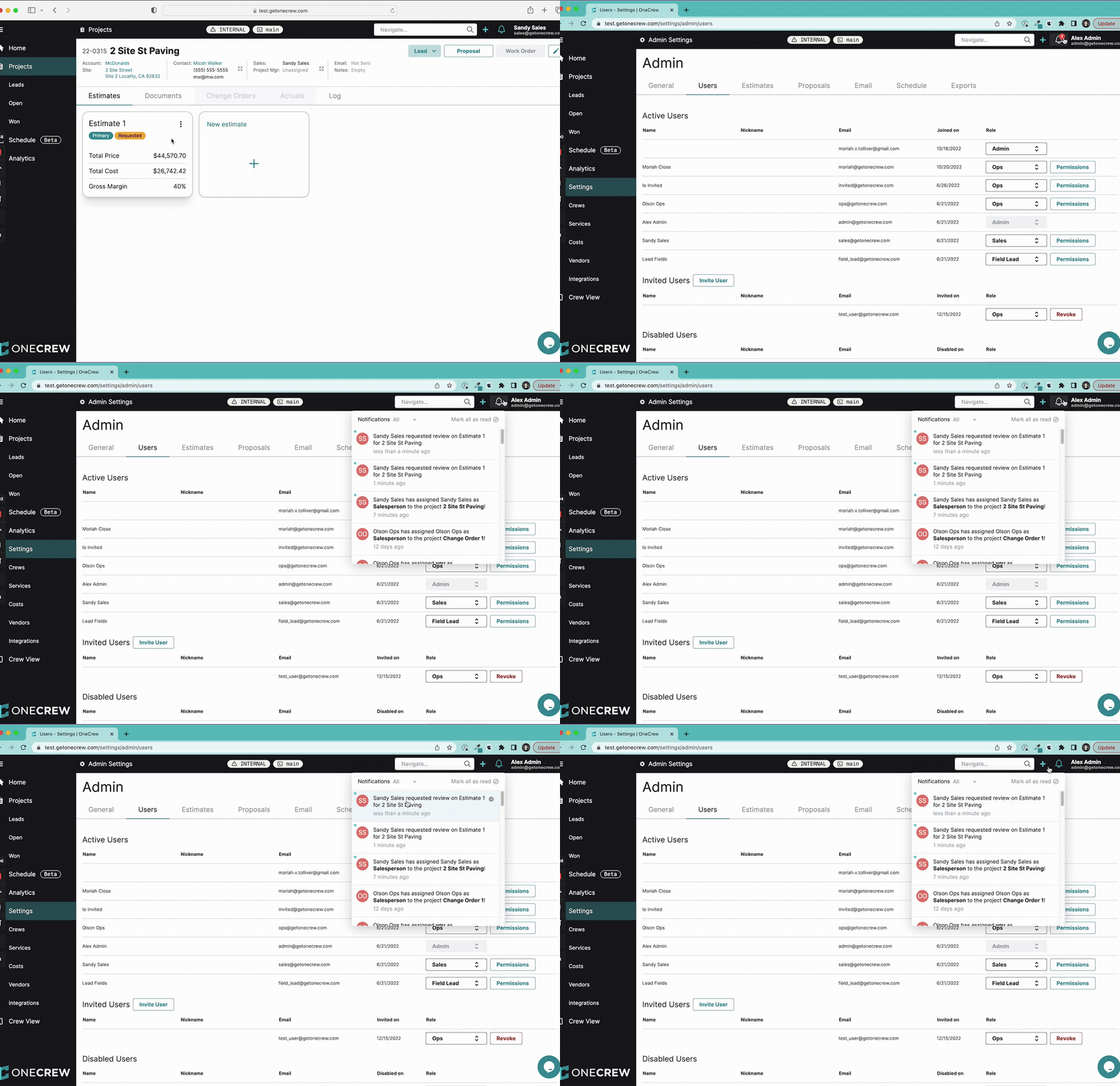
Alex Admin logs in. A notification indicator will appear on the bell icon in the top navigation bar.
Alex clicks the bell icon to open the notifications panel.
Alex will see notifications such as "Sandy Sales requested review on Estimate 1 for [Project Name]."
Admin Reviews and Approves (or Rejects - functionality not fully shown but implied):
Alex clicks on the notification to navigate directly to the project and estimate in question.
Alex reviews the estimate details.
(The video concludes before showing the approval action itself, but typically Alex would have options to Approve or Reject the estimate. If approved, the estimate's status would change, and it could then be used in proposals. If rejected, Sandy would be notified to make corrections. Learn more about the full approval/rejection flow [add link to relevant article on managing approval requests].)
This structured approval process ensures that all estimates pass a quality check, helping your team deliver accurate and profitable proposals consistently.