Manage Proposal Settings
Last updated: August 7, 2025
Watch Video Demo Here
Overview
This tutorial will guide you through customizing your proposal settings. Tailoring these options allows you to create professional, branded proposals that reflect your company's identity and streamline your workflow by setting useful defaults. Taking a few minutes to configure these settings can significantly enhance the polish of your client-facing documents and save you time in the long run.
Step-by-Step Instructions
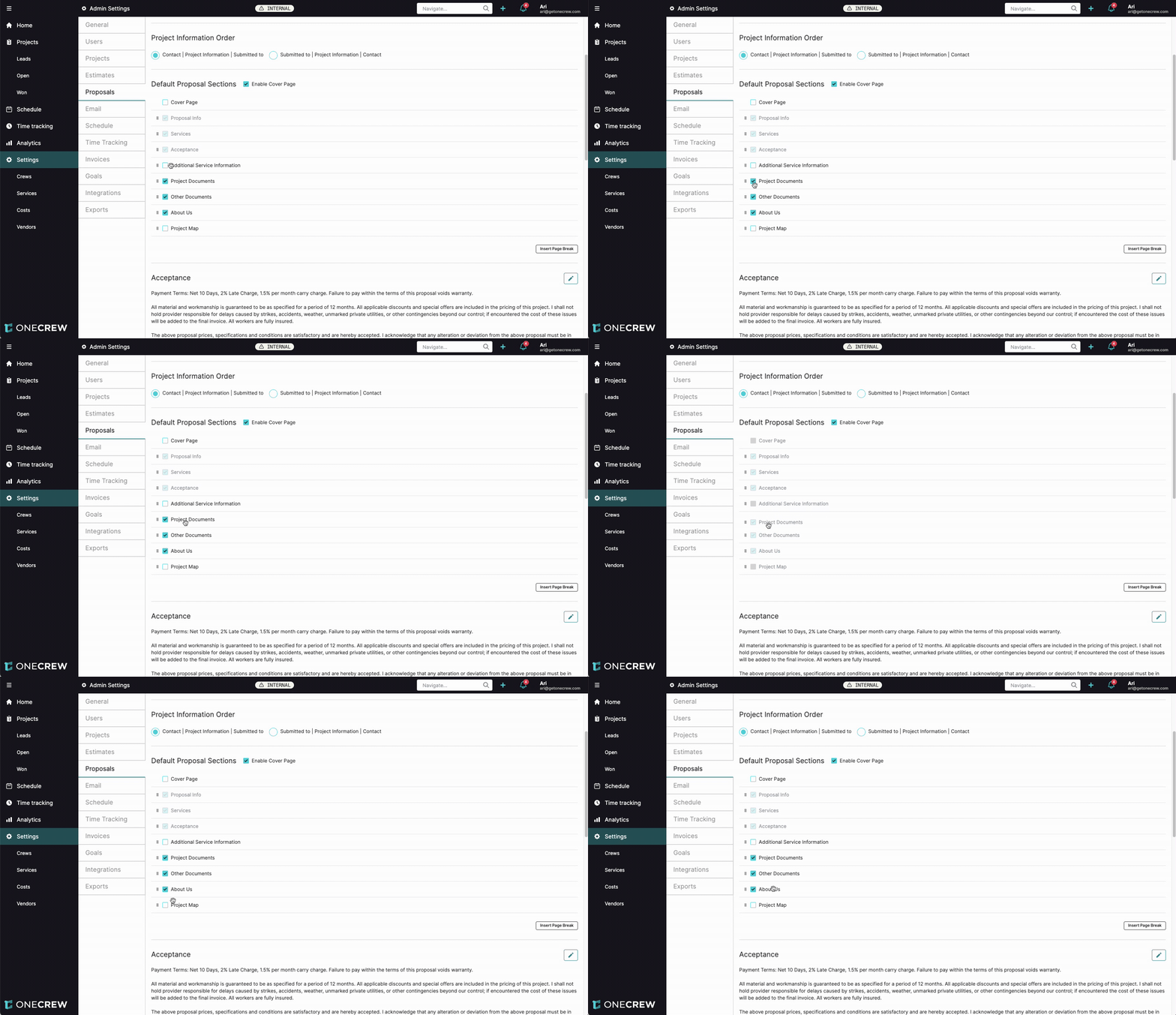
Follow these steps to customize how your proposals look and behave:
Navigate to Settings in the left-hand sidebar.
Select the Proposals tab from the settings menu.
Customize Proposal Styles:
Under Proposal Styles, click the color swatch next to Section Divider Color. Choose a color that aligns with your company branding. This color will be applied to divider lines within your proposals.
Set Company Logo & Title Alignment:
In the Company Logo & Title Alignment section, you'll see three visual representations. Select the option that best suits how you want your company logo and the proposal document title to be arranged (e.g., logo left, document title right; logo centered above document title; document title left, logo right).
Define Project Information Order:
Choose the display order for key information blocks on your proposal under Project Information Order. The options determine the sequence of your company contact (Contact), Project Information (like Project ID and proposal date), and the client's contact details (Submitted to).
Configure Default Proposal Sections:
This area allows you to control which sections are included by default in new proposals and their order.
Use the checkboxes to enable or disable sections like Cover Page, Proposal Info, Services, Acceptance, Additional Service Information, Project Documents, Other Documents, About Us, and Project Map.
To reorder sections, click and drag the six-dot handle icon to the left of the section name.
Tick the Enable Cover Page checkbox at the top of this list if you generally want a cover page. You can then also toggle the Cover Page section itself within the list.
To insert a default page break after a specific section, select that section from the list and then click the Insert Page Break button located at the bottom right of the list area.
Insight: Customizing default sections saves considerable time by pre-selecting the most commonly used parts of your proposals. This ensures consistency across your documents while still allowing for adjustments on a per-proposal basis.
Edit Default Text Content:
Acceptance and Change Order Acceptance: Click the pencil icon next to each to modify the default payment terms and acceptance language. You can also toggle the Include counter signature option for each.
About Us: Click the pencil icon to input or edit your company's standard 'About Us' text. The editor provides rich text formatting options (bold, italics, lists, hyperlinks). Click Done when finished.
Post Signature Message: Click the pencil icon. This message appears on-screen to your customer after they e-sign a proposal. You can use variables (e.g.,
{Project Name},{Sales First Name}) by typing{to see options. Click Preview to see the result, then Done.Signed Proposal Email Message: Click the pencil icon. This message forms the body of the email sent to the customer after they e-sign. It also supports rich text and variables. Click Done.
Manage Other Documents:
Scroll to the Other Documents section to upload or link files you frequently attach to proposals.
Upload files: Drag and drop files onto the designated area or click to browse.
Link documents: Click Link Document, then provide a Name, the URL, and an optional Description.
For each listed document, decide its default inclusion method: Do not include, Link (includes a hyperlink), or Append (attaches the file to the proposal PDF; only for uploaded files).
Troubleshooting
Changes not applying: For sections edited via a pop-up (e.g., About Us, Post Signature Message), ensure you click the Done button within that pop-up to save your changes. Most other settings on this page save automatically.
Variables in messages don't work: Confirm that variables like
{Sales First Name}are typed exactly, including the curly braces. Also, ensure the relevant data (e.g., salesperson assigned to a project) exists for the variable to pull from.Unable to 'Append' a document: The Append option is only available for files you've directly uploaded in the Other Documents section. If you've added a document via Link Document, it can only be included as a link, not appended.