Project Status Notifications
Last updated: August 7, 2025
Watch Video Demo Here
Overview
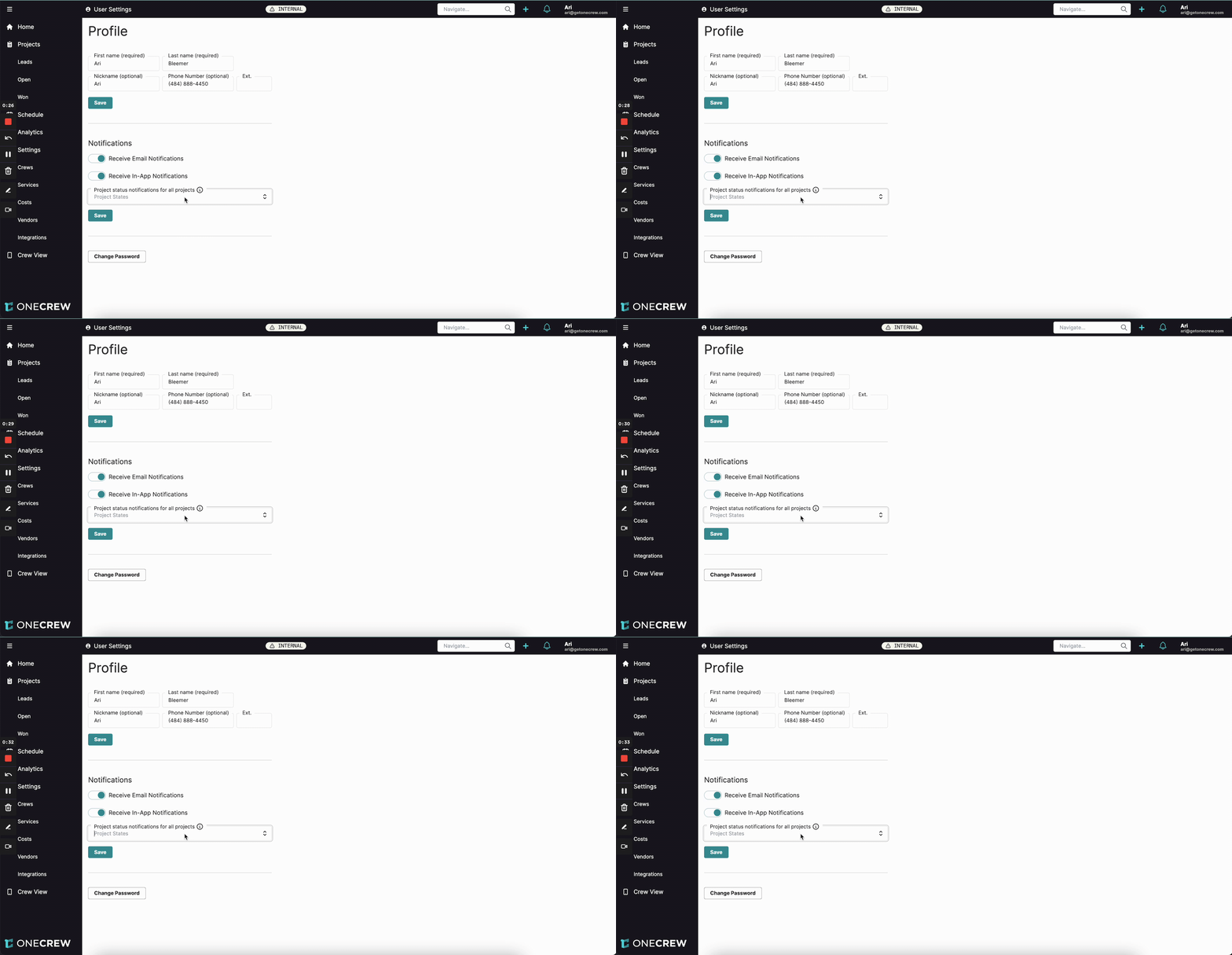
Keeping track of project progress across an organization can be challenging. This tutorial will walk you through setting up specific project status notifications that apply to all projects you have permission to view, not just those you're directly assigned to. This powerful feature ensures you're immediately alerted to key milestones, such as when any project is accepted or completed, allowing for better oversight and timely responses. It's particularly useful for managers or team members needing a bird's-eye view of the project landscape.
Step-by-Step Instructions
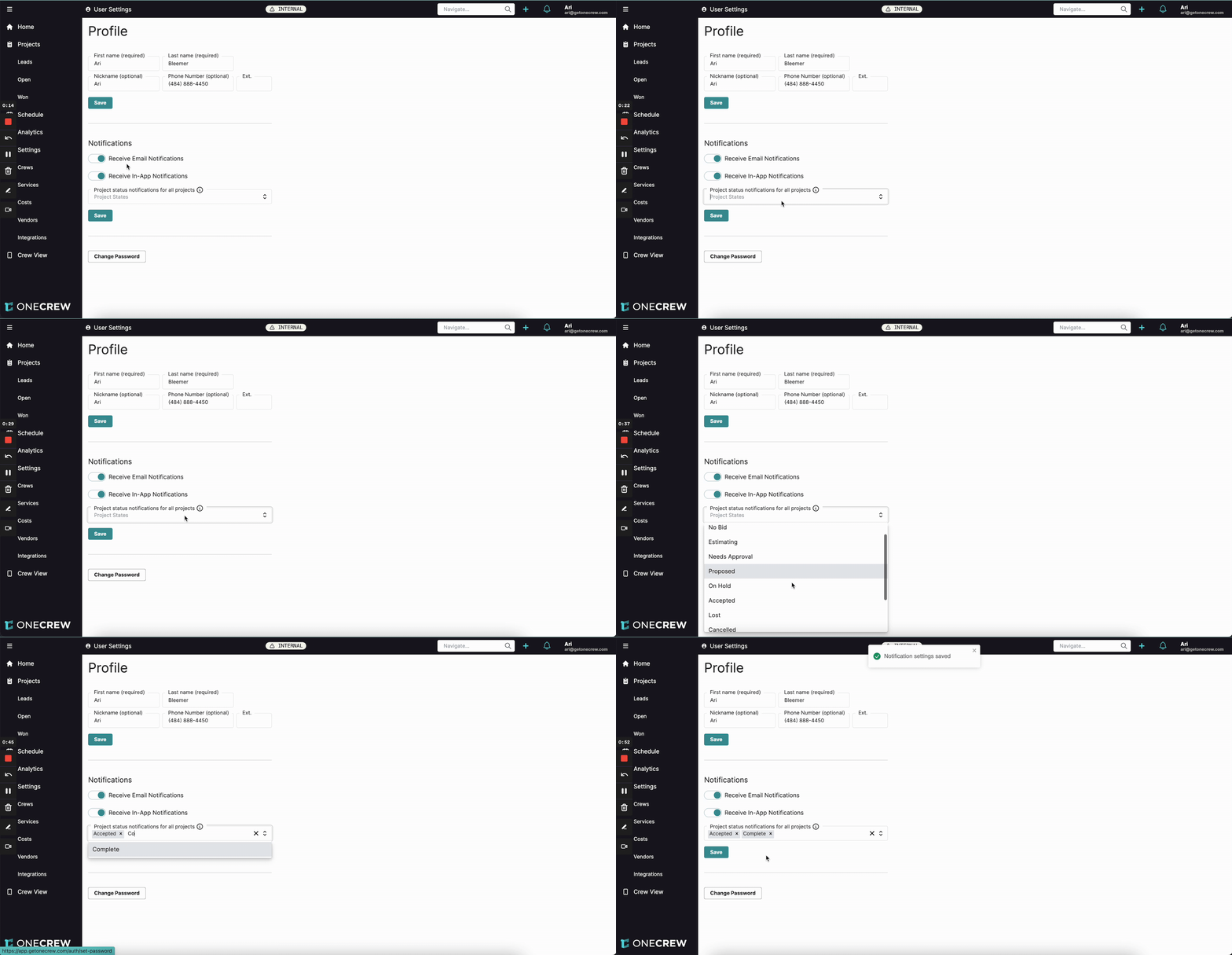
Follow these steps to customize your notifications for broader project visibility:
Access Your Profile:
Click on your name or profile icon, typically located in the top-right corner of the application interface.
From the dropdown menu that appears, select Profile Settings. This action will navigate you to your personal settings page where you can manage various preferences.
Navigate to Notifications:
On the Profile page, scroll down to locate the Notifications section. This area centralizes all your notification preferences.
Enable In-App Notifications:
Ensure the toggle switch next to Receive In-App Notifications is in the 'on' position (it will usually be highlighted or change color, e.g., to green).
If it's currently off, click the toggle to enable it. This is a crucial step, as master in-app notifications must be active to receive specific project status updates.
Specify Project Statuses for All Projects:
Find the dropdown field labeled Project status notifications for all projects. This is where you'll define which status changes trigger alerts for projects you can view.
Click inside this field. A list of available project statuses (e.g., Lead, No Bid, Estimating, Needs Approval, Proposed, On Hold, Accepted, Complete, etc.) will be displayed.
Select the specific project statuses you want to be notified about. For example, you might choose "Accepted" to receive an alert whenever any project proposal is approved, or "Complete" to be informed when any project reaches completion.
You can select multiple statuses. Each chosen status will appear as a tag within the field, indicating it's active for notifications.
Insight: This setting is designed to keep you informed about projects you can view, even if you're not the assigned user. If your permissions allow you to see all projects in the system, you'll get notifications for these statuses across all of them. If you can only view projects assigned to you, these notifications will apply to your assigned projects for the selected statuses.
Save Your Preferences:
After selecting all the desired project statuses, click the Save button, usually found directly below the notification settings.
A confirmation message, such as "Notification settings saved," should briefly appear on screen, confirming that your new preferences have been applied.
You will now begin receiving in-app notifications when any project you have permission to view is updated to one of the statuses you've selected.
Troubleshooting
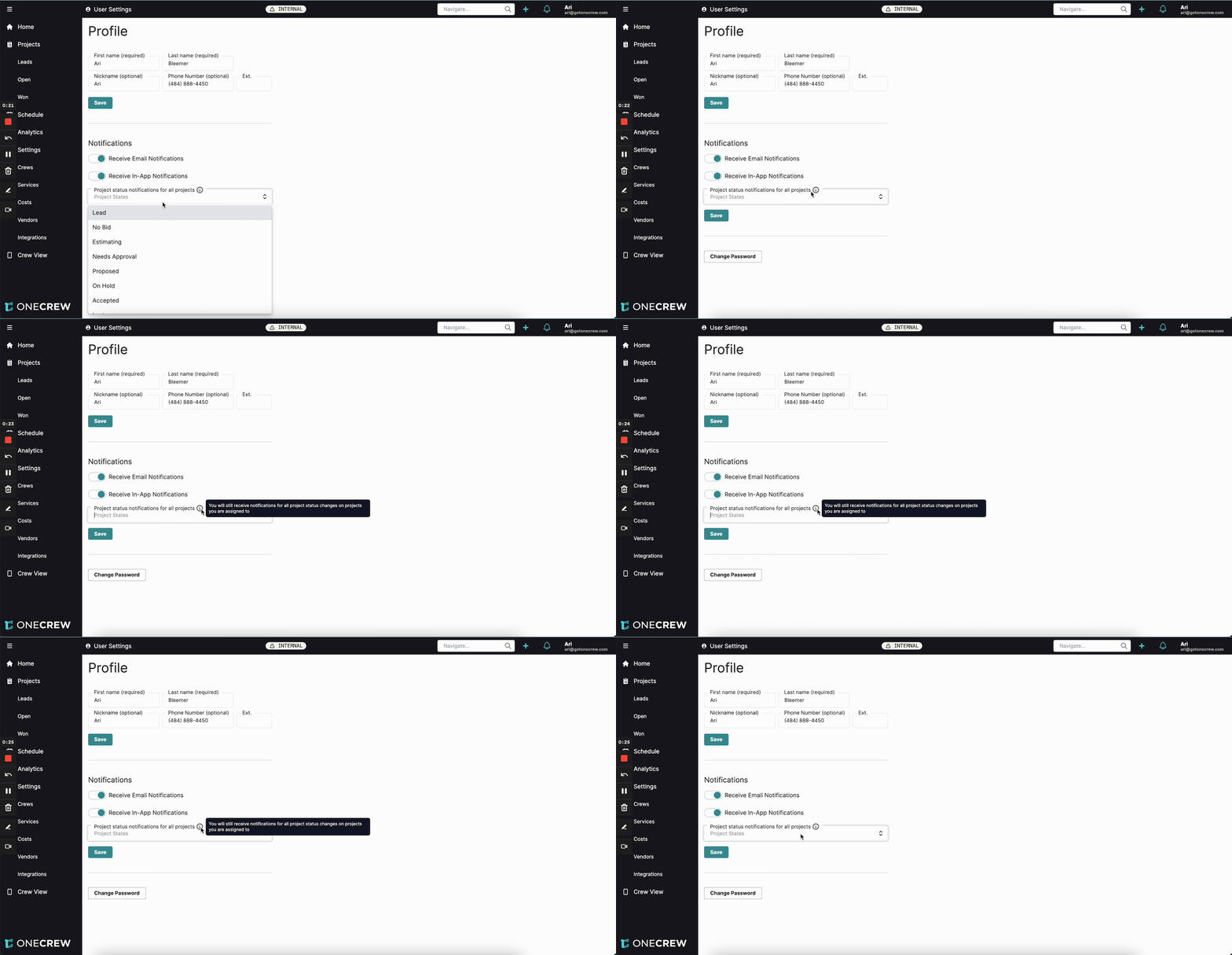
Encountering issues with your project status notifications? Here are a few common checks and solutions:
In-App Notifications Not Enabled:
The primary Receive In-App Notifications toggle in your Profile Settings (under the Notifications section) must be switched on. If this master switch is off, no in-app alerts, including project status notifications, will be delivered.
Incorrect or Missing Project Statuses Selected:
Verify that you have selected the intended project statuses in the Project status notifications for all projects dropdown. If a particular status (e.g., "Accepted") isn't listed as a selected tag in this field, you won't receive notifications when projects change to that status.
Understanding Permissions and Notification Scope:
These notifications are contingent on your project viewing permissions.
If you have permissions to 'view all projects' (or similar broad access), you will receive notifications for the selected statuses from any project across the system.
If your permissions are restricted to only viewing projects to which you are directly assigned, then these specific status notifications will only trigger for your assigned projects when they reach the chosen statuses. The information icon next to the setting clarifies this: "You will still receive notifications for all project status changes on projects you are assigned to." This "all projects" setting expands upon that if you have wider viewing permissions.
Changes Not Saved:
Always ensure you click the Save button after modifying your notification settings. If you navigate away from the page without saving, your new preferences will not take effect.