Service and Cost Reports
Last updated: August 7, 2025
Overview
The Service and Cost Reports feature provides a powerful and detailed financial lens through which businesses can analyze the performance of their services and the underlying costs associated with them. This comprehensive reporting tool is designed to offer clarity on profitability, from initial proposals through to actual project completion, enabling more informed strategic and operational decisions.
At its core, the feature offers two distinct yet complementary report types:
Services Report: This view focuses on the overall financial performance of each service offered. It allows for an aggregated look at proposed versus actual costs and prices, providing a clear picture of profit margins for different service categories.
Costs Report: This report delves deeper into the specific line-item costs that make up your services. It breaks down expenses into categories like labor, materials, equipment, and trucking, offering granular insight into where money is being spent and how actual expenditures compare to initial estimates.
Benefits of using Service and Cost Reports include:
Enhanced Profitability Analysis: Understand which services are most and least profitable by comparing proposed, accepted, and actual margins.
Improved Quoting and Estimation: Identify patterns in cost overruns or underestimations to refine future proposals.
Data-Driven Decision Making: Make informed choices about pricing strategies, resource allocation, and service offerings.
Operational Efficiency: Pinpoint areas where costs are higher than expected, allowing for targeted improvements.
Comprehensive Financial Tracking: Monitor the financial lifecycle of services, from proposal to completion, including estimated completion costs for ongoing work.
Insight: The true power of these reports lies in their ability to connect the dots between proposed estimates, client-accepted figures, and real-world actuals, providing a complete financial narrative for every service and cost component.
Configuration
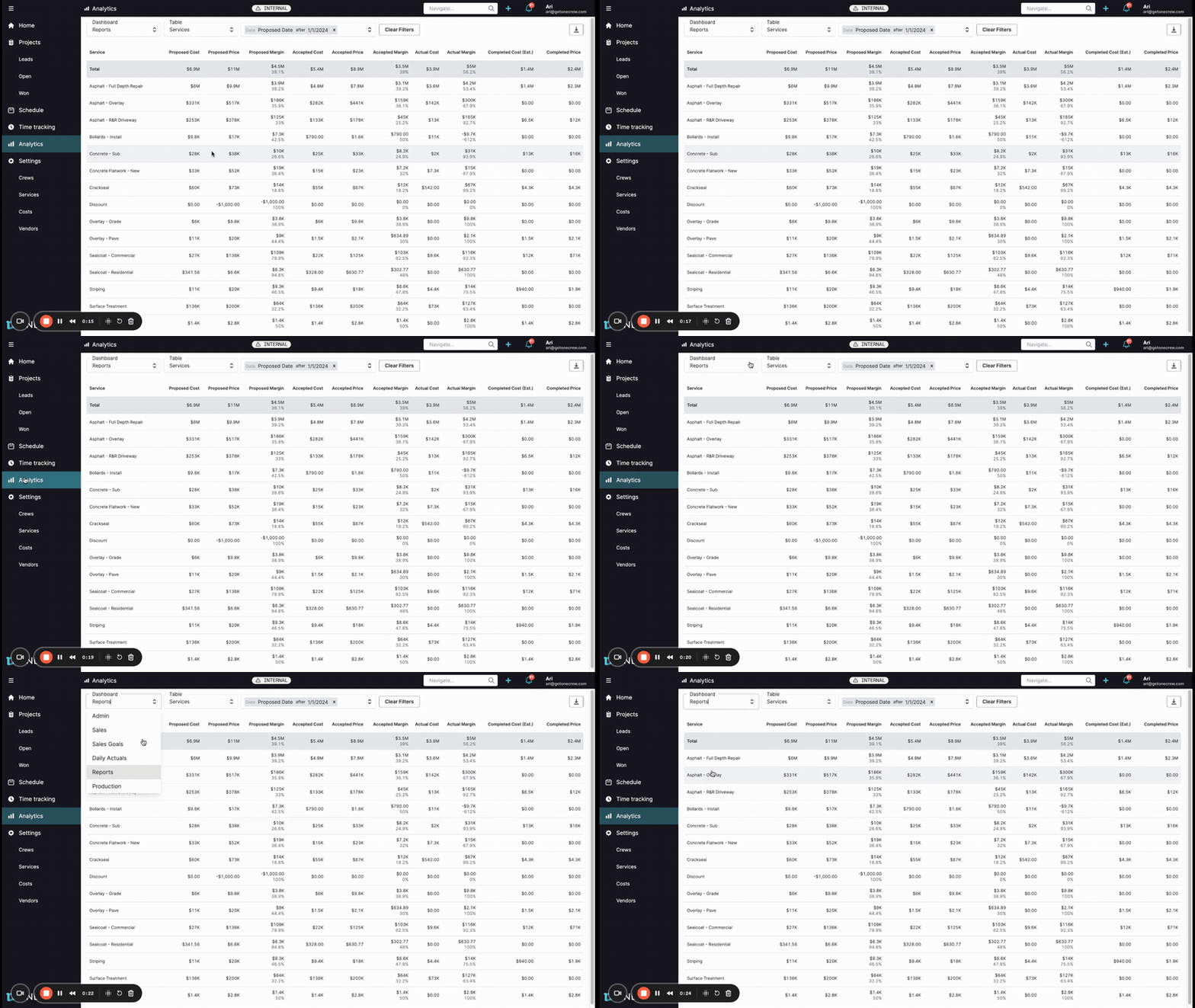
Accessing and tailoring the Service and Cost Reports to your specific analytical needs is straightforward. Here’s how to configure the views and filters:
Accessing the Reports:
Navigate to the Analytics section from the main menu.
From the Dashboard Reports dropdown menu, select Reports.
Switching Between Report Types: By default, you may land on the Services report. To switch to the Costs report, or vice-versa:
Locate the Table dropdown (often displayed next to Dashboard Reports).
Select either Services or Costs to change the displayed report.
Filtering Data: Both reports offer powerful filtering capabilities to narrow down the data:
Date Filters:
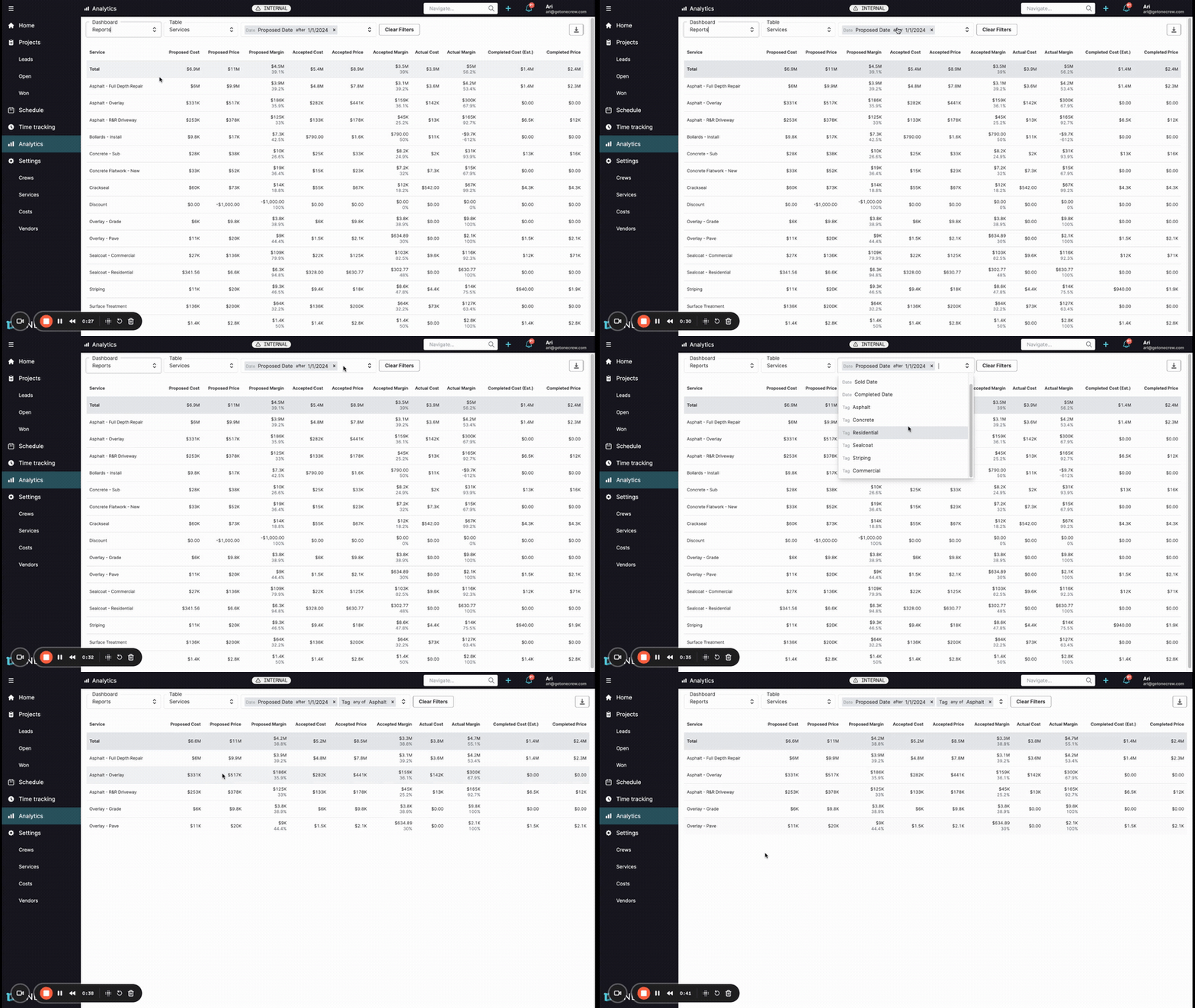
You can filter by Proposed Date, Sold Date, or Completed Date.
Click on the current date filter (e.g., Proposed Date after 1/1/2024) to open the filter options.
Select the desired date field and specify the range or condition.
Service Tag Filters (Services Report):
To view data for services associated with specific tags (e.g., "Asphalt," "Residential," "Commercial").
Click the filter bar and select Tag. Choose the relevant tags to apply. For example, filtering by "Tag: any of Asphalt" will show all services tagged as Asphalt.
Service Filters (Costs Report):
The Costs Report can be filtered to show cost breakdowns for specific services (e.g., "Asphalt - Full Depth Repair").
Click the filter bar, choose Service, and select the service(s) you want to analyze.
To remove filters, click the 'x' next to an active filter or use the Clear Filters button.
Costs Report - Viewing Options: The Costs Report has a unique toggle to switch between monetary values and physical units:
Dollars View ($): This is typically the default view, showing all cost and price figures in currency. Columns include Proposed Cost, Proposed Price, Proposed Margin, Accepted Cost, Accepted Price, Accepted Margin, Actual Cost, Actual Margin, Completed Cost (Est.), and Completed Price.
Units View:
Click the Units button (usually located in the top-right corner of the report).
The report will refresh, displaying quantities (e.g., hours, days, each, cubic yards) instead of currency.
Columns in this view include Cost (line item), Proposed (units), Accepted (units), % Accepted, Actual (units), % Difference (between actual and proposed/accepted units), Completed (units), and % Completed.
To switch back, click the button again (it may now read $ or revert to Units if it's a toggle).
Exporting Reports: For offline analysis or sharing, you can export the currently displayed report view:
Configure your desired report (Services or Costs), filters, and view (Dollars or Units).
Click the Export button (an icon often resembling a download arrow, located in the top-right).
The report will be downloaded as a CSV file, containing all the data from the current view.
Pro Tip: Combine multiple filters for highly specific insights. For instance, in the Services report, filter by "Proposed Date" for the current year AND a "Service Tag" like "Sealcoat" to analyze the profitability of all sealcoat jobs proposed this year.
Use Cases
Understanding when and why to leverage the Service and Cost Reports can significantly enhance your business's financial management. Here are some common scenarios:
Evaluating Service Profitability:
When: Regularly, such as monthly or quarterly, or when considering changes to service offerings or pricing.
Why: To identify high-margin services that could be promoted or low-margin services that may need re-evaluation in terms of pricing or operational efficiency. Use the Services Report to compare Proposed Margin, Accepted Margin, and Actual Margin across different services.
Analyzing Cost Variances:
When: After project completion, especially if there are concerns about budget adherence, or when reviewing estimates.
Why: To understand discrepancies between estimated and actual costs. The Costs Report can break down where variances occurred (e.g., labor hours exceeded estimates, material prices were higher than anticipated). This helps in refining future estimation processes.
Tracking Project Financial Health:
When: During ongoing projects or at project milestones.
Why: To monitor how actual spending aligns with the budget and to see the estimated cost to complete. The Completed Cost (Est.) and Completed Price columns in both reports provide valuable foresight.
Optimizing Resource Allocation (Units View):
When: When planning for future projects or assessing team performance.
Why: The Costs Report in Units view (e.g., hours, days, quantities) allows for a direct comparison of proposed units versus actual units used. This is invaluable for assessing labor efficiency, material usage, and equipment deployment, helping to identify if estimates for quantities are accurate or if there are operational inefficiencies.
Validating Estimating Accuracy:
When: As part of a continuous improvement cycle for the sales and estimating teams.
Why: By consistently comparing Proposed Cost/Price against Actual Cost/Actual Margin, teams can learn and adjust their estimating methodologies, leading to more accurate and competitive bids.
Examples
To illustrate the practical application of these reports, let's explore a couple of real-world scenarios:
Example 1: Analyzing Profitability of Asphalt Services
Scenario: A manager at a paving company wants to understand the profitability of different asphalt services proposed in the current year. They need to see both the estimated profitability at the proposal stage and the actual profitability of jobs that have progressed.
Solution:
Navigate to Analytics > Reports.
Ensure the Services report is active.
Apply a Date Filter for Proposed Date to cover the current year (e.g., "Proposed Date after 1/1/2024").
Apply a Service Tag Filter for "Asphalt" (e.g., "Tag: any of Asphalt").
The report will display all asphalt services, with columns like:
Service: (e.g., "Asphalt - Full Depth Repair", "Asphalt - Overlay")
Proposed Cost, Proposed Price, and Proposed Margin (with percentage): Shows the initial financial estimates.
Accepted Cost, Accepted Price, and Accepted Margin (with percentage): Reflects what the client agreed to.
Actual Cost and Actual Margin (with percentage): Shows the real financial outcome for completed or in-progress work where actuals are logged.
Completed Cost (Est.) and Completed Price: Provides insight into the financial status of ongoing jobs.
Outcome: The manager can now easily compare the proposed versus actual margins for services like "Asphalt - Full Depth Repair" and "Asphalt - Overlay." They might discover that while "Asphalt - Overlay" jobs were proposed with a 35.5% margin, the actual margin achieved is closer to 30%, prompting an investigation into cost components or pricing for that service.
Example 2: Investigating Labor Hour Variances for Paving Jobs
Scenario: An operations manager suspects that labor hours for "Paving (7-man crew)" jobs are consistently underestimated. They want to compare the proposed labor hours against the actual hours spent on these jobs.
Solution:
Navigate to Analytics > Reports.
Switch to the Costs report using the Table dropdown.
Apply a Date Filter for the relevant period (e.g., "Completed Date" for last quarter).
Apply a Service Filter for "Paving (7-man crew)" (or a broader category if individual services aren't set up for this cost item).
Click the Units button to switch the view from dollars to units.
The report will display cost line items. Focus on the "Paving (7-man crew)" labor line item (or similar, depending on cost breakdown). Key columns will be:
Cost: "Paving (7-man)" or relevant labor description.
Proposed: Shows the estimated labor hours (e.g., 1,166 hrs).
Accepted: Shows accepted labor hours (e.g., 949 hrs).
Actual: Shows the actual labor hours logged (e.g., 767.5 hrs for a specific dataset, or potentially higher if investigating overruns).
% Difference: Highlights the variance between actual and proposed/accepted hours.
Completed: Shows hours completed if tracking progress.
% Completed: Percentage of labor hours completed.
Outcome: The operations manager can see a direct comparison. If, for example, "Paving (7-man crew)" jobs consistently show a positive % Difference in the Actual vs. Proposed hours (meaning more hours were spent than estimated), this provides data to support the hypothesis. They can then investigate further—are crews inefficient, are estimates too tight, or are there other factors contributing to the discrepancy? This insight is crucial for improving future labor estimates and operational planning.