Sales Goals
Last updated: August 7, 2025
Watch Video Demo Here
Overview
The Sales Goals feature provides a powerful way to set, track, and visualize performance targets for your sales team. By defining clear objectives for key sales metrics, you can monitor progress at both individual and team levels, fostering motivation and enabling data-driven decision-making.
The primary purpose of this feature is to allow administrators to establish specific monthly targets for users across four critical areas:
Number of proposals sent (# Proposed)
Total monetary value of proposals sent ($ Proposed)
Number of proposals won (# Won)
Total monetary value of proposals won ($ Won)
Setting goals helps in clearly defining expectations, measuring achievements, and understanding sales performance trends over time. The visual feedback on the homepage and dedicated analytics dashboards makes it easy for users and managers to see how they are progressing towards their targets.
Insight: Visualizing progress against set goals can significantly boost team motivation and provide a clear path to success. It transforms abstract targets into tangible milestones.
Configuration
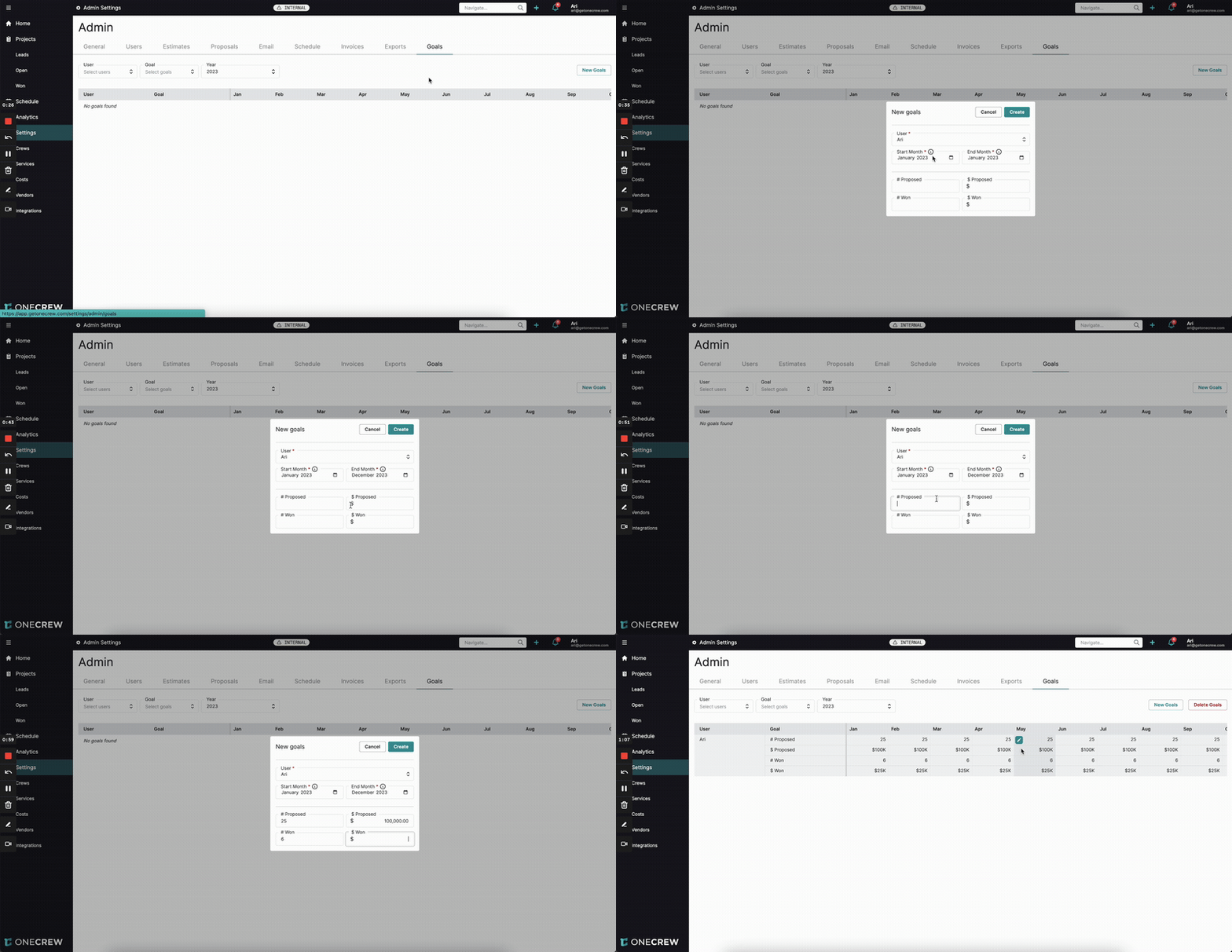
Configuring sales goals is straightforward and managed within the Admin settings. Here’s how to set up and manage goals:
Navigate to Settings from the main menu.
In the Admin settings, select the Goals tab, typically located on the far right.
To create new goals, click the New Goals button.
In the New goals dialog:
Select the User for whom you are setting the goals from the dropdown list.
Define the period for these goals by selecting a Start Month and an End Month. You can set goals for a single month, multiple months, or an entire year.
Enter the target values for each metric. These values represent the monthly goal for the selected user for each month within the specified date range.
# Proposed: The number of proposals to be sent.
$ Proposed: The total value of proposals to be sent.
# Won: The number of proposals to be won.
$ Won: The total value of proposals to be won.
Click Create.
Once created, the goals will appear in a table, showing the user, the goal type, and the target for each month in the selected year.
Managing Existing Goals:
Filtering: You can filter the displayed goals using the dropdowns at the top of the Goals page:
User: Select a specific user to see their goals.
Goal: Select a specific goal type (e.g., # Proposed) to narrow down the view.
Year: Choose the year for which you want to view goals.
Editing Individual Monthly Goals: If a standard monthly goal needs adjustment for a particular month (e.g., due to seasonality), you can:
Locate the specific month and goal value in the table.
Click the pencil icon next to the value.
In the Update goal dialog, modify the values for that specific month.
Click Update.
Deleting Goals:
Individual Month: Within the Update goal dialog, you can click Delete Goal to remove the goal for that specific month.
Bulk Deletion: To delete goals for a user over a range of months, click the Delete Goals button. Select the User, Start Month, and End Month, then click Delete.
Pro tip: When setting goals for an extended period, like a full year, remember that the initial values you input in the New goals dialog will apply as the consistent monthly target for every month in that range. You can then fine-tune specific months individually if needed.
Use Cases
The Sales Goals feature is versatile and can be applied in various scenarios to enhance sales operations:
Individual Performance Management: Set monthly or annual sales quotas for individual sales representatives to track their contributions and identify areas for development.
Team Target Setting: Aggregate individual goals to monitor the entire team's progress towards overarching company sales targets (e.g., quarterly revenue or number of deals closed).
Performance Benchmarking: Compare performance against goals over different periods (month-over-month, year-over-year) to identify trends and areas of improvement.
Sales Contests and Incentives: Use goals as a basis for sales competitions or incentive programs, driving engagement and friendly competition within the team.
Forecasting Accuracy: By tracking actual performance against set goals, businesses can refine their sales forecasting methods.
Examples
Once goals are configured, their impact is visible in several key areas of the application, providing actionable insights for both individual users and management.
1. Individual Goal Tracking on the Homepage
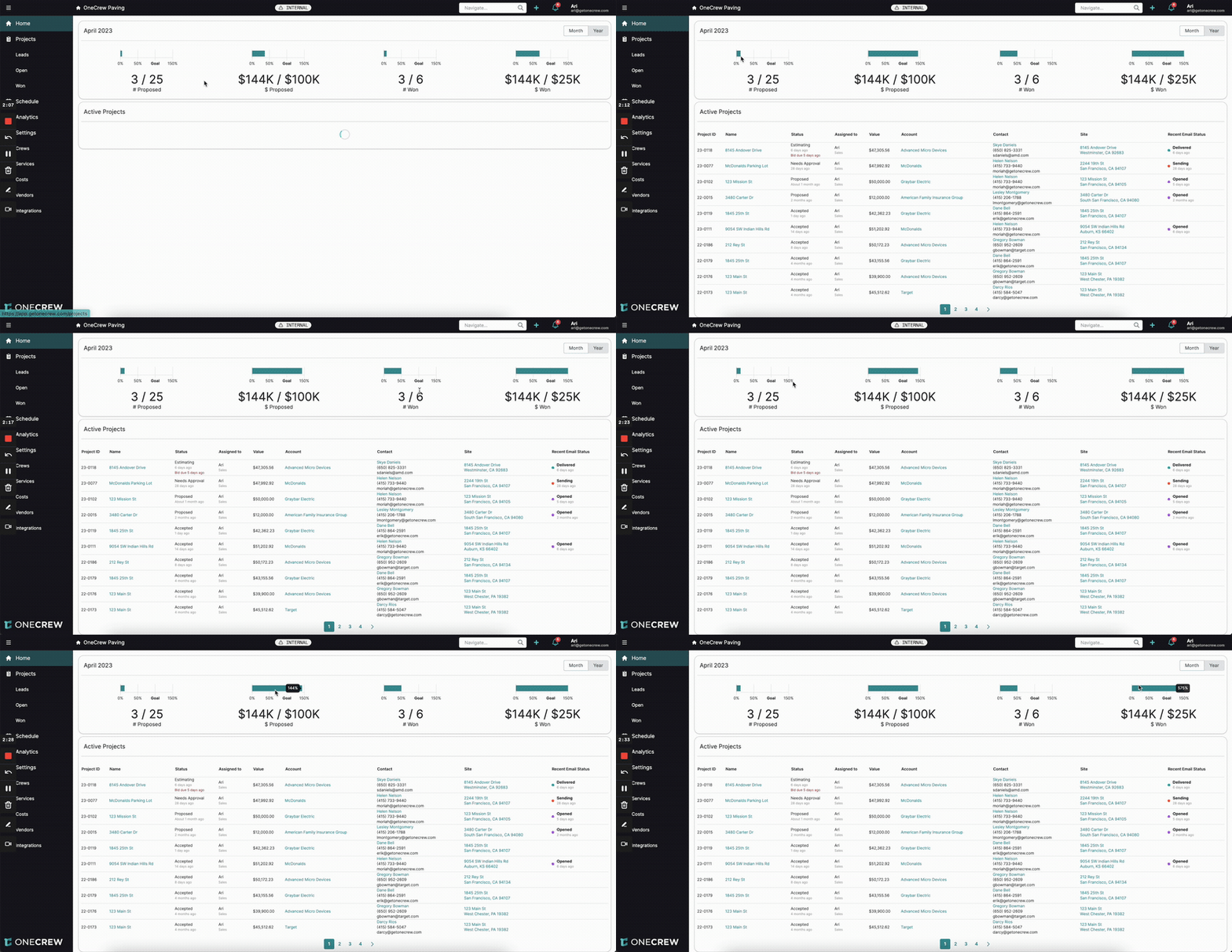
After goals are set for a user, their Home page dashboard will transform to display their progress against these targets.
Previously, the homepage might have shown actual metrics like "3 Proposals" or "$144K Proposed" for the current month.
With goals active, these metrics will now be displayed alongside their respective targets and a visual progress bar. For example:
# Proposed:
3 / 25(Actual / Goal) with a bar showing 12% progress.$ Proposed:
$144K / $100K(Actual / Goal) with a bar showing 144% progress.# Won:
3 / 6(Actual / Goal)$ Won:
$144K / $25K(Actual / Goal)
Users can toggle between a Month view (showing current month's progress against monthly goals) and a Year view (showing year-to-date actuals against the sum of monthly goals for the year so far).
This immediate visual feedback helps users understand their performance at a glance and stay focused on their objectives.
2. Team and Company-Wide Goal Tracking in Analytics
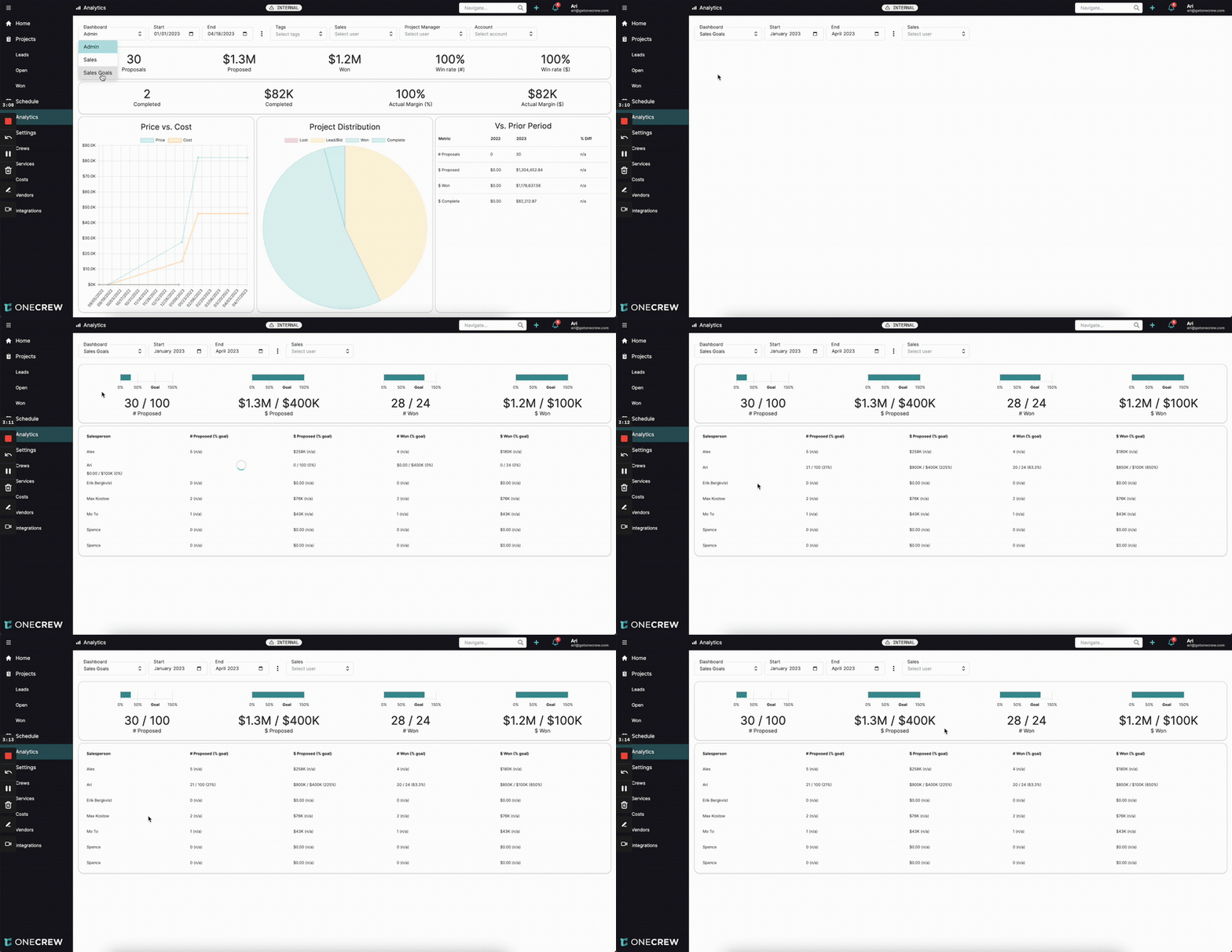
For a broader view of sales performance across the entire team or company, navigate to the Analytics section and select the Sales Goals dashboard.
Aggregated View: The top of this dashboard displays progress bars showing the sum of all actuals versus the sum of all set goals for all users within the selected time frame. For example, if goals are set for multiple salespeople, their individual goals for "# Proposed" are added up to form the total team goal, and their actuals are summed to show total team performance.
Salesperson Breakdown: Below the aggregate view, a table lists each salesperson who has activity or goals. For each salesperson, it shows their actual performance (e.g., "21 # Proposed") against their specific goal for that metric within the selected period (e.g., " / 100 (21%)").
Filtering:
Date Range: You can adjust the Start and End dates to analyze performance for specific periods (e.g., current quarter, full year). The goals displayed will dynamically sum up based on the number of months in the selected range. For instance, if a monthly goal for "# Proposed" is 25, a 4-month view will show a total goal of 100, while a 12-month view will show 300.
Quick Filters: Use options like This month or Year to date for common views.
Sales User: Filter the dashboard to show data for a single selected Sales user, focusing on their individual performance against their goals in this comprehensive view.
This dashboard is invaluable for sales managers to monitor overall team health, identify top performers, and pinpoint individuals or areas needing more support.
Learn more about configuring your sales workflow [add link to relevant article].