Production and Progress Reports
Last updated: August 7, 2025
Watch Video Demo Here
Overview
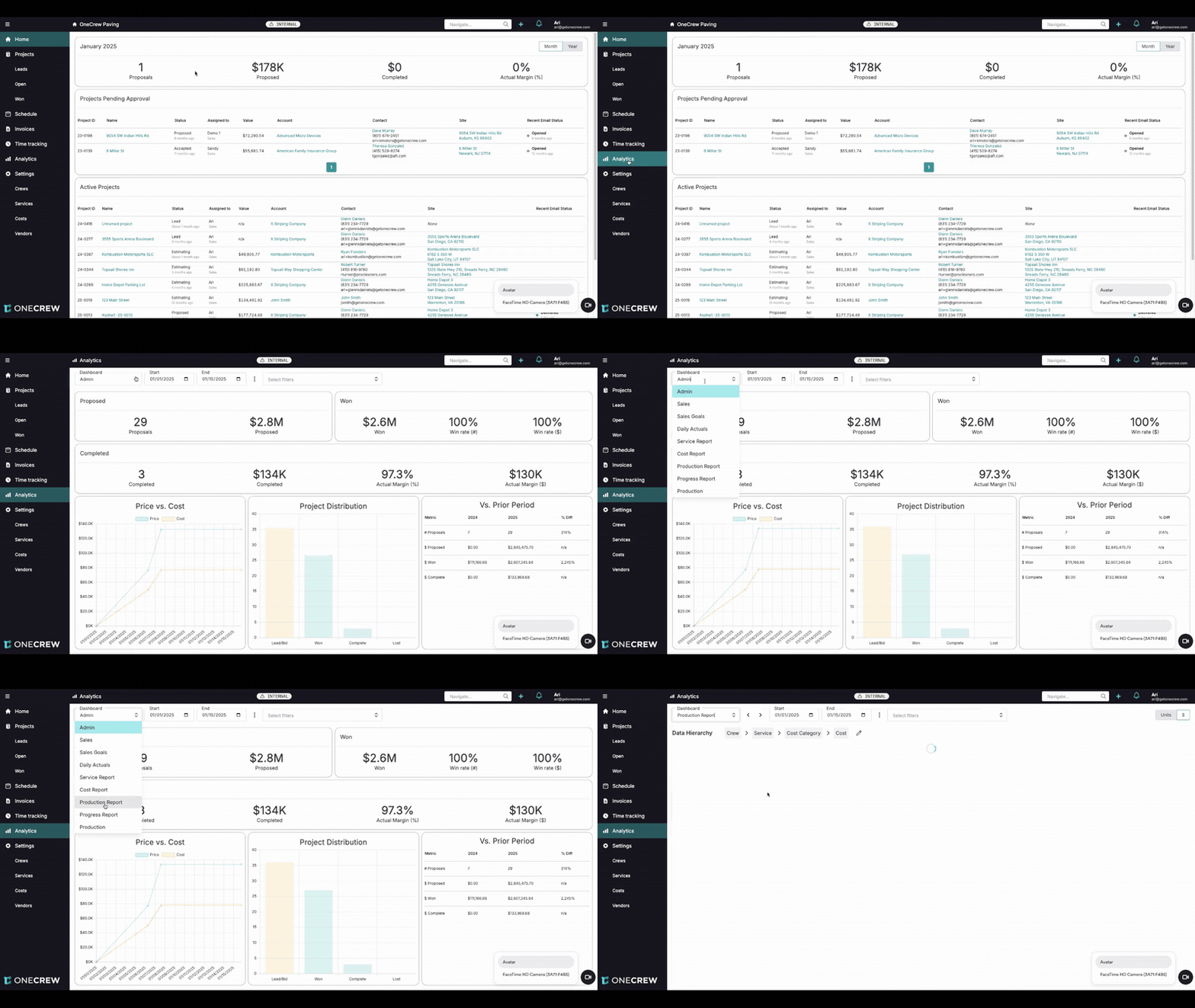
Production and Progress Reports are powerful analytical tools designed to offer deep insights into your company's operational and financial performance. These reports provide a granular view of costs, resource utilization, and project profitability, enabling data-driven decision-making.
The Production Report focuses on the work completed and actuals incurred within a specific timeframe. It's ideal for understanding recent performance and costs associated with crews, services, and scheduled events during that period.
The Progress Report, on the other hand, provides a more comprehensive historical view. It captures all projects that had any activity (scheduled events or actuals) within a selected date range and then displays the entire financial history of those projects, including costs incurred outside the specified period.
Together, these reports empower you to monitor operational efficiency, track budget adherence, evaluate crew and project manager performance, and ultimately enhance overall profitability.
Insight: The key distinction lies in their scope: Production Reports show a snapshot of work done within a period, while Progress Reports offer a full financial history of projects active during a period.
Configuration
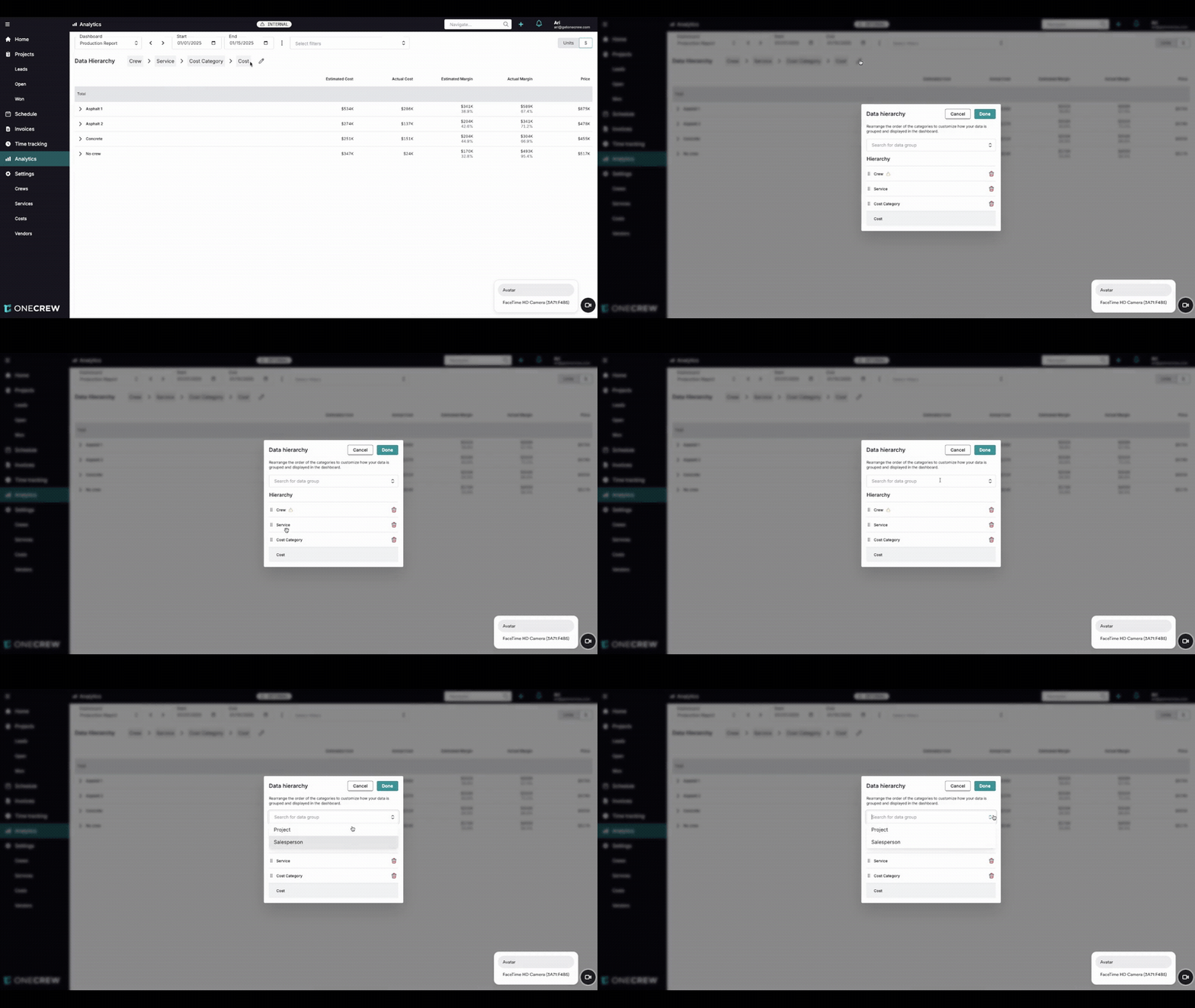
Both Production and Progress Reports offer robust configuration options to tailor the data display to your specific analytical needs. You can access these reports by navigating to Analytics from the main menu, then selecting either Production Report or Progress Report from the dashboard dropdown at the top left of the Analytics screen.
Key Configuration Options:
Date Range:
Specify the Start and End dates at the top of the report.
For the Production Report, this filters data to show only scheduled events or actuals reported within this timeframe.
For the Progress Report, this identifies projects that had any activity within this timeframe, and then displays all historical data for those projects.
Data Hierarchy:
The reports present data in a hierarchical, expandable table. The default hierarchy for the Production Report is typically Crew > Service > Cost Category > Cost, while for the Progress Report, it's often Project > Service > Cost Category > Cost.
To customize this:
Click the pencil icon next to the current data hierarchy display (e.g.,
Crew > Service > ...).A Data Hierarchy modal will appear.
Rearrange levels: Drag and drop existing hierarchy items to change their order.
Add levels: Use the Search for data group dropdown to select and add new dimensions like Salesperson, Project, or Crew.
Remove levels: Click the trash icon next to a hierarchy item to remove it.
Click Done to apply changes.
Once configured, click the small arrow next to any row to expand it and drill down to the next level of detail.
Monetary Values vs. Units:
A toggle button, often labeled Units or showing a $ symbol (typically located in the top right of the report table), allows you to switch the display between monetary values (e.g., Actual Cost in dollars) and physical units (e.g., actual tonnage of materials used, hours of labor).
Filters:
Use the Select Filters dropdown (usually at the top of the report, next to the date range) to narrow down the data.
You can filter by various criteria, including:
Salesperson
Project Manager
Tags
Accounts
Contacts
Lead Source
And other relevant project or operational attributes.
Pro Tip: Start with a broader date range and default hierarchy, then progressively refine by adjusting dates, customizing the hierarchy, and applying filters to pinpoint the exact information you need.
Use Cases
Understanding when and why to use each report is crucial for leveraging their full potential.
Production Report
Use the Production Report when you need to:
Monitor Daily/Weekly Crew Performance: Track the actual costs (labor, materials, equipment) incurred by specific crews for work completed in a recent period. This helps in identifying efficient crews and areas needing improvement.
Analyze Short-Term Cost Variances: Quickly see if specific services or cost categories are running over budget for work done recently. For example, checking if material costs for "Asphalt Paving" last week exceeded estimates.
Track Resource Utilization: Evaluate how much labor, equipment, or materials were consumed for scheduled events or completed tasks within a defined timeframe, like the first two weeks of the month.
Verify Actuals for a Specific Period: Confirm the exact costs and quantities (e.g., tonnage of asphalt laid) for all work performed between two specific dates.
Progress Report
The Progress Report is best suited for:
Comprehensive Project Financial Reviews: Get a complete picture of estimated costs versus actual costs for the entire lifecycle of projects that were active or had work done during a particular period (e.g., the last quarter).
Evaluating Overall Project Profitability: Since it pulls all historical data for selected projects, you can accurately assess the total actual margin and price for projects that had any touchpoints within your chosen date range.
Assessing Salesperson or Project Manager Effectiveness: By filtering or grouping by salesperson or project manager, you can analyze the financial performance of the projects they are associated with, even if some costs were incurred before the reporting period.
Understanding Cumulative Impact: For long-running projects, this report helps understand the total costs and margins to date, triggered by any recent activity.
Pro Tip: Use the Production Report for tactical, short-term analysis of operational efficiency, and the Progress Report for strategic, long-term financial health assessments of projects.
Examples
Let's explore some real-world scenarios to illustrate how these reports can solve problems and add value.
Example 1: Analyzing Crew Efficiency with the Production Report
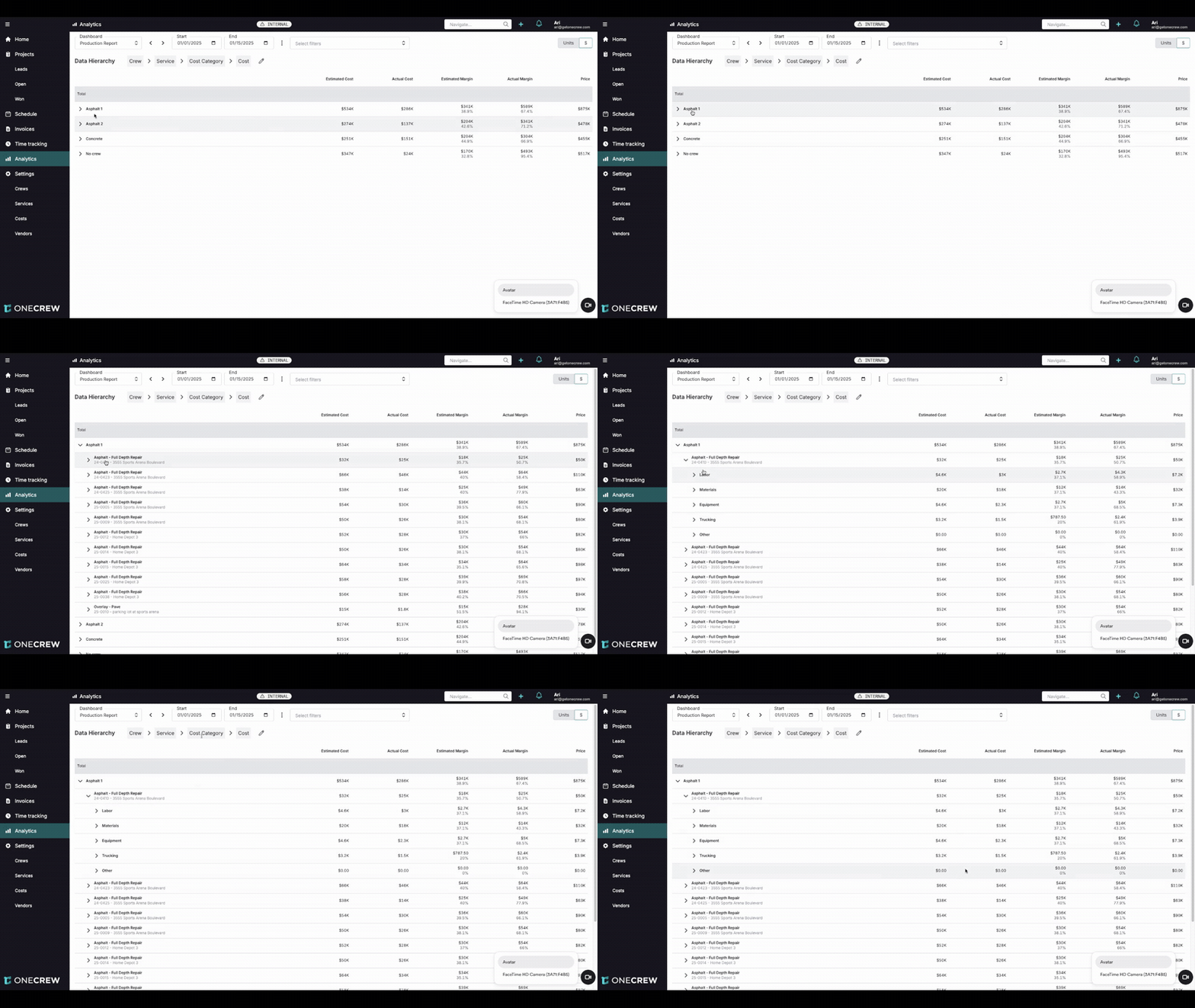
Scenario: A paving company's operations manager wants to review the efficiency of the "Asphalt 1" crew for all work performed in the first two weeks of January (Jan 1, 2025 - Jan 15, 2025). They are particularly interested in comparing estimated labor and material costs against actuals for jobs completed during this period.
Steps:
Navigate to Analytics and select Production Report.
Set the Start Date to
01/01/2025and End Date to01/15/2025.Ensure the Data Hierarchy is set to Crew > Project > Service > Cost Category > Cost. If not, click the pencil icon to adjust it.
The report will display all crews with activity in that period. The manager locates the Asphalt 1 crew row.
They expand the Asphalt 1 row to see all projects that crew worked on during those two weeks.
For each project, they can further expand to see services performed (e.g., "Asphalt - Full Depth Repair").
Expanding a service reveals the cost categories (e.g., Labor, Materials). Here, they can directly compare Estimated Cost with Actual Cost and Actual Margin for the work done by "Asphalt 1" within the specified fortnight.
Value: This allows the manager to quickly identify if "Asphalt 1" was on, under, or over budget for labor and materials for the work completed in that specific timeframe, facilitating timely feedback or operational adjustments.
Example 2: Comprehensive Project Financial Review with the Progress Report
Scenario: At the end of Q1 2025, a general manager wants to understand the complete financial performance of all projects sold by "Salesperson: Amber Ryerson" that had any work (scheduled or actuals) performed during Q1.
Steps:
Navigate to Analytics and select Progress Report.
Set the Start Date to
01/01/2025and End Date to03/31/2025.Click the pencil icon to edit the Data Hierarchy. Add Salesperson as the first level, followed by Project > Service > Cost Category > Cost. Click Done.
Alternatively, keep the default hierarchy (e.g., Project > ...) and use the Select Filters dropdown to filter by Salesperson: Amber Ryerson.
The report now lists all projects associated with Amber Ryerson that had activity in Q1. Crucially, the Estimated Cost, Actual Cost, Estimated Margin, Actual Margin, and Price columns will reflect the total historical values for these entire projects, not just the Q1 activity.
The manager can expand each project to see which services (e.g., "Asphalt - Full Depth Repair," "Crackseal," "Striping") contributed to the overall project financials and how each performed against its estimate.
They can further drill down to individual cost items if needed.
Value: This provides a holistic view of how profitable Amber Ryerson's projects are, regardless of when the costs were incurred, as long as the project was touched in Q1. It helps in performance reviews and understanding the true financial outcome of sales efforts.
Insight: The Progress Report's ability to pull all historical data for projects active in a period makes it invaluable for true "job costing" and understanding long-term project health beyond a narrow window of activity.