Manage Estimate Settings
Last updated: August 7, 2025
Watch Video Demo Here
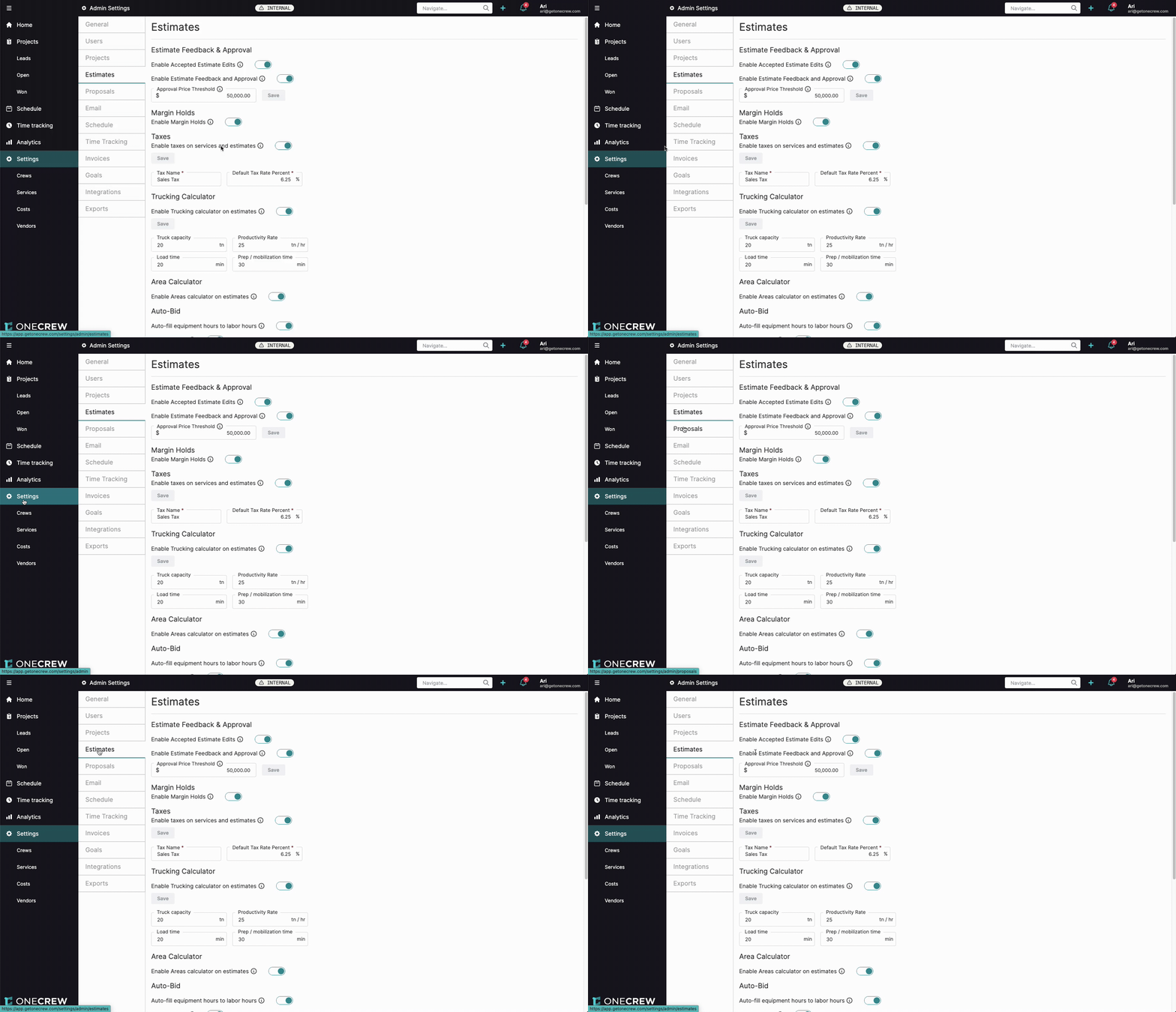
Overview
Effectively managing your estimates is crucial for accurate bidding and project profitability. This tutorial will guide you through the various configuration options available in the Estimates settings. Customizing these settings allows you to tailor the estimating process to your company's specific needs, from approval workflows to default tax rates and automated calculations.
Step-by-Step Instructions
To begin configuring your estimate settings, navigate to Settings in the left-hand navigation menu, then select Estimates from the sub-menu.
Estimate Feedback & Approval
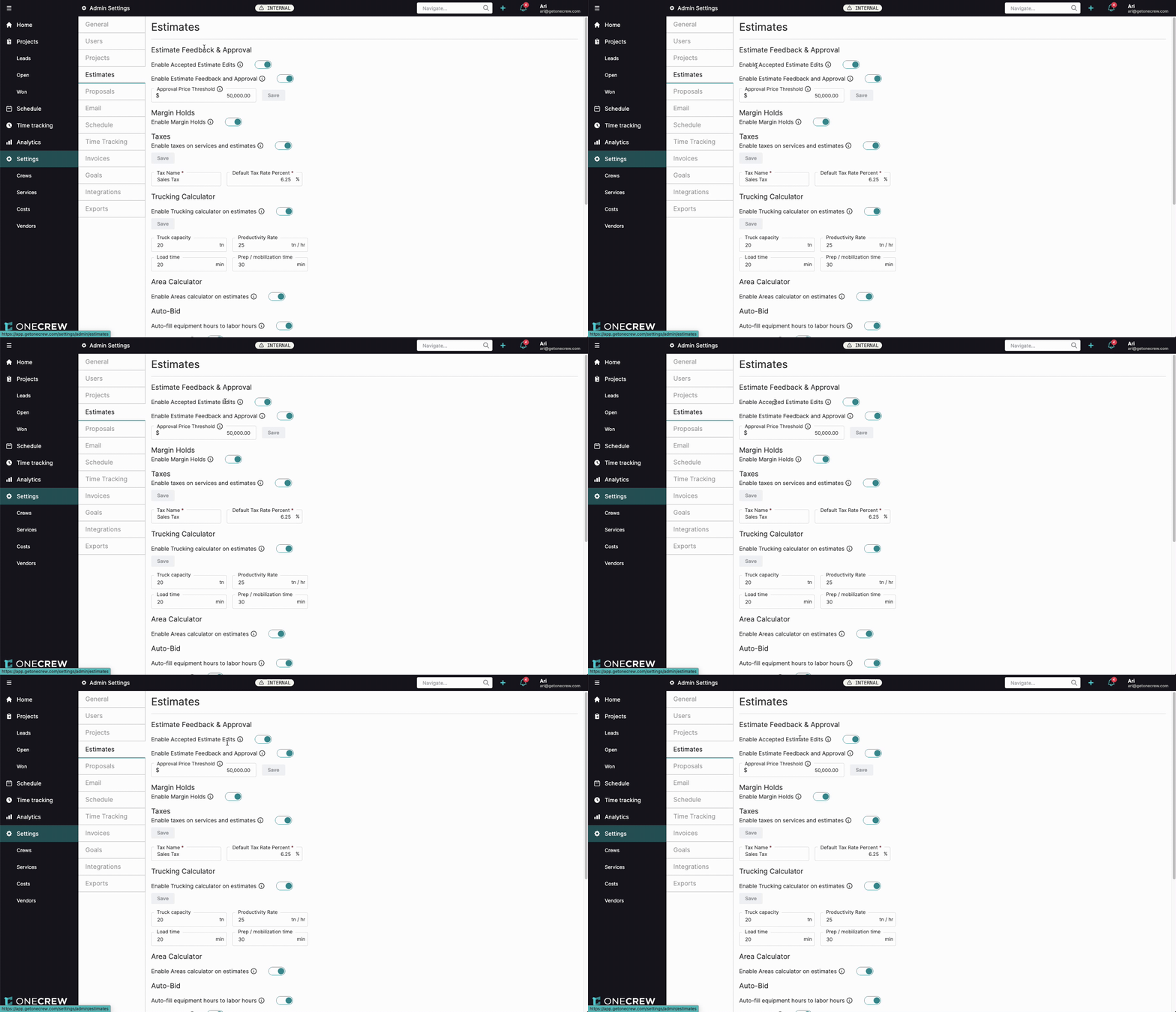
This section controls how estimates are reviewed and approved.
Enable Accepted Estimate Edits: Toggle this on if you want to allow users to edit estimates that have already been accepted by a client.
Important Note: Editing accepted estimates can change metrics throughout the system. Consider using change orders for modifications after acceptance.
Enable Estimate Feedback and Approval: Toggle this on to activate the internal feedback and approval system for estimates.
You can set an Approval Price Threshold. Estimates below this amount will not require approval, while those above it will, for users who are configured to require approval. For example, if set to $50,000.00, any estimate exceeding this value will trigger the approval workflow for relevant users.
Configure user-specific approval permissions under Settings > Users > Permissions. [add link to relevant article on user permissions]
Click Save after making changes in this section.
Margin Holds
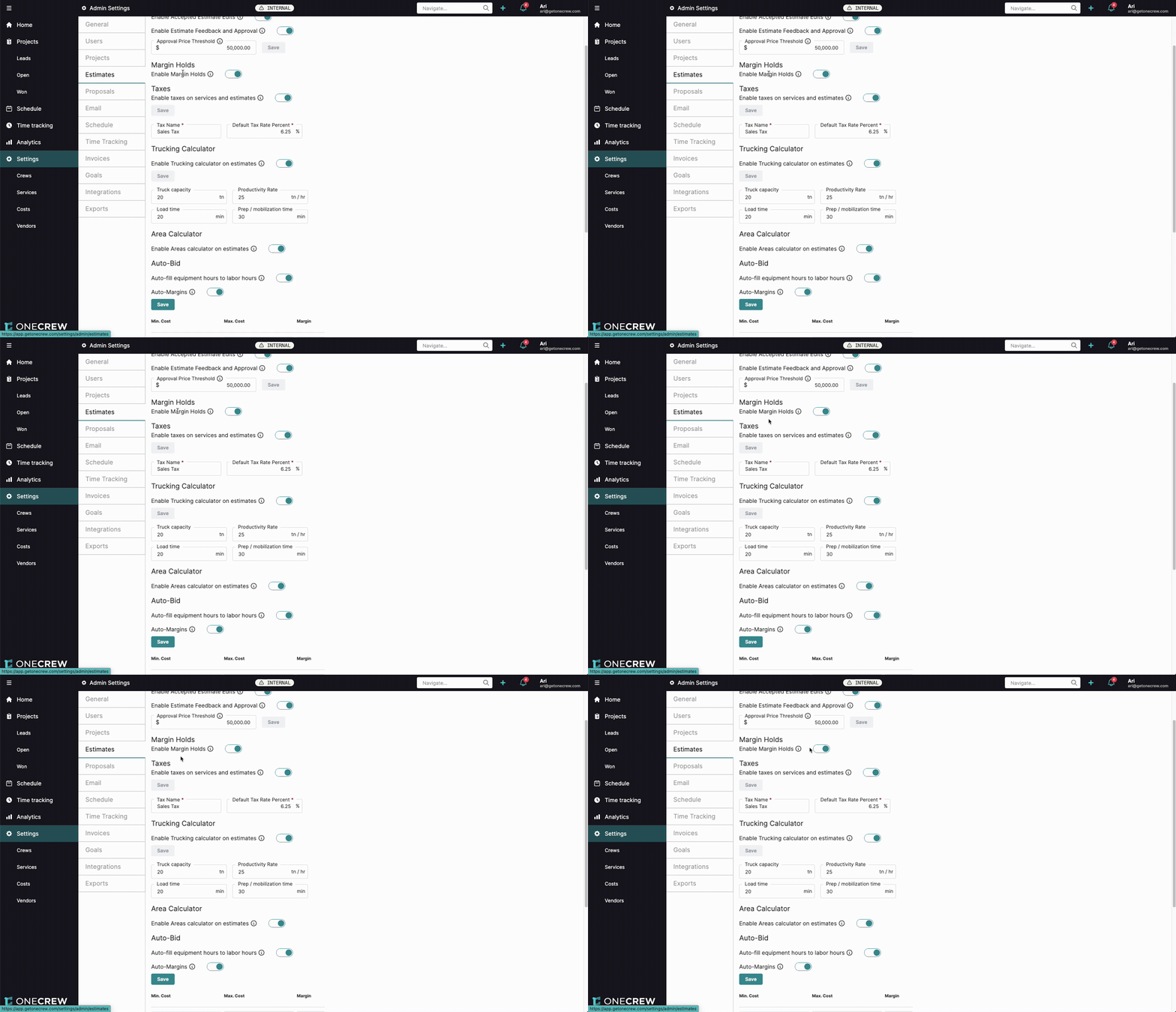
Margin holds allow you to protect your profit margins for individual costs within estimates.
Enable Margin Holds: Toggle this on to activate the margin holds feature.
Taxes
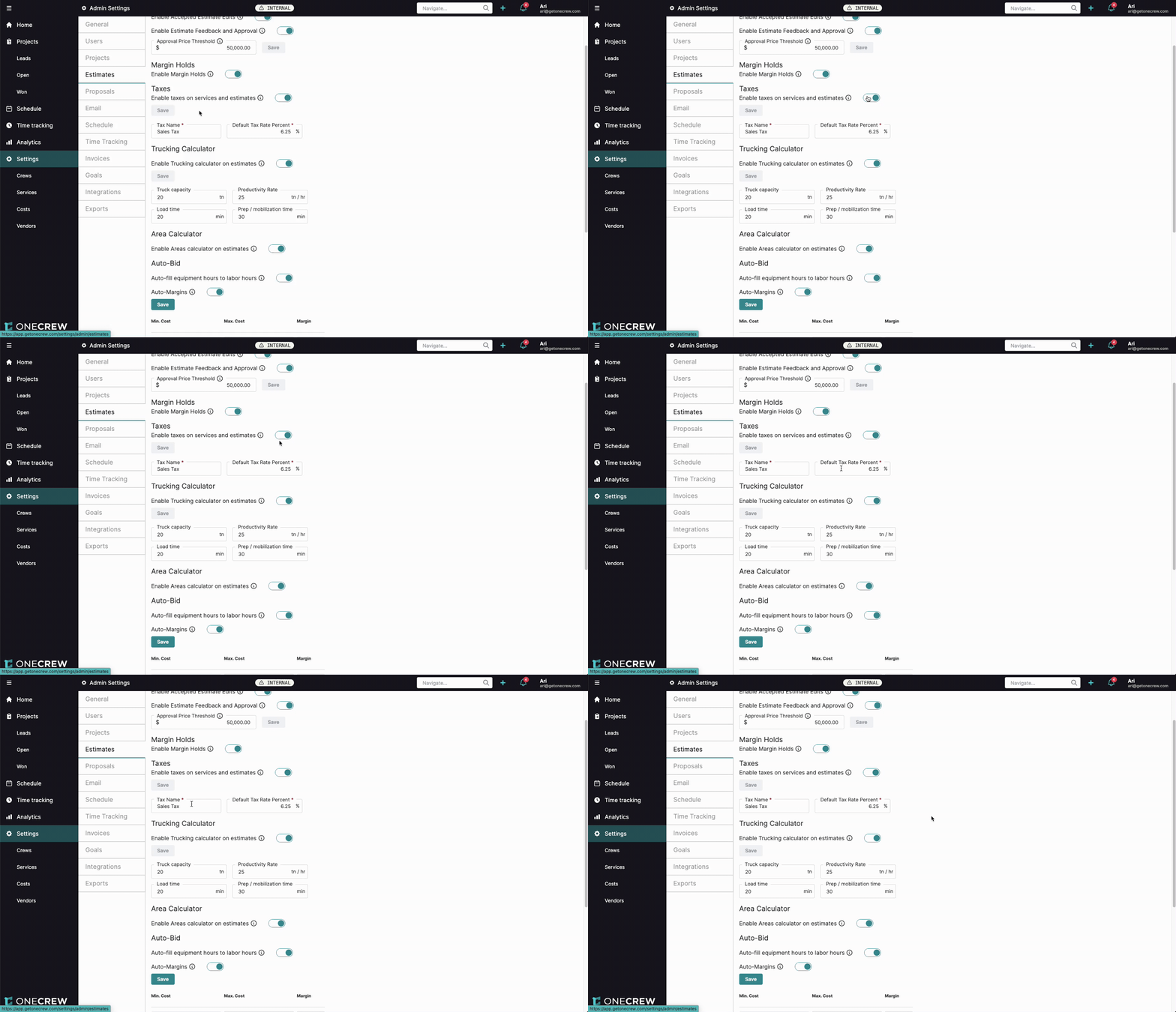
Configure how taxes are applied to your services and estimates.
Enable taxes on services and estimates: Toggle this on to allow taxes to be added to estimates.
Enter a Tax Name (e.g., "Sales Tax").
Set the Default Tax Rate Percent (e.g., "6.25%"). This rate will be automatically applied when taxes are enabled on an estimate, but can be overridden.
Click Save.
Insight: Setting a default tax rate streamlines estimate creation, ensuring consistency while still allowing for adjustments on specific jobs.
Trucking Calculator
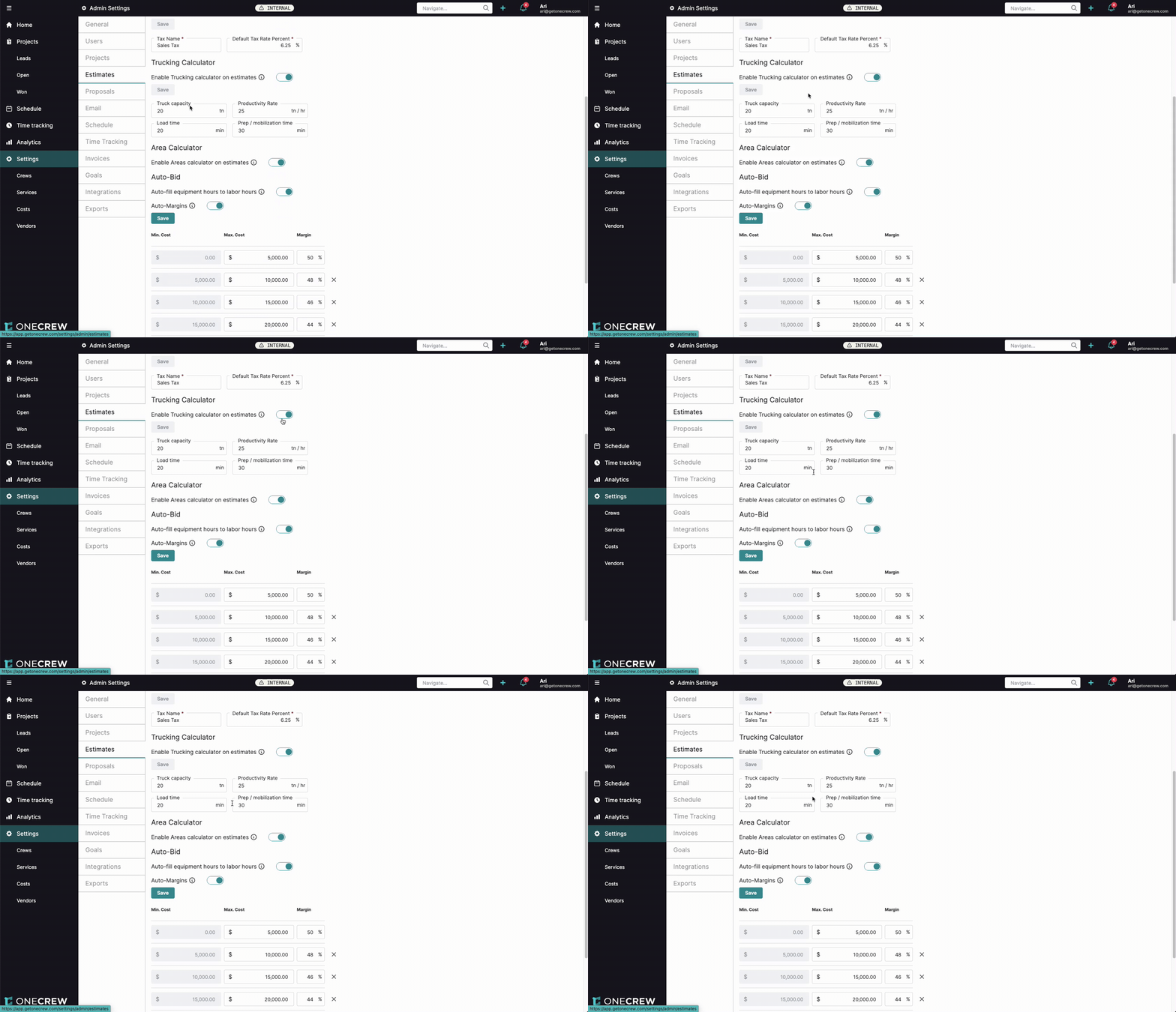
Set default values for trucking calculations on estimates.
Enable Trucking calculator on estimates: Toggle this on to make the trucking calculator available when building estimates.
Set default values for:
Truck capacity (e.g., "20 tn")
Productivity Rate (e.g., "25 tn / hr")
Load time (e.g., "20 min")
Prep / mobilization time (e.g., "30 min")
Click Save. These defaults can be adjusted on individual estimates.
Area Calculator
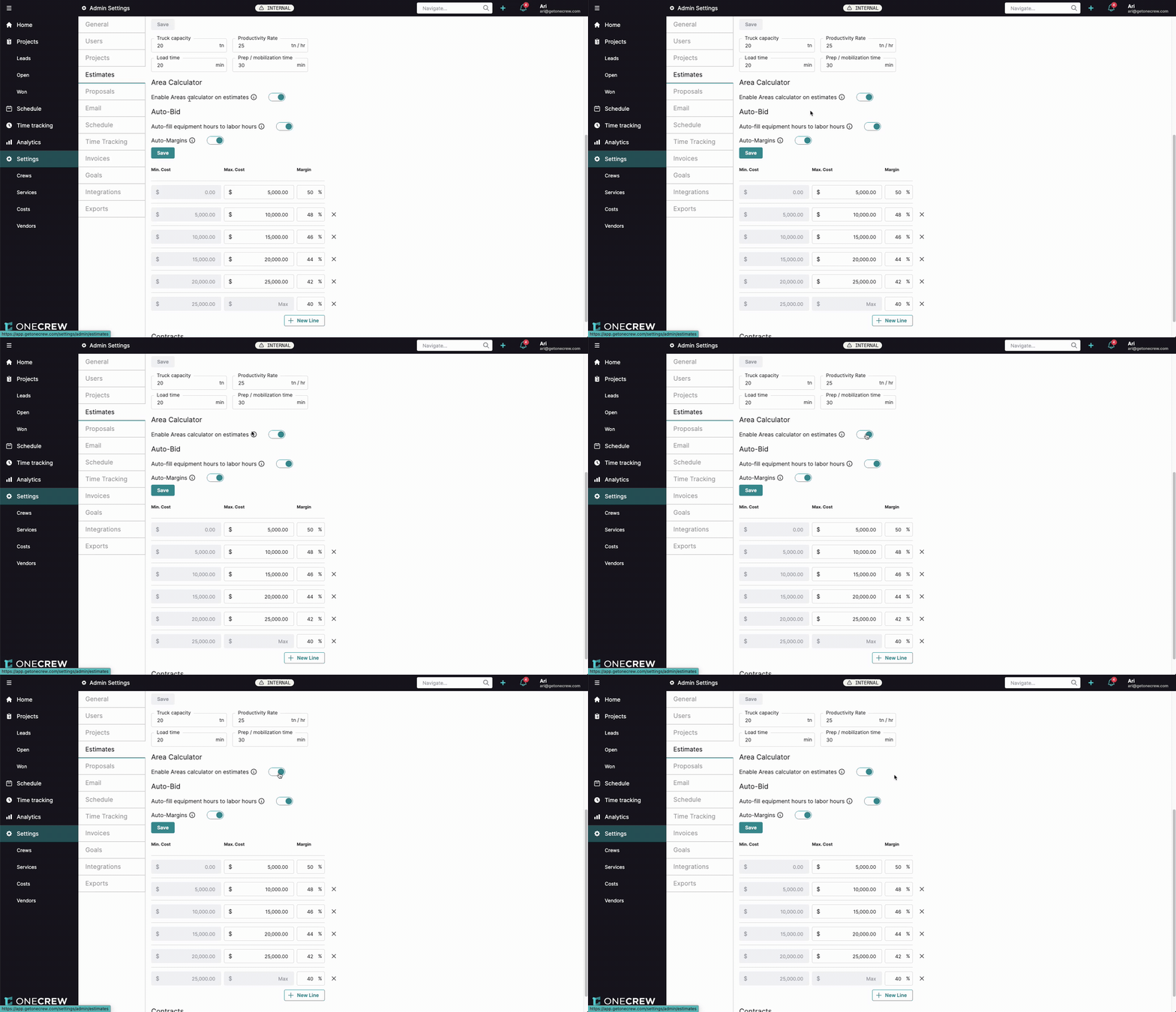
Control the visibility of the area calculator on estimates.
Enable Areas calculator on estimates: Toggle this on to include the area calculator tool in your estimates. If you don't typically use area-based calculations, you can disable this to simplify the estimate interface.
Click Save.
Auto-Bid
This section helps automate parts of your bidding process.
Auto-fill equipment hours to labor hours:
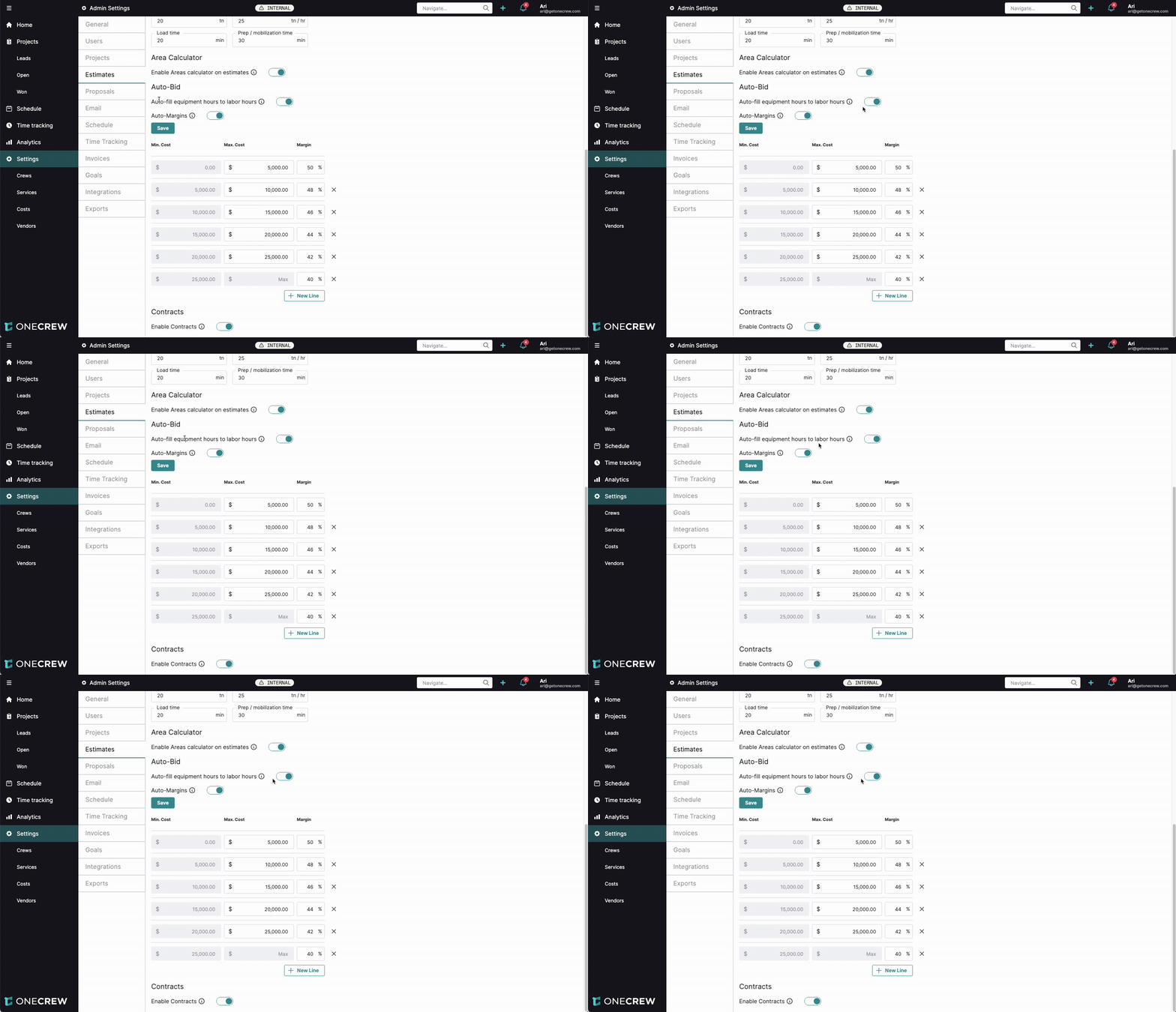
Toggle this on to automatically match equipment hours to the total labor hours on an estimate.
Warning: This feature sums all labor hours. If you input labor by individual rather than by crew, it might overstate equipment hours.
Auto-Margins:
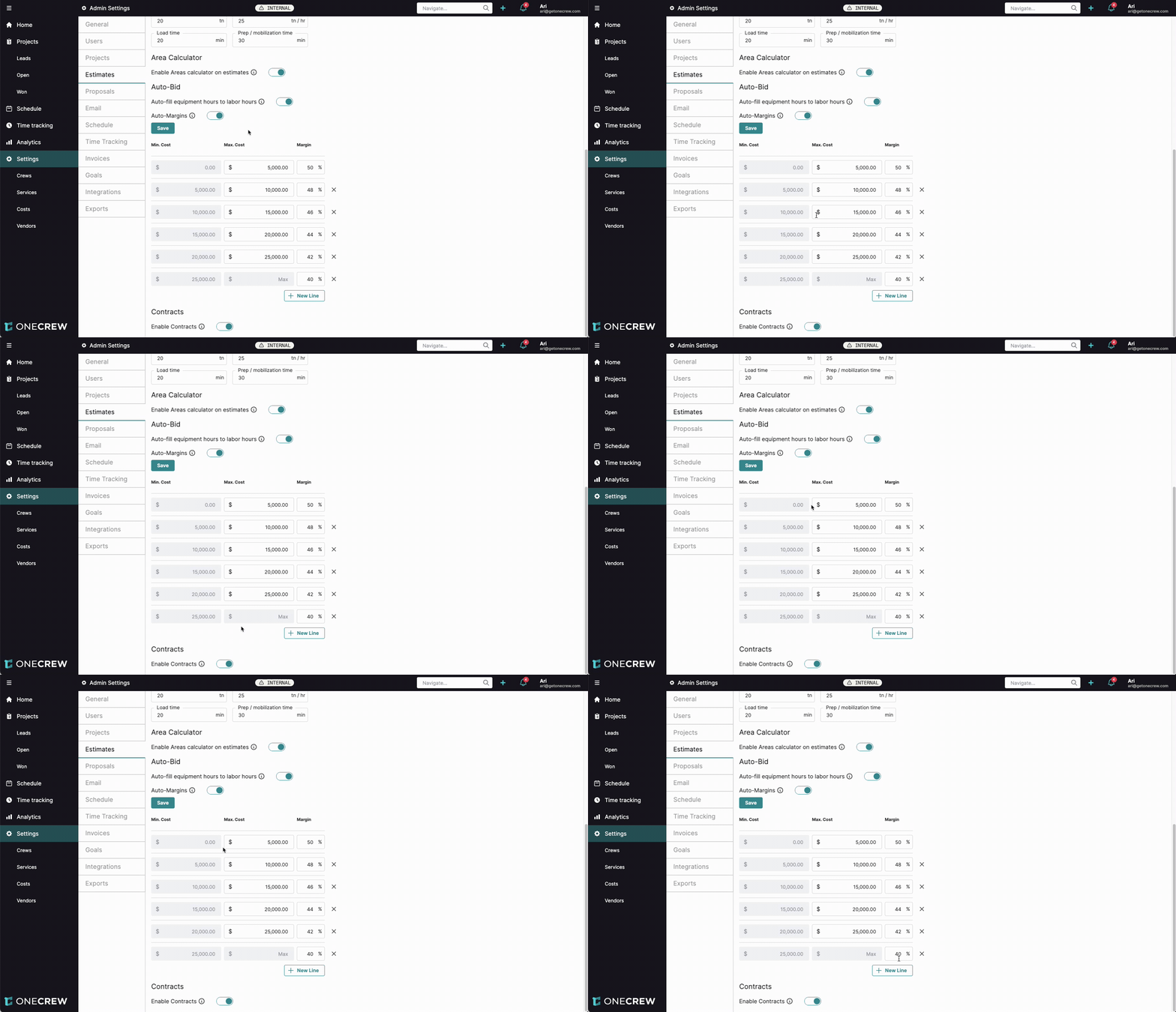
Toggle Auto-Margins on to automatically set margins based on the total cost of the project.
Configure the margin table by clicking + New Line. For each line, define a Min. Cost, Max. Cost, and the corresponding Margin percentage. For example:
Min. Cost: $0.00, Max. Cost: $5,000.00, Margin: 50%
Min. Cost: $5,000.00, Max. Cost: $10,000.00, Margin: 48%
The system will apply the margin from the table based on the estimate's total cost.
If you manually change the margin on an estimate, auto-margins will be disabled for that specific estimate. You can re-enable it using the "Reset Auto Margin" option on the estimate.
Click Save after configuring auto-bid settings.
Contracts
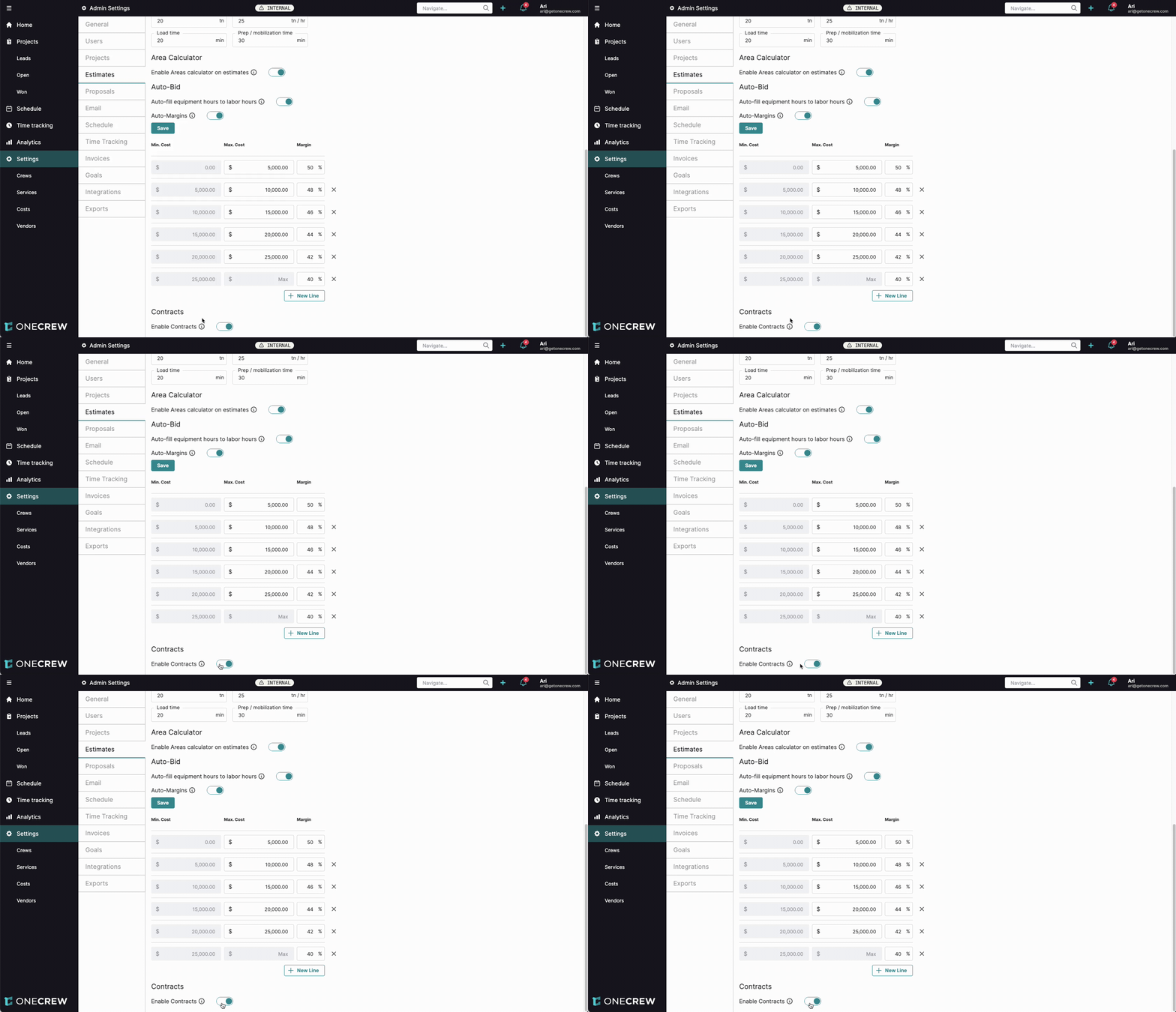
Enable or disable the use of contracts (Unit Contract and Service Contract) with your estimates.
Enable Contracts: Toggle this on if you utilize unit or service contracts. If disabled, the contract options will not appear when adding services to an estimate. For more details, see our articles on contracts.
Troubleshooting
Auto-fill equipment hours seem too high: If you're using the Auto-fill equipment hours to labor hours feature and the equipment hours are consistently overstated, check if you are inputting labor hours for individual team members rather than as a total for a crew. The system sums all labor hours, so individual entries can lead to inflated equipment time.
Auto-Margins not applying as expected: If an estimate's margin isn't automatically populating from your Auto-Margins table, first ensure the estimate's total cost falls within one of the defined cost ranges. Second, check if the margin was manually overridden on that estimate; doing so disables auto-margins for that specific instance. You can re-enable it via the "Reset Auto Margin" option on the estimate.