Notification Preferences
Last updated: August 7, 2025
Watch Video Demo Here
Overview
Stay informed and in control by customizing your notification preferences. This tutorial will guide you through configuring in-app and email alerts for various project activities and system events. Tailoring these settings ensures you receive the updates that matter most to your workflow, helping you manage complex tasks more effectively.
Step-by-Step Guide
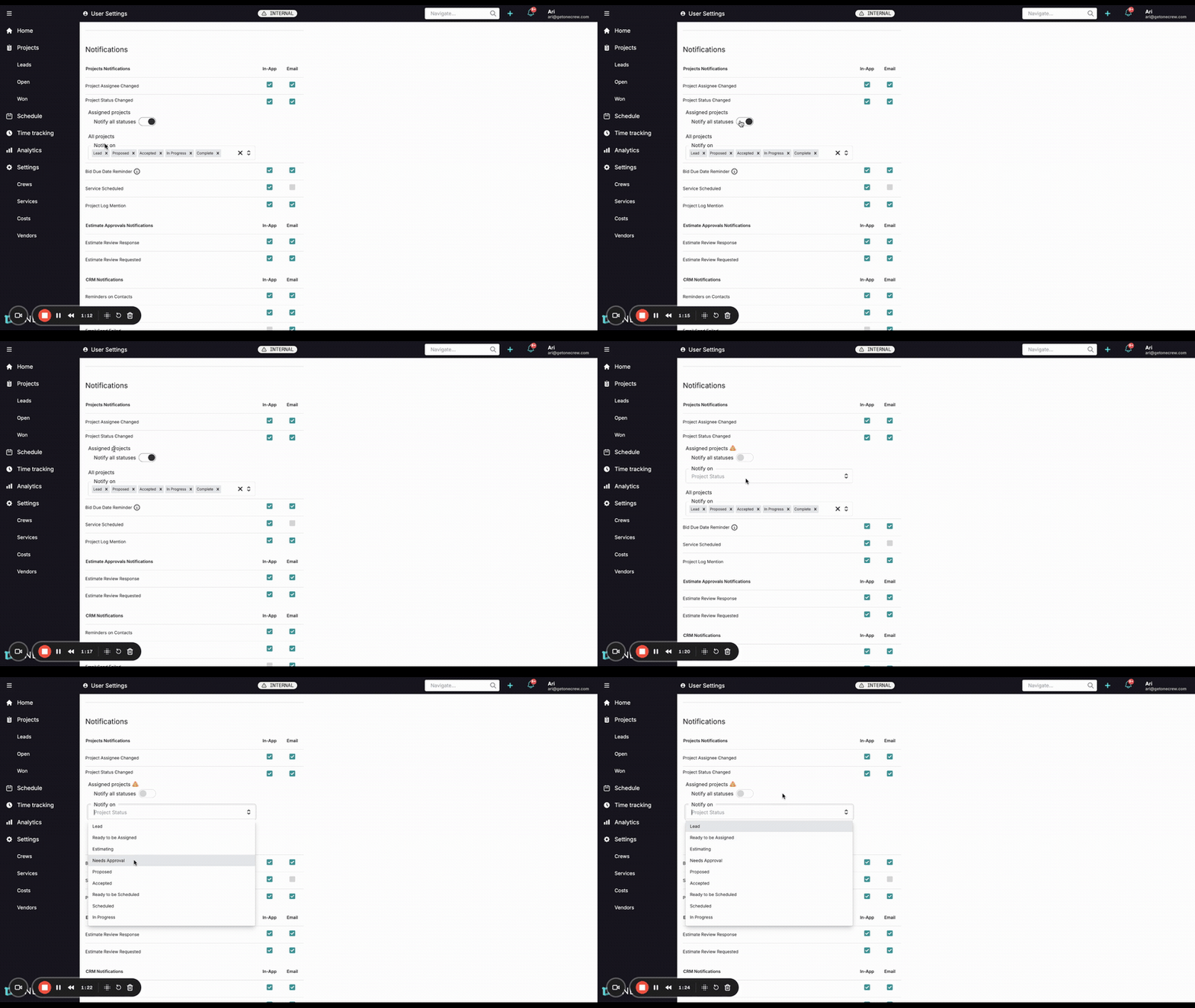
Fine-tuning your notifications allows you to focus on what's important. Follow these steps to personalize your alert settings:
Accessing Notification Settings
Navigate to your user profile. Click your profile icon, typically located in the top-right corner of the application.
Select Profile Settings from the dropdown menu.
Configuring General Notifications
Once in User Settings, scroll down to the Notifications section. Here you'll find a comprehensive list of notification types, such as Project Assignee Changed, Project Log Mention, Bid Due Date Reminder, and Estimate Review Response.
For each notification type, you can typically choose how you want to be alerted:
Check the In-App box to receive notifications within the application.
Check the Email box to receive notifications via email.
You can select both, one, or neither, depending on your preference for that specific event.
Understanding Specific Notification Constraints
Be aware that some notifications may have predefined delivery methods. For example, a critical alert like Email Send Failed might only be available via Email to ensure you're promptly informed. Conversely, an update like Service Scheduled might primarily be an In-App notification. These defaults are in place to ensure information is delivered effectively.
Customizing Project Status Change Notifications
Project Status Changed notifications are crucial for tracking project progress. You have granular control over these alerts for projects assigned to you and for all projects system-wide.
For Projects Assigned to You:
By default, you might be notified for all status changes on your Assigned projects.
To refine this, locate the Assigned projects subsection under Project Status Changed. You'll see a toggle labeled Notify all statuses.
If you turn the Notify all statuses toggle OFF, a dropdown field, often labeled Notify on Project Status, will appear. Use this to select the specific project statuses (e.g., Proposed, Accepted, In Progress) for which you want to receive notifications for your assigned projects.
Important: If the Notify all statuses toggle is OFF and you do not select any specific statuses in the Notify on Project Status dropdown, you will not receive project status change notifications for your assigned projects.
For All Projects (System-Wide):
In addition to notifications for your assigned projects, you can opt to receive alerts for specific status changes on any project in the system, regardless of assignment.
Look for the All projects subsection, which typically has a Notify on field. Here, you can select project statuses (e.g., Accepted, Complete). You will then be notified whenever any project in the system transitions to one of these selected statuses.
Pro Tip: Use the "All projects" notification setting for critical, high-level statuses like "Accepted" or "Complete." This is especially useful for roles that require oversight of overall project milestones, such as finance or management, even for projects not directly assigned to them (e.g., for invoicing or accounting updates).
Saving Your Preferences
After you have configured all your desired notification settings, scroll to the bottom of the Notifications section.
Click the Save button to apply all your changes. A confirmation message, such as "Notification settings saved," should appear at the top of the screen.
Troubleshooting
Encountering issues with your notifications? Here are a few common fixes:
Not receiving expected notifications?
Verify that the In-App or Email checkbox (or both) is selected for the specific notification type you're missing.
Crucially, ensure you've clicked the Save button at the bottom of the notifications page after making any adjustments.
For Project Status Changed notifications related to your Assigned projects: if the Notify all statuses toggle is OFF, double-check that you have selected at least one specific status in the Notify on Project Status dropdown.
Receiving too many notifications?
Review your settings and deselect notifications for events that are not critical to your daily tasks.
For Project Status Changed alerts, consider refining your selections. Instead of using Notify all statuses for assigned projects, toggle it off and choose only the most relevant statuses. Similarly, be selective with statuses chosen for All projects notifications.