Per-User Estimate Approval Thresholds
Last updated: August 7, 2025
Watch Video Demo Here
Overview
This tutorial will guide you through setting up User Approval Price Overrides for estimates. This feature allows you to define specific approval price thresholds for individual sales users, giving you more granular control over your team's estimating process. Instead of a one-size-fits-all approval limit, you can tailor thresholds based on experience, role, or other criteria, streamlining workflows for some while maintaining necessary oversight for others.
Step-by-Step Guide
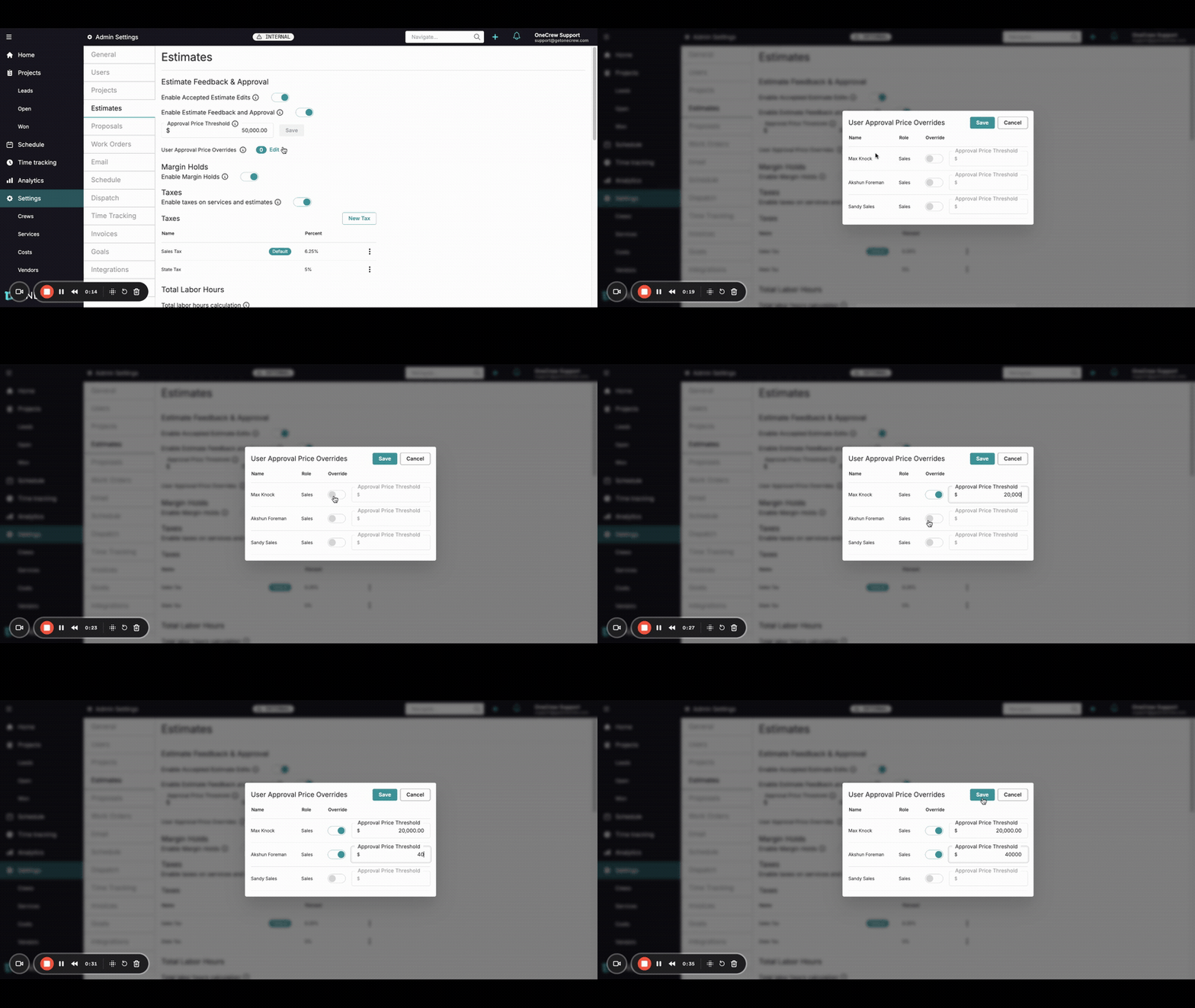
Setting up per-user approval thresholds involves a few key steps within your Admin Settings. This allows specific users to operate with different approval limits than the general setting.
Navigate to Estimate Settings: Access your Admin Settings from the main navigation menu. Within Admin Settings, select Estimates.
Locate Approval Settings: On the Estimates page, find the Estimate Feedback & Approval section. Here, you'll see the general Approval Price Threshold (e.g., $50,000). This is the default limit if no specific user override is set.
Access User Overrides: Below the general threshold, locate the User Approval Price Overrides option. You may see a number next to it (e.g., a "2" in a circle), indicating how many overrides are currently active. Click the Edit button next to this option.
Configure Individual User Thresholds: A modal titled User Approval Price Overrides will appear, listing your sales users (e.g., Max Knock, Akshun Foreman, Sandy Sales). For each user you wish to set a custom threshold for:
Enable the Override toggle switch next to their name. This switch will turn from gray to blue, indicating it's active.
Enter the desired Approval Price Threshold in the dollar amount field for that user. For example, you might set $20,000 for one user and $40,000 for another.
Insight: This granular control empowers experienced users to manage larger estimates without needing immediate approval, while ensuring newer team members adhere to stricter limits, fostering both efficiency and risk management.
Understand Default Behavior: If a user's Override toggle is left off (grayed out), or if no value is entered in their Approval Price Threshold field, they will automatically fall back to using the general Approval Price Threshold set in step 2.
Save Your Changes: Once you have configured all desired user-specific thresholds, click the Save button at the top right of the modal. A confirmation message, such as "Approval Overrides Updated," will briefly appear on the main Estimates page. The number next to User Approval Price Overrides will update to reflect the count of active overrides.
Troubleshooting
User Not Listed for Override: If a specific user doesn't appear in the User Approval Price Overrides modal, ensure they have the appropriate role (e.g., Sales) and permissions within the system that make them eligible for estimate creation and approval overrides. [add link to relevant article on user roles]
Override Not Taking Effect:
Double-check that the Override toggle is enabled (blue) for the specific user in the User Approval Price Overrides modal.
Confirm that you clicked the Save button in the modal after making changes.
General Threshold Still Applying: If a user is still being subjected to the general threshold, verify that their individual override was correctly set, enabled, and saved. If the override field for that user is blank or the toggle is off, they will correctly use the general threshold.
Pro Tip: Periodically review your user-specific thresholds, especially when team members change roles or gain more experience, to ensure the limits remain appropriate and effective.