Resolving Map Coordinate Issues
Last updated: August 7, 2025
Watch Video Demo Here
Overview
This guide helps you troubleshoot and resolve common issues where the map feature in your project does not display the correct location or shows an error related to "No site address coordinates set." We'll walk you through a straightforward method to refresh site coordinates and ensure your maps load accurately.
Symptoms & Causes
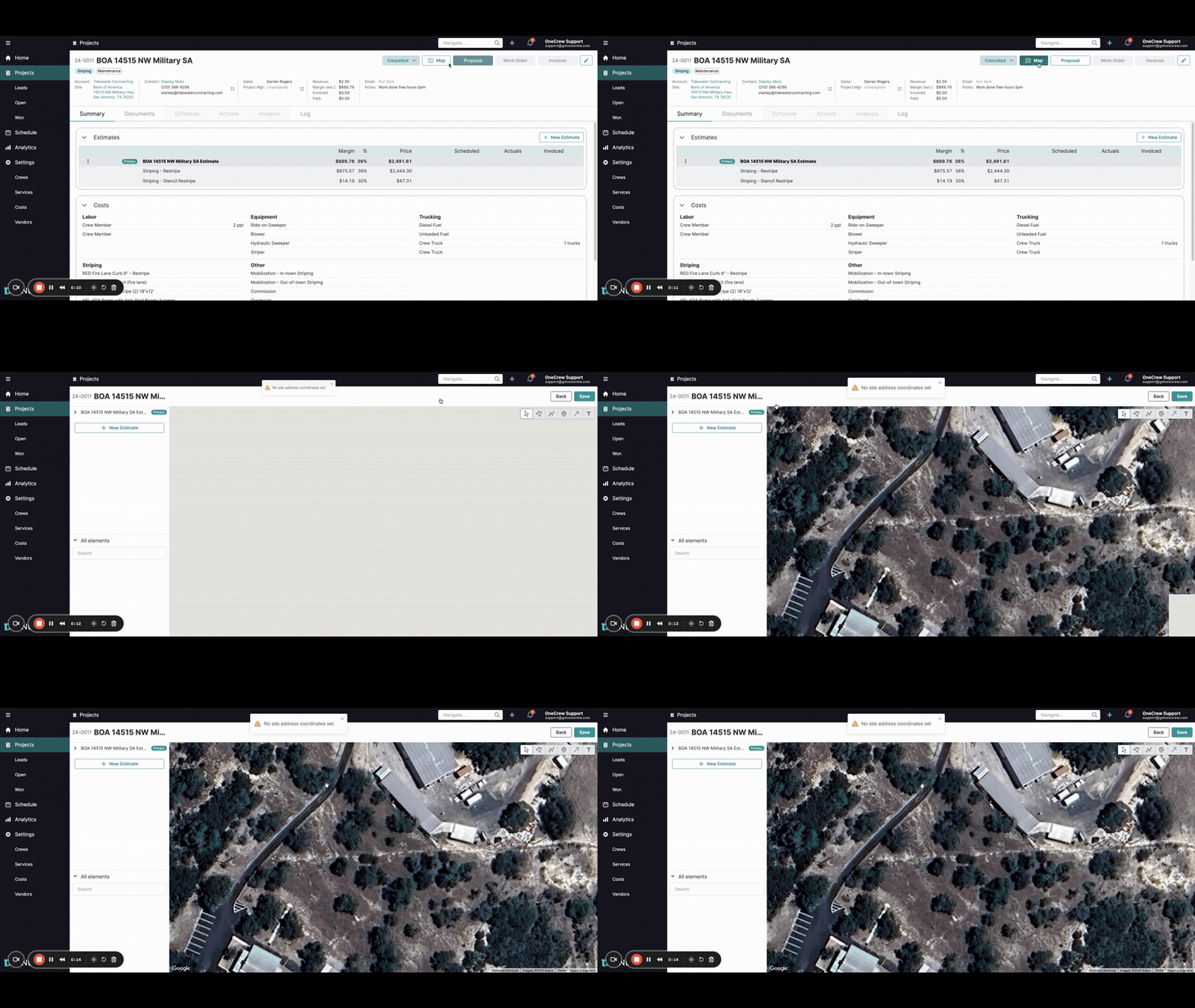
Symptom: When attempting to view a project's location by clicking the Map button, you encounter a "No site address coordinates set" error message at the top of the map view.
Symptom: The map view might be blank, zoomed out, or not centered on the expected site location, even if an address is associated with the project.
Cause: This issue typically arises when the system hasn't fully registered or refreshed the site's geographical coordinates. Even if an address is entered and coordinates appear to be set in the site details (often indicated by a green checkmark next to Coordinates), a refresh may be needed to correctly link them to the map display.
Step-by-step Resolutions
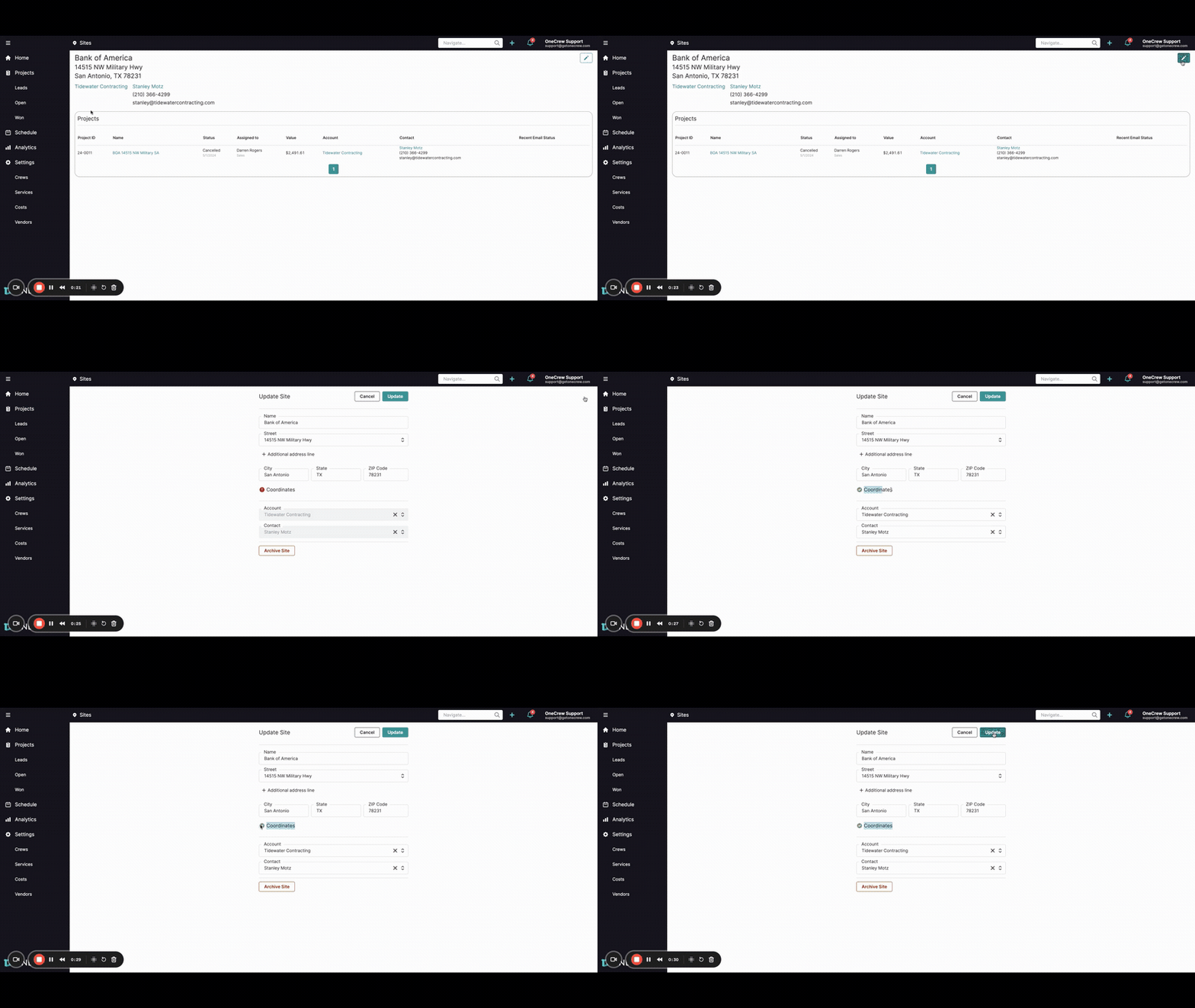
If you're facing issues with map coordinates not displaying correctly, follow these steps to refresh the site information:
Navigate to the specific Project that has the map display issue from your main Projects list.
Once on the project's Summary tab, click the Map button located near the top of the page.
If you observe the "No site address coordinates set" error or an incorrectly loaded map, click the Back button to return to the project Summary tab.
On the project Summary page, locate the Site information (e.g., "Bank of America" along with its address "14515 NW Military Hwy"). Click on the hyperlinked site address. This action will take you to the dedicated Sites page for that location.
On the Sites page, click the Edit pencil icon, typically found in the top-right corner of the screen.
The Update Site form will appear. You will likely see that the Coordinates field already has a green checkmark, indicating that coordinates are technically associated with the site.
Without making any other changes to the site information, simply click the Update button.
Insight: Clicking Update on the site details, even without altering any fields, forces the system to re-process and confirm the existing coordinates. This often resolves synchronization issues that prevent the map from loading correctly.
After the site successfully updates, you need to navigate back to your project. You can typically do this by clicking on the project name listed under the "Projects" section on the current Sites page, or by using the main navigation menu to go back to Projects and then selecting your project again.
Once you are back on the project's Summary tab, click the Map button again.
The map should now load correctly and display the proper location for your project site.
Additional tools & logs
For this specific issue of refreshing map coordinates, no special third-party tools or log file analysis are typically required. The resolution outlined above involves using the standard interface to refresh the existing site data.
If the problem persists after carefully following these steps, or if you encounter different error messages, it may indicate a more complex issue. In such cases, please consider reaching out to our support team for further assistance. [add link to relevant article]