Mapping: A Guide
Last updated: August 7, 2025
Watch Video Demo Here
Overview
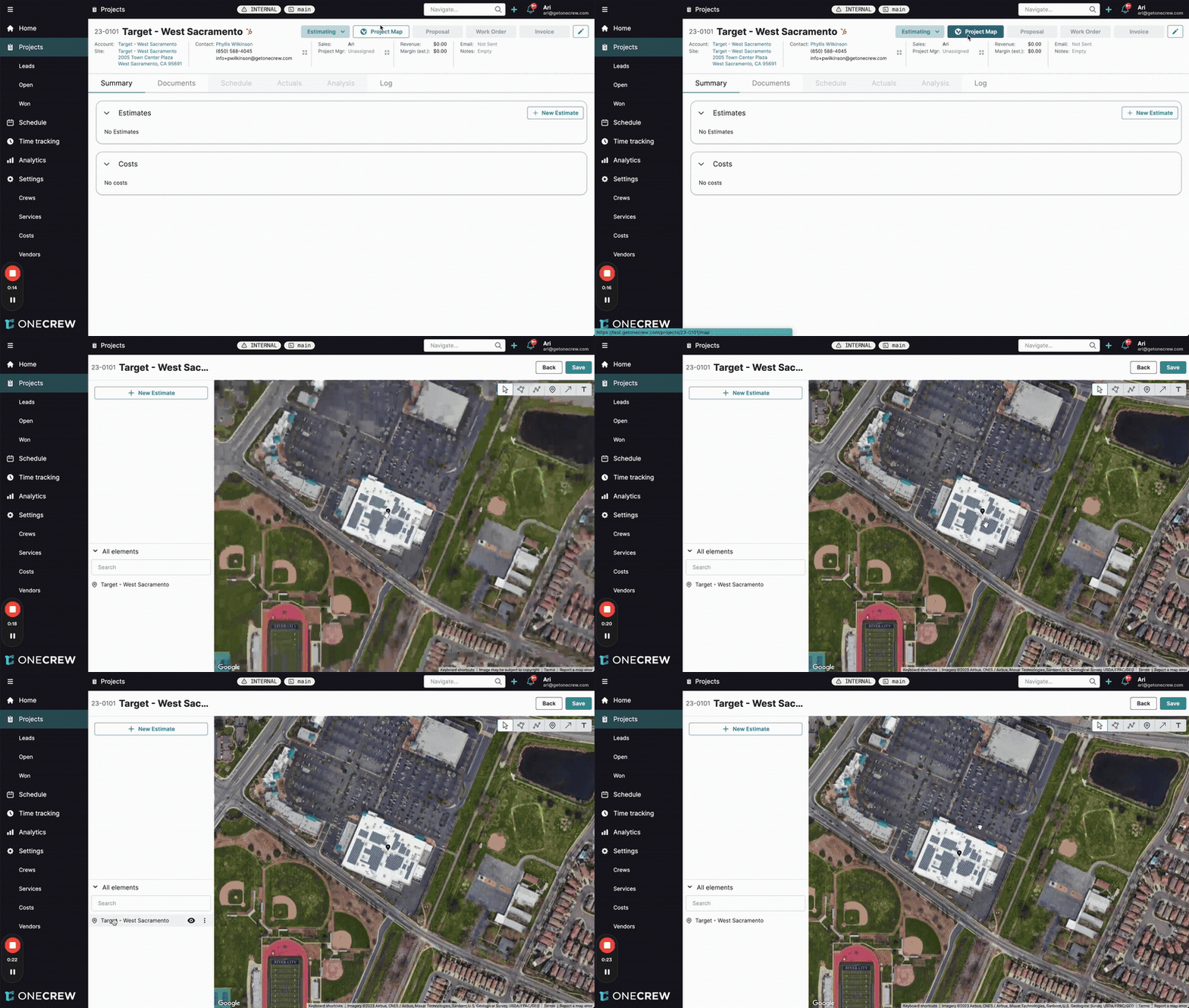
The Project Map feature provides a powerful visual tool for defining and measuring work areas directly on a satellite or aerial image of your job site. Its primary purpose is to enable precise takeoffs for estimates by allowing users to draw shapes, measure distances, and calculate areas for different project components. This visual approach enhances accuracy, improves communication with clients and crews, and streamlines the estimation process.
Key benefits include:
Enhanced Accuracy: Visually outlining work areas reduces guesswork and ensures measurements are based on the actual site conditions.
Improved Visualization: Clearly see the scope of work, making it easier to plan and communicate project details.
Streamlined Estimating: Mapped measurements can be directly linked to estimate line items, automatically populating quantities and saving significant time.
Professional Proposals: Include a visual map in your proposals, giving clients a clear understanding of what's included in the quote.
This feature is integral to projects requiring site-specific measurements, such as paving, landscaping, construction, and more.
Configuration
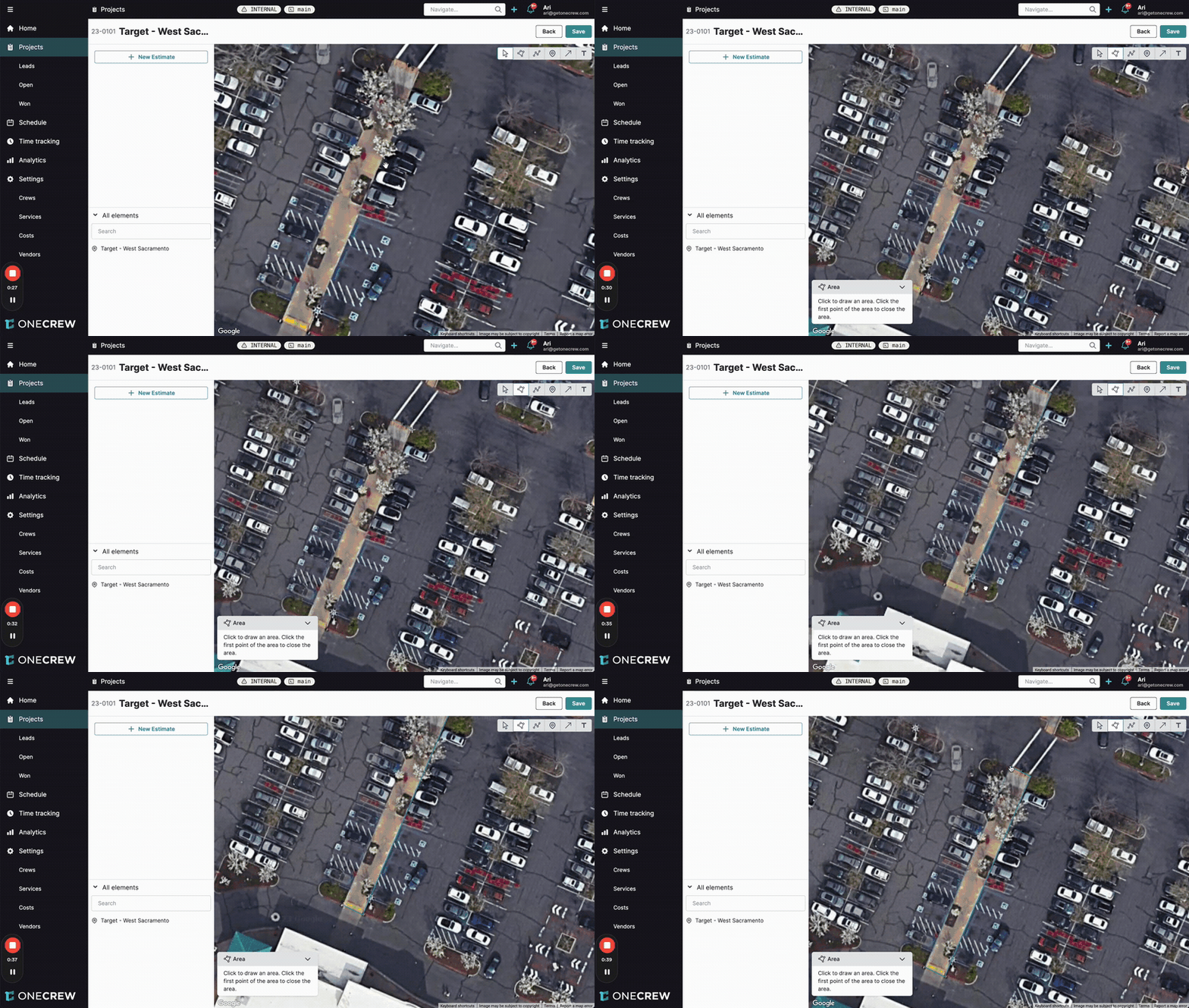
The Project Map offers several tools and options to accurately capture site details:
Drawing Tools
Area Tool: Click points on the map to draw polygons representing specific work zones (e.g., a section of a parking lot, a sidewalk). The system automatically calculates the square footage (or other relevant area unit).
Cutout Tool: Within an existing drawn area, use this tool to define sections that should be excluded from the measurement (e.g., planters within a sidewalk, existing structures within a paving area). This ensures you're only measuring the net area requiring work.
Line Tool: (Implied, common for mapping) Measure linear distances for items like curbing, fencing, or trenching.
Point Tool: (Implied, common for mapping) Mark specific locations for items like tree installations, light posts, or repair spots.
Styling and Appearance
Once an element is drawn, you can customize its appearance for better visual organization:
Fill Color and Opacity: Change the color and transparency of drawn areas to differentiate between materials (e.g., light grey for concrete, dark grey for asphalt) or work phases.
Stroke Color and Weight: Modify the color and thickness of the border lines for drawn elements.
Text Labels and Naming
Text Tool: Add text labels directly onto the map to provide descriptions or callouts for specific areas (e.g., "Asphalt Remove & Replace," "Sidewalk Replacement").
Element Naming: In the All elements sidebar, each drawn shape or text label can be renamed from its default (e.g., "Area 1") to something more descriptive (e.g., "Main Parking Lot Asphalt," "Front Walkway Concrete"). This makes it easier to manage multiple mapped items.
Text Formatting: Adjust the Font size, Text color, and Width settings (e.g., Fit to text or fixed width) for labels to ensure they are legible and fit appropriately on the map.
Linking Mapped Elements to Estimates
This is where the Project Map truly powers your estimates:
After drawing and configuring your map elements, create or open an estimate.
Add services to your estimate (e.g., "Asphalt - Full Depth Repair," "Concrete - Sidewalks").
For each service that requires a site measurement, you can link a corresponding mapped element:
Click the three-dot menu next to the service in the estimate detail view (or when adding the service from the map view).
Select the drawn area or text label from the map that represents the work for that service.
The measurement (e.g., square footage) from the selected map element will automatically populate the quantity for that service in your estimate.
Pro tip: Use distinct colors and clear labels for different materials or work types on your map. This not only helps in organizing your takeoff but also makes the map more understandable when included in client proposals.
Use Cases
The Project Map feature is invaluable in various scenarios:
Paving and Concrete Work: Accurately measure areas for asphalt repair, new concrete pours (like sidewalks or driveways), or sealcoating. The ability to create cutouts for islands or existing structures ensures precise material calculations.
Landscaping Projects: Define garden beds, lawn areas for sodding or seeding, or paths for hardscaping. Measure linear footage for edging or fencing.
Exterior Renovations: Outline building perimeters for siding replacement, or map specific wall sections for painting.
Client Communication: Use the map during site walks or in proposals to visually confirm the scope of work with clients, minimizing misunderstandings.
Internal Planning: Share detailed maps with your crew so they have a clear visual reference of the work areas when they arrive on site.
Insight: By integrating visual mapping directly into the estimation workflow, you transform a traditionally manual and error-prone task into a precise and efficient process. The map becomes a single source of truth for project scope measurements.
Examples
Let's explore how the Project Map helps solve real-world estimating challenges:
Example 1: Basic Asphalt Patch Repair
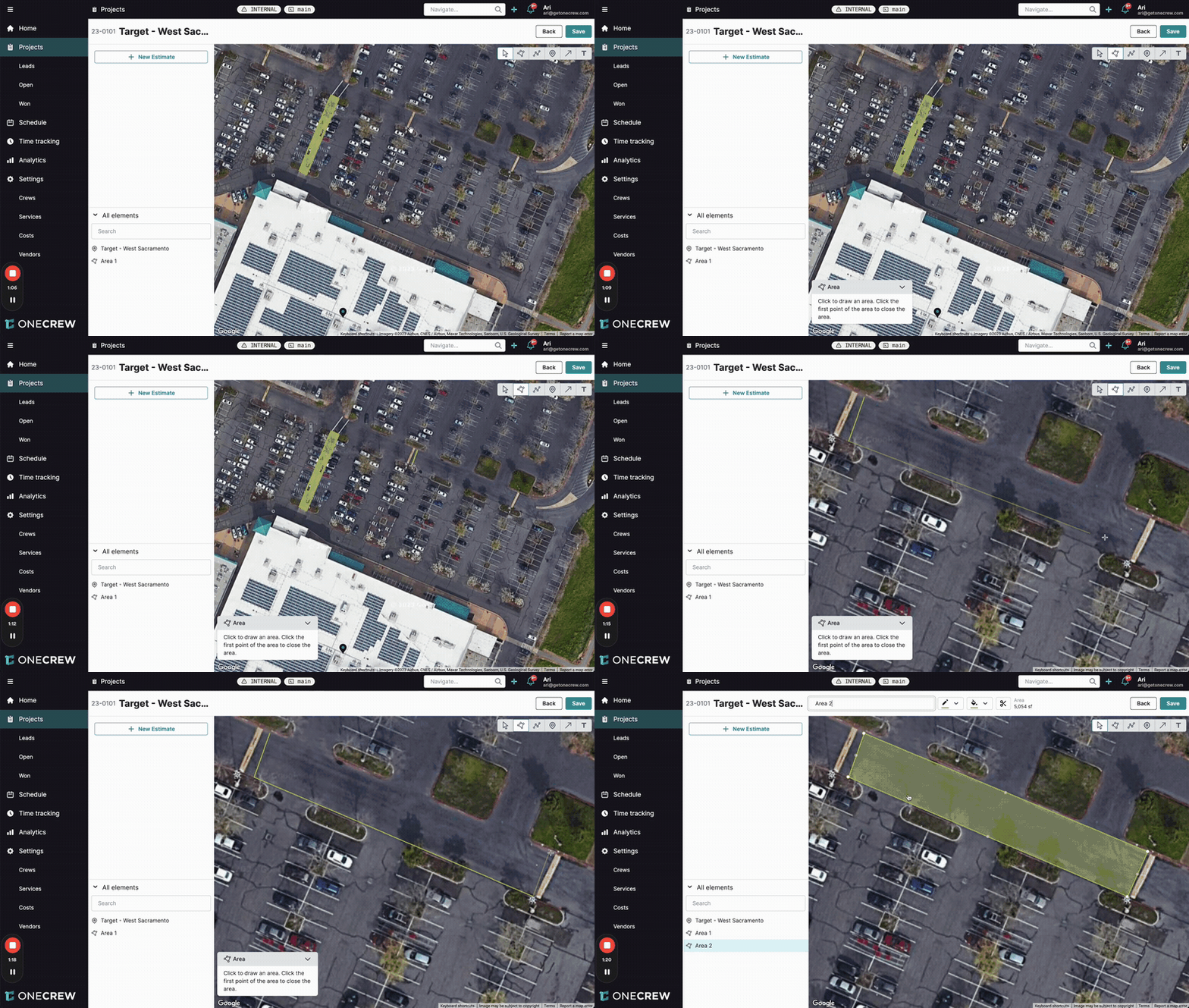
Problem: You need to estimate the cost of repairing a rectangular section of damaged asphalt in a parking lot.
Solution:
Navigate to the Project Map for the relevant project.
Zoom into the parking lot area.
Select the Area tool.
Click the four corners of the asphalt section to be repaired. The system will display the calculated square footage.
In the All elements list, rename the drawn area to "Asphalt Patch - Section 1."
Optionally, change the Fill Color to a dark grey to represent asphalt.
Click Save on the map.
Go to your estimate (or create a new one by clicking + New Estimate from the map view).
Add a service like "Asphalt Patching."
Link the "Asphalt Patch - Section 1" map element to this service. The square footage will automatically populate, allowing your pre-defined material and labor rates to calculate the cost.
Example 2: Complex Sidewalk Replacement with Cutouts
Problem: You need to estimate the replacement of a concrete sidewalk that has several existing tree planters within it. You only want to charge for the actual concrete area.
Solution:
Open the Project Map.
Use the Area tool to draw the outer boundary of the entire sidewalk section.
Select the Cutout tool.
Click within the main sidewalk area you just drew, then trace the outline of the first tree planter. Repeat for all planters. The system will automatically subtract the area of these cutouts from the total sidewalk area.
Rename the main area to "Sidewalk Replacement."
Change the Fill Color to light grey for concrete.
Use the Text Tool to add a label like "Sidewalk Replacement - North Entrance" directly on the map near the area.
Click Save on the map.
In your estimate, add a service like "Concrete Sidewalk Replacement."
Link the "Sidewalk Replacement" map element to this service. The net square footage (total area minus cutouts) will be used for accurate costing.
Example 3: Presenting the Scope in a Proposal
Problem: You want to clearly show your client exactly which areas are included in your paving proposal.
Solution:
After creating your estimate and linking all mapped areas as described above, navigate to the Proposal tab for the project.
Ensure your estimate (which contains the linked map data) is included in the proposal sections.
Scroll down to the Project Map section within the proposal editor.
Click Show Project Map. An image of your map, complete with drawn areas and labels, will be embedded into the proposal.
When you send the live web proposal to your client, they will see this map. They can even interact with it (zoom and pan) to get a detailed view of the proposed work areas.
This visual confirmation helps build client confidence and reduces the likelihood of scope disputes later on.