Cutouts and Shortcuts
Last updated: August 7, 2025
Watch a Video Demo Here
Overview
This tutorial will guide you through creating and managing cutouts within your plan takeoffs, a crucial step for accurately calculating material needs by excluding areas like internal islands, obstructions, or openings. By defining cutouts, you ensure your measurements reflect only the relevant surfaces. We'll also cover new keyboard shortcuts to help you work more efficiently.
Step-by-Step Guide
Creating Cutouts
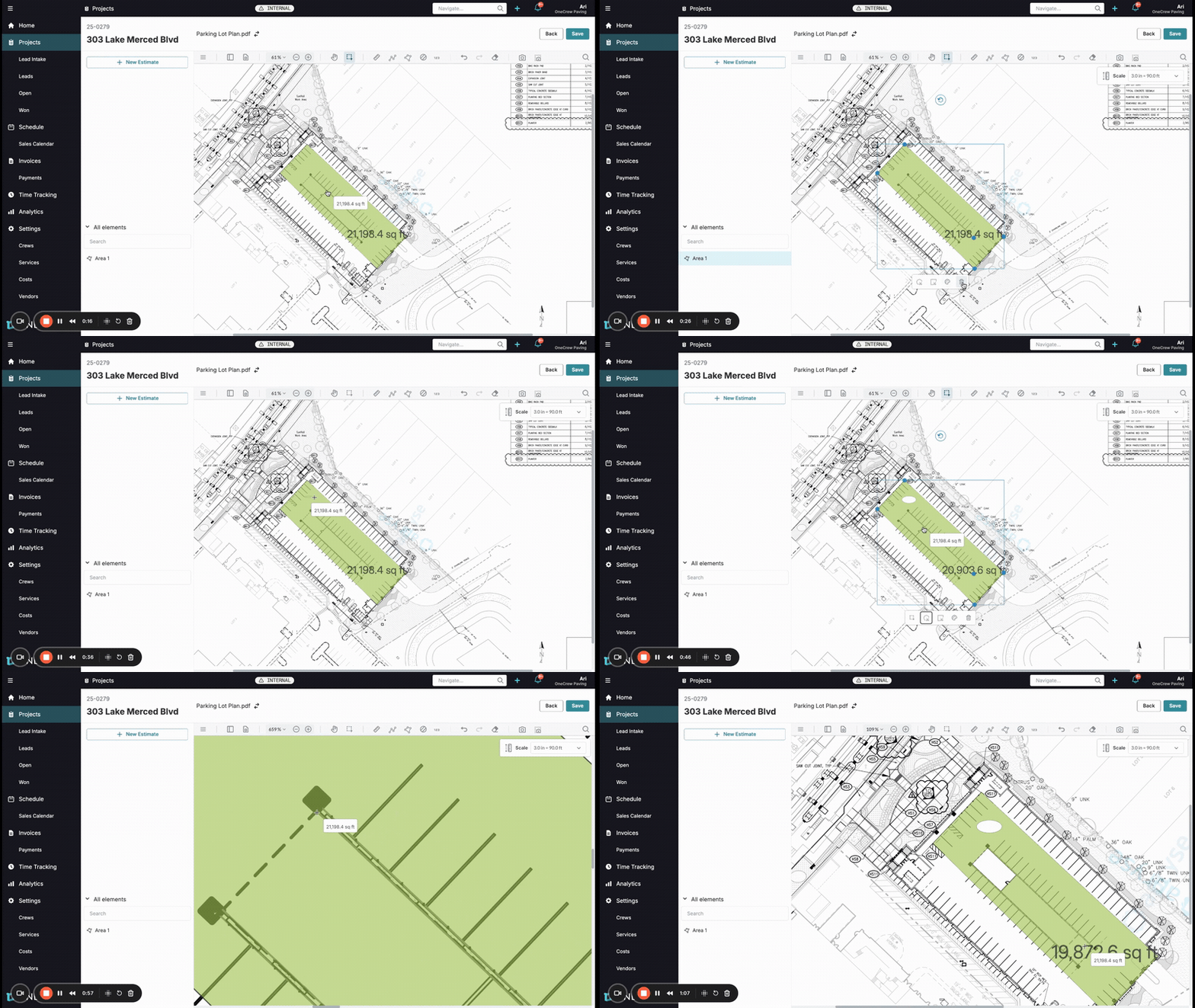
Once you've defined an area on your plan (e.g., a parking lot) and set the scale, you might need to exclude portions from your measurement, such as landscaped islands or existing structures.
Select the Measured Area: Click on the existing measured area on your plan. A contextual menu will appear at the bottom of the selected area.
Choose Your Cutout Tool: In this menu, alongside options like Style and Delete, you'll find two new tools for creating cutouts:
Ellipse Cutout: Click this icon (often resembling a circle with a dashed inner circle). Then, click and drag within your selected area to draw a circular or oval exclusion.
Polygon Cutout: Click this icon (often resembling a polygon with a dashed inner polygon). Then, click point-by-point within your selected area to outline the custom shape you want to exclude. Click the first point again or double-click to complete the polygon.
Observe Area Updates: As you complete each cutout, the total square footage (or other unit) displayed for your main area will automatically decrease, reflecting the excluded portion.
Insight: Cutouts are essential for precision. They allow you to subtract non-work areas from a larger takeoff, ensuring your material calculations and estimates are based on the actual surface requiring attention.
Add Multiple Cutouts: You can repeat the process to add as many ellipse or polygon cutouts as needed within the same parent area.
Exit Cutout Mode: After creating your cutouts, press the Escape key on your keyboard to exit the active cutout tool and return to the standard selection mode.
Modifying and Managing Cutouts
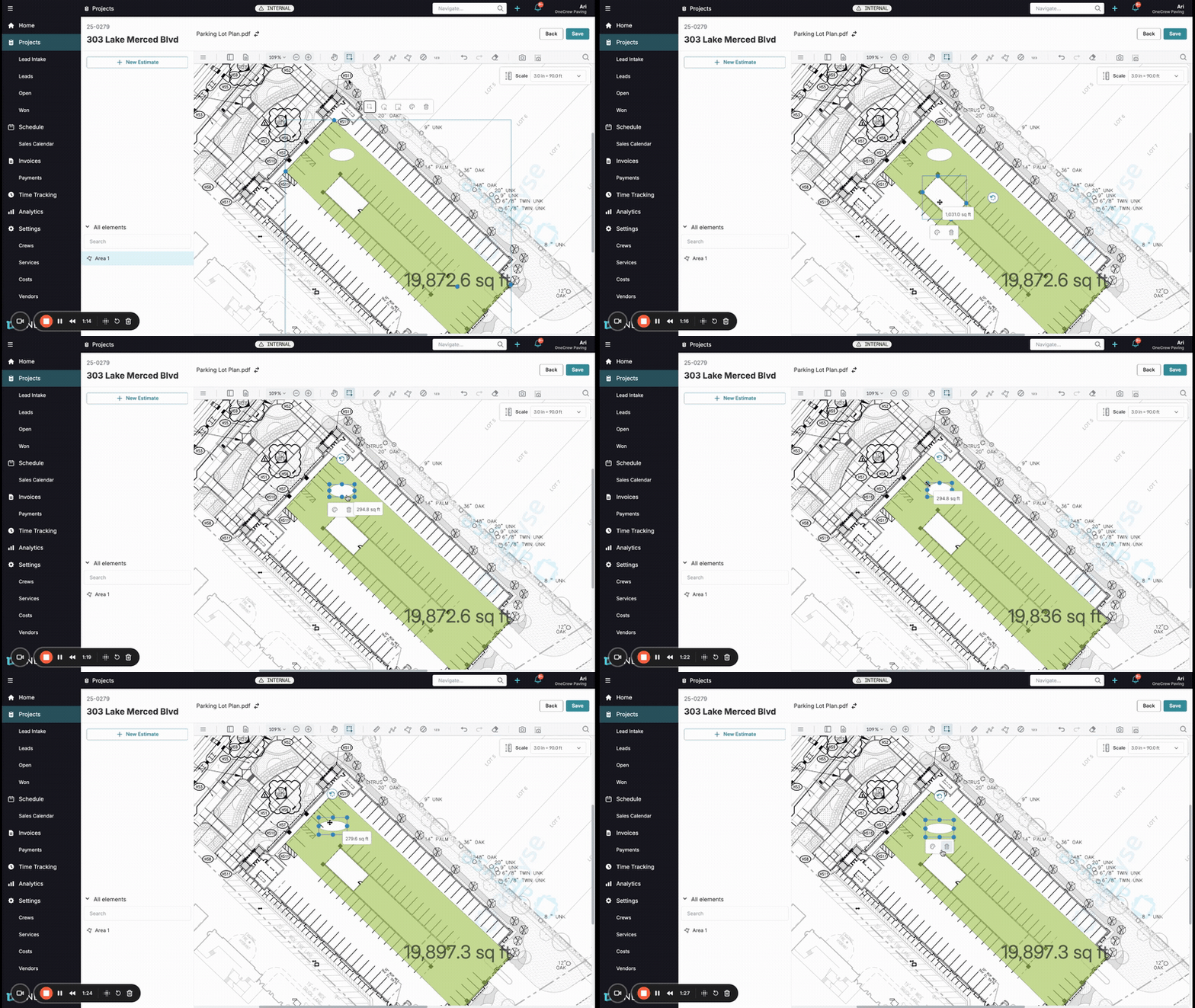
Adjustments to your cutouts are straightforward.
Select a Cutout: Click directly on a cutout shape within your larger measured area. Alternatively, if the main area is selected, you might see a Select Cutouts button in its contextual menu, which can help isolate cutouts for selection.
Adjust Dimensions: Once a cutout is selected, control handles will appear around its perimeter. Click and drag these handles to resize or reshape the cutout as needed. The overall area calculation for the parent shape will update instantly.
Move a Cutout: Click and drag the body of the selected cutout to reposition it within the parent area.
Style or Delete Cutouts: When a cutout is selected, its own contextual menu will appear, offering options to change its Style (e.g., appearance) or Delete the cutout entirely.
Discovering Takeoff Tool Shortcuts
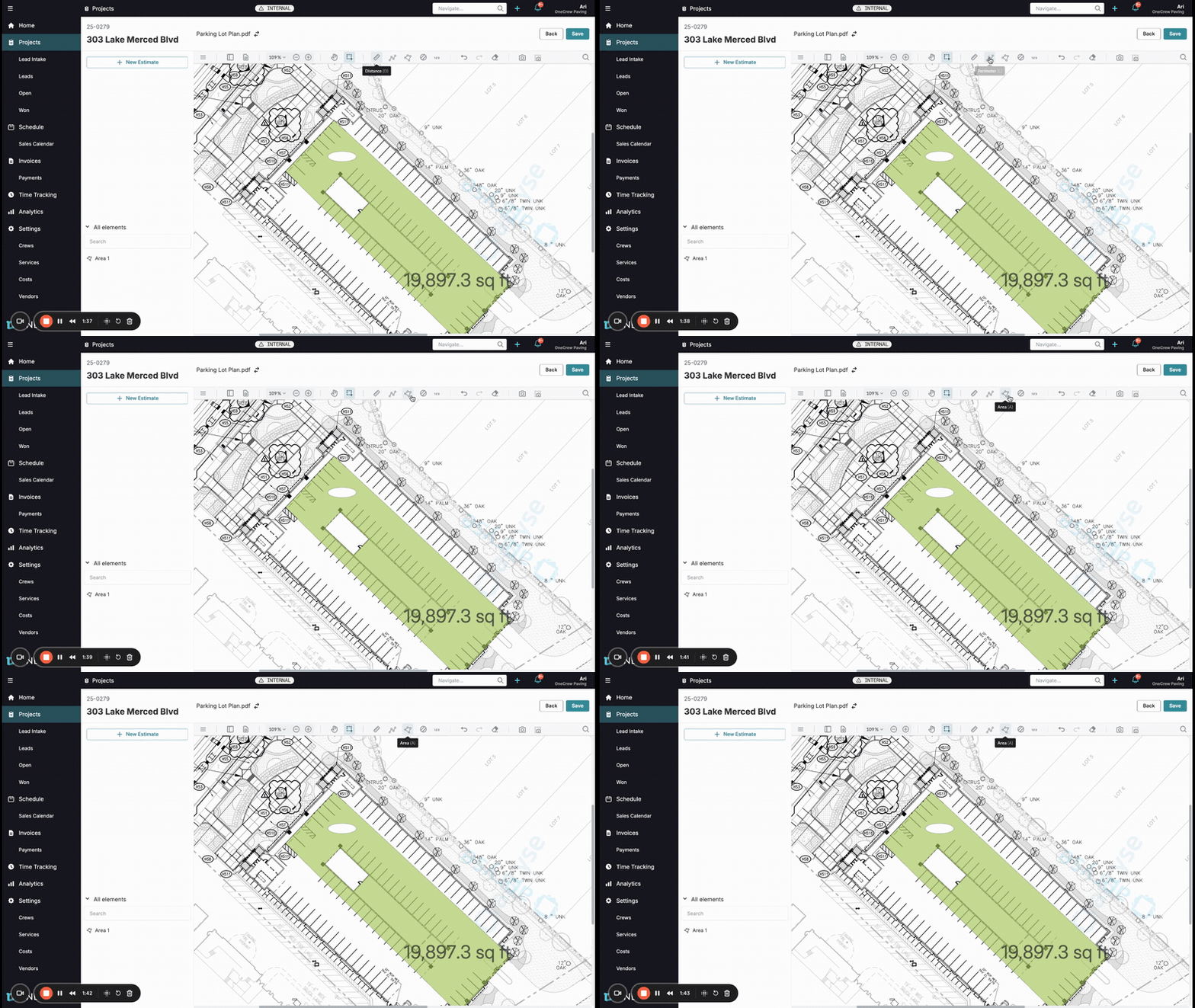
Boost your productivity by utilizing new keyboard shortcuts for various takeoff tools.
Hover to Reveal: In the main plan takeoff toolbar (usually at the top of the plan view), hover your mouse cursor over tool icons such as Distance, Perimeter (Length), or Area.
Note the Shortcut: A tooltip will appear, displaying the tool's name and its assigned keyboard shortcut in parentheses (e.g., Distance (D), Perimeter (L), Area (A)).
Pro Tip: These handy shortcuts aren't limited to plan takeoffs; they also apply when you're working with mapping takeoffs, ensuring a consistent and efficient workflow across different views.
Activate with Key: To use a shortcut, simply press the indicated letter on your keyboard to activate that specific measurement tool.
Troubleshooting
Cutout Not Subtracting Area: Ensure the cutout is created inside an already existing and selected measured area. If drawn independently, it won't be linked.
Cannot Select an Existing Cutout: You might still be in a drawing mode. Press the Escape key to return to the selection tool. If direct clicking is troublesome, select the parent area and look for a Select Cutouts option.
Keyboard Shortcuts Not Working: Verify that you are actively working within the Plan Takeoff or Mapping Takeoff interface, as shortcuts are context-sensitive to the current tool or view.