Lead Intake: A Guide
Last updated: August 7, 2025
Overview
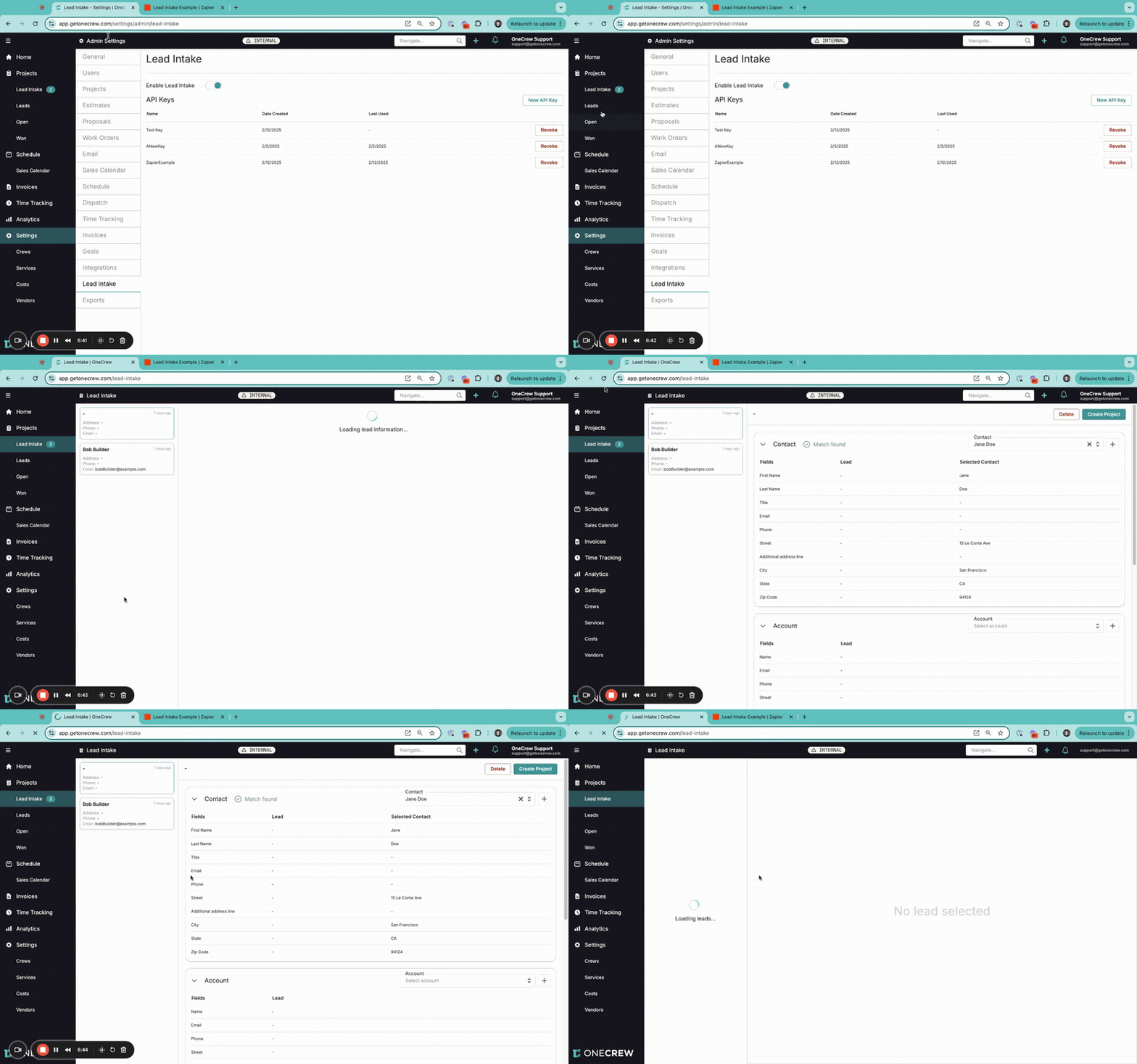
The Lead Intake feature in OneCrew is designed to revolutionize how you capture and manage potential customer inquiries. Its primary purpose is to automate the process of bringing lead data from various external sources—such as your website's contact forms, email marketing campaign responses, or third-party lead generation services—directly into your OneCrew environment. This eliminates manual data entry, reduces the risk of errors, and ensures that every potential opportunity is promptly logged and available for your team to act upon.
The scope of Lead Intake extends from connecting with virtually any online form, most commonly via Zapier, to intelligently processing this information within OneCrew. Once a lead arrives, it can be reviewed, matched with existing records, and seamlessly converted into a project. The key benefits include a significant boost in operational efficiency, faster lead response times, centralized lead management, and a clearer pipeline from initial inquiry to project execution. By bridging the gap between your marketing efforts and your operational workflow, Lead Intake ensures no opportunity falls through the cracks.
Configuration
Setting up Lead Intake involves configuring OneCrew to accept incoming leads and then establishing a connection with your lead source, typically using Zapier.
Enabling Lead Intake in OneCrew
Navigate to Settings from the main OneCrew menu.
In the Admin Settings panel on the left, click on Lead Intake.
You'll see a toggle for Enable Lead Intake. Click this toggle to switch it to the "on" (green) position. This activates the feature for your OneCrew account.
Generating an API Key
To allow external services like Zapier to securely send data to your OneCrew account, you'll need an API key.
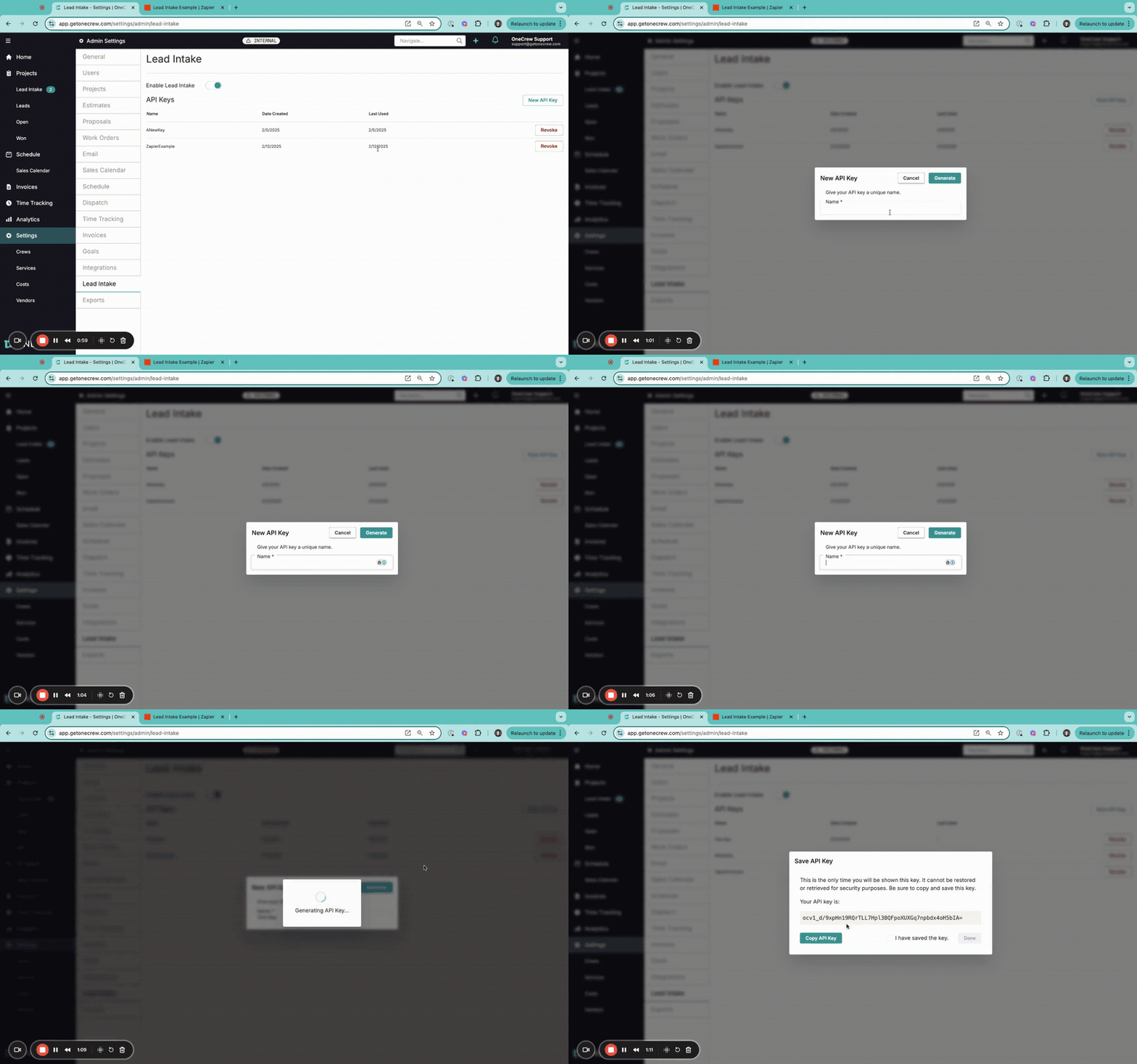
While still in the Lead Intake settings page, locate the API Keys section.
Click the New API Key button.
A dialog box will appear. In the Name field, enter a descriptive name for your key (e.g., "Zapier Website Form"). This helps you identify its purpose later.
Click Generate.
A new dialog will display your API key.
Important: This is the only time your full API key will be visible. You must copy it now and store it in a safe, secure location (like a password manager). It cannot be retrieved later for security reasons.
After copying the key, check the box next to "I have saved the key."
Click Done. The key will now appear in your list of API Keys.
Setting up Zapier Integration
Zapier acts as the intermediary, connecting your lead forms to OneCrew. Here's a general guide using Google Forms as an example trigger:
Create a Trigger in Zapier:
Log in to your Zapier account and create a new Zap.
For the trigger, search and select your lead source application (e.g., Google Forms, HubSpot CRM, Webhooks by Zapier for custom forms).
Choose the appropriate trigger event (e.g., for Google Forms, select New Form Response).
Connect your application account to Zapier if you haven't already.
Configure the trigger by specifying the form or data source.
Test your trigger to pull in sample data. This sample will be used for field mapping in the next step.
Set up the OneCrew Action in Zapier:
Add an action step to your Zap.
Search for and select the OneCrew app.
For the "Action Event," choose Create Lead.
Connect your OneCrew account. Click Connect a new account. Zapier will prompt you for the API Key you generated and saved from OneCrew. Paste your key here.
Field Mapping: This is where you tell Zapier how to send data from your form to OneCrew. For each OneCrew field, select the corresponding field from your trigger app's sample data.
Contact Fields: Map fields like Contact first name, Contact last name, Contact email, Contact phone number, Contact street address, Contact city, Contact state, Contact zip code.
Account Fields: Map business-related information to Account name, Account email, etc. Often, for new leads, account information might mirror contact information or be based on a company name provided.
Site Fields: Map address details to Site name (you can combine fields, e.g.,
Company Name - City), Site street address, Site city, Site state, and Site zip code.Other Useful Fields:
Project lead source: You can map a field from your form if you collect this, or enter static text (e.g., "Website Lead Form") to identify the origin of leads from this Zap.
Project note: Map any additional comments or specific service requests here. You can combine multiple form fields into this note.
After mapping all desired fields, test the action. Zapier will attempt to send the sample data to OneCrew.
If the test is successful, publish your Zap. It is now live and will automatically create leads in OneCrew when new form submissions occur.
Pro Tip: When mapping fields in Zapier, you can combine dynamic data from your trigger with static text. For example, for the Site Name field in OneCrew, you could map the Company Name field from your form, add a static hyphen (-), and then map the City field from your form to create a structured site name like "McDonald's - Sacramento".
Use Cases
The Lead Intake feature is invaluable in a variety of scenarios where capturing and processing new business opportunities efficiently is crucial:
Website Lead Generation: Automatically pull inquiries from your website’s "Contact Us," "Request a Quote," or service-specific landing page forms directly into OneCrew. This ensures immediate visibility for your sales team.
Marketing Campaign Integration: Connect forms used in your marketing campaigns (e.g., on landing pages for special offers) to feed leads into OneCrew, allowing for quick follow-up and performance tracking.
Third-Party Service Consolidation: If you use external lead generation platforms or services, Zapier can act as a bridge to bring those leads into your centralized OneCrew system.
Standardized Lead Processing: Ensure all incoming inquiries, regardless of their origin, are processed through a consistent channel, making it easier to manage, assign, and track progress.
Improving Sales Team Responsiveness: By getting leads into the hands of your sales team faster and with all necessary initial information, you can significantly improve response times and conversion rates.
Insight: Lead Intake transforms scattered inquiries into actionable opportunities within OneCrew, bridging the gap between marketing efforts and sales operations and ensuring a smoother transition from prospect to project.
Examples
Here’s how Lead Intake streamlines processes in real-world scenarios:
Scenario 1: New Lead from a Website Quote Request
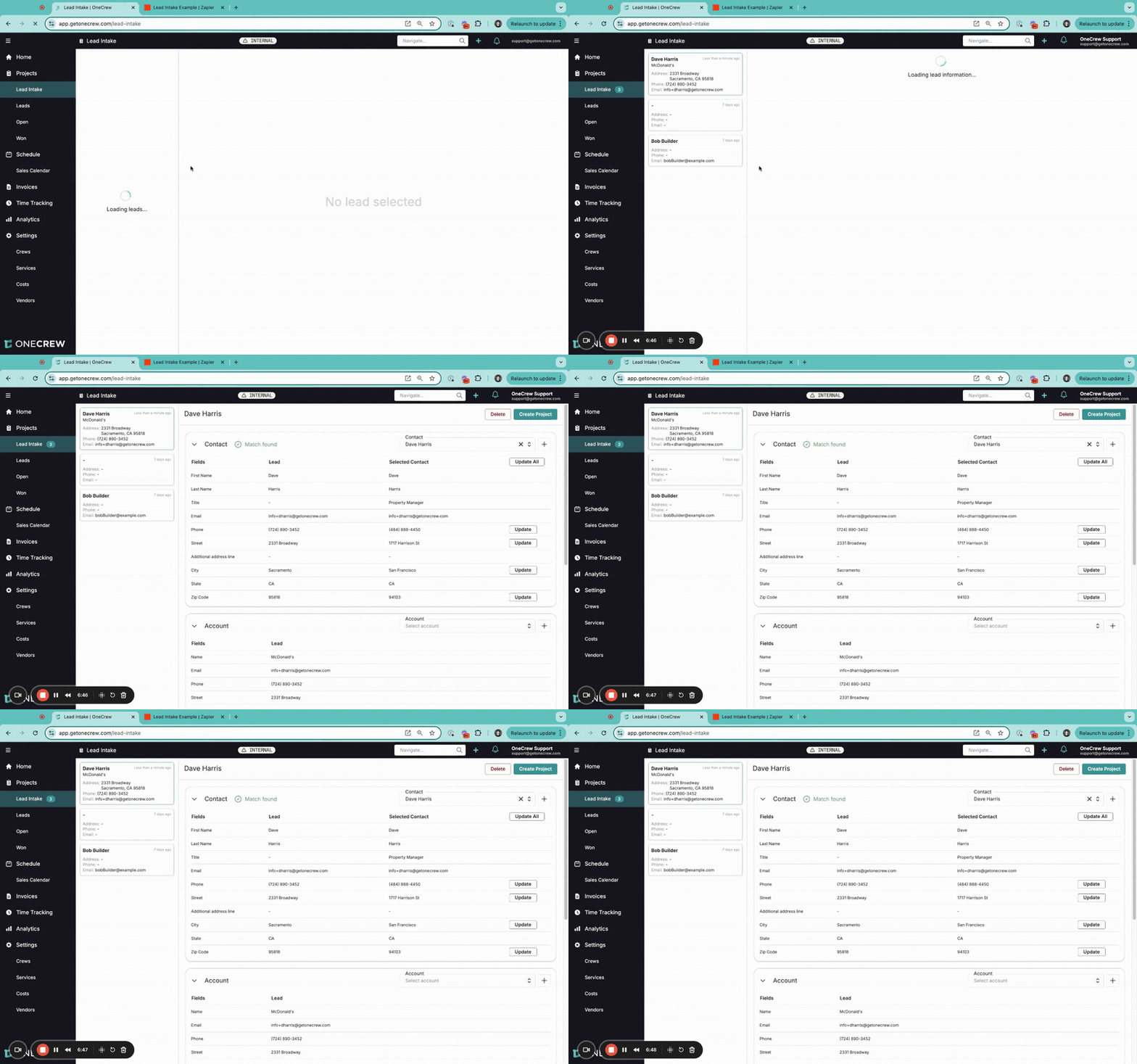
A prospective client, Dave Harris from McDonald's, visits your company website and fills out a "Request a Quote" form, providing his name, company, email, phone, and project address (e.g., 2331 Broadway, Sacramento, CA 95818).
Your Zapier integration, connected to this form, triggers instantly.
The Zapier action creates a new lead in OneCrew. The field mapping ensures Dave's first name goes to Contact first name, "McDonald's" to Account name, "2331 Broadway" to Contact street address and Site street address, and so on. The Project lead source is automatically set to "Website Lead Form."
The new lead for "Dave Harris - McDonald's" appears in the Lead Intake tab (found under Projects in the main navigation) within OneCrew.
A sales team member reviews the lead. OneCrew indicates a "Match found" for the contact "Dave Harris" if an existing contact record shares similar information (like email or phone). The team member can compare the new lead data with the existing contact data. They might see the new address (2331 Broadway) differs from an old address on file.
They can choose to Update specific fields on the existing contact record (like the street address) or click Update All to refresh all differing contact fields with the new information from the lead.
If "McDonald's" is a new account or if this specific "McDonald's - Sacramento" is a new site, the team member can click the
+icon next to Account or Site to create new records, pre-filled with the lead's details.Once all information is verified and associated correctly, they click Create Project. A new project is initiated, carrying over all the enriched contact, account, and site details.
Scenario 2: Triaging Multiple Incoming Leads
The Lead Intake tab in OneCrew populates with leads from various sources configured via Zapier (e.g., website form, email campaign form, trade show scanner app).
For each lead, OneCrew automatically attempts to match the incoming information against existing Contacts, Accounts, and Sites in your database based on key identifiers like email, phone number, or address.
Matched Leads: If a lead matches an existing contact, like "Jane Doe," but provides a new phone number, you can review the "Lead" column (new data) and the "Selected Contact" column (existing data). You can then click Update next to the phone number field to update Jane's record or use Update All if multiple fields need refreshing.
Unmatched Leads (New Entities): If a lead for "Bob Builder" comes in and "Bob Builder" is not an existing contact, and his company "Builder Co." is not an existing account, you would:
Create a new contact for Bob Builder (often done automatically if no match is found and you proceed).
Click the
+icon next to Account to quickly create a new account for "Builder Co." using the lead's details.Click the
+icon next to Site to create a new site record for Bob's project location.
Irrelevant Leads: If a lead is clearly spam or not a viable opportunity, you can select it and click the Delete button to remove it from the intake queue, keeping your pipeline clean.
Insight: The Lead Intake screen functions as a powerful central hub for managing incoming opportunities. It allows your team to efficiently validate data, de-duplicate records by matching or updating existing contacts and accounts, and ensure that only qualified, enriched leads are converted into active projects. This significantly improves data quality and sales team productivity.