Changing Project ID Year
Last updated: August 7, 2025
Watch Video Demo Here
Overview
This tutorial will guide you through the process of changing the Project ID year within the system. This feature is particularly useful for organizing projects, especially when planning work for future years or correcting initial setup errors. Properly setting the Project ID year ensures your projects are cataloged correctly and helps maintain a clear, sequential numbering system.
Insight: Adjusting the Project ID year offers greater flexibility in managing your project pipeline, allowing you to pre-assign IDs for upcoming annual cycles or align existing projects with the correct fiscal or operational year.
Step-by-Step Instructions
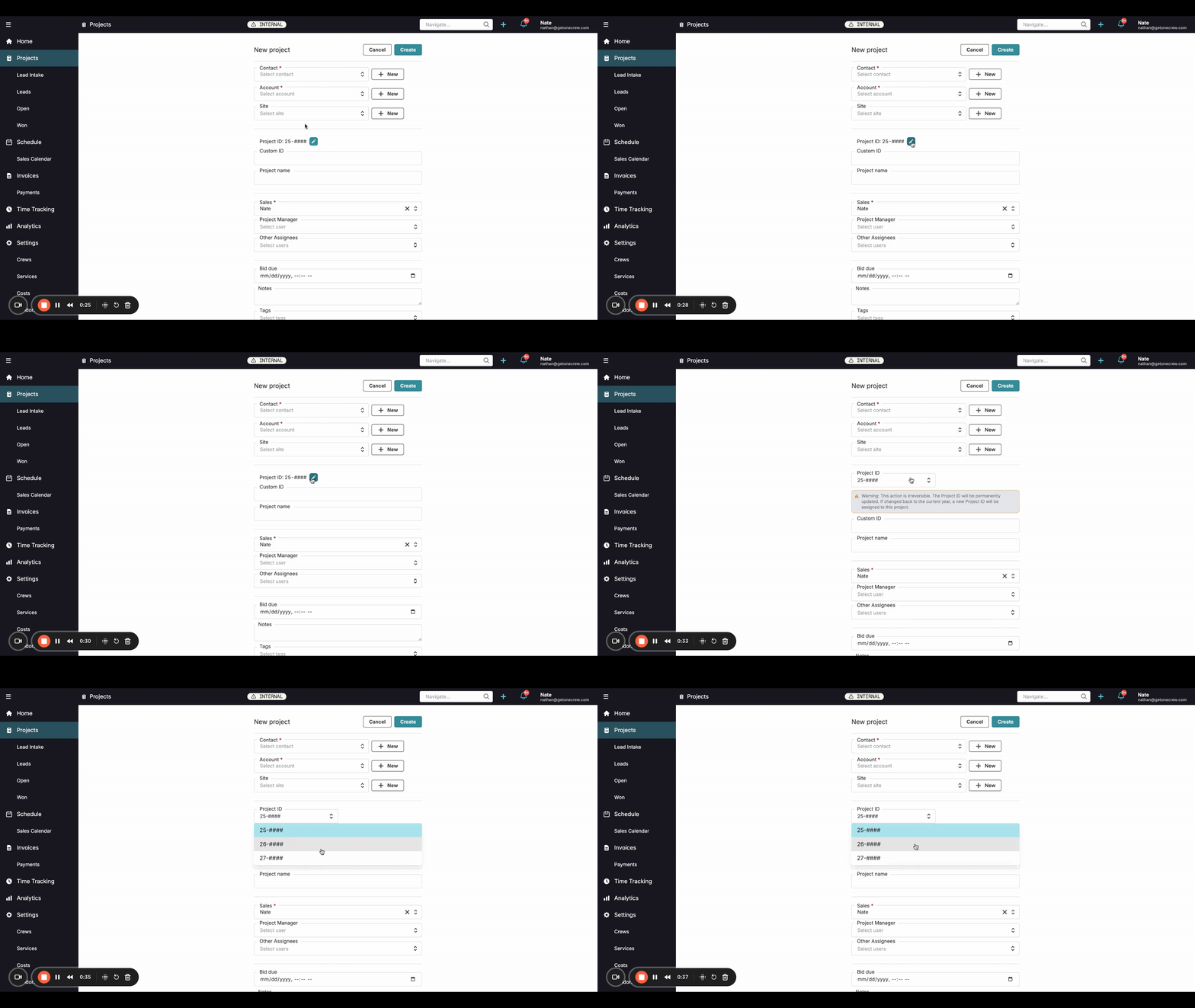
You can change the Project ID year either when creating a new project or by editing an existing one. The Project ID typically follows a "YY-####" format, where "YY" is the year.
Method 1: Setting the Project ID Year for a New Project
When initiating a new project, you can define its Project ID year from the outset.
Navigate to the project creation area. Click the + (plus) icon in the top right corner and select New project.
On the New project form, locate the Project ID field. By default, it will show the current year (e.g., "25-####" for 2025).
Click the pencil icon next to the displayed Project ID. This will make the field editable and reveal a dropdown arrow.
Click the dropdown arrow. You will see options for the current year and up to two future years (e.g., "25-####", "26-####", "27-####").
Select the desired year prefix for your new project. For example, if you are creating a project for next year, choose "26-####".
A warning will appear: "Warning: This action is irreversible. The Project ID will be permanently updated. If changed back to the current year, a new Project ID will be assigned to this project."
Fill in the remaining project details and click Create. The project will be assigned the next available sequential ID for the selected year.
Method 2: Modifying the Project ID Year for an Existing Project
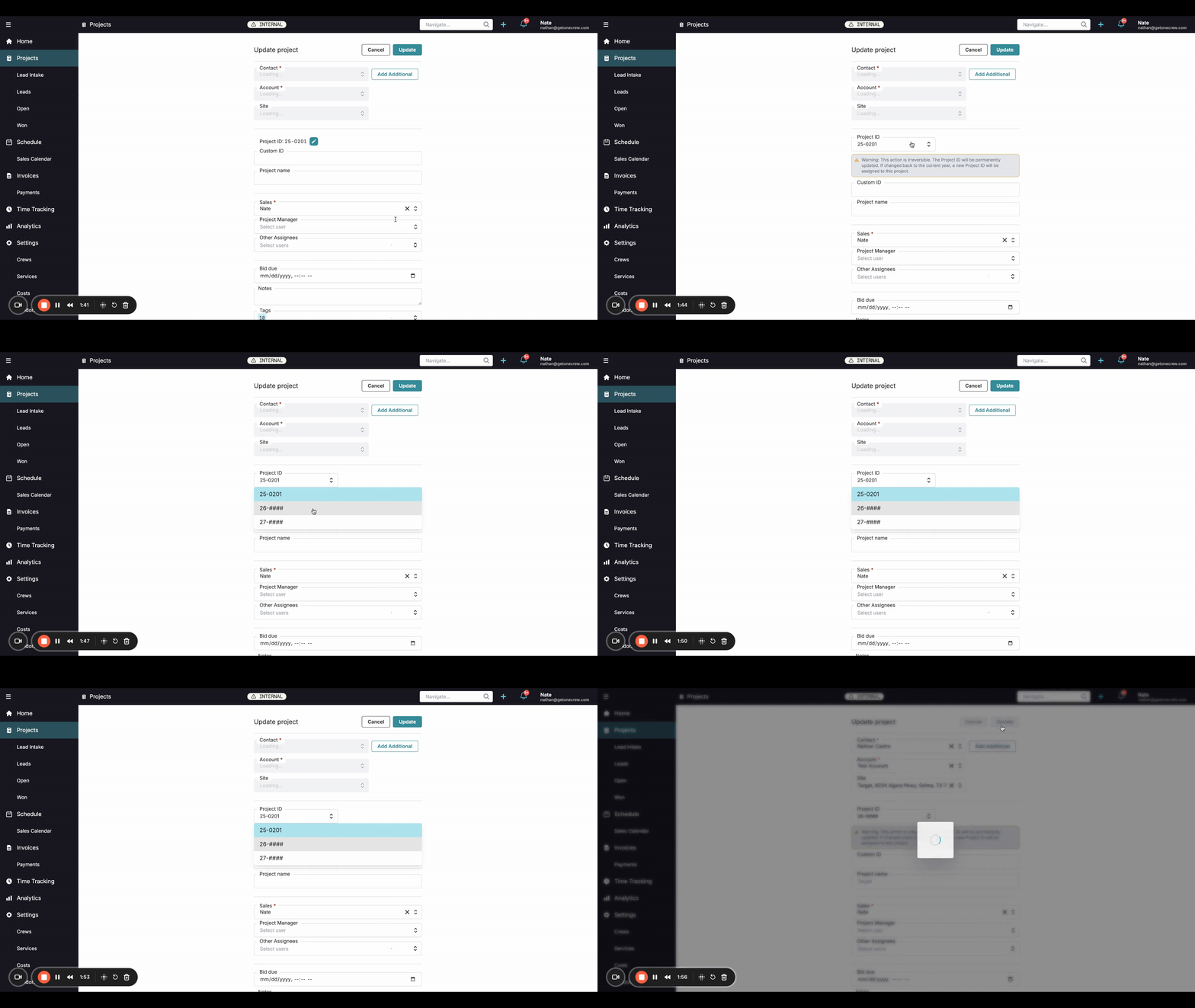
If a project already exists, you can still adjust its Project ID year.
Open the existing project you wish to modify. For example, a project with ID "25-0201".
Click the pencil icon (Edit) in the top right corner of the project details page to open the Update project form.
Locate the Project ID field (e.g., "25-0201").
Click the pencil icon next to the Project ID.
Click the dropdown arrow and select the new desired year (e.g., "26-####"). The system will show the next available project number for that year.
The same warning about irreversibility will be displayed.
Click Update. The project's ID will change to reflect the new year and the next available sequential number for that year (e.g., "26-0001" if it's the first project for that year, or the next in sequence if others exist).
Pro Tip: Always double-check the selected year before saving, as changing the Project ID year is an irreversible action that assigns a new ID.
Troubleshooting
Understanding how Project ID year changes affect numbering is key to avoiding confusion.
Irreversible Action: Once you change the Project ID year and save, the original Project ID is not retained. If you change it to "26-####" and then decide to change it back to "25-####", it will not revert to its original "25-####" number.
Next Available ID: When you change the year (either to a future year or back to a previous/current one), the system assigns the next available sequential Project ID for that selected year. For example, if "25-0201" is changed to year 26, it might become "26-0001". If then changed back to year 25, it will not become "25-0201" again but will take the next unused ID for year 25, such as "25-0229" (as shown in the video example).
Planning Future Projects: If you're setting up projects for a future year, this feature ensures they start with the correct year prefix and numbering sequence for that upcoming year.