Adding New Leads When Creating Projects
Last updated: August 7, 2025
Watch a Video Demo Here
Overview
Creating new projects is a cornerstone of managing your work, but what happens when the primary contact or account for your project isn't yet in the system? This tutorial provides a step-by-step guide on how to efficiently create a new project while simultaneously adding new contacts and accounts directly within the project creation form. This integrated approach saves time and ensures your project data is comprehensive from the very beginning.
Insight: Seamlessly creating contacts and accounts during project setup eliminates the need to navigate to separate modules, streamlining your workflow and ensuring data consistency from the outset.
Step-by-Step Instructions
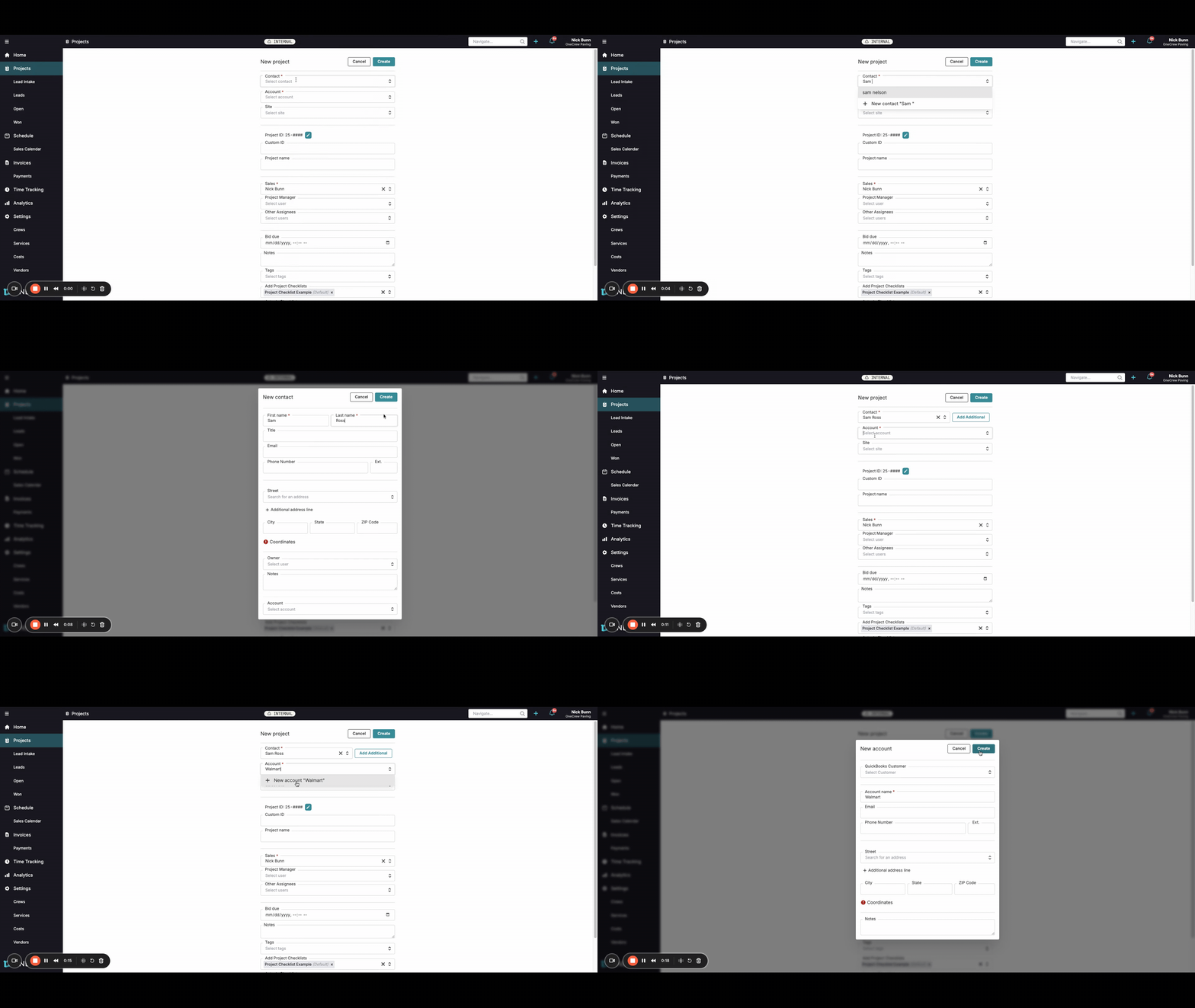
Edit animation
Follow these steps to create a new project and add associated contacts or accounts if they don't already exist in your system.
Initiate Project Creation: Navigate to the Projects section. From here, start the process of creating a new project. You will be directed to the New project form.
Add or Create a Project Contact:
Locate the Contact * field (this field is mandatory). Begin typing the name of the contact for this project.
If the contact doesn't exist, an option such as + New contact "[Your Typed Name]" will appear in the dropdown. Click this option.
The New contact pop-up window will open. Enter the contact's First name and Last name. You can also fill in other details like Title, Email, and Phone Number if available.
Click the Create button within the pop-up. The newly created contact will now be automatically selected in the Contact * field on the project form.
Add or Create a Project Account:
Move to the Account * field (also mandatory). Start typing the name of the account associated with this project.
If the account is not found, select the + New account "[Your Typed Name]" option from the dropdown.
The New account pop-up will appear. The Account name * field will likely be pre-filled with the name you typed. Confirm or edit this as needed.
Click the Create button in the pop-up. The new account will be selected in the Account * field.
Pro-tip: Before creating a new contact or account, always type the first few letters of the name and pause. The system will search for existing entries, helping you avoid creating duplicate records.
Complete Other Project Details:
Fill in the remaining fields on the New project form. This typically includes:
Project name: A descriptive name for your project.
Project ID: This may be auto-generated (e.g., ZS-####) or you can toggle Custom ID to enter your own.
Sales: Assign the relevant sales representative.
Project Manager: Select the user responsible for managing the project.
Bid due: Enter the deadline for any bids, if applicable.
Notes: Add any relevant notes or details about the project.
Tags: Apply relevant tags for organization and filtering.
Add Project Checklists: Select any predefined checklists to attach to the project.
Finalize Project Creation:
Review all the information you've entered for accuracy.
Click the Create button, usually located at the top right of the New project form.
Your new project, along with any newly created contacts and accounts, will be saved and become active in the system.
Troubleshooting
Contact or Account Already Exists: If, while typing in the Contact or Account field, the individual or company you're looking for appears in the suggested list, simply click on their name to select them. This prevents the creation of duplicate entries.
Missing Required Fields: If you attempt to create the project without filling in all mandatory fields (often marked with an asterisk, like Contact * or Account *), the system will usually prevent submission and highlight the fields that require attention. Fill in the indicated information and try clicking Create again.
Accidentally Started Creating a New Contact/Account: If you clicked the + New contact or + New account option but then realized the entry already exists, you can typically click Cancel in the pop-up window and then select the existing entry from the main project form.